![SDL - 2025 New Logo.png]](https://help.getsdl.com/hs-fs/hubfs/SDL%20-%202025%20New%20Logo.png?height=40&name=SDL%20-%202025%20New%20Logo.png)
New to the SDL Client Admin Tool? Start with How to Access and Use the SDL Client Admin Tool for how to log in and find your way around.
Use this when a staff member in your town has forgotten their password or cannot reset it themselves. This article covers generating a new password and resetting it in the tool.
Before You Begin
You will need:
- Town Admin access in the SDL Client Admin Tool.
- The user's name or username.
- A secure way to reach the user directly, such as their phone number.
- About two minutes.
Heads up: Never send a temporary password by email or an unencrypted message. Always share it verbally over the phone or through another secure channel.
Step 1: Find and select the user
Search for the user by name or username, or load your town group from the dropdown and browse the list. Click on their name to select them. This activates the action buttons at the bottom of the screen. See Find the user you need if you want a closer look at search and browse.
Step 2: Generate the new password
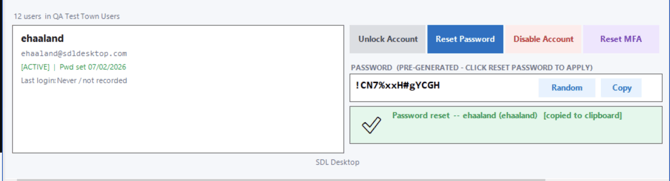
A pre-generated secure password appears in the Password field at the bottom of the screen as soon as you select the user. Click Random if you want a different one, or Copy to copy it to your clipboard.
Step 3: Reset the password
Click Reset Password. A confirmation prompt appears. Read the new password to the user over the phone, or share it through another secure channel, then click Yes to confirm.
Step 4: Share the new password securely
Once you click Yes, a green confirmation message appears at the bottom of the screen confirming the password was reset. Give the new password to the user the same way you confirmed it, verbally or through another secure channel, so they can log in right away.

Troubleshooting
I reset the password, but the user still cannot log in. Confirm you gave them the exact password shown. Passwords are case-sensitive, so a small typo when reading it aloud will block the login. Also check whether the account shows a [D] indicator. If it is disabled, use Enable Account first, then have them try again.
Reset Password is greyed out. Make sure you have a user selected in the list. The action buttons only activate once a user is selected.
I am still having trouble. Email support@getsdl.com and we will walk through it with you.