![SDL - 2025 New Logo.png]](https://help.getsdl.com/hs-fs/hubfs/SDL%20-%202025%20New%20Logo.png?height=40&name=SDL%20-%202025%20New%20Logo.png)
The SDL Client Admin Tool lets designated Town Administrators handle routine account tasks for their own town, resetting passwords, unlocking accounts, enabling or disabling accounts, and resetting multi-factor authentication (MFA), without opening a ticket with SDL Desktop support. This article covers how to access the tool and find your way around it
Before You Begin
You will need:
- Town Admin access, granted by SDL Desktop. This means you have been added to the Client Town Admins security group and to your town's user group (for example, Marlboro Users). Both are required. If you are not sure whether you have this, contact SDL Desktop.
- The Parallels RAS Client installed and set up on your computer. See How to Install the Parallels Client for SDL Desktop.
- Your normal domain username and password, plus your multi-factor authentication (MFA) method ready. Logging in to Parallels to reach this tool requires MFA the same way logging in to any other published SDL Desktop application does.
- About five minutes.
Heads up: Town Admin access should only be given to trusted, senior staff. Every action taken in the tool is recorded in a secure audit log that SDL Desktop can review at any time. See Audit logging below.
Step 1: Log in to Parallels
Open the Parallels Client on your computer, or go to your SDL Hosting portal in a browser. Log in with your town administrator credentials, your normal domain username and password, and complete MFA when prompted. This is the same login you already use to reach your town's hosted desktop.
Step 2: Launch the SDL Client Admin Tool
Find the SDL Client Admin Tool in your list of published applications and click to launch it.
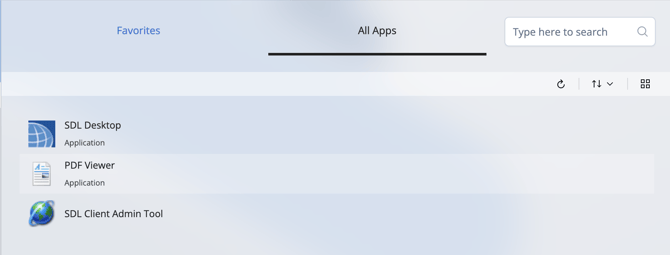
The tool opens automatically. Once it is open, check the header bar at the top of the window. It shows your login name and the town or towns you are scoped to, for example, "Scoped to: Marlboro Users."
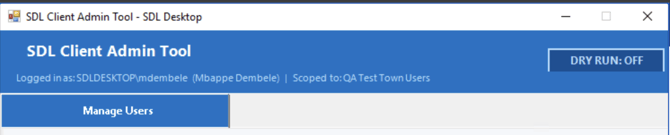
If you see a message that says "NO TOWNS ASSIGNED," you have been added to the Client Town Admins group but not yet assigned to a town group. Contact SDL Desktop to resolve this.
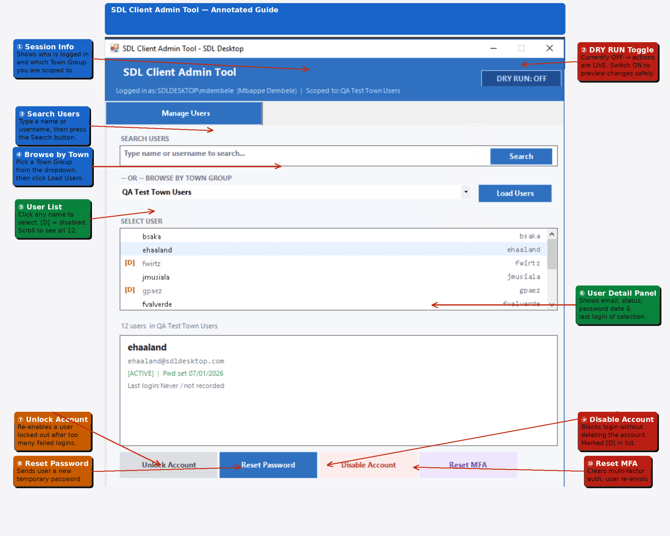
Here is a labeled view of the full interface for reference before you dive into finding and managing users:
Step 3: Find the user you need
You can find a user two ways. Type their name or username into the search box at the top of the main panel and click Search.
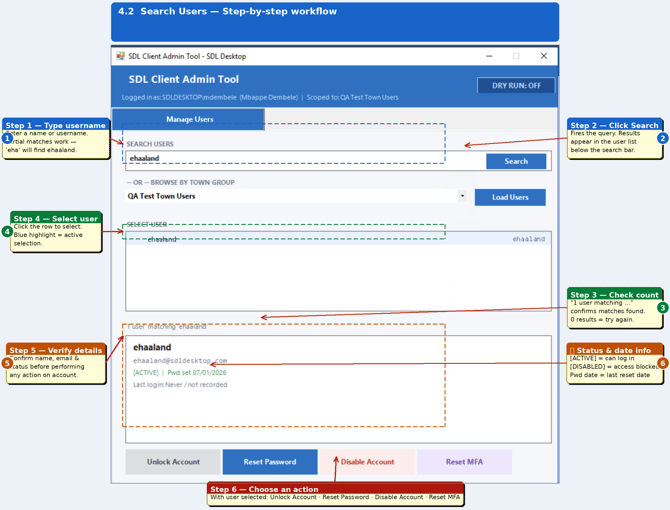
Or select your town group from the dropdown and click Load Users to see everyone in your town at once.
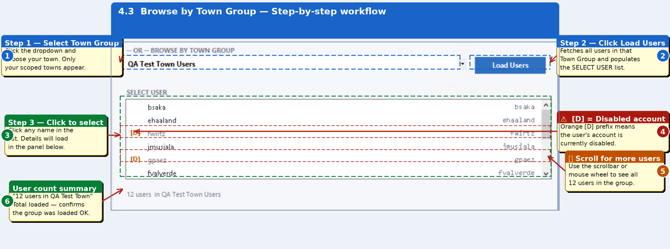
Each row in the user list shows the person's display name and username. Watch for status indicators next to a name: [L] in red means the account is currently locked out, and [D] in orange means the account is currently disabled. No indicator means the account is active.
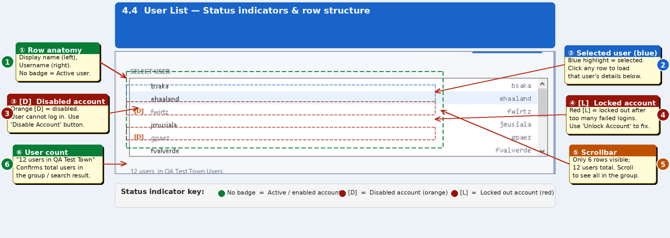
Step 4: Review a user's details
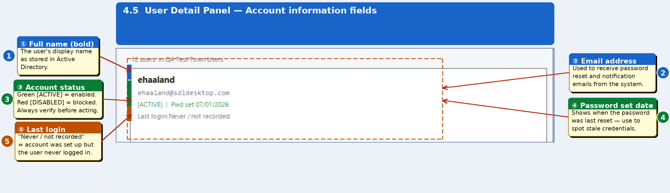
Click on a user in the list to open their details in the panel on the right. This shows their full name and email address, account status, the date their password was last set, and their last login date and time. Selecting a user also activates the action buttons at the bottom of the screen for the tasks you are allowed to perform.
Dry Run mode
The Dry Run toggle sits in the header bar. Turn it on and the tool walks through the full confirmation process for any action without actually applying it. It is useful for training new Town Administrators, double-checking that you have the right user selected before making a real change, or demonstrating the tool without risk.

Heads up: Always confirm Dry Run is off before you perform a real action. When it is on, the button reads "DRY RUN: ON" and the result message is prefixed with [DRY RUN]. If you meant to make a real change and see that prefix, nothing was actually applied and you will need to repeat the action with Dry Run off.
Audit logging
Every action taken in the SDL Client Admin Tool is recorded automatically in a secure audit log: the date and time, which Town Administrator performed it, the action taken (for example, PasswordReset, AccountDisabled, or MFAReset), and which user it was performed on. This log lives on the SDL Desktop server, is accessible only to SDL Desktop administrators, and cannot be modified or deleted by Town Administrators. SDL Desktop may review it periodically and reserves the right to investigate unusual activity.
Security boundaries
The tool enforces strict boundaries at the system level. As a Town Admin, you can reset passwords, enable or disable accounts, unlock accounts, reset MFA, and view user details, all limited to your own town's users. You cannot access or manage users from other towns, create or delete accounts, modify group memberships, or reach any other SDL Desktop system through this tool.
Troubleshooting
The tool says "Access Denied" when I open it. Your account has not been added to the Client Town Admins group yet. Contact SDL Desktop to request access.
I can open the tool, but it says "NO TOWNS ASSIGNED." You have been added to the access group but not yet assigned to a town group. Contact SDL Desktop to be added to your town group.
The tool is not showing all of my town's users. Make sure you clicked Load Users after selecting your town group from the dropdown. If users are still missing, they may not be added to the town group yet. Contact SDL Desktop.
I am still having trouble. Email support@getsdl.com and we will walk through it with you