![SDL - 2025 New Logo.png]](https://help.getsdl.com/hs-fs/hubfs/SDL%20-%202025%20New%20Logo.png?height=40&name=SDL%20-%202025%20New%20Logo.png)
Prerequisite: Municipality must be enrolled in email MFA on the SDL back end (confirm with your CSM)
In this article:
- Before You Begin
- One-Time Setup
- Logging in after setup
- Troubleshooting
- Key Takeaways
- Related resources
New to MFA or wondering why we are rolling this out? Start with What Local Governments Need to Know.
If your municipality prefers not to use personal phones for multi-factor authentication, email-based MFA is a supported alternative. Instead of opening an authenticator app, you will receive a one-time code at your work email address each time you log in to SDL Desktop. This option is configured by our team on a per-municipality basis.
For the standard authenticator-app setup, see How to Set Up and Use Multi-Factor Authentication (MFA) for SDL Desktop.
Before You Begin
Confirm that your municipality is enrolled in email MFA before your first login. If you are not sure, please reach out to your CSM or to support@getsdl.com. Once your town is enrolled, no setup is required on your end. The system will use the email address already on file for your SDL Desktop user account.
You will need:
- Your SDL Desktop username and password
- Access to the work email address you want verification codes sent to
- The Parallels Client already installed on the workstation
- About five minutes for the first-time setup
Heads up: Email MFA is a strong second factor for most users, but it is not the most secure option available. Because the code is delivered to your work email on the same computer you use to log in, an attacker who has already compromised your computer may also have access to your inbox. For the strongest protection, we recommend using an authenticator app on a separate device, such as a smartphone. Email MFA is the right choice if a separate device is not practical for your team, and it is still meaningfully better than no MFA at all.
One-Time Setup
The first time you log in after your municipality is enrolled, you will adjust your Parallels Client connection string to point at the email-MFA endpoint and register the email address where codes should be sent. After this one-time setup, the connection setting persists and you only need to enter your code at each login.
Step 1: Open the Parallels Client and start a connection
Launch the Parallels Client. You will see the Connections window listing your saved SDL Desktop connection (named after your server, for example ps-1.sdldesktop.com). Double-click the connection to start signing in.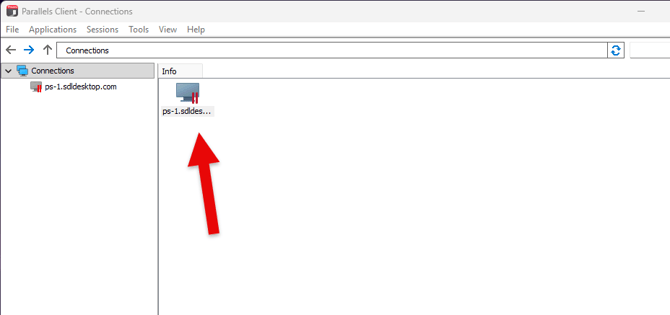
(You may also see the screen below. If so, click Connect to open the login dialog.) 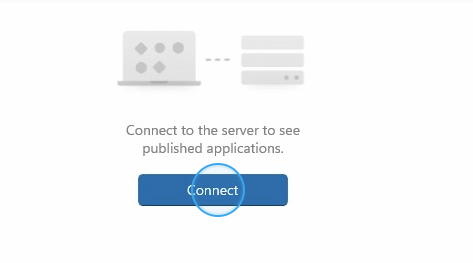
Step 2: Cancel the Authenticator prompt
Because your saved connection is configured for authenticator-app MFA by default, the first dialog you see is a Log In window with Type: Authenticator and a blank OTP field, asking you to check your authenticator application for a code. You do not have an authenticator code, and you do not need one for email MFA. Click Cancel to close this prompt.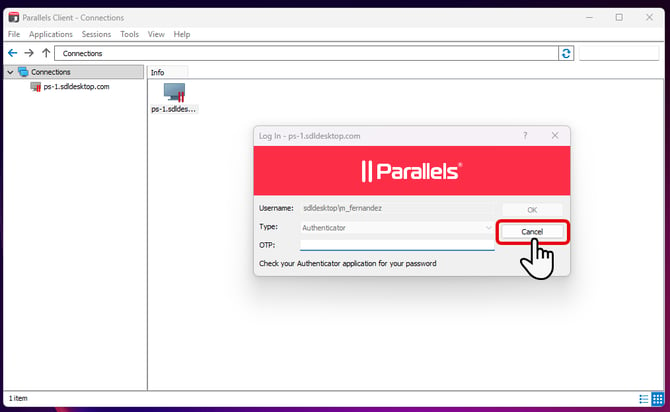
The Parallels Client will then open the standard credentials login dialog, which is what you will use to enable email MFA in the next step.
Step 3: Click Options to expand the login dialog
The credentials dialog opens in its compact view, showing only Authentication type (set to Credentials), Username, and Password. In the bottom-right corner of the dialog, click Options >> to reveal the advanced connection settings.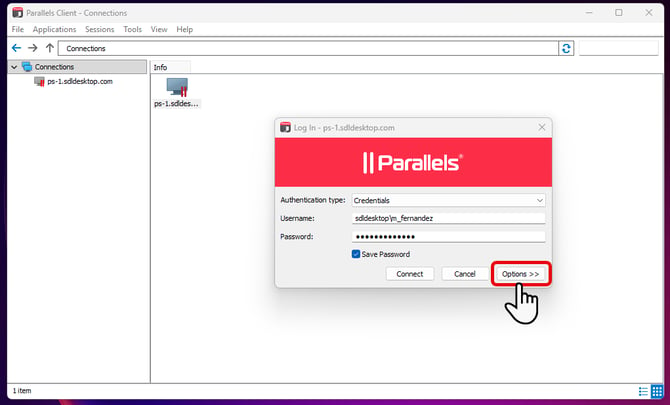
Step 4: Click into the Primary connection field
The expanded view shows several new fields, including Domain, Primary connection, Connection mode, and Port. Click into the Primary connection field so the cursor sits at the end of the existing value (your server address, for example ps-1.sdldesktop.com).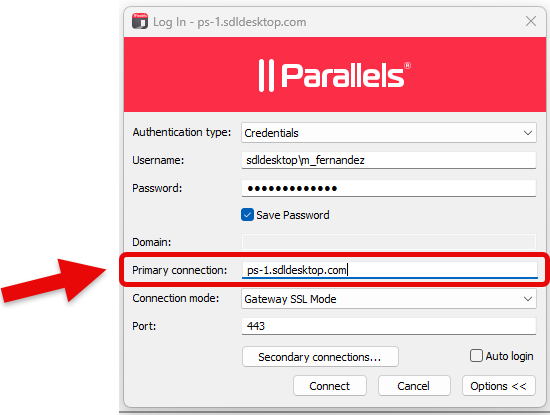
Step 5: Append /email_mfa to the Primary connection
At the end of the existing Primary connection value, type the following exactly: /email_mfa. The Primary connection field should now read something like ps-1.sdldesktop.com/email_mfa. Watch the slash and the underscore carefully; both are required, and the text is case-sensitive.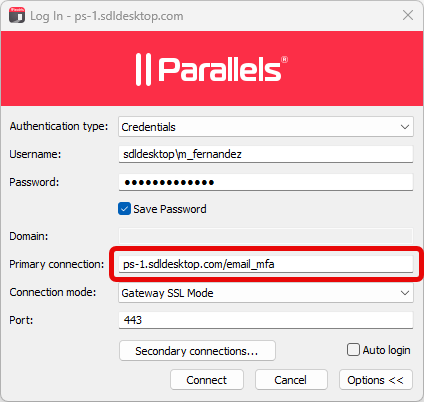
Step 6: Confirm your password is entered
Double-check that your SDL Desktop password is still in the Password field. Editing other fields sometimes clears it; if that happened, type your password back in. Leave Save Password checked if you want the client to remember it.
Step 7: Click Connect and register your email
With the Primary connection ending in /email_mfa and your password in place, click Connect.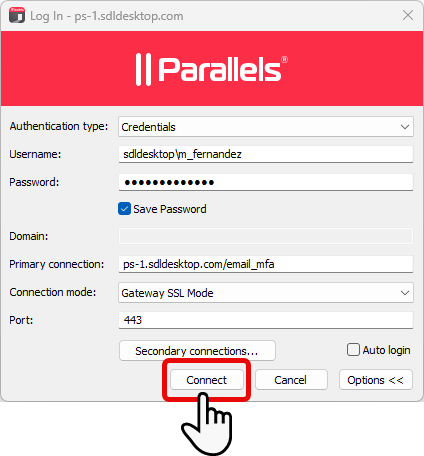
Because this is the first time you have signed in with email MFA enabled, the client opens a Register Email dialog and asks for the preferred email address where verification codes should be sent. Enter the address and click OK.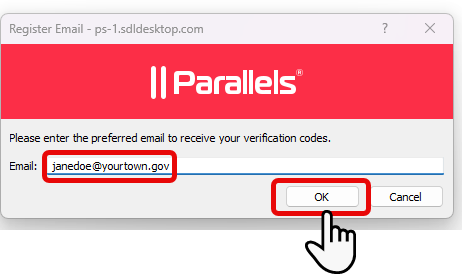
Logging in after setup
Each time you sign in to SDL Desktop after the one-time setup, you will use your password plus a six-digit code sent to your registered work email. The full flow is:
- Open the Parallels Client and double-click your saved connection. The connection string from setup is already saved, so no Options changes are needed.
- Enter your username and password. Sign in with your usual SDL Desktop credentials, then click Connect.
- Check your work email for the six-digit code. A one-time code will be sent to the email address you registered. Open your inbox and look for a new message from SDL Desktop containing the code.
- Enter the code and log in. Type or paste the six-digit code into the verification field in Parallels and click Log In.
- Access your desktop. You are signed in. Your applications appear and you can launch your SDL Desktop session.
Troubleshooting
I did not receive the email. Wait up to two minutes. Check your Junk or Spam folder. If your municipality has an email filter, confirm with your IT contact that messages from SDL are not being blocked. If the email still does not arrive, click Resend code on the login screen or contact support@getsdl.com.
The code I entered is not working. Make sure you are using the most recent code. Codes expire after a short window, so if you waited too long, start the login again to receive a new one. Check that you did not include any extra spaces if you copied and pasted.
I changed my email address. Contact support@getsdl.com to update the email address on your user account.
I cannot access my work email right now. You will need access to your work email to log in with this method. If your email is temporarily down, please wait for it to be restored. If it is permanently inaccessible, contact SDL Support and we can help you switch to a different MFA method.
Key Takeaways
- Email MFA is a phone-free alternative to authenticator apps, configured by SDL on a per-municipality basis.
- No user-side setup is required. Once enrolled, the email prompt appears automatically.
- A new six-digit code is sent to your work email at every login.
- For stronger security, an authenticator app on a separate device is recommended. Email MFA on the same computer is convenient, but a compromised computer may also mean a compromised inbox.
- If your code or email is not working, contact support@getsdl.com.
Related Resources
- Main MFA setup guide: How to Set Up and Use Multi-Factor Authentication (MFA) for SDL Desktop — the authenticator-app version of MFA, recommended for the strongest security.
- Email MFA reference: How to Set Up and Use Email MFA for SDL Desktop — the original email-based MFA article.
- MFA education: Multi-Factor Authentication: What Local Governments Need to Know — background on why we use MFA and how it protects your municipality.
- Parallels install: How to Install the Parallels Client for SDL Desktop — the client you need before you can complete this setup.
- Chrome extension MFA: How to Set Up Multi-Factor Authentication (MFA) With the Google Chrome Browser Extension — set up MFA using an authenticator extension in Chrome.
- Edge extension MFA: How to Set Up Multi-Factor Authentication (MFA) With the Microsoft Edge Authenticator Extension — set up MFA using an authenticator extension in Microsoft Edge.
- Support: Email support@getsdl.com.