![SDL - 2025 New Logo.png]](https://help.getsdl.com/hs-fs/hubfs/SDL%20-%202025%20New%20Logo.png?height=40&name=SDL%20-%202025%20New%20Logo.png)
New to the SDL Client Admin Tool? Start with How to Access and Use the SDL Client Admin Tool for how to log in and find your way around.
Use this when a staff member in your town gets a new phone, loses access to their authenticator app, or cannot log in because their multi-factor authentication (MFA) is not working. This article covers clearing their existing MFA registration so they can re-enroll.
Before You BeginYou will need:
- Town Admin access in the SDL Client Admin Tool.
- The user's name or username.
- About one minute.
Step 1: Select the user
Search for the user by name or username, or load your town group from the dropdown and browse the list. Click on their name to select them. See Find the user you need (Step 3) if you want a closer look at search and browse.
Step 2: Reset MFA
Click Reset MFA in the action buttons. A confirmation prompt appears showing the user's name.
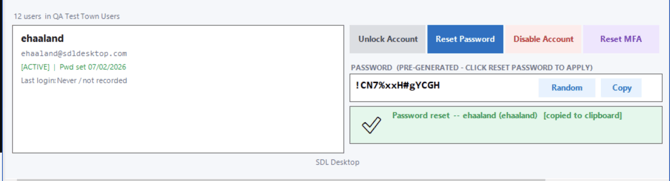
Click Yes to confirm. The tool connects to the MFA system and clears the user's existing MFA registration.
Step 3: Tell the user what happens next
A green confirmation message appears once the reset completes. Let the user know they will be prompted to set up MFA again the next time they log in.

Troubleshooting
The tool says "No TOTP registration found." This is not an error. The user has never set up MFA, or it was already reset, so there is nothing to clear. They can go ahead and log in to set up MFA for the first time.
The tool says "Could not connect to RAS server." There may be a temporary connectivity issue with the MFA system. Wait a few minutes and try again. If it keeps happening, email support@getsdl.com.
I am still having trouble. Email support@getsdl.com and we will walk through it with you.