![SDL - 2025 New Logo.png]](https://help.getsdl.com/hs-fs/hubfs/SDL%20-%202025%20New%20Logo.png?height=40&name=SDL%20-%202025%20New%20Logo.png)
This guide is a continuation of the following article: https://help.getsdl.com/sdl-hosting-guide-for-users-coming-from-geoclient
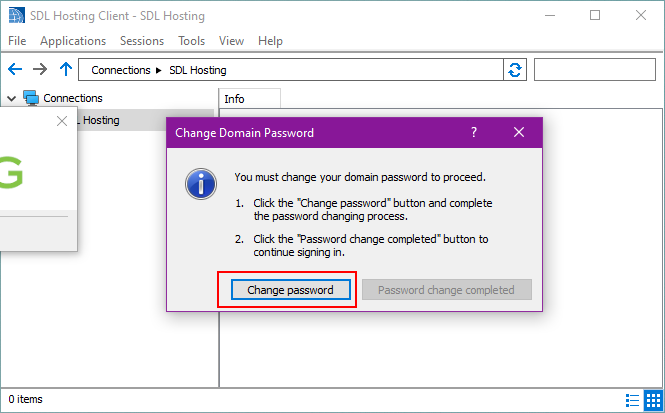
When you enter the temporary password provided by IT, you will see the following prompt. Clicking the ‘Change Password’ button will bring you to our password reset website:
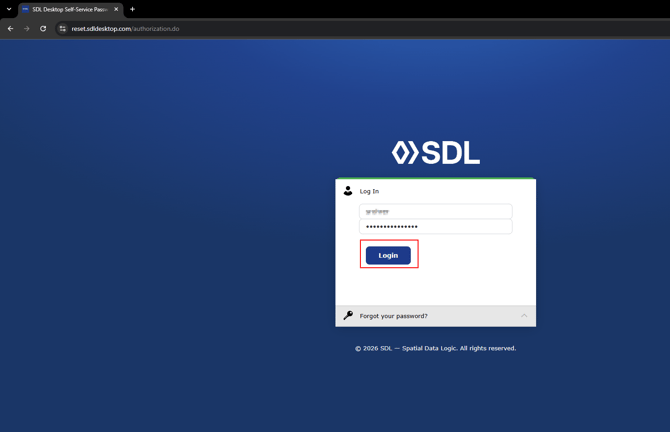
On the website that opens, enter your SDL Hosting username and the temporary password provided by IT or an SDL Support team member. Click the blue Login button to continue. Please note that the ‘Forgot your Password?’ button will not work until you are enrolled. If the password or username you are entering is not working, please reach out to your IT team or SDL Support.
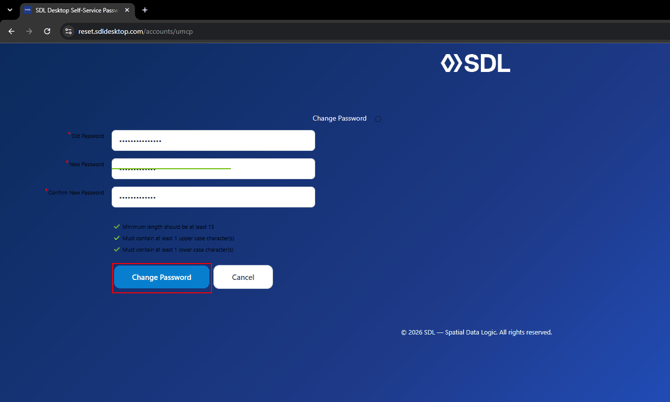
Once logged in successfully, fill in the following fields:
- Old Password: Enter the temporary password used in the previous step.
- New Password: Enter a new password for your SDL Hosting account
- Confirm New Password: Enter the same password for confirmation.
For your SDL Hosting password, we recommend storing it in a secure password manager rather than writing it down. Also note the password must match the following criteria:
- Must be at least 13 characters long
- Must have at least 1 uppercase and 1 lowercase letter
- Cannot contain your username (Last names often get rejected)
Once complete, select the Change Password button below:
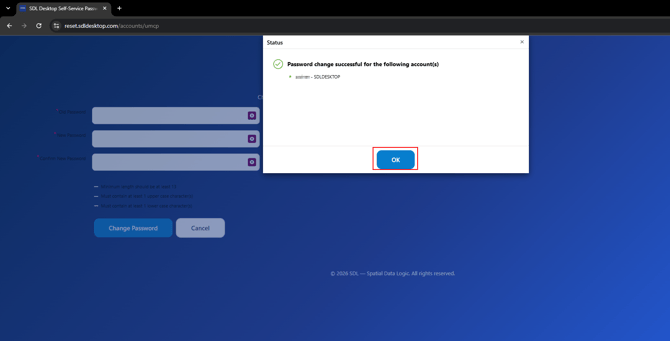
When clicked, a pop-up will appear confirming that the password has been changed. If you see a Red ‘X’ instead of the green checkmark, this means either:
- The current (temporary) password entered is incorrect.
- The new password does not meet the requirements.
- The passwords entered in the 2nd and 3rd boxes do not match.
Once you see the pop-up below, click OK to continue.
To complete enrollment when you get to the screen below, please refer to the following guide: https://help.getsdl.com/how-to-enroll-and-reset-your-parallels-password-for-sdl-desktop
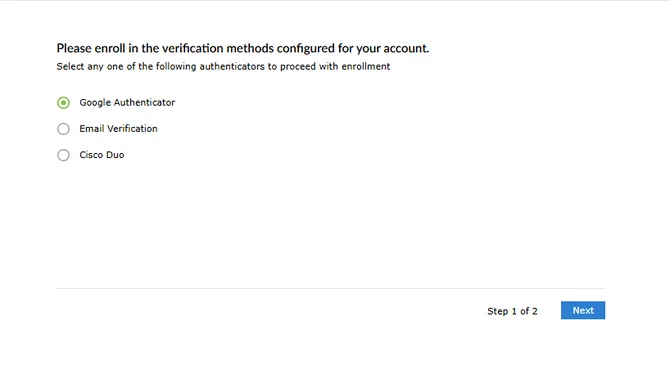
Once enrollment is completed on the website, head back to the SDL Hosting login screen and click ‘Password Change Completed’: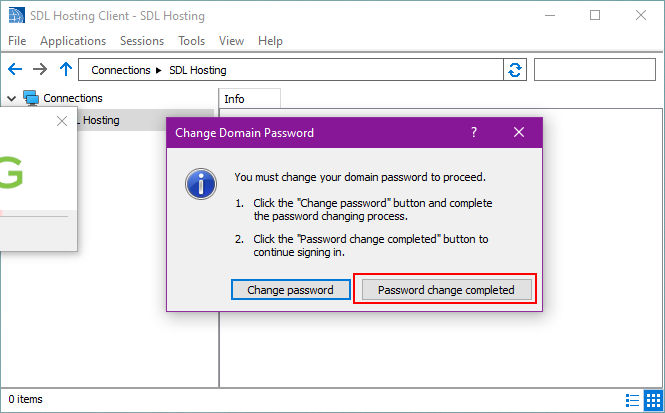
Lastly, enter your new password into the Password box, and ensure the Save Password button is checked.
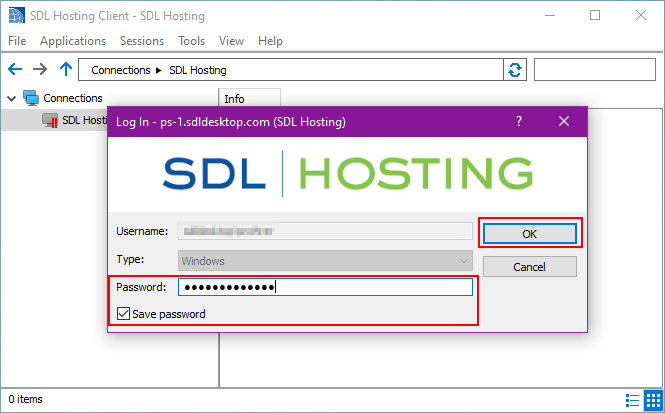
After entering your new password successfully, you will be given a QR code to set up Multi-factor Authentication. See below for additional instructions.
Once all steps above are complete, return to the previous article: https://help.getsdl.com/sdl-hosting-guide-for-users-coming-from-geoclient