![SDL - 2025 New Logo.png]](https://help.getsdl.com/hs-fs/hubfs/SDL%20-%202025%20New%20Logo.png?height=40&name=SDL%20-%202025%20New%20Logo.png)
Purpose: To guide you through updating your fee schedules for the new UCC fee items added to the Electrical and Fire subcodes.
Before you begin![]()
-
Permissions: You need access to Tools > Construction Options.
-
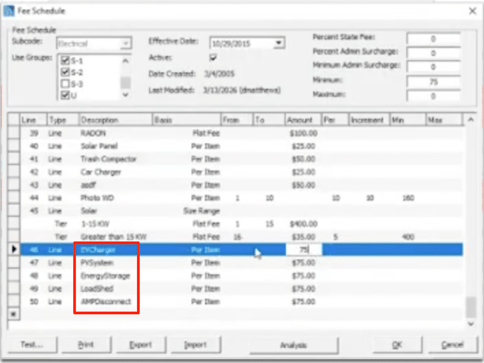
Scope: New UCC fee schedule items have been pre-inserted for the Electrical and Fire subcodes with a default per-item amount of $75. You must set your town’s actual fees.
Exact labels matter. Do not edit the pre-inserted item labels (capitalization, spacing or spelling). Changing labels will break field-to-fee matching.
Navigate to Fee Schedules
-
Open Tools > Construction Options.
-
Select the Subcodes tab.
-
Pick a subcode (e.g., Electrical or Fire). You will see the fee schedule entries, including newly inserted UCC items at the bottom.
New items added for 2026
Electrical
| AMPDisconnect | EVCharger | PVSystem |
| EnergyStorage | LoadShed |
Fire
| CleanAgentSuppression | ERCCSystem | InitiatingDevices |
| DedicatedFireService | ExitSigns | NotificationAppliances |
| DryWetChemical | HazardousExhaust | PortableFireExt |
Update fee amounts (flat/per-item/quantity-based)
-
Open the desired subcode and select the correct fee schedule (by use group if applicable).
-
Locate the new UCC items (as shown above). They will appear with a default per-item fee of $75.
-
Choose the appropriate charge method for your town’s policy.
-
Per item: Enter the amount charged per unit (e.g., per fixture/device).
-
Quantity-based or size-based: Select the calculation mode supported by the item (e.g., by quantity, size, kW range).
-
Tiered: see below.
-
-
If an item supports multiple calculation methods, pick the one that matches your ordinance.
-
Enter your town’s fee amount(s). Save your changes.
Existing permits remain unchanged. New fields and fees will apply to new permits created after this update.
Create tiered fee structures
Tiered fees automatically calculate based on entered numbers (e.g., quantity or size ranges). Use tiers when your ordinance specifies brackets or ranges.
-
From the fee schedule, click on the line of the item you want to tier.
-
Click the Insert button on your keyboard to add a tier.
-
Define each tier with a range and amount (examples below). Save.
Tier examples
-
Quantity tiering: 1–10 units = $X per unit; 11–50 units = $Y per unit; 51+ units = $Z per unit.
-
Size/kW tiering: 0–10 kW = $A; >10–50 kW = $B; >50 kW = $C.
Quality checks before you finish
-
Verify each use group has the correct updated schedule.
-
Scan for unchanged $75 placeholders and replace with your town’s fees.
-
If tiers are configured, confirm ranges don’t overlap or leave gaps.
-
Ensure labels were not altered (capitalization, spacing, spelling).
Troubleshooting
-
New field shows but fee doesn’t calculate: Check that the item label matches the system-inserted string exactly, and that a non-zero fee is set.
-
Permit uses old fields: Only new Desktop permits use the new items. Existing permits retain prior data but can be edited if needed.