![SDL - 2025 New Logo.png]](https://help.getsdl.com/hs-fs/hubfs/SDL%20-%202025%20New%20Logo.png?height=40&name=SDL%20-%202025%20New%20Logo.png)
SDL Redaction Tool - Quick Guide
To get to the SDL Redaction Tool, start in your SDL Desktop, select Tools, and hit the Redaction option in the drop down menu.

Upload your PDF using the Upload button in the top right corner.

Add redactions using the Text/Area redaction button. Click the  arrow to switch between Text and Area redactions.

Double click on a line of text to select it for redaction (you can also click and drag to select longer sections of text). If you’re using area redaction, click and drag to create an area around the content. Text/area highlighted in red (default) is ready to be redacted.

If you make a mistake you can use the Undo/Redo buttons  (standard keyboard shortcuts also work).
Redacted areas will fill in black by default - You can change how redactions appear using the overlay tools. Options in order from left to right: change fill color, insert overlay text, change overlay text color, repeat overlay text, change highlight color, adjust opacity.

Click Apply Redactions to permanently redact the highlighted content.

Download the new redacted PDF locally using the Download button.

Advanced Guide
Access the advanced options sidebar using the Advanced button in the top right corner.

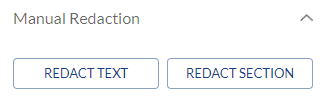
Select between text and area redaction. Double click on a line of text to select it for redaction (you can also click and drag to select longer sections). If you’re using area redaction (Redact Section) click and drag to create an area around the content. Text/area highlighted in red (default) is ready to be redacted.
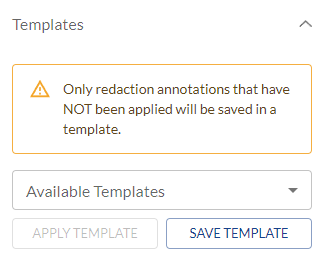
Templates allow you to quickly apply predefined redaction areas. This is useful when redacting standard documents such as UCC reports, copies, etc. You can save the current redactions as a template for future use, or select and apply existing templates to the current file.
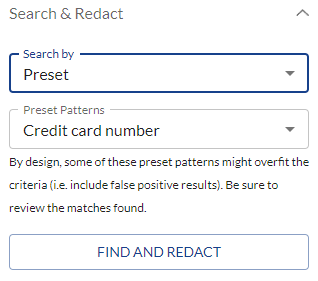
Search & Redact searches for specific items within the file, and highlights them for redaction automatically. You can search by text, or select from preset patterns such as credit card/social security numbers, e-mail addresses, phone numbers, and more. There’s also the option to search by patterns or regular expressions.
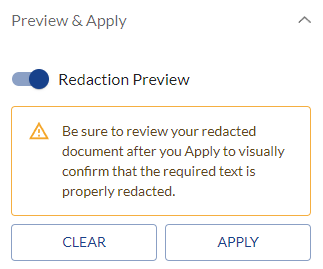
Finally, we’re able to preview the redacted document before applying the permanent redactions. Click the Redaction Preview slider to switch between views. You can continue applying redactions while in preview mode.
Click Apply to permanently redact the highlighted content.
Key
View Tools:
 - Search document for text references
 - Set PDF to fit page
 - Zoom in
 - Zoom out
 - Pan around the PDF manually
 - Change PDF page
 - Switch between thumbnails or outlines, or disable preview sidebar entirely
Overlay Tools:
 - Change redaction fill color
 - Add text to the redaction area
 - Change redaction overlay text color
 - Repeat redaction overlay text
 - Change redaction highlight outline color
 - Change redaction opacity