![SDL - 2025 New Logo.png]](https://help.getsdl.com/hs-fs/hubfs/SDL%20-%202025%20New%20Logo.png?height=40&name=SDL%20-%202025%20New%20Logo.png)
-
To do an unsupervised remote inspection, log into SDL Online. Then, click Inspections from the left-hand menu.
.png?width=629&height=559&name=1_450x400_z-undefined_mz-undefined_mi-1_ti-0_ar-0_cr-0_si-0_fr-0_tb-1_t-_ftc-_ftb-_mc-_mfc-_complete%20(11).png)
-
Double-click the inspection that you would like to invite the contractor to complete on their own.
.png?width=629&height=559&name=2_450x400_z-undefined_mz-undefined_mi-1_ti-0_ar-0_cr-0_si-0_fr-0_tb-1_t-_ftc-_ftb-_mc-_mfc-_complete%20(11).png)
-
Navigate to the Remote tab.
.png?width=629&height=559&name=3_450x400_z-undefined_mz-undefined_mi-1_ti-0_ar-0_cr-0_si-0_fr-0_tb-1_t-_ftc-_ftb-_mc-_mfc-_complete%20(11).png)
-
Click the Create and Send Remote Inspection button in the Unsupervised Inspection section.
.png?width=629&height=559&name=4_450x400_z-undefined_mz-undefined_mi-1_ti-0_ar-0_cr-0_si-0_fr-0_tb-1_t-_ftc-_ftb-_mc-_mfc-_complete%20(11).png)
-
Click Yes
.png?width=629&height=559&name=5_450x400_z-undefined_mz-undefined_mi-1_ti-0_ar-0_cr-0_si-0_fr-0_tb-1_t-_ftc-_ftb-_mc-_mfc-_complete%20(11).png)
-
You can email or text the invite to the contractor. Note: To include instructions, you must use the email option. To do this, enter the contractor's email address in the email field.
.png?width=629&height=559&name=6_450x400_z-undefined_mz-undefined_mi-1_ti-0_ar-0_cr-0_si-0_fr-0_tb-1_t-_ftc-_ftb-_mc-_mfc-_complete%20(9).png)
-
Enter your instructions in the Notes section.
.png?width=629&height=559&name=7_450x400_z-undefined_mz-undefined_mi-1_ti-0_ar-0_cr-0_si-0_fr-0_tb-1_t-_ftc-_ftb-_mc-_mfc-_complete%20(9).png)
-
Click Send Invites
.png?width=629&height=559&name=8_450x400_z-undefined_mz-undefined_mi-1_ti-0_ar-0_cr-0_si-0_fr-0_tb-1_t-_ftc-_ftb-_mc-_mfc-_complete%20(8).png)
-
The contractor will receive an email containing the invite link and instructions.
.png?width=629&height=559&name=9_450x400_z-undefined_mz-undefined_mi-1_ti-0_ar-0_cr-0_si-0_fr-0_tb-1_t-_ftc-_ftb-_mc-_mfc-_complete%20(8).png)
-
To send the invite via text, enter the contractor's phone number in the Phone field.
.png?width=629&height=559&name=10_450x400_z-undefined_mz-undefined_mi-1_ti-0_ar-0_cr-0_si-0_fr-0_tb-1_t-_ftc-_ftb-_mc-_mfc-_complete%20(8).png)
-
Then click Send Invites. The contractor will receive a text message inviting them to take pictures, add notes and digitally sign-off on the inspection.
.png?width=629&height=559&name=11_450x400_z-undefined_mz-undefined_mi-1_ti-0_ar-0_cr-0_si-0_fr-0_tb-1_t-_ftc-_ftb-_mc-_mfc-_complete%20(8).png)
-
Once the contractor finishes their unsupervised inspection, both the contractor and inspector will be notified.
.png?width=629&height=559&name=12_450x400_z-undefined_mz-undefined_mi-1_ti-0_ar-0_cr-0_si-0_fr-0_tb-1_t-_ftc-_ftb-_mc-_mfc-_complete%20(7).png)
-
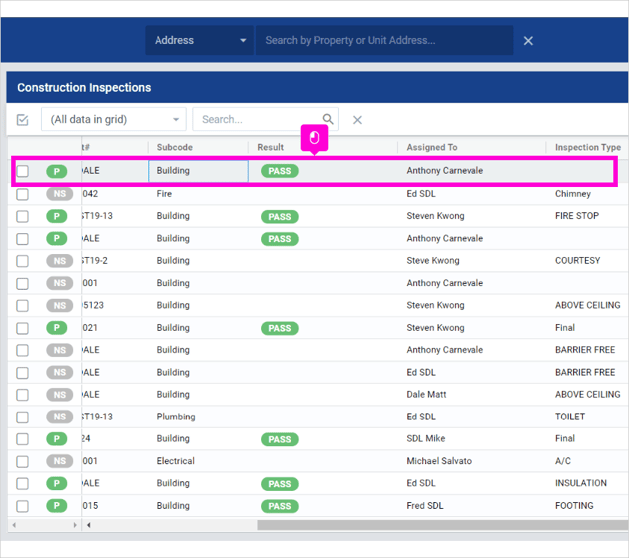
In SDL Online, the inspector can see that the remote inspection has been completed. To review, double-click the inspection.
.png?width=629&height=559&name=13_450x400_z-undefined_mz-undefined_mi-1_ti-0_ar-0_cr-0_si-0_fr-0_tb-1_t-_ftc-_ftb-_mc-_mfc-_complete%20(5).png)
-
A recap of the inspection will appear under the Result Comment section of the Inspection screen.
.png?width=629&height=559&name=14_450x400_z-undefined_mz-undefined_mi-1_ti-0_ar-0_cr-0_si-0_fr-0_tb-1_t-_ftc-_ftb-_mc-_mfc-_complete%20(3).png)
-
You can review the contractor's notes in the Closure tab.
.png?width=629&height=559&name=15_450x400_z-undefined_mz-undefined_mi-1_ti-0_ar-0_cr-0_si-0_fr-0_tb-1_t-_ftc-_ftb-_mc-_mfc-_complete%20(2).png)
-
You can review the contractor's photos in the Related tab.
.png?width=629&height=559&name=16_450x400_z-undefined_mz-undefined_mi-1_ti-0_ar-0_cr-0_si-0_fr-0_tb-1_t-_ftc-_ftb-_mc-_mfc-_complete%20(1).png)
-
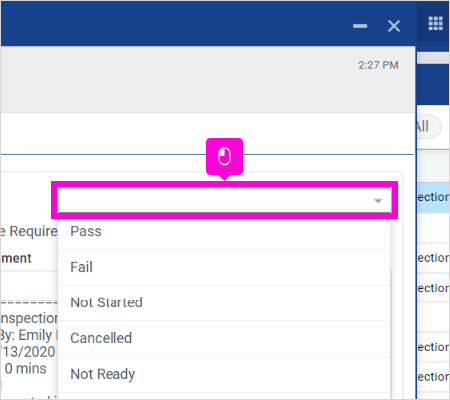
Once you've reviewed the notes and photos, select the inspection result from the drop-down menu in the Inspection tab.
-
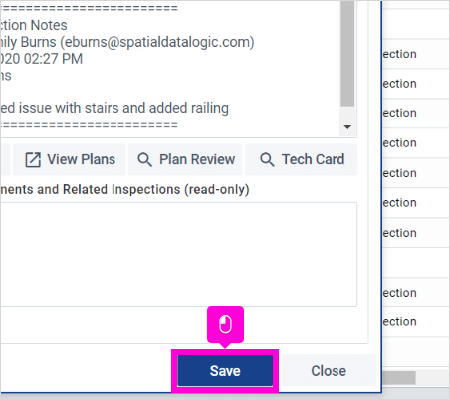
Click Save to complete the process.
-
The inspection will be updated with the inspection result in the data grid.