-
To access Remote Inspections, go to www.sdlportal.com and log in using your Portal credentials. Click the drop-down menu, next to account.
.png?width=461&height=410&name=1_450x400_z-undefined_mz-undefined_mi-1_ti-0_ar-0_cr-0_si-0_fr-0_tb-1_t-_ftc-_ftb-_mc-_mfc-_complete%20(15).png)
-
Select SDL Online from the menu
.png?width=461&height=410&name=2_450x400_z-undefined_mz-undefined_mi-1_ti-0_ar-0_cr-0_si-0_fr-0_tb-1_t-_ftc-_ftb-_mc-_mfc-_complete%20(15).png)
-
On the left-hand side, click Inspections
.png?width=461&height=410&name=3_450x400_z-undefined_mz-undefined_mi-1_ti-0_ar-0_cr-0_si-0_fr-0_tb-1_t-_ftc-_ftb-_mc-_mfc-_complete%20(14).png)
-
Double-click the inspection you would like to do remotely.
.png?width=604&height=537&name=4_450x400_z-undefined_mz-undefined_mi-1_ti-0_ar-0_cr-0_si-0_fr-0_tb-1_t-_ftc-_ftb-_mc-_mfc-_complete%20(14).png)
-
The inspection information will appear for your review.
.png?width=604&height=537&name=5_450x400_z-undefined_mz-undefined_mi-1_ti-0_ar-0_cr-0_si-0_fr-0_tb-1_t-_ftc-_ftb-_mc-_mfc-_complete%20(14).png)
-
If you want to add checklists, click the Add button at the bottom of the Check Lists tab.
.png?width=604&height=537&name=6_450x400_z-undefined_mz-undefined_mi-1_ti-0_ar-0_cr-0_si-0_fr-0_tb-1_t-_ftc-_ftb-_mc-_mfc-_complete%20(12).png)
-
Pick the checklist you want to use. Note: You can select more than one. Once done, hit the Select button at the bottom.
.png?width=461&height=410&name=7_450x400_z-undefined_mz-undefined_mi-1_ti-0_ar-0_cr-0_si-0_fr-0_tb-1_t-_ftc-_ftb-_mc-_mfc-_complete%20(12).png)
-
Use the Check All button to select all checklist steps, or manually select the checklist items you would like to appear. When done, click the Save button at the bottom.
.png?width=461&height=410&name=8_450x400_z-undefined_mz-undefined_mi-1_ti-0_ar-0_cr-0_si-0_fr-0_tb-1_t-_ftc-_ftb-_mc-_mfc-_complete%20(11).png)
-
To begin the inspection, click on the Remote tab.
.png?width=461&height=410&name=9_450x400_z-undefined_mz-undefined_mi-1_ti-0_ar-0_cr-0_si-0_fr-0_tb-1_t-_ftc-_ftb-_mc-_mfc-_complete%20(11).png)
-
Click Start Remote Inspection
.png?width=461&height=410&name=10_450x400_z-undefined_mz-undefined_mi-1_ti-0_ar-0_cr-0_si-0_fr-0_tb-1_t-_ftc-_ftb-_mc-_mfc-_complete%20(11).png)
-
Click Start Inspection
-1.png?width=461&height=410&name=11_450x400_z-undefined_mz-undefined_mi-1_ti-0_ar-0_cr-0_si-0_fr-0_tb-1_t-_ftc-_ftb-_mc-_mfc-_complete%20(11)-1.png)
-
Enter the email or phone number of the contractor to invite them to begin the inspection.
.png?width=461&height=410&name=12_450x400_z-undefined_mz-undefined_mi-1_ti-0_ar-0_cr-0_si-0_fr-0_tb-1_t-_ftc-_ftb-_mc-_mfc-_complete%20(10).png)
-
Then click the Send Invites button. Note: If you prefer to send the invite manually, you can copy the invite link at the top.
.png?width=461&height=410&name=13_450x400_z-undefined_mz-undefined_mi-1_ti-0_ar-0_cr-0_si-0_fr-0_tb-1_t-_ftc-_ftb-_mc-_mfc-_complete%20(8).png)
-
Once the contractor has joined, you will see their camera view. The inspection status at the top will also change to In Progress. You can begin interacting with the contractor.
.png?width=604&height=537&name=14_450x400_z-undefined_mz-undefined_mi-1_ti-0_ar-0_cr-0_si-0_fr-0_tb-1_t-_ftc-_ftb-_mc-_mfc-_complete%20(6).png)
-
The Transcript tab will show a time-stamped log of all notes and photos. Throughout the inspection, you can also reference any digital plans and the checklists you added on the Plans and Checklists tabs.
.png?width=604&height=537&name=15_450x400_z-undefined_mz-undefined_mi-1_ti-0_ar-0_cr-0_si-0_fr-0_tb-1_t-_ftc-_ftb-_mc-_mfc-_complete%20(4).png)
-
Inspectors can take pictures remotely using the photo capture button. Any pictures will appear on both the Transcript and Photo tabs.
.png?width=461&height=410&name=16_450x400_z-undefined_mz-undefined_mi-1_ti-0_ar-0_cr-0_si-0_fr-0_tb-1_t-_ftc-_ftb-_mc-_mfc-_complete%20(2).png)
-
Notes can be entered into the text box located at the bottom of the Transcript tab. These notes will be time-stamped and logged along with any photos.
.png?width=604&height=537&name=17_450x400_z-undefined_mz-undefined_mi-1_ti-0_ar-0_cr-0_si-0_fr-0_tb-1_t-_ftc-_ftb-_mc-_mfc-_complete%20(1).png)
-
In the event of a noisy construction site, visual hints like "look left" can be sent to the contractor using the Visual Hints tool bar.
.png?width=604&height=537&name=18_450x400_z-undefined_mz-undefined_mi-1_ti-0_ar-0_cr-0_si-0_fr-0_tb-1_t-_ftc-_ftb-_mc-_mfc-_complete%20(1).png)
-
To send a custom visual hint, select the comment button and enter your instruction in the pop-up window.
.png?width=461&height=410&name=19_450x400_z-undefined_mz-undefined_mi-1_ti-0_ar-0_cr-0_si-0_fr-0_tb-1_t-_ftc-_ftb-_mc-_mfc-_complete%20(1).png)
-
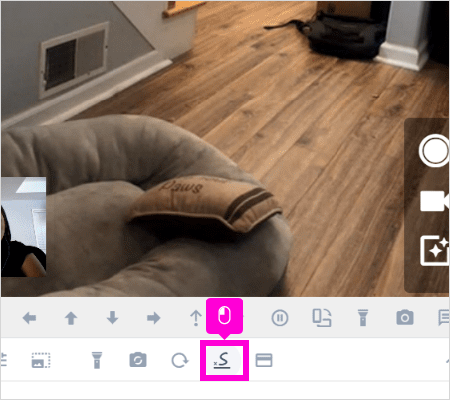
You can also prompt the contractor or homeowner for a digital signature (if needed).
-
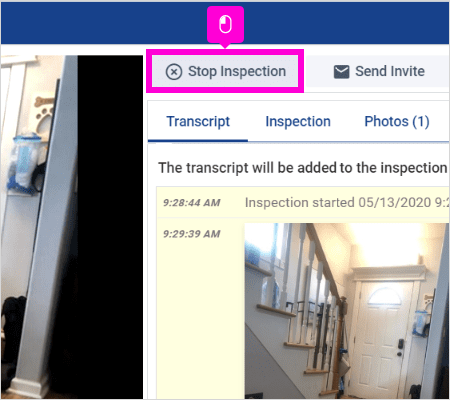
Once you have completed your inspection, click Stop Inspection to end the video session with the contractor.
-
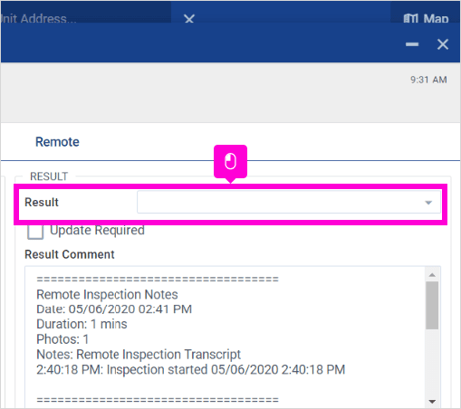
You will be brought back to the inspection form in SDL Online. Enter the inspection result in the Result field.
-
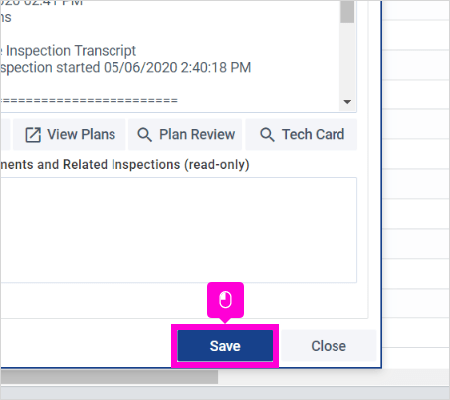
Click Save to complete the process.
English
![SDL - 2025 New Logo.png]](https://help.getsdl.com/hs-fs/hubfs/SDL%20-%202025%20New%20Logo.png?height=40&name=SDL%20-%202025%20New%20Logo.png)