-
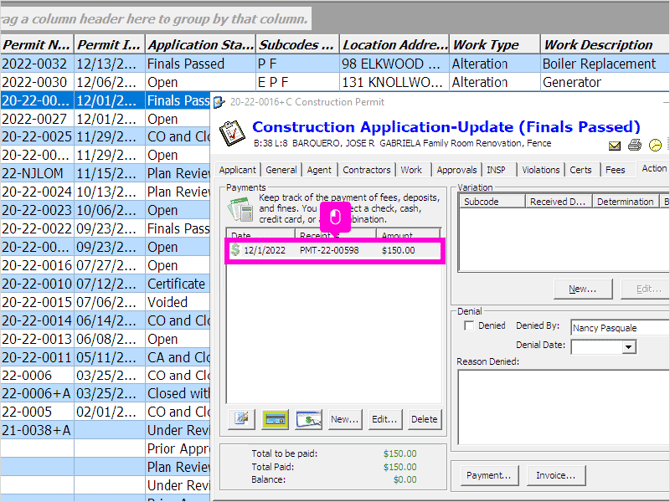
First, navigate to the payments section on your record and open the payment you previously entered.
-
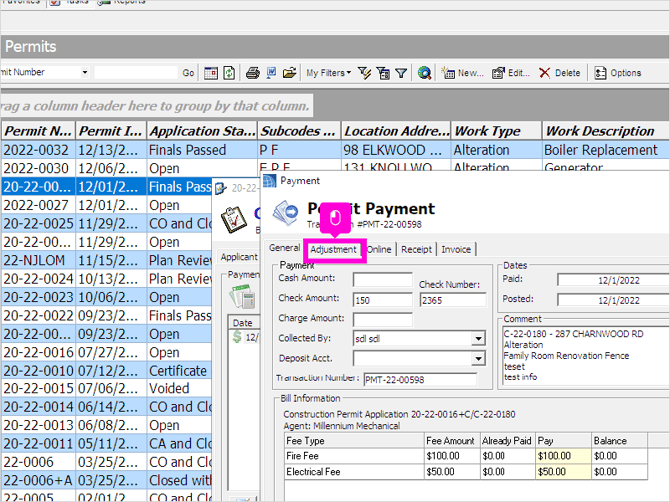
Go to the Adjustment Tab on that payment.
-
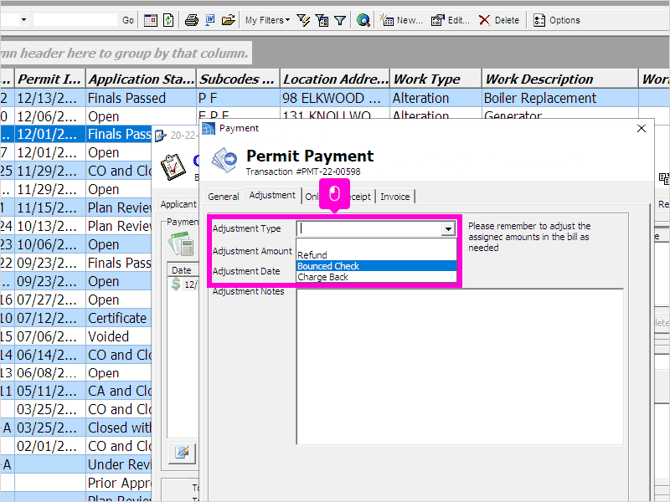
Select the appropriate Adjustment type
-
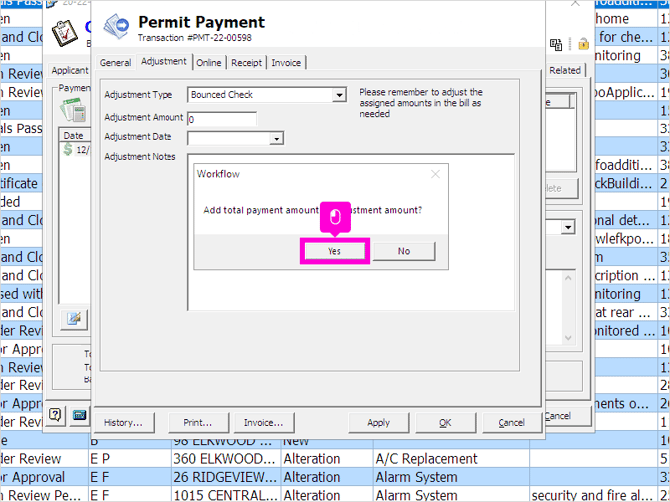
Hit yes to adjust the entire payment amount automatically.
-
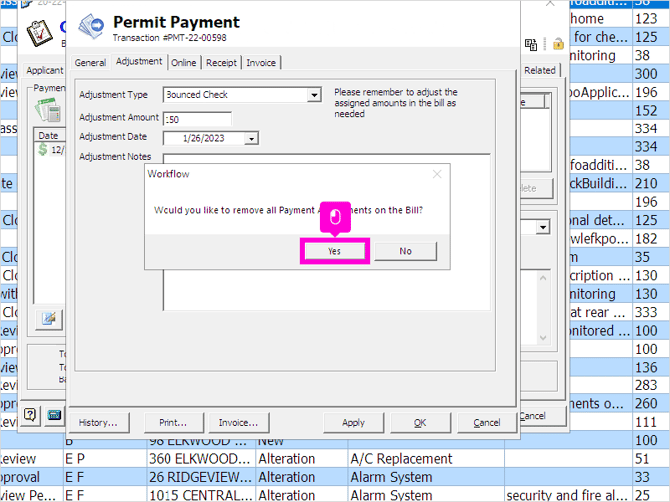
Click yes to remove all Payment Assignments on the bill.
-
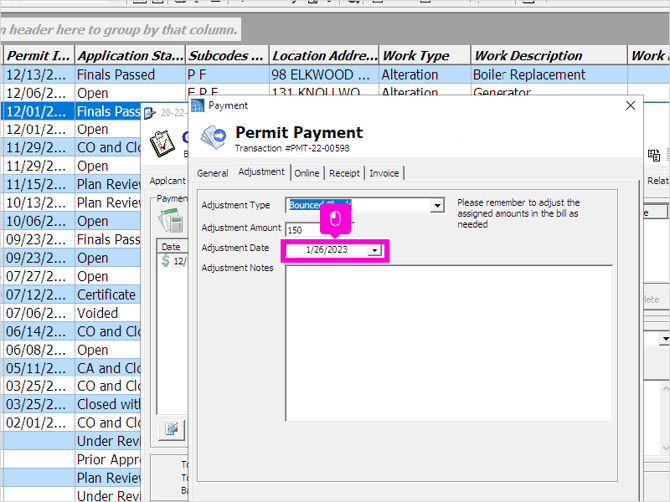
The adjustment date should automatically be applied as the current date, but you can open the field to adjust if needed.
-
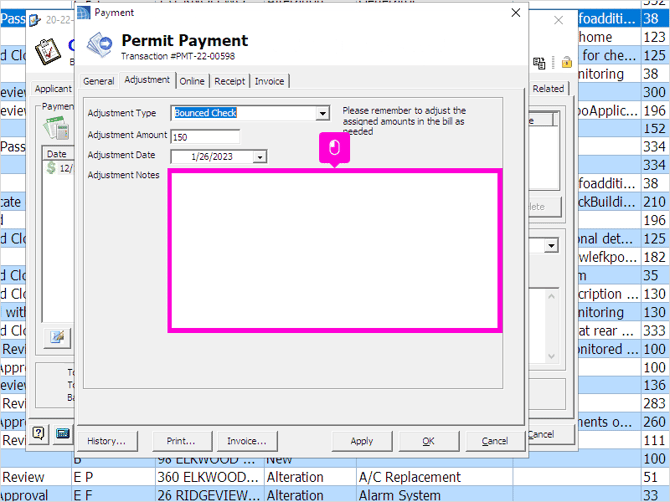
Use the Adjustment Notes field if you want to add any additional comments about the adjustment.
-
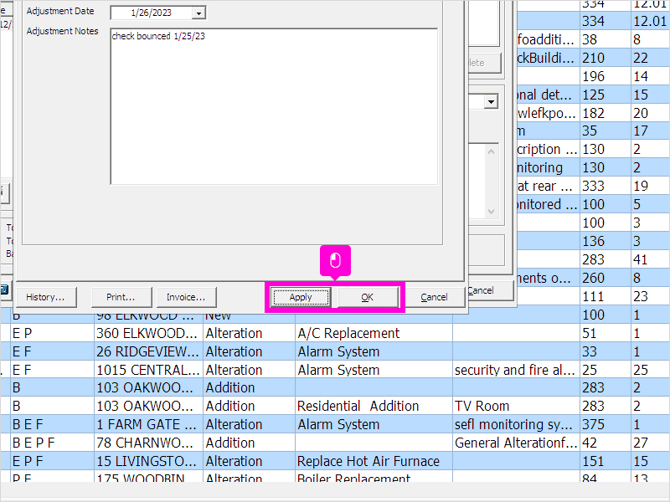
Click Apply then OK to save and close
-
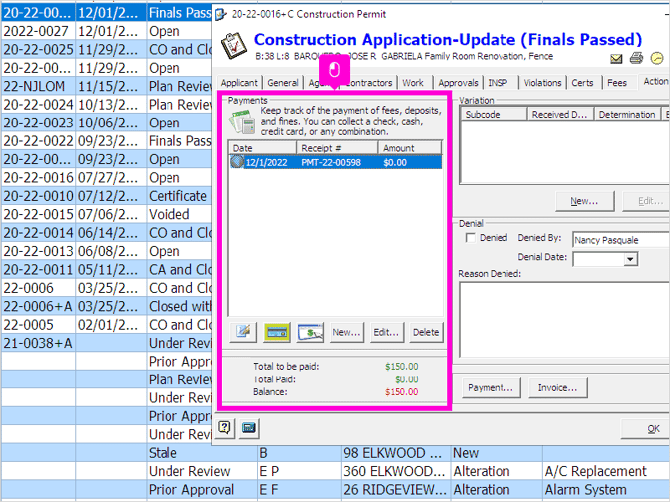
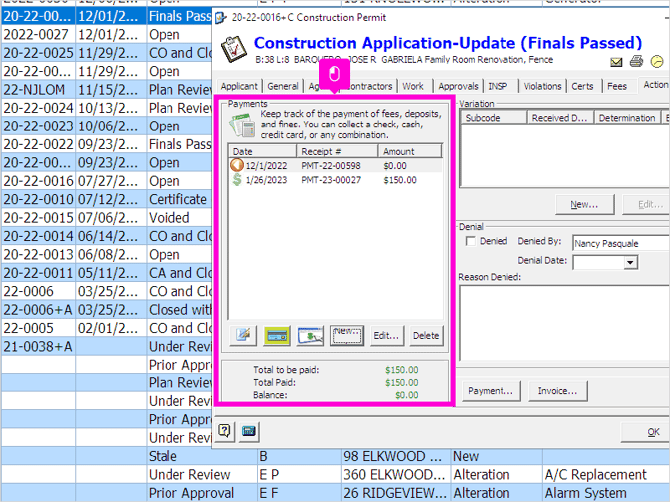
The Payment item will now display 0 and the balance will have adjusted.
-
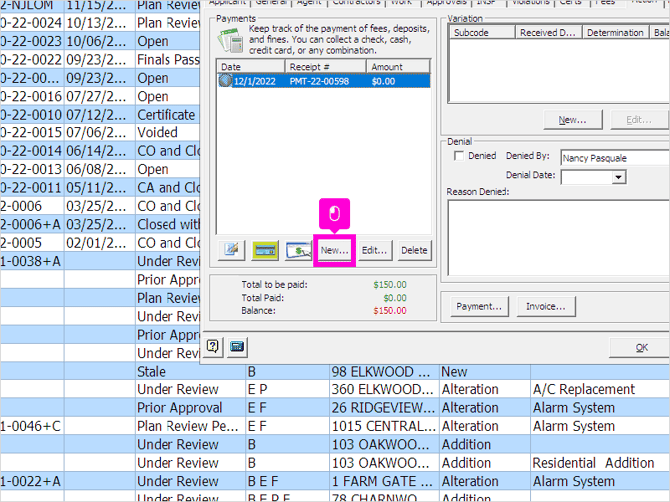
Later, when you are ready to enter a new payment, you will just hit the New button.
-
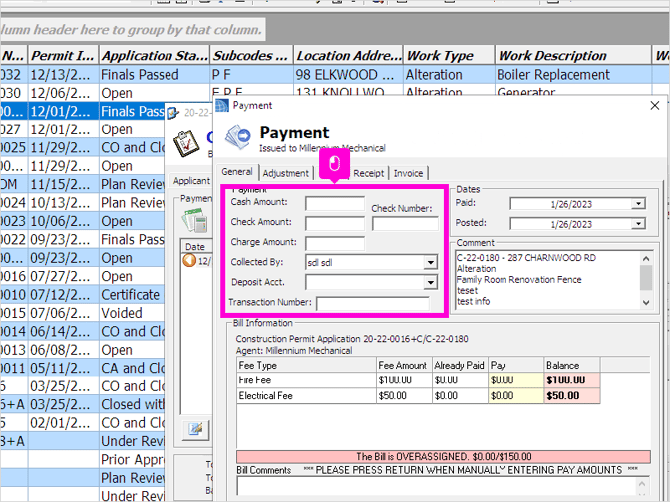
Enter the Payment Information as usual.
-
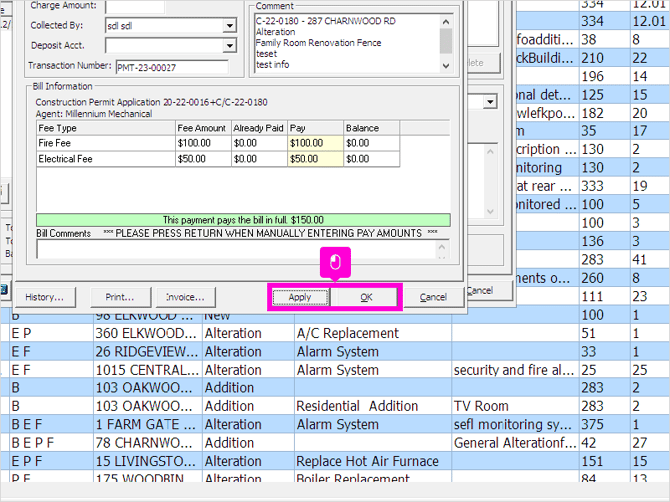
Click Apply and then OK.
-
You'll now see the adjusted payment, as well as the new payment, and again the balance should have updated.
English
![SDL - 2025 New Logo.png]](https://help.getsdl.com/hs-fs/hubfs/SDL%20-%202025%20New%20Logo.png?height=40&name=SDL%20-%202025%20New%20Logo.png)