![SDL - 2025 New Logo.png]](https://help.getsdl.com/hs-fs/hubfs/SDL%20-%202025%20New%20Logo.png?height=40&name=SDL%20-%202025%20New%20Logo.png)
Open the Online Plan Review page for a specific permit.
- Start from A) the Permit Application in SDL Desktop OR B) from the OPR Home Page in a browser.
- A) Desktop - open the permit, make sure there are plan reviews added. Then click the Open Online Plan Review button on the plan review (Dates tab) or on the permit (agent tab):


- B) From the OPR Home Page in your browser, search the permit using the control number, and select it.

After selecting the appropriate application number, choose “create a blank plan review.”
- When the option to create a blank plan review comes up, note the option “Add agent or applicant as project owner” at the bottom. This will take the agent’s name and email from the application and automatically make that person the responsible agent on the plan review, responsible for any markups or completing any tasks added to the plan review. This can also be done later.

Starting your Online Plan Review
- Add a project owner. Choose the Access tab on the right. Add the person who will be the project owner and be sure role is set to “project owner”. The project owner will be the person responsible for resolving markups and completing tasks. This is someone outside the municipality; this person is the only public role that can complete actions on the plan review - others can have view-only roles. Keep in mind when testing that the project manager email address cannot exist in any other role in the plan review.

- Add plans. Be sure to set a plan type (checking off a new version of this plan type should only be used if you already have a plan uploaded and assigned to that plan type) for your first set of plans. You will never need to check that box because there are no existing plans.

Note - if plans were already added on the SDL Desktop, you will have the option to add those here:

That will open a window that will allow you to choose which documents you want to add. Choose the appropriate plan type such as building, electrical, etc..

- Review the application for completeness before starting the plan review. If anything else is needed from the applicant / project owner, you can create a task for the project owner to review and complete. You can create tasks from the homepage (Add project tasks button in the Next Steps section), or from the Tasks button in the left hand menu.

- When you’re ready to start the clock on the plan review, select “Allow Access” in the Next Steps section on the Overview page. To do this, you must be a user on the plan review - a subcode official associated with one of the review groups on this plan, the administrator who started the plan review or a town admin. A couple of notes:
- If any tasks are open, you will not be able to start the plan review.
- If there are any prior approvals that exist on the permit, you can start the review, but the clock will not start.

You will be prompted to confirm this choice.

Reviewing the Plans
- Find your review group on the overview page, and hit the review button.

- Now you’ll be on the plans - you can use any of the markup tools along the top to add markups to your plan.

- All markups will default to “private” which means that they are only for you as the user / reviewer. On the markup, that is indicated by the single person icon in upper right hand corner and the green status bubble labeled “private”:

- If you would like to share them with the other reviewers / town users you can click the icon to change it to “internal”. Click the two person icon (first screenshot below). Once it has updated it will replace the single person icon in the upper right hand corner and the green status bubble will now be orange and say “internal” (second screenshot).


- If this markup requires action from the applicant / project owner, click the three-person icon to change it to “public” (first screenshot below). This will change the icon in the top right to show the three-person public icon and change the status bubble to “public” (second screenshot below). If any markups are set to public you will only be able to fail the review.


- Using the down arrow under the details side menu you can access other options such as page approvals, stamps, plan comparisons, etc.

Passing / Failing the Plans
- When you’re done with your review and markups, you can pass or fail your review group / subcode. Do this on the Plan Review overview page, in your review group section by clicking the three-dot menu..
- You will only be able to Pass the plan review for your review group if you have not added any public markups to your review:

-
- You will only be able to fail the plan review for your review group if you have at least 1 public markup on your review:

- Once all review groups have entered their plan review status, you are able to release or deny the plans in the Next Steps box:


- If additional tasks are needed to be completed by the project owner, you can first add those in the “Add Project tasks” section and they will need to fulfill those tasks before submitting for re-review. This can include things like submitting a new set of plans:

- When you’re ready to deny the plan review, hit the Deny button to send all markups and tasks back to the project owner

- You will not be able to restart the clock for the re-review until any pending tasks have been completed.

- When you’re ready to re-review you can hit “Update State” which will reset the clock. After this review is completed, the markups corrected by the project owner will need to be resolved by the plan reviewer.

- When you’re ready to pass the plans, and all review groups have been passed, navigate back over to the Next Steps section and select Release.

Finalizing Plans
- After plans have been released, the last step is to finalize them.
- Go to the project plans section on the left hand menu and find the version that should be finalized. Choose the button to create a final plan version.

- A popup window will appear asking if you want to create a draft final version or skip that and create just a final version. If you want to add anything to the final plans (any text, a signature, a logo, etc), select the option to Create Draft Final Version.
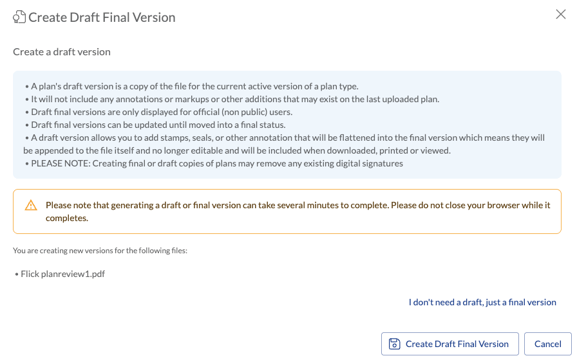
- After clicking this,the site will create a final draft version:

- To add images or text to the final version, go back to the plan viewer page, add any text or images needed. To add a seal (optional), use the add image button from the markup menu on the top.
- Once all changes have been made, select the add image markup button at the top. The dropdown menu has an option to Create Final Version. Select this.
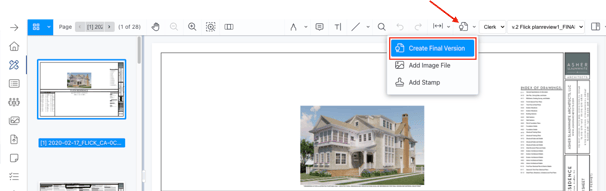
- Another window will open to confirm this choice. Choose Create Final Version again. This process may take a minute or two. When done, the final version opens in the plan viewer.