![SDL - 2025 New Logo.png]](https://help.getsdl.com/hs-fs/hubfs/SDL%20-%202025%20New%20Logo.png?height=40&name=SDL%20-%202025%20New%20Logo.png)
SDL Desktop - Adding Property Items for Daniel's Law Properties
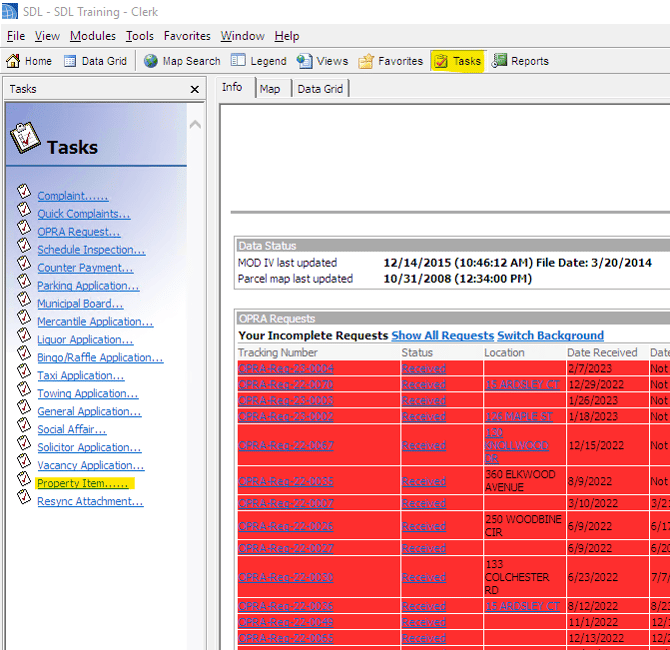
- Click the Task button at the top of your home screen and select Property Items
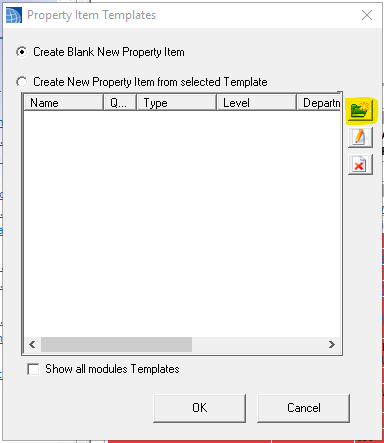
- To create a template for all Daniel's Law property items, click the blue folder with the yellow star on the right.
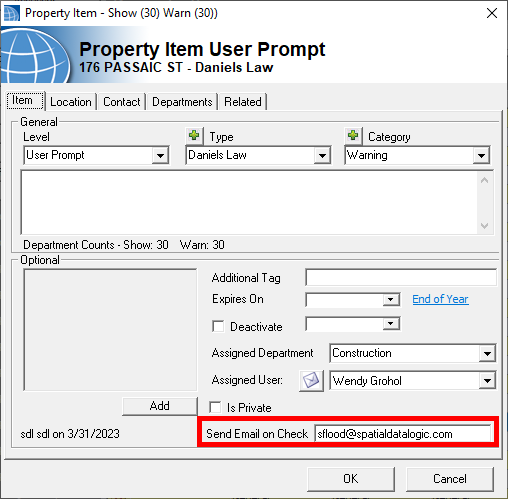
- On the Item tab, add a Template name, and set the warning level (Make sure to select Warning - Red), Type, and Category. To create your own custom type and/or category, select the corresponding green plus button. Here you can hit Add to create the new dropdown option.
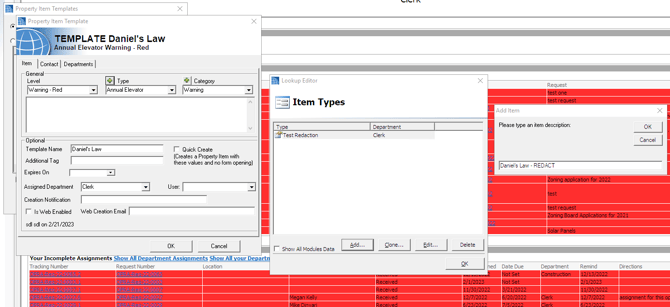
- The Item Tab also has a new email address field, designed to trigger an email to the address(es) provided when new records are linked to that property.
- On the Departments tab, select "Check All" under show departments and under warn departments so users see the warning on the property.
-png.png?width=621&height=613&name=mceclip0%20(1)-png.png)
- Hit OK to save and close the template. Once you have created the template you will be able to quickly apply these settings to any address after hitting the Property Item button in the task bar.
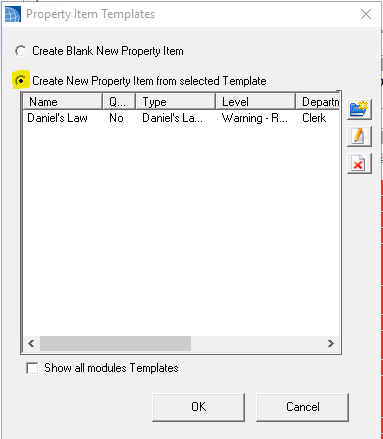
- Toggle to the "Create New Property Item from Selected Template", highlight the template you just created, and hit OK.
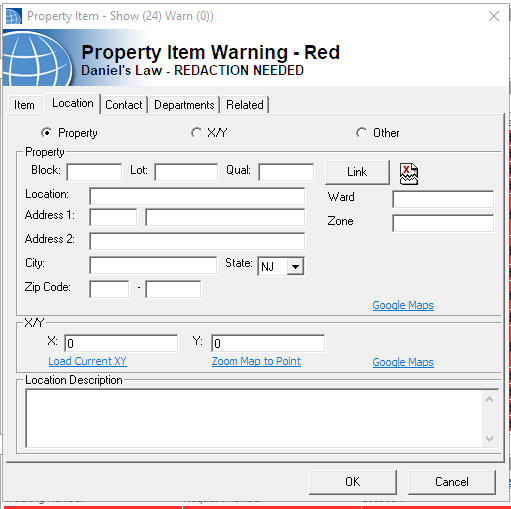
- The settings on the Item tab will already populate the way they were set in the template. Navigate to the Location tab to find the desired property. Type in the block and lot and hit link.
- Now, when you visit that property's Property Info Page, you will see the warning at the top of the page, and under the Property Items dropdown.
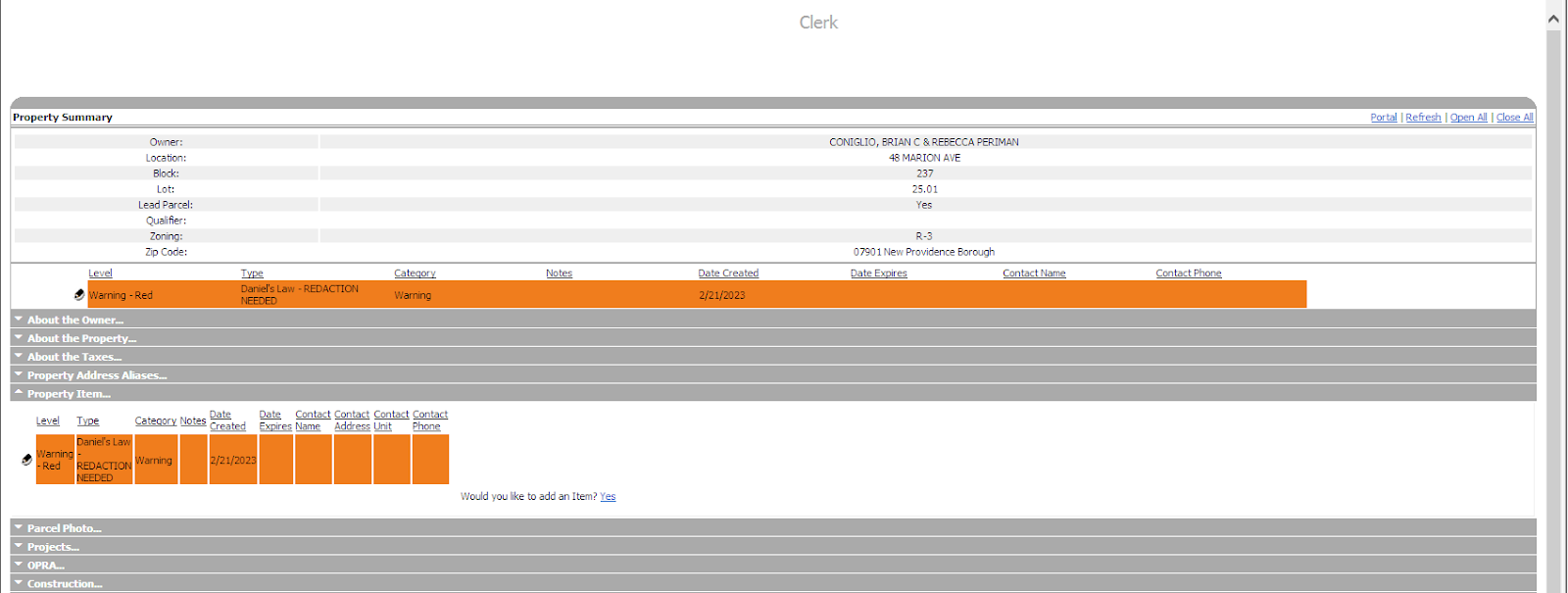
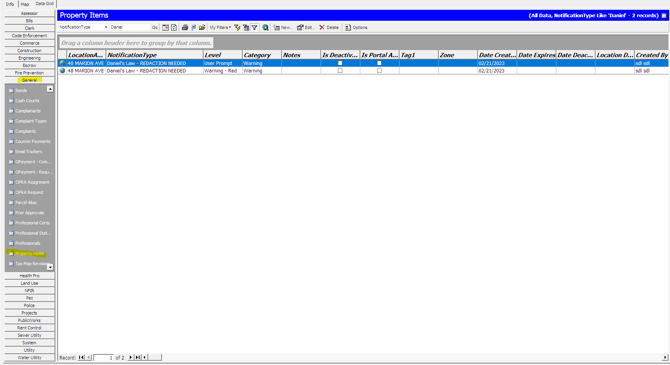
Please keep in mind, users will need to search for the property and visit the property page in order to view the property items. You can also go to the Property Items datagird in the General section to view all property items. Here, you can search by NotificationType to filter out all Daniel's Law property items.