![SDL - 2025 New Logo.png]](https://help.getsdl.com/hs-fs/hubfs/SDL%20-%202025%20New%20Logo.png?height=40&name=SDL%20-%202025%20New%20Logo.png)
In SDL Desktop, we have a feature called the User Account Editor that facilitates mass updates for user permissions/datagrids. It's primarily helpful when new permissions/data grids are added, but also when you need to fine-tune all users (i.e. remove "delete" permissions).
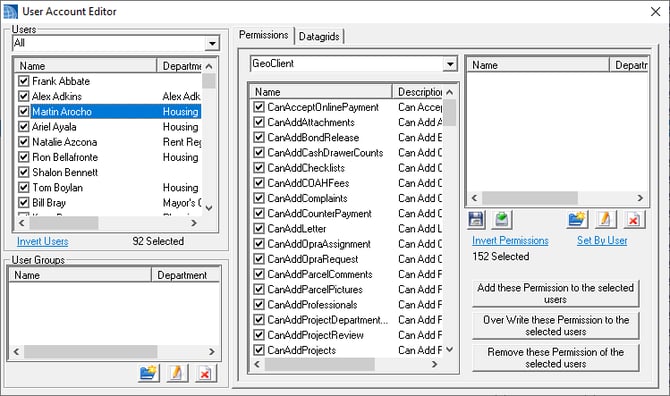
Accessing The User Account Editor
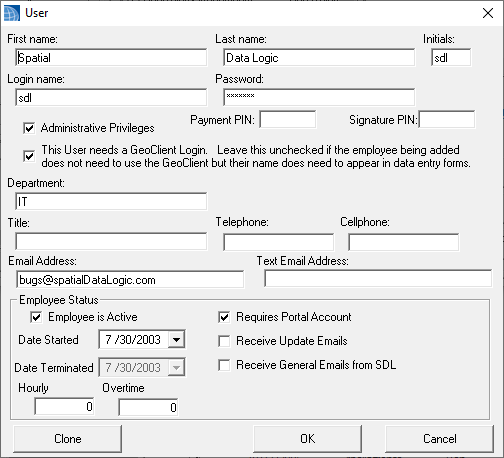
Under the System Section of the datagrids, go to the Users datagrid. Editing any record in the datagrid will open the User Management Form.
Using The Editor
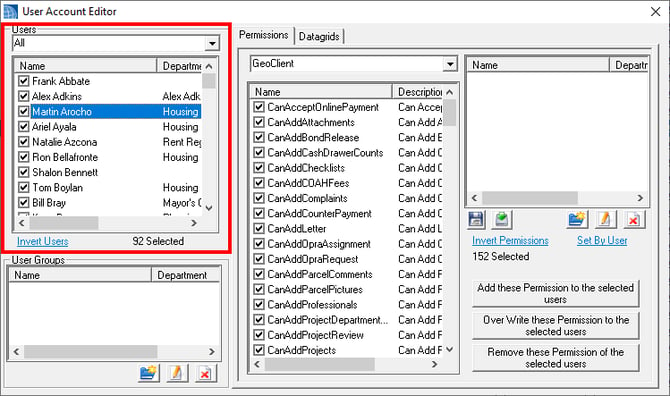
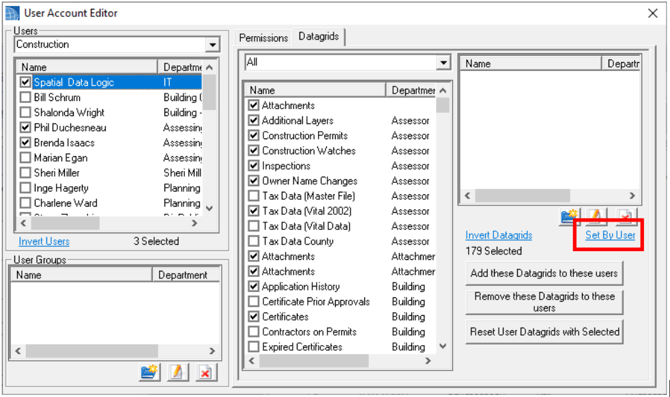
Any user that is checked off in the top left will be affected by the changes. You can use the top drop-down menu to see all users for a specific module. There is also an "Invert Users" button to help you quickly unselect all and select only the users you are interested in. You can also create and update specific user groups (located at the bottom left).
On the right side of the form, you will find a list of the various actions you can take. There are two tabs: one for User Permissions and one for Datagrids. You can use the drop-down to see the options for a specific department or click the "Invert Permissions" option to quickly uncheck all items so you can select only the values that you want.
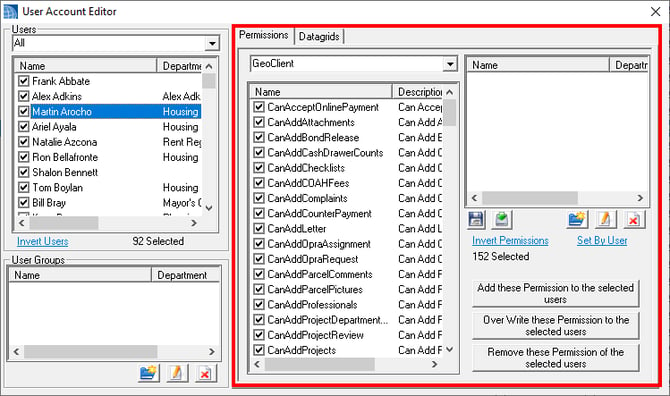
There is also a "Set by User" option that allows you to copy permissions/datagrids from the highlighted user to any other users that have been checked off.
Action Buttons
The action buttons on the bottom right can be used individually or in combination to apply mass updates.
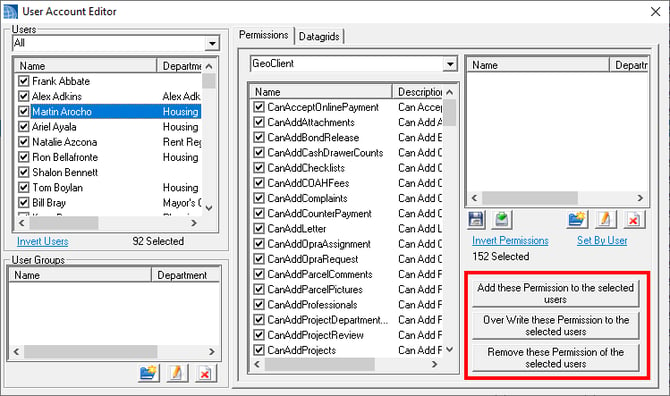
- Add - Will add the permissions/datagrids if the user does not already have them
- Overwrite - Will remove all items from a user and replace them with the check items
- Remove - Will remove the selected permissions/datagrids if the user has them
Note: Overwrite is best used when looking to copy a specific user's permissions/data grids over to other users, whereas add/remove are better for dealing with new permissions & mass deletions.
Examples:
- You found users who have permission to delete that should not have the ability to delete - If the issue is widespread, we would recommend that you select all users, select the permissions in question and then click remove. All selected users will no longer have those delete permissions. If you selected the full list, you can then use the "Invert Users" option to uncheck all users so that you can select the specific individuals who can delete and add those permissions.
- Adding the "Can Delete CC Request" permission - For towns that have MuniciPAY and send out online credit card payment requests, this permission allows users to delete requests that have not yet been paid. We recommend that users delete these requests if a payment is made by check/cash so a double payment does not occur. This is a permission that all users should have. To give this permission to all users, select all users and use the Add button.
- You have a new Land Use user and you want to copy the permissions/datagrid from another Land Use user - For this scenario, you would want to highlight the user that has the desired permissions/datagrids in the left under users and then select land use in permissions/data grid drop-drop and click "Set By Users". Then check the new user in the User List and click "Overwrite"
The top right section allows you to save common groupings of permissions and datagrids. This is helpful to set up as new users come on or change departments.
Individual User Settings
Double Clicking on a single user on the top right will allow access to that user's settings. This is helpful for resetting passwords or emails. We also added a Clone button that will create a new user based on the selected user's Permissions/Datagrids.