![SDL - 2025 New Logo.png]](https://help.getsdl.com/hs-fs/hubfs/SDL%20-%202025%20New%20Logo.png?height=40&name=SDL%20-%202025%20New%20Logo.png)
Overview
Parallels is the secure environment you use to access SDL Desktop. To keep your data and your municipality's information protected, every Parallels account is governed by a password policy that sets a minimum strength, prevents reuse, and rotates passwords on a regular schedule.
In this article:
When to reset your password
You may need to reset your Parallels password if:
- You have forgotten your current password.
- Your password has expired (Parallels passwords rotate every 90 days).
- Your account has been locked after too many failed sign-in attempts.
- You believe your password may have been shared or compromised.
How to reset your Parallels password
Step 1: Update Your Login Credentials in Parallels
1. Open the Parallels client. (You will be logged out by default.)
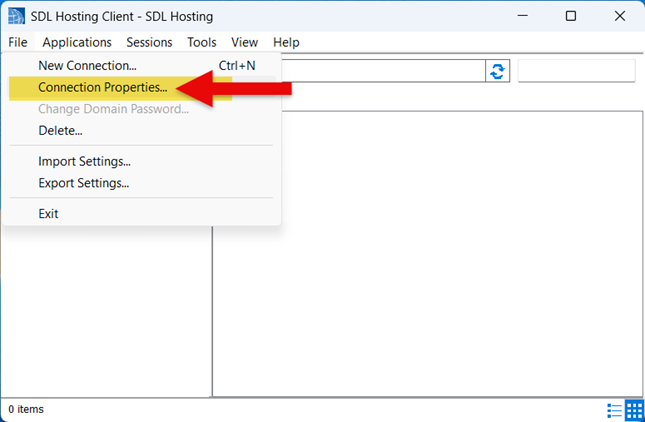
2. In the Parallels client, go to File > Connection Properties.
3. In the Login section, fill in the following fields:
-
Domain: sdldesktop (all lowercase, no spaces)
-
Username: Confirm your username is correct.
-
Password: Enter the temporary password provided to you.
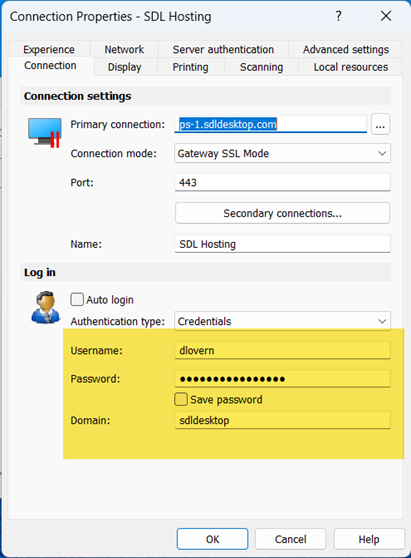
4. Click OK. Parallels will attempt to log you in.
Step 2: Change Your Password
5. A pop-up will appear with the message: "The user's password must be changed before signing in." Click OK.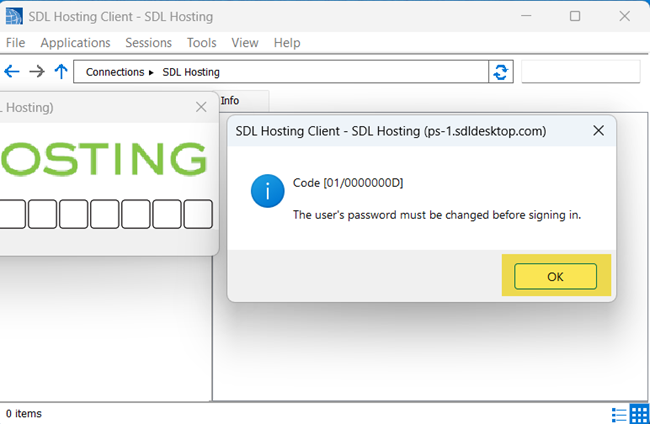
6. The Change Domain Password window will appear. Verify your username at the top of the window.
7. Enter a new password.
For security, every Parallels password must meet the following requirements.
| Requirement | Details |
|---|---|
| Length | Minimum of 13 characters. |
| Uppercase letters | Must include at least one uppercase letter (A through Z). |
| Lowercase letters | Must include at least one lowercase letter (a through z). |
| Numbers | Must include at least one number (0 through 9). |
| Cannot reuse past passwords | Previously used passwords will be rejected. Choose a fresh password each time you reset. |
| Lockout threshold | After 5 failed sign-in attempts, your account will be temporarily locked. |
| Password rotation | Passwords must be changed every 90 days. You will be prompted before yours expires. |
8. Click Change Password.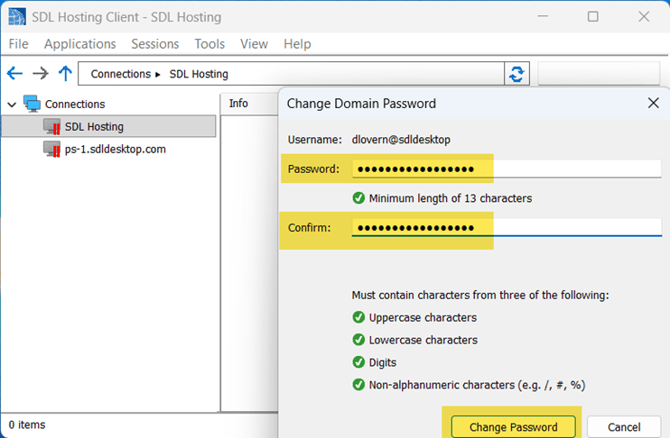
Step 3: Confirm and Log In
9. A confirmation pop-up will appear: "Change password for user [username], domain sdldesktop was successful." Click OK.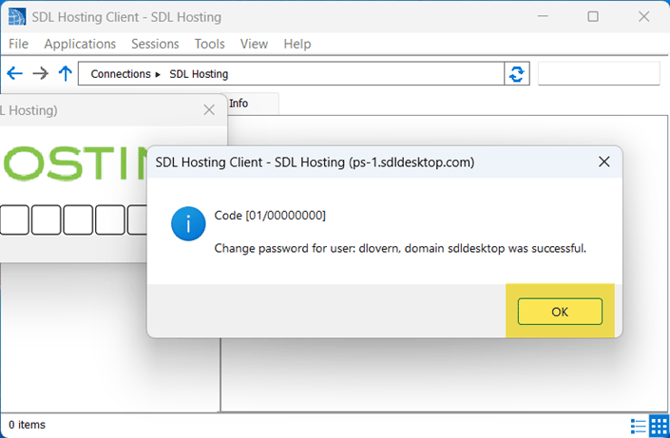
10. Parallels will log you in and your SDL Desktop icon will appear on your desktop.
If your account is locked
If you reach 5 failed sign-in attempts, your account will be locked for security. To regain access:
- Wait the system-defined cool-down period, or
- Contact SDL Support to have your account unlocked and your password reset.
Troubleshooting
I did not receive the password reset email
-
Check your junk or spam folder.
-
Confirm you entered the correct username (your work email).
-
Allow several minutes for the message to arrive.
-
If it still has not arrived, contact SDL Support.
My new password keeps getting rejected
-
Recheck the policy above. The most common issues are passwords under 13 characters or passwords you have used before.
-
Avoid using your username, your name, or your municipality name as part of the password.
I am being prompted to change my password and I do not want to right now
-
Once you are prompted, the change is required to continue accessing Parallels. Set aside a few minutes to complete the reset rather than dismissing the prompt.
Need help?
If you run into any trouble while resetting your password, reach out to SDL Support. We are happy to walk you through it.