![SDL - 2025 New Logo.png]](https://help.getsdl.com/hs-fs/hubfs/SDL%20-%202025%20New%20Logo.png?height=40&name=SDL%20-%202025%20New%20Logo.png)
Overview
The Parallels Client (also known as SDL Hosting Client) is the application on your computer that connects you to SDL Desktop. Keeping it up to date helps SDL Desktop run smoothly, stay secure, and pick up the latest stability and performance improvements.
Running an outdated client can cause sign-in errors, slow sessions, printing or scanning issues, or prevent SDL Desktop from launching at all.
Updates are quick — usually a minute or two — and most of them don't require admin permissions on your computer. This article walks you through checking for an update, installing it, and confirming you're on the newest version.
📝 Note: Your Computer May Restart
Some Parallels Client updates include driver-level changes and may prompt your computer to restart once the install finishes. Save your work in every open application — not just SDL Desktop — before you start. If your computer asks to restart, it's safe to let it.
Getting Started
Before you begin, make sure you have:
-
The Parallels Client already installed on your workstation (it may be called SDL Hosting Client).
-
Any open work in SDL Desktop saved and closed — the update will briefly disconnect your session
-
Any other open applications saved in case your computer restarts after the update
-
A few minutes of uninterrupted time at your computer (the update is fast, but the client — and possibly your computer — will restart)
Step-by-Step Instructions
🖥️ Applies to both Windows and Mac
The steps below use the Parallels Client menus that appear on both Windows and macOS. Button and window styles may look slightly different between operating systems, but the labels and options are the same.
-
Open the Parallels Client. On your desktop, find the Parallels Client icon and double-click it to launch the application.

If you don't see the icon on your desktop, use the search feature on your taskbar (Windows) or Spotlight (Mac) by typing "Parallels Client" and selecting the app from the results.
(Note: Some users may see the application labeled as "SDL Hosting Client" instead of "Parallels Client" — this is the same application. The difference in name reflects which interface version is active: the Modern interface displays as "Parallels Client," while the Classic interface displays as "SDL Hosting Client." Both are fully up to date and no additional action is needed. If you prefer the Modern interface, you can switch by opening Settings > General and checking "Use Modern interface.") -
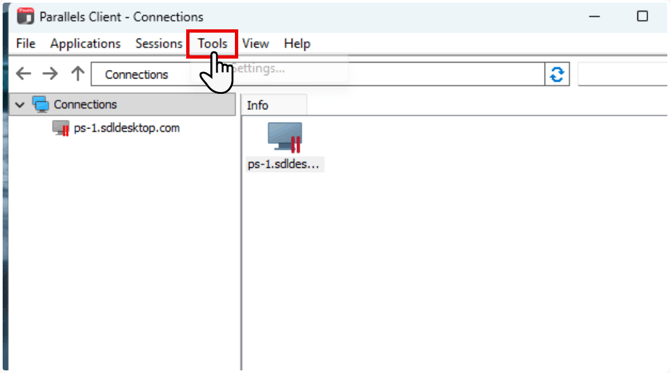
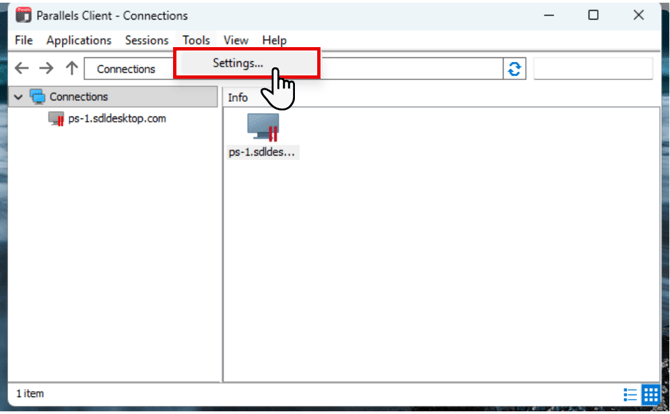
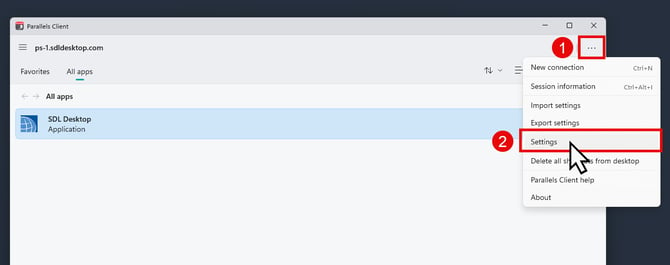
Open Settings. The next step depends on which version of the Parallels Client interface you have. Not sure which you have? If you see a menu bar at the top of the window, you are on the Classic view. If you see three dots (⋯) in the top-right corner instead, you are on the Modern view.
-
Classic view: Click Tools in the menu bar at the top of the window, then choose Settings… from the dropdown.
- Modern view: Click the ⋯ (three dots) in the top-right corner of the window, then click Settings. (See screenshot in Step 1 above.)
-
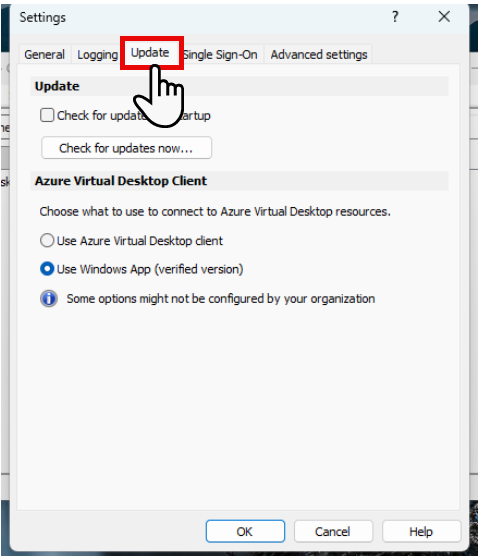
Go to the Update tab. In the Settings window, click the Update tab along the top.
-
Click Check for updates now…
Under the Update section, click the Check for updates now… button. Parallels will reach out to its update server and tell you whether a newer version is available.
💡 Tip: For a better experience, also check the Check for updates on startup box so Parallels automatically checks for updates each time it opens.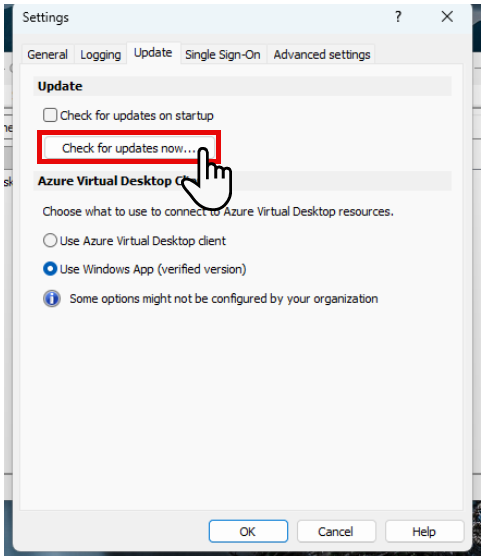
-
Install the update.
If a newer version is available, a window appears showing information about your current version and the new version side by side. Click Update to download and install it. Parallels Client will briefly close and reopen once the update finishes — and in some cases, your computer will prompt you to restart.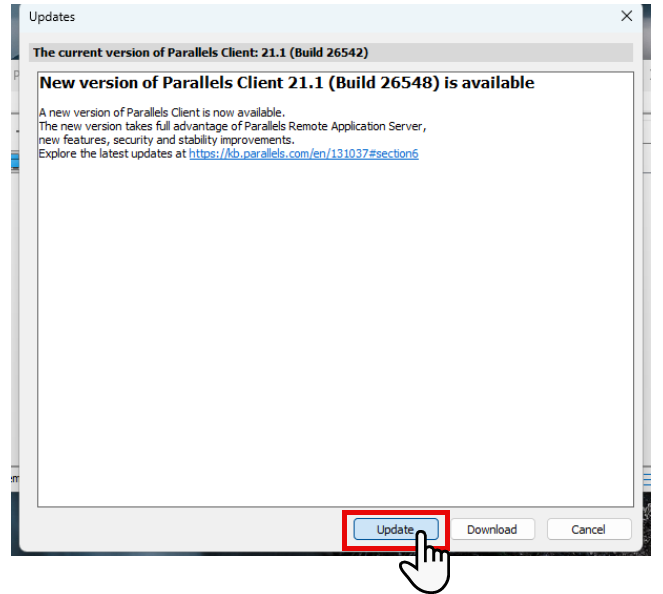
📝 Note on Confirming the Update
To confirm you're on the newest version, repeat the step above. You'll see your current version listed and the message "No updates were found." That means you're fully up to date.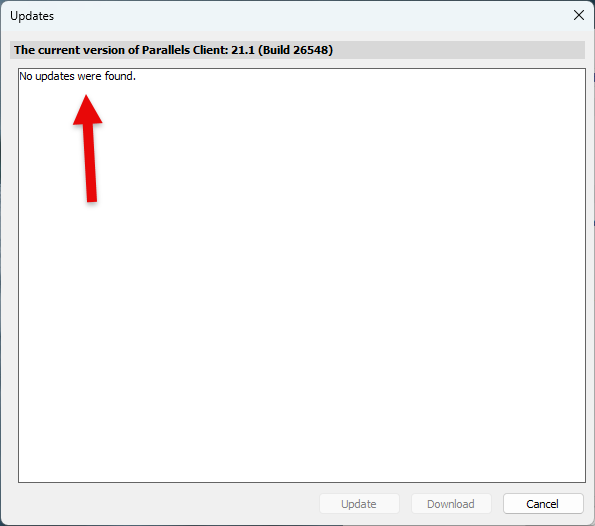
⚡Save these Quick Steps
-
Save your work in all open applications (your computer may restart)
-
Open the Parallels Client on your computer’s desktop
-
Open Settings — Classic view: click Tools → Settings… in the menu bar. Modern view: click ⋯ (three dots) → Settings.
-
Go to the Update tab
-
Click Check for updates now…
-
Click Update to install any available version
-
Let your computer restart if prompted
-
Reopen Settings → Update to confirm you see "No updates were found"
✅ Nice work! Your Parallels Client is now on the latest version, and SDL Desktop will continue running with the latest improvements.
If you run into any trouble, please don't hesitate to reach out to our support team at support@getsdl.com — we're here to help.
Related Resources
-
Parallels install: How to Install the Parallels Client for SDL Desktop — for new users, or anyone who needs to install the Parallels/SDL Hosting Client from scratch.