![SDL - 2025 New Logo.png]](https://help.getsdl.com/hs-fs/hubfs/SDL%20-%202025%20New%20Logo.png?height=40&name=SDL%20-%202025%20New%20Logo.png)
In this article:
- Before You Begin
- Step 1: Install the Extension
- Step 2: Open the Extension
- Step 3: Add a New Account
- Step 4: Enter Your Credentials
- Step 5: Use Your Code in SDL Hosting
- Troubleshooting
- Key Takeaways
- Related Resources
New to MFA or wondering why we are rolling this out? Start with What Local Governments Need to Know.
If you'd prefer not to use a phone for multi-factor authentication, the Authenticator: 2FA Client extension for Microsoft Edge is a supported desktop alternative. Instead of opening an app on your phone, you will see your one-time code in a browser extension on your work computer. This guide walks through installing the extension and pairing it with your SDL Hosted account.
Looking for a different setup?
- Would you rather use your phone? See How to Set Up and Use Multi-Factor Authentication (MFA) for SDL Desktop. A phone-based authenticator is our recommended option for the strongest security.
- Using Google Chrome instead of Edge? See How to Set Up Multi-Factor Authentication (MFA) with the Google Chrome Authenticator Extension.
Before You Begin
You will need:
- A computer with Microsoft Edge installed
- Your SDL Desktop username and password
- The QR code and secret key from your SDL Hosting MFA enrollment screen
- About five minutes
Heads up: The browser extension is a strong second factor for most users, but it is not the most secure option available. Because the extension lives on the same computer you use to log in, an attacker who has already compromised your computer may also have access to your authenticator codes. For the strongest protection, we recommend using an authenticator app on a separate device, such as a smartphone. The browser extension is the right choice if a phone is not practical for your team, and it is still meaningfully better than no MFA at all.
Important: Your MFA enrollment lives in the browser (and profile) where you install the Authenticator: 2FA Client extension. If you ever switch computers, remove the extension, switch to a different browser, or clear your browser data, you will need to contact support to reset MFA and re-enroll on the new setup.
Step 1: Install the Extension
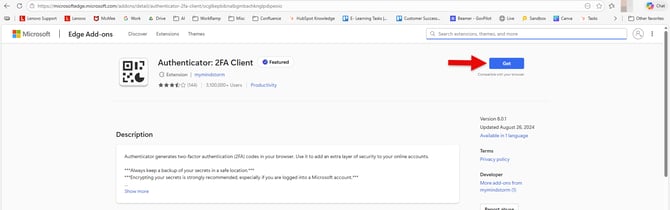
Open the Authenticator: 2FA Client extension page on the Microsoft Edge Add-ons store.
On the extension page, click the Get button.
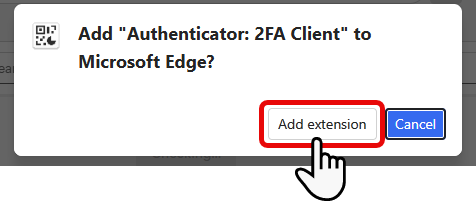
A pop-up will appear: Add "Authenticator: 2FA Client" to Microsoft Edge? Click Add extension to confirm.
You'll get a confirmation that it was successfully installed.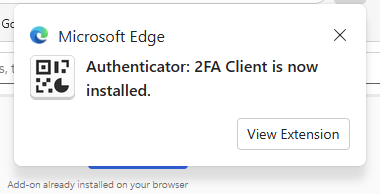
Step 2: Pin the Extension to Your Toolbar
Click the puzzle piece icon in the top-right area of your Microsoft Edge browser to open your extensions.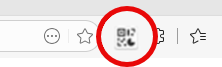
Click the pin icon next to Authenticator: 2FA Client to add it to your browser's toolbar. Pinning makes the extension easy to find each time you sign in to SDL Desktop.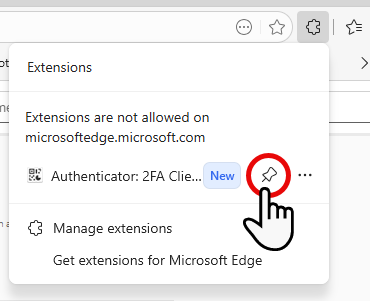
The Authenticator: 2FA Client icon will now appear in your toolbar. Click it to open the extension.
Step 3: Add a New Account
Click the pencil icon in the top-right corner of the extension, then the plus (+) sign. 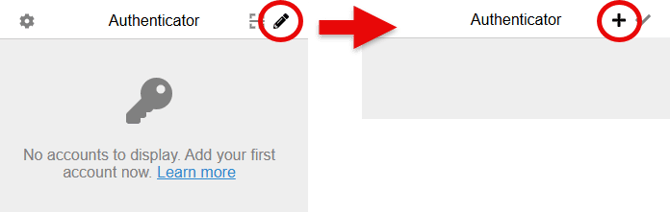
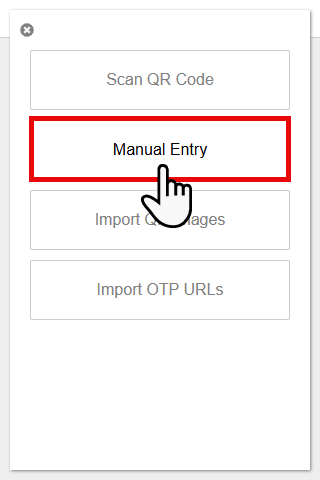
Select Manual Entry.
Step 4: Enter Your Credentials
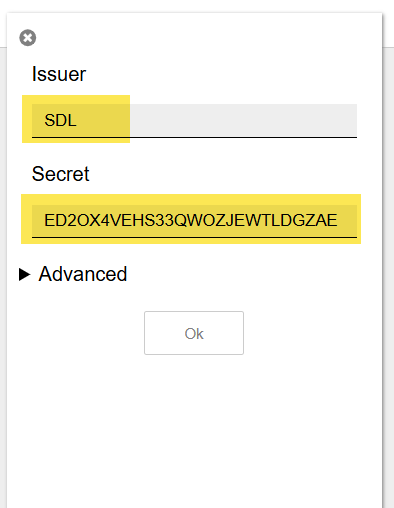
In the Issuer field, type: SDL
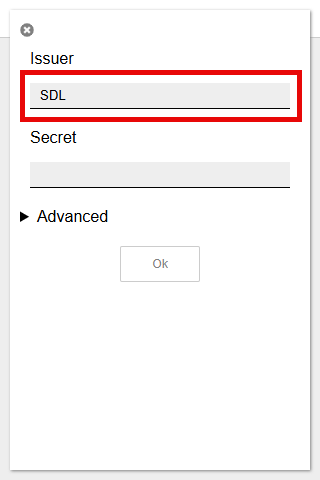
Next, switch over to your SDL Hosting login page. Just below the QR code, you'll see your secret key labeled "Enter the provided key." Copy it.
Note: The secret key shown below is just an example. The key you see on your screen will be unique to your account — do not copy the one in this image.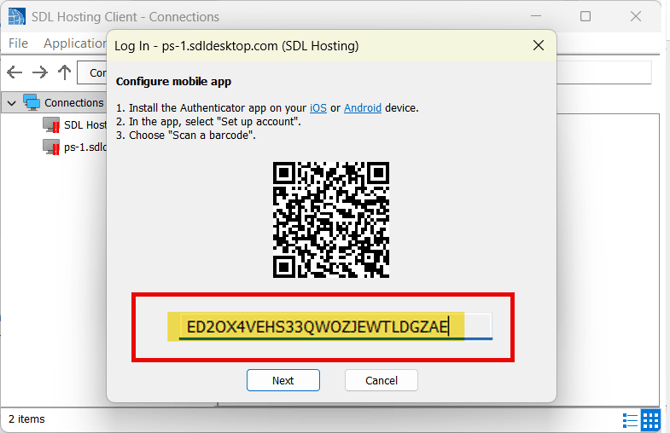
In the Secret field, paste the secret key from SDL Hosting, and click OK.
Step 5: Use Your Code in SDL Hosting
A 6-digit code appears in the extension. Enter it into the SDL Hosting OTP box before it expires.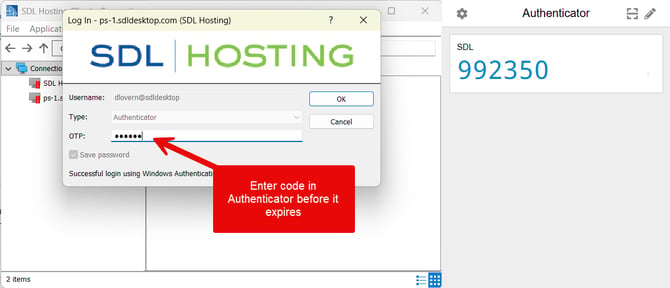
Note: Codes refresh every 30 seconds. If yours expires before you enter it, just use the next one.
Troubleshooting
The QR code scanner isn't working. The browser extension's QR code scanner is unreliable. Always use the Manual Entry option and paste the secret key from below the QR code in SDL Hosting, as described in Step 3.
The code I entered isn't working. Authenticator codes are time-based, so if your computer's clock is even slightly out of sync, the codes will be rejected. Check that your system clock is set to update automatically, then try again. Also make sure you are using the most recent code, since codes refresh every 30 seconds.
I have tried multiple codes and none are working. Open the extension, delete the SDL entry, and re-add it using Manual Entry as described in Step 3. This resolves most pairing issues.
I got a new PC, removed the extension, switched browsers, or cleared my browser data. Your MFA enrollment is tied to the browser (and profile) where you installed the Authenticator: 2FA Client extension. If you switch computers, remove or reinstall the extension, switch to a different browser, or clear your browser data, you will need to enroll in MFA again. Email support@getsdl.com so we can reset your enrollment. Once reset, you will see the QR/manual setup screen the next time you connect.
I am still having trouble. Email support@getsdl.com and we will walk through it with you.
Key Takeaways
- The Microsoft Edge Authenticator: 2FA Client extension is a browser-based alternative to phone-based MFA, for users who prefer to keep their authenticator on their work computer.
- An authenticator app on a separate device, such as a smartphone, is more secure. The browser extension is convenient and a valid choice when a phone is not practical.
- Always use Manual Entry when pairing. The QR code scanner in the extension is unreliable.
- If codes are being rejected, check your computer's clock first. Authenticator codes are time-based and sensitive to even small clock drift.
- If something is not working, email support@getsdl.com.
- Your MFA enrollment is tied to the browser (and profile) where you installed the extension. If you switch PCs, remove or reinstall the extension, switch browsers, or clear your browser data, contact support to reset your enrollment so you can re-enroll.
Related Resources
-
Main MFA setup guide: How to Set Up and Use Multi-Factor Authentication (MFA) for SDL Desktop — the complete step-by-step instructions for enabling MFA on your SDL Desktop account using a phone-based authenticator app. This is our recommended setup for the strongest security.
-
Chrome users: How to Setup Multi-Factor Authentication (MFA) with the Google Chrome Browser Extension — the same guide for Google Chrome users.
-
Why MFA matters: Multi-Factor Authentication (MFA): What Local Governments Need to Know — background on why MFA is being added, what it protects against, and what it means for your team.
-
Parallels install: How to Install the Parallels/SDL Hosting Client for SDL Desktop — for users connecting to SDL Desktop through Parallels. Covers installing the current version.
-
Parallels update: How to Update the Parallels/SDL Hosting Client for SDL Desktop — how to update an existing Parallels/SDL Hosting Client install to the current version.