![SDL - 2025 New Logo.png]](https://help.getsdl.com/hs-fs/hubfs/SDL%20-%202025%20New%20Logo.png?height=40&name=SDL%20-%202025%20New%20Logo.png)
In this article:
New to MFA or wondering why we're rolling this out? Start with What Local Governments Need to Know.
To strengthen the security of your SDL Desktop account, we have enabled multi-factor authentication (MFA) for Parallels access. MFA adds a second layer of verification, so even if your password is ever compromised, your desktop stays protected.
Setup is a one-time process. After that, you will use the new sign-in flow for every future login.
Prefer a video walkthrough? Watch the short tutorial below before diving into the steps.
Before You Begin
Before you begin, install an authenticator app on your smartphone. We recommend Google Authenticator or Microsoft Authenticator — both are free on the Apple App Store (iPhone) and the Google Play Store (Android).
| Google Authenticator |  |
Apple App Store | Google Play Store |
| Microsoft Authenticator |  |
Apple App Store | Google Play Store |
Note: If you don't have a smartphone, you can use a desktop-compatible authenticator instead. Options include:
- The Authenticator browser extension for Chrome — see How to set up MFA with the Google Chrome browser extension for setup instructions.
- The Microsoft Edge Authenticator: 2FA Client Add-on — see How to set up MFA with the Microsoft Edge Authenticator extension for setup instructions.
Heads up: if your computer is ever compromised, your browser and its extensions (including a desktop authenticator) may also be compromised. A separate phone or hardware token offers stronger protection.
Part 1: One-Time MFA Setup
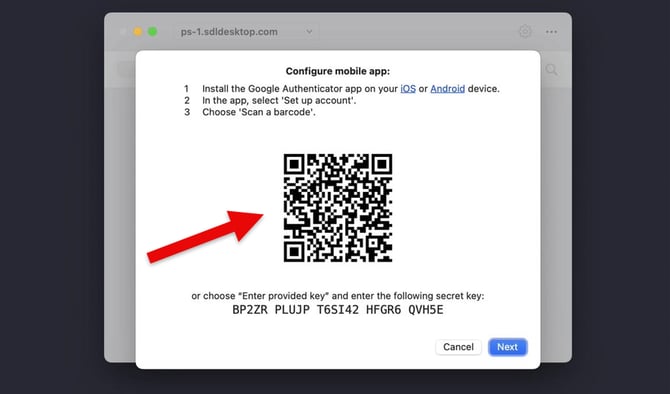
The first time you connect after MFA is enabled, Parallels will show a QR code so you can link your authenticator app to your SDL Desktop account. You only do this once per device.
Important: Your MFA enrollment lives on the device where you set it up. If you ever switch phones, switch computers, or remove the authenticator browser extension, you will need to contact support to reset MFA and re-enroll on the new device.
Step 1: Begin the Setup Process
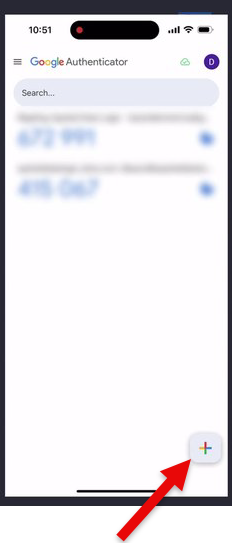
Open the authenticator app on your phone and tap the plus sign (+) in the bottom corner to add a new account.
Step 2: Choose Your Method
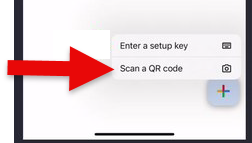
Select Scan a QR code. Your phone's camera will activate and a scanning window will appear.
Step 3: Link Your Account
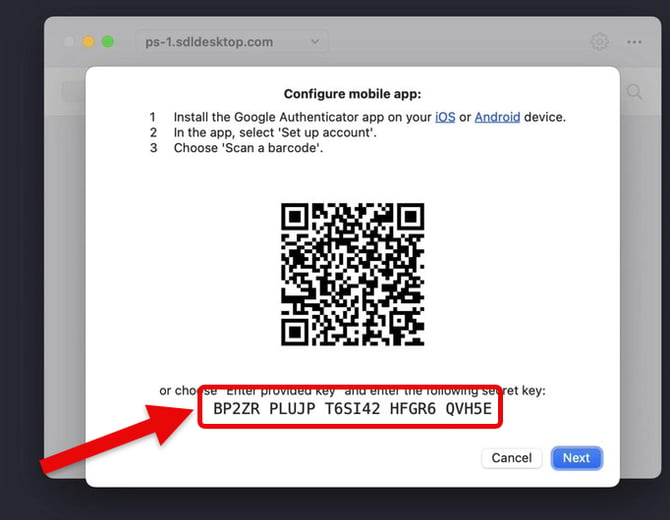
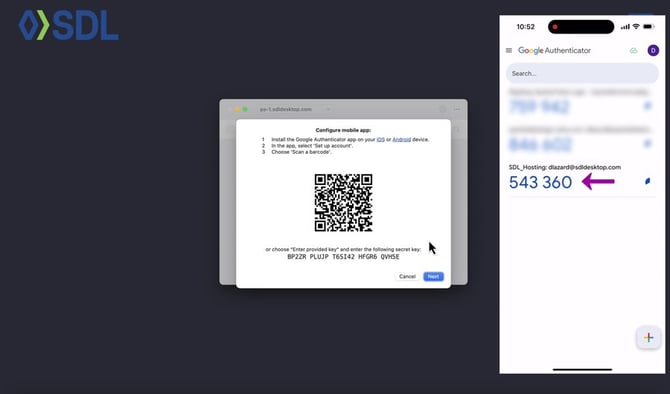
A QR code will be displayed on the Parallels login screen on your computer.
Step 4: Scan with Your Phone
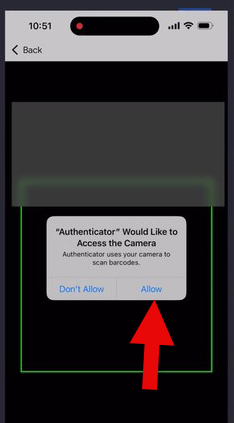
Point your phone's camera at the QR code to scan it. Allow camera access if prompted, then line the QR code up inside the scan window. The app will detect it automatically.
Step 5: Complete the Activation
Once linked, your authenticator app will generate a six-digit code labeled SDL_Hosting (or similar) that refreshes every 30 seconds. Enter this code into the prompt on your computer and click Next to finalize setup.
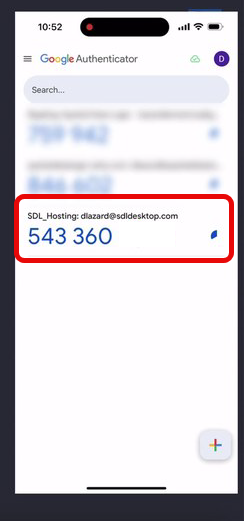
Alternative: If you cannot scan the QR code, tap Enter a setup key in your authenticator app and manually type the secret key shown beneath the QR code on your computer screen.
Your account is now protected with MFA.
Part 2: Ongoing Login Process
After the one-time setup, your daily login is slightly different. You will use your password plus the six-digit code from your authenticator app every time you connect.
Step 1: Initiate Connection
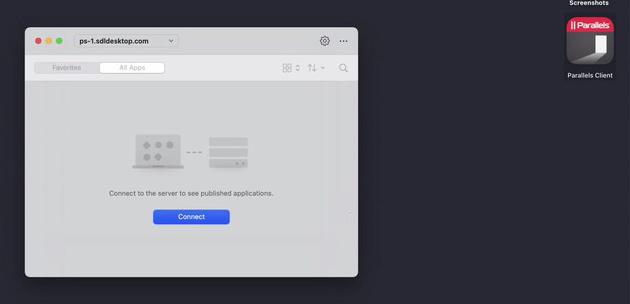
Open the Parallels client and click Connect as you normally would.
Step 2: Enter Your Username and Password
Sign in with your SDL Desktop credentials as usual.
Step 3: Retrieve Your Authentication Code
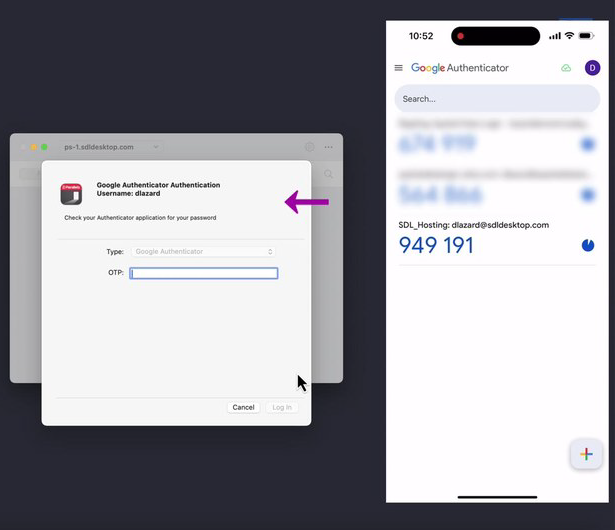
Open the authenticator app on your phone. Find the six-digit code associated with your account (look for the entry labeled SDL_Hosting or similar).
Step 4: Enter the Code and Log In
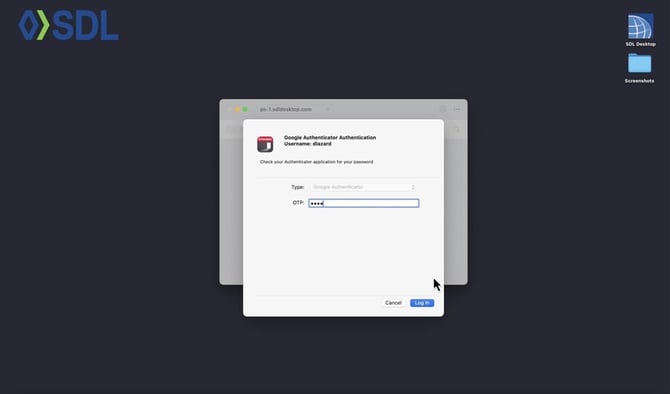
Type the six-digit code into the OTP field in Parallels and click Log In.
Step 5: Access Your Desktop
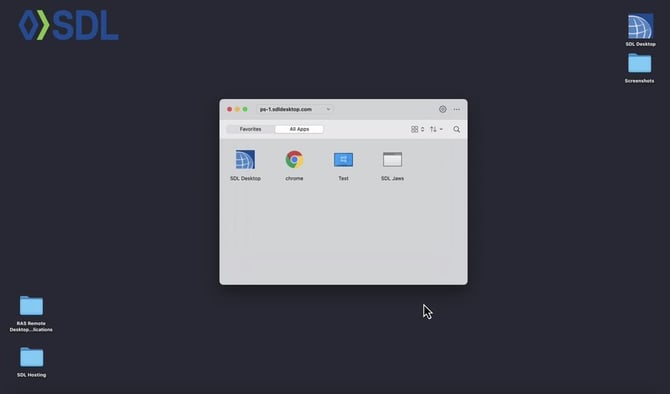
You are signed in. Your published applications will appear and you can launch your SDL Desktop session.
Heads up: Codes expire every 30 seconds. If your code is close to refreshing when you start typing, wait for the next one so it does not expire before you finish.
Important Note for iPhone Users
When setting up Multi-Factor Authentication (MFA), do not use your iPhone’s standard Camera app to scan the QR code unless you intend to use Apple's built-in password manager.
If you scan the QR code directly with your iPhone camera instead of scanning it from inside an app like Google Authenticator or Microsoft Authenticator, iOS will automatically create the verification code inside your phone's native settings.
Where to find your code if this happens:
- Go to your iPhone Settings > Passwords (or open the native Passwords app on iOS 18+).
- Log in with FaceID/TouchID.
- Search for the name of the service you were setting up. Your rolling 6-digit MFA code will be hidden there.
Recommendation: While using the built-in iOS password manager is perfectly fine, if you prefer to keep all your tokens in Google or Microsoft Authenticator, make sure you open that specific app first and use its internal "Scan QR Code" feature.
Troubleshooting
My six-digit code is not being accepted. Codes change every 30 seconds. Wait for a fresh code in your authenticator app and try again. Also confirm your phone's time is set to automatic, a clock that is off by more than a minute will cause codes to be rejected.
I do not see a QR code on the Parallels screen. Close the Parallels client completely and reopen it, then click Connect again. The QR setup screen only appears on your first MFA login. If you have already set up MFA, you will see the OTP entry dialog instead.
I lost my phone, got a new one, switched PCs, or removed my browser extension. Your MFA enrollment is tied to the specific device (phone or browser) where you set it up. If you lose access to that device — a lost or replaced phone, a new computer, a different browser, or a deleted/reinstalled extension — you will need to enroll in MFA again. Email support@getsdl.com so we can reset your enrollment. Once reset, you will see the QR setup screen the next time you connect.
I cannot scan the QR code. Use the Enter a setup key option in your authenticator app and type in the secret key displayed beneath the QR code on the Parallels screen.
Key Takeaways
- Setup is one-time. After enrolling, you will only need your password and a six-digit code.
- The authenticator app generates a new code every 30 seconds.
- Look for the entry labeled SDL_Hosting in your authenticator app.
- Your MFA enrollment is tied to the device (phone or browser) where you set it up. If you lose or replace that device — new phone, new PC, or removed browser extension — contact support to reset your enrollment so you can re-enroll.
Related Resources
- Chrome users: How to Setup Multi-Factor Authentication (MFA) with the Google Chrome Browser Extension — the same guide for Google Chrome users.
- Edge users: How to Set Up Multi-Factor Authentication (MFA) with the Microsoft Edge Authenticator Extension — the same guide for Microsoft Edge users.
- Why MFA matters: Multi-Factor Authentication (MFA): What Local Governments Need to Know — background on why MFA is being added, what it protects against, and what it means for your team.
- Parallels install: How to Install the Parallels/SDL Hosting Client for SDL Desktop — for users connecting to SDL Desktop through Parallels. Covers installing the current version.
-
Parallels update: How to Update the Parallels/SDL Hosting Client for SDL Desktop — how to update an existing Parallels/SDL Hosting Client install to the current version.