![SDL - 2025 New Logo.png]](https://help.getsdl.com/hs-fs/hubfs/SDL%20-%202025%20New%20Logo.png?height=40&name=SDL%20-%202025%20New%20Logo.png)
How to Resend an Email That Failed to Send in SDL
If an email you sent from SDL did not go out, you can resend it from the email tracker. The email tracker keeps a record of every email SDL attempted to send, including the ones that failed, so you do not need to rewrite the message. There are two ways to resend. The first works for everyone. The second lets you check which emails did not go out, but only for users with access to the Email Trackers data grid.
Method 1: Resend from the original record
- Open the original record
Go to the record you were emailing from, such as the permit, license, or application. - Click the Email button
Click the same Email button you normally use to send emails from that record. This opens the email tracker for the record.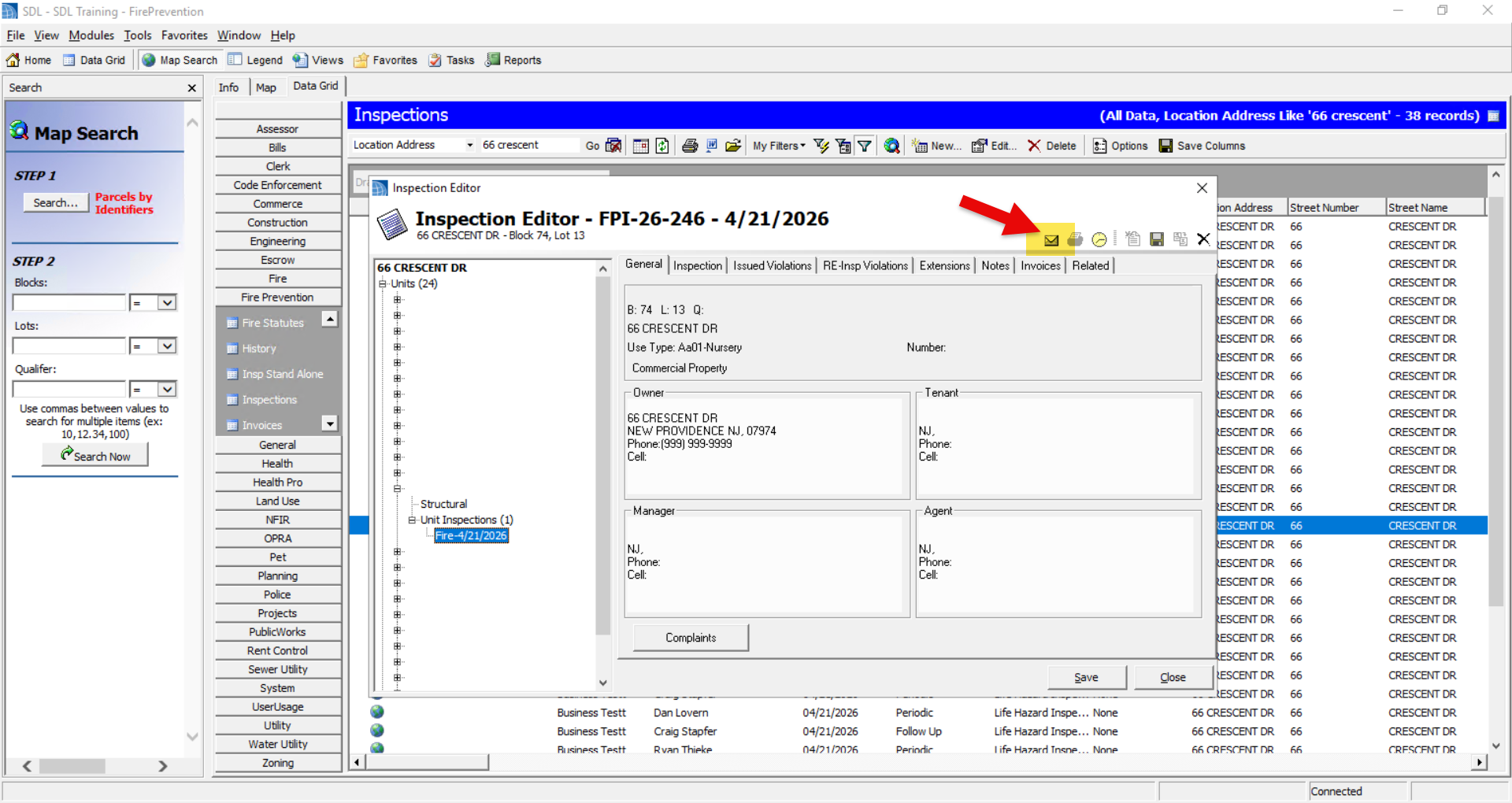
- Reopen the failed email
Find the email that failed in the email tracker list and open it. The original message and recipients will still be there. - Click Send
Click Send to try again. The email should now go out.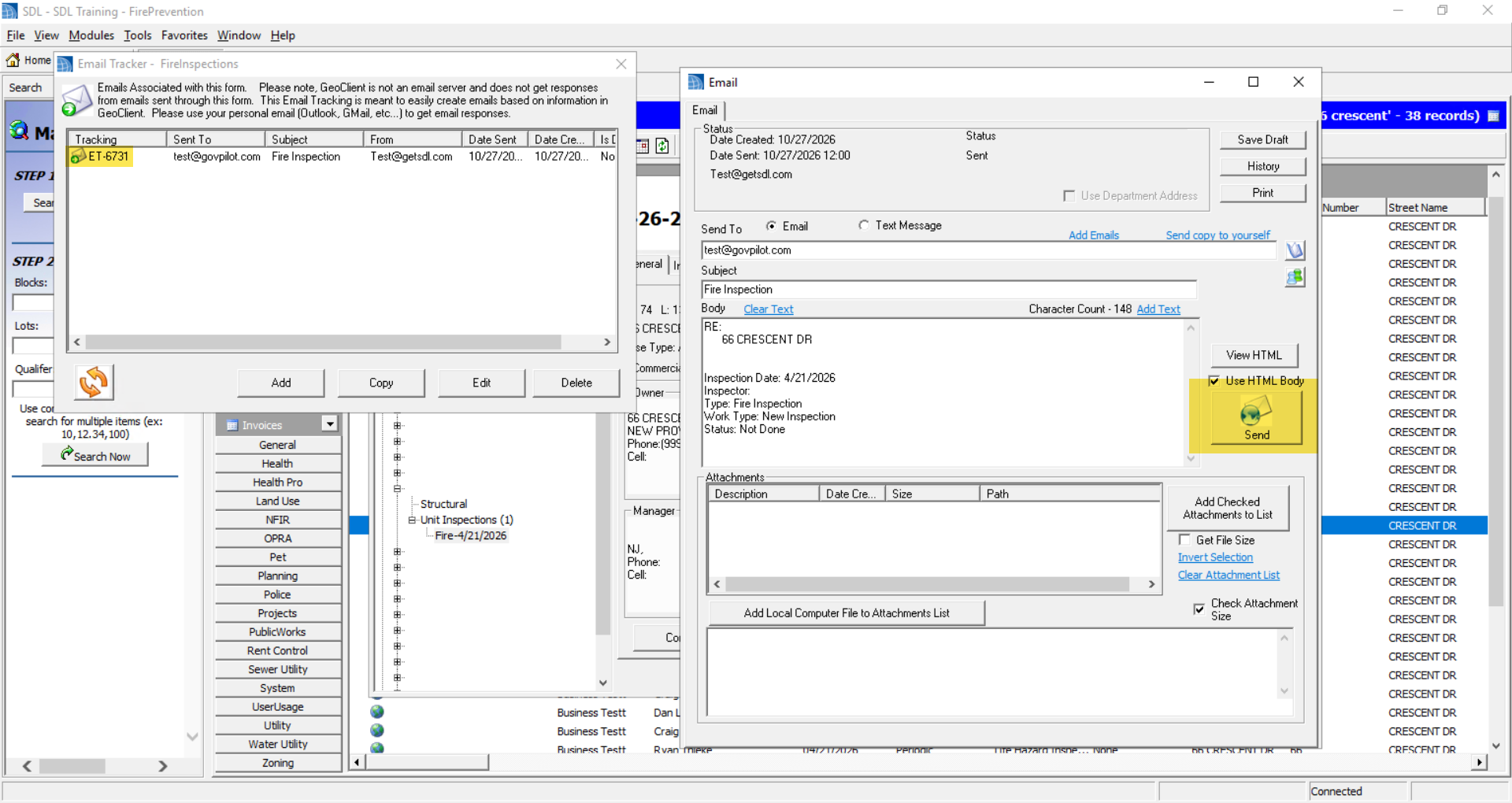
Method 2: Find unsent emails in the Email Trackers data grid
Use this method if you want to cross-check which emails did not go out across all records. It only applies to users who have access to the Email Trackers data grid. Not everyone has this access to this Datagrid, so if you do not see it, use Method 1 or ask your administrator.
- Open the Email Trackers data grid
From the main menu, go to Data Grids, then General, then Email Trackers. - Check the Is Sent Successful column
Look at the Is Sent Successful column. A checked box means the email was sent. An unchecked box means it did not send. - Open the unsent email
Double click the email with the unchecked box to open it. - Click Send or Resend
Click Send (or Resend) to send it again. Once it goes out successfully, the Is Sent Successful box will be checked.
Option: Resend several unsent emails at once
If more than one email failed, you can resend them together instead of opening each one. After step 2 above, select all of the emails where the Is Sent Successful box is not checked. You can select multiple rows at a time. Then click Edit in the toolbar and click Resend Selected Email. SDL will send all of the selected emails again, and the Is Sent Successful box will be checked for each one that goes out.
If an email still fails to send after a second attempt, contact GovPilot Support and let us know the record it was sent from and the recipient’s email address.