![SDL - 2025 New Logo.png]](https://help.getsdl.com/hs-fs/hubfs/SDL%20-%202025%20New%20Logo.png?height=40&name=SDL%20-%202025%20New%20Logo.png)
Download the installer here: https://www.parallels.com/products/ras/download/client/
Overview
The Parallels Client is the application on your computer that connects you to SDL Desktop. This article walks you through downloading, installing, and configuring it so you can log in and start using SDL Desktop. Full setup takes about 10–15 minutes.
Why this matters
SDL Desktop is delivered to your computer through the Parallels Client — think of Parallels as the secure tunnel between your workstation and the SDL Desktop environment. Once it's installed and configured, daily use is simple: double-click the SDL Desktop shortcut on your desktop and you're in.
Getting Started
Before you begin, make sure you have:
-
Admin rights on your computer (or IT available to help). Before you start, confirm with your local IT department that you have permission to install new software.
-
Your Domain Credentials — used by Parallels to open the secure connection (format: user@sdldesktop.com; provided during your SDL deployment)
-
Your Application Credentials — used to log in to SDL Desktop itself once you're connected (provided during your SDL deployment)
-
Your computer's system type (32-bit, 64-bit, or ARM64)
How to check your computer’s system type
On Windows 10 or 11:
-
Click the Start menu and open Settings (the gear icon)
-
Go to System → About
-
Under Device specifications, look at the System type line.
Keyboard Shortcut (Windows): Press the Windows key + Fn + Pause/Break together to open the same System > About page instantly. 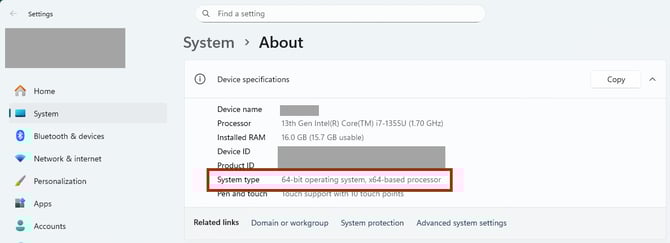
You'll see one of:
-
"64-bit operating system, x64-based processor" → choose Windows 64-bit Setup
-
"32-bit operating system, x86-based processor" → choose Windows 32-bit Setup
-
"64-bit operating system, ARM-based processor" → choose Windows ARM64 Setup
On Mac:
-
Click the Apple menu in the top-left corner and choose About This Mac
-
Look at the Chip (or Processor) line:
-
Apple M1, M2, M3, or newer → choose the Apple Silicon (ARM) installer
-
Intel Core i5/i7/i9 (or similar) → choose the Intel (64-bit) installer
-
If you're still unsure, your local IT contact or department can confirm.
Step-by-Step Instructions
The steps below show the Windows flow, which is the most common. The labels and options are the same on other operating systems — window styles may look slightly different.
Part 1: Download the Installer
-
Go to the download page.
Open your browser and navigate to https://www.parallels.com/products/ras/download/client/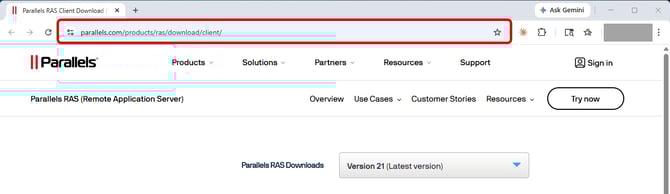
-
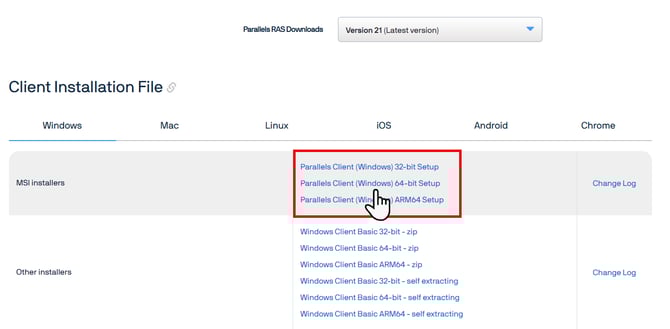
Choose your installer. You'll see tabs for Windows (selected by default), Mac, Linux, iOS, Android, and Chrome. Click the tab for your operating system, then choose the MSI installer that matches your system type — most commonly Parallels Client (Windows) 64-bit Setup.
-
Save the file. When your browser prompts you, save it. By default it goes to your Downloads folder.
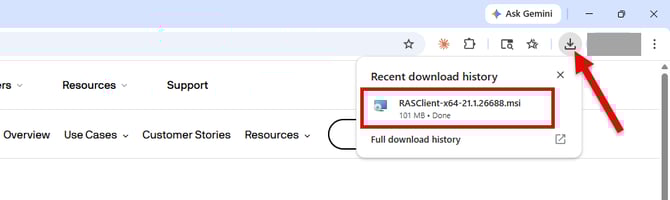
Part 2: Install the Client
-
Run the installer. Double-click the file in your browser's download bar or the Downloads folder to open the Setup Wizard and Click Next to begin.
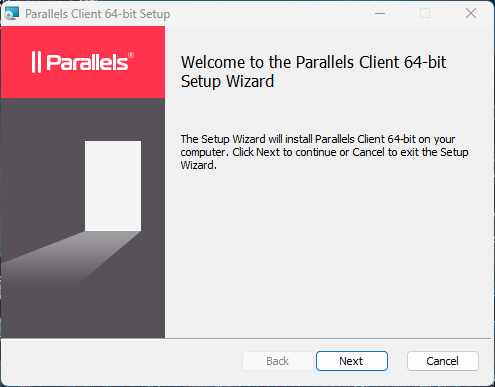
-
Walk through the installation wizard:
-
Accept the Terms and Conditions and click Next to continue
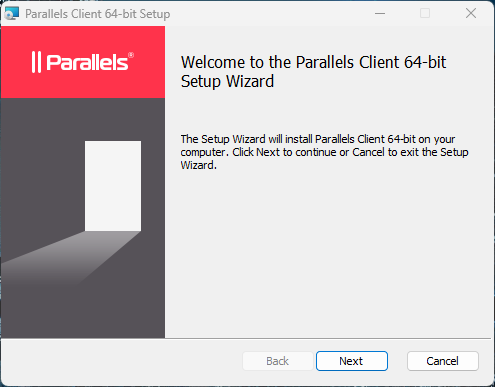
-
Click Next to choose the destination folder.
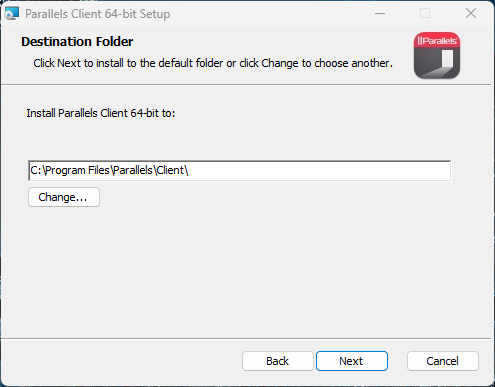
-
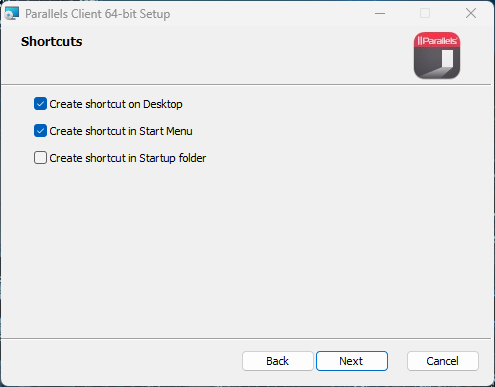
Decide on Shortcuts. The installer offers three shortcut locations — Desktop, Start Menu, and Startup folder. The first two (Desktop and Start Menu) are selected by default, which is what we recommend. Leave them checked and click Next.
-
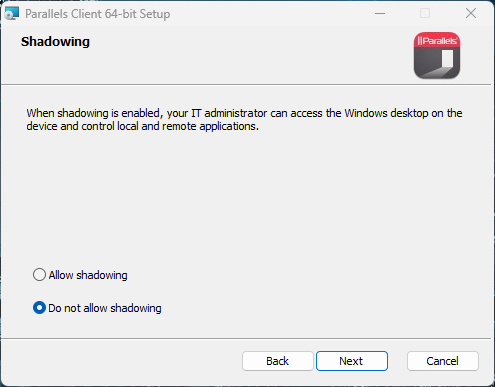
Choose a Shadowing preference. Shadowing lets an authorized IT administrator view your Windows desktop and control local and remote applications during a support session. You’ll see two options: Allow shadowing and Do not allow shadowing. “Do not allow shadowing” is selected by default — keep that selection unless your IT team specifically asks you to enable it, then click Next.
-
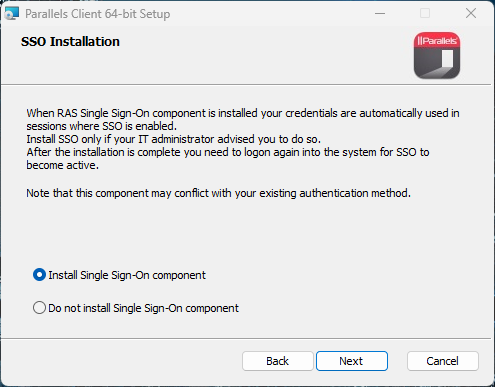
Check Install Single Sign-On Component (if prompted) — this lets Parallels reuse your Windows login to authenticate to SDL Desktop, so you aren’t re-prompted for your domain credentials every session. You can safely leave this selection at the default and click Next.
-
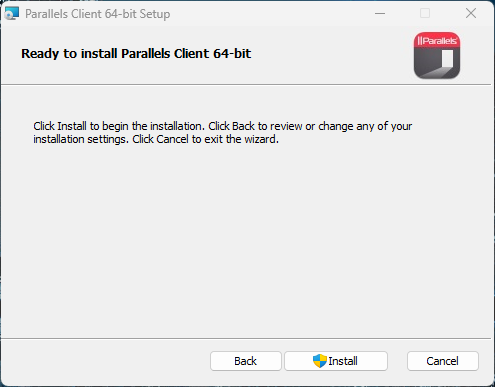
Click Install to begin the installation.
-
3. Restart if prompted. The client will open automatically once the install finishes. If your computer asks you to restart, go ahead and restart now.
📝 Tip: If the client doesn't appear after restart, look for the SDL logo in your taskbar or double-click the SDL Hosting Client shortcut on your desktop.
Part 3: Connect to SDL Desktop
-
Skip the first connection prompt.
If a pop-up asks to add a connection, click No. You'll add it properly in the next step, which auto-configures everything. -
Configure from the web portal.
Go to https://ps-1.sdldesktop.com/userportal/download and click the Configure button.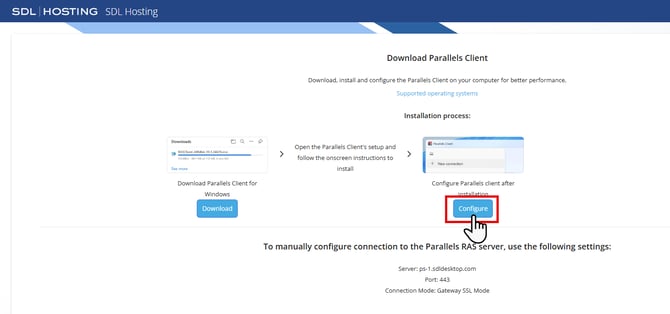
When your browser asks, check the box and click Open Parallels Client.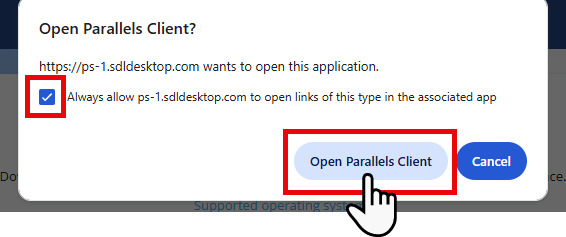
-
Confirm the connection. In Parallels, a pop-up will ask "Do you want to add Connection 'ps-1.sdldesktop.com'?" — click Yes.
-
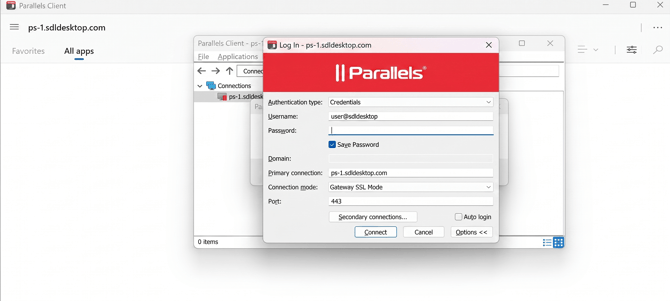
Log in with your Domain Credentials. A login window will appear. Enter the credentials provided during your SDL deployment:
-
Username format: user@sdldesktop.com (do not use the SDLDESKTOP\user format)
-
Primary connection: should show ps-1.sdldesktop.com
-
Tip: Check Save Password so you won't need to re-enter it next time
-
Click Connect
-
-
Launch SDL Desktop. Once connected, you'll see the SDL Desktop app under the All Apps tab. Double-click it to start your session.
-
Log in with your Application Credentials. When the SDL Desktop login screen appears, sign in using your application credentials (these are separate from your domain credentials).
Part 4: Final Cleanup
-
Tidy up your desktop. You'll see two shortcuts: SDL Hosting Client and SDL Desktop.
-
Delete the SDL Hosting Client shortcut
-
Keep the SDL Desktop shortcut — this is the one you'll use every day
📝 Note: To access Parallels Client settings later (for example, to check for updates), right-click the Parallels icon in your System Tray (bottom-right of your screen) and choose Restore.
-
⚡ Save these Quick Steps
-
On Windows: Settings → System → About → System type to find 32-bit, 64-bit, or ARM64
-
Go to https://ps-1.sdldesktop.com/userportal/download and download the matching MSI installer
-
Run the installer → Accept Terms → check Install Single Sign-On Component → keep defaults → Finish
-
Restart your computer if prompted
-
If a pop-up asks to add a connection, click No
-
Back on the download page, click Configure → click Open when the browser prompts → Yes to add the connection
-
Log in with your Domain Credentials (user@sdldesktop.com) and check Save Password
-
Under All Apps, double-click SDL Desktop and log in with your Application Credentials
-
Delete the SDL Hosting Client desktop shortcut
✅ Welcome to SDL Hosting! From here on, just double-click the SDL Desktop shortcut to launch straight into the application.
If you run into any trouble, please reach out to our support team at support@getsdl.com — we're here to help.
Related Resources
-
Parallels update: How to Update the Parallels Client for SDL Desktop — once installed, this covers how to keep the Parallels/SDL Hosting Client up to date.