![SDL - 2025 New Logo.png]](https://help.getsdl.com/hs-fs/hubfs/SDL%20-%202025%20New%20Logo.png?height=40&name=SDL%20-%202025%20New%20Logo.png)
In this article:
Before You Start (Please Read!)
One-Time Enrollment
Step 1: Select Reset Your Password
Step 2: Enroll your account
Step 3: Set up your verification method
Resetting Your Password
Step 1: Start your reset
Step 2: Verify your identity
Step 3: Create your new password
Step 4: Update your saved password in Parallels
Troubleshooting
Related Resources
This article applies to SDL Desktop Hosted customers who connect through the Parallels client. It walks you through enrolling your account for self-service password reset, then how to actually reset your password whenever you need to, including the mandatory 90-day rotation. Your Parallels connection password is separate from your SDL Desktop login itself.
Before You Start
Parallels passwords must be reset every 90 days. This is a required security policy, not an optional check-in. You will need to complete the steps in this article every 90 days to keep your Parallels connection active. Your SDL Desktop login is not affected by this rotation.
If you have accounts in more than one town, this resets all of them at once. Your Parallels login is a single shared credential across every town you have access to. Resetting your password in one town resets it everywhere, since it is the same login. This is expected behavior, not an error. If you manage multiple towns, let your other towns know ahead of time so no one is caught off guard or resets it again thinking it did not work.
If you cannot sign on to Parallels at all, you can still reset your password, as long as you can access the Parallels client and know your username. In the Parallels client, click the File menu and select Change Domain Password.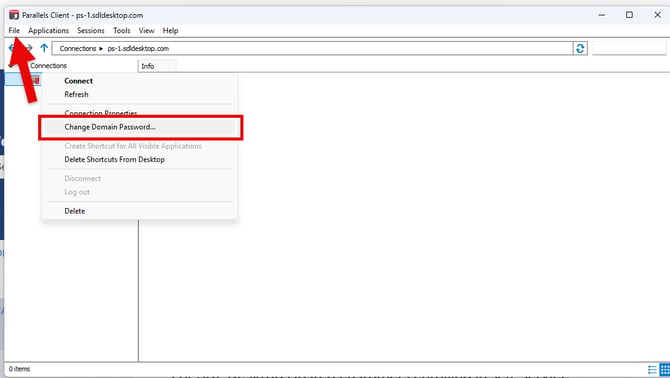
You can also go directly to reset.sdldesktop.com and select Forgot your password? Either way takes you to the same reset portal used in the steps below, without needing to sign in first. If you don't have access to the Parallels client and don't know your username, email support@getsdl.com directly for help.
You will need your Parallels username. This may be different from your SDL Desktop username.
You will need access to your email inbox, or an authenticator app if you prefer that verification method. Either works for the verification step later in this article.
Updating the Parallels client to the latest version is recommended, not required. Have it installed before you start either way. See How to Update the Parallels Client for SDL Desktop for instructions.
One-Time Enrollment
Do this once, the first time you use self-service password reset. You will not need to repeat enrollment for future resets, including the mandatory 90-day rotation, unless you change your verification method later. Already enrolled? Skip ahead to Resetting Your Password.
Step 1: Select Reset Your Password
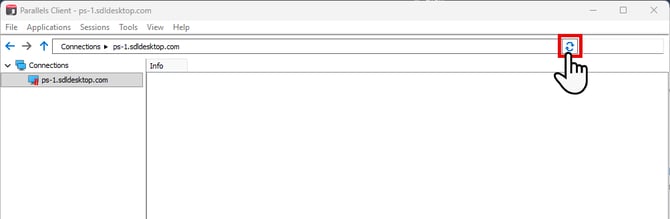
Open the Parallels client. If the application icons are not visible yet, select the refresh icon next to your connection.
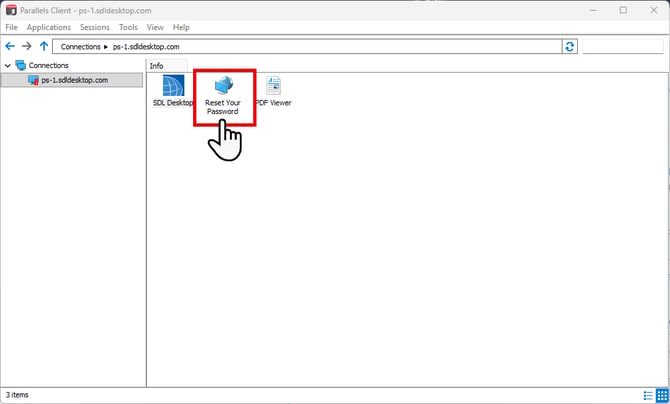
Once the icons load, select Reset Your Password.
This opens a browser window where you will complete enrollment.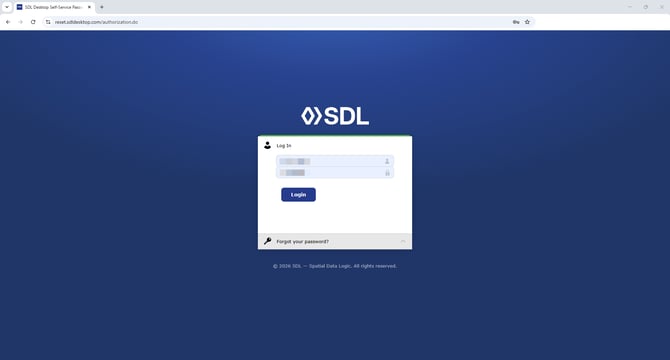
Step 2: Enroll your account
On the Log In screen, enter your Parallels username and current Parallels password, then click the Login button.
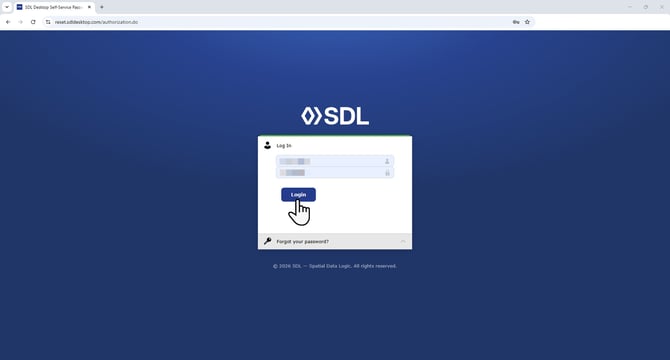
This logs you into the self-service portal and takes you directly to MFA enrollment. You have not changed your password yet.
Step 3: Set up your verification method
Choose one of the three verification methods offered: Google Authenticator, Email Verification, or Cisco Duo. Google Authenticator is selected by default. Select Next once you have made your choice.
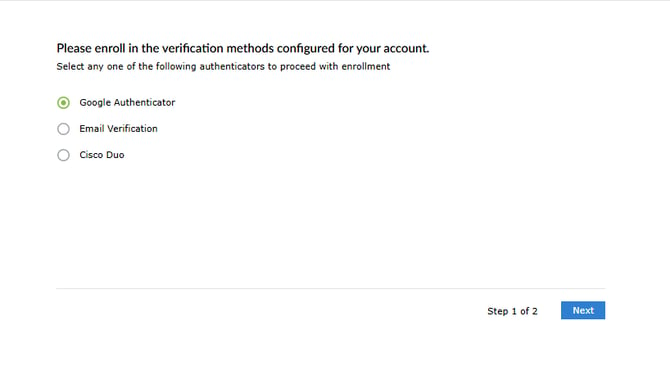
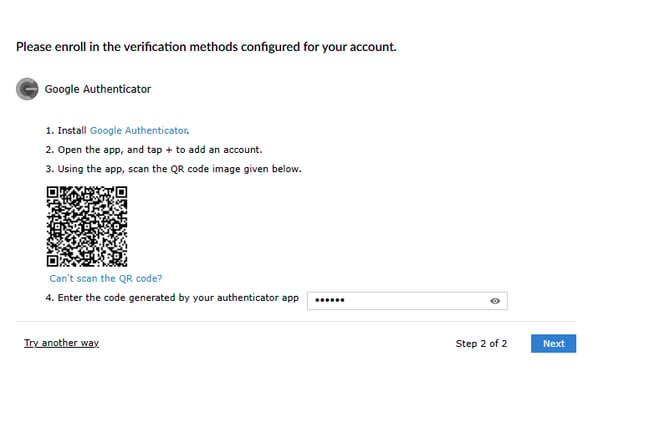
If you chose Google Authenticator: install Google Authenticator on your phone, open the app, tap the plus icon to add an account, and scan the QR code shown on screen. Enter the six-digit code the app generates, then select Next.
Heads up: if you already use Google Authenticator for your regular SDL Desktop or Parallels login, this adds a second, separate entry to the app labeled ADSelfService Plus. Your existing entry (labeled SDL) is still for your regular login. When you verify your identity for a password reset, always use the code under ADSelfService Plus, not the one under SDL.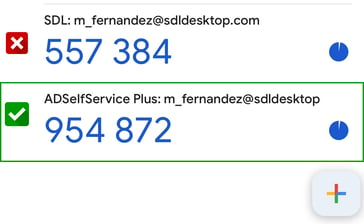
If you chose Email Verification: enter the email address where you want to receive your code and select Send Code. Enter the code once it arrives and click Verify Code, then Next.
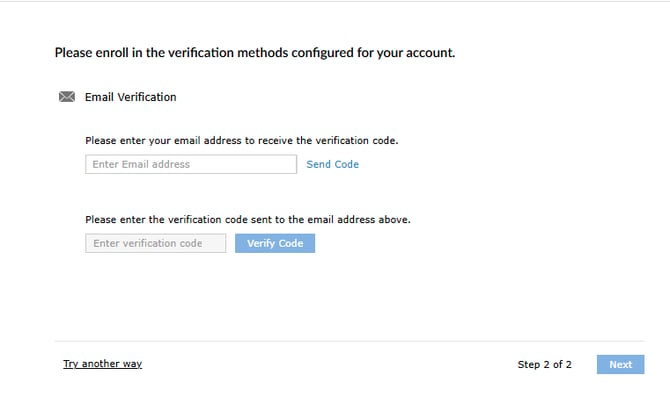
Check your inbox for the code.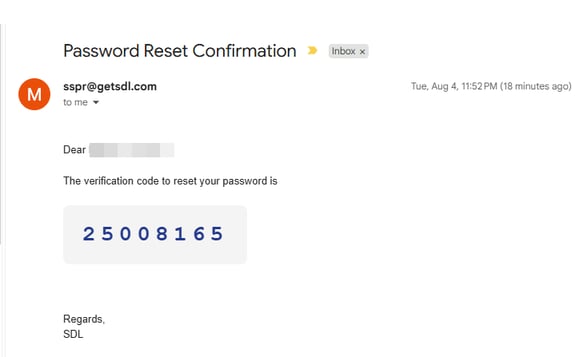
If you do not see it within a minute or two, check your spam or junk folder. In some cases the verification email is caught by an organization's spam filter before it reaches any folder. If that happens, your IT team will need to release the message and allow future emails from SDL to reach your domain. When you copy the code from the email, copy only the digits, an extra space before or after the code will cause it to be rejected even though it looks correct.
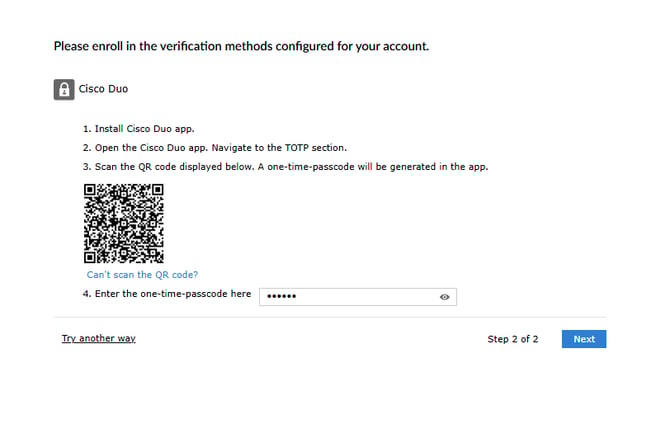
If you chose Cisco Duo: install the Cisco Duo app, open it, navigate to the TOTP section, and scan the QR code shown on screen. Enter the one-time passcode the app generates, then select Next.
Once your method is confirmed, you will see a success message confirming you have enrolled, along with your list of Enrolled Verification Methods. You have not changed your password yet, you have only set up how you will verify your identity for future resets.
Note: Alongside the method you just set up, you will also see MFA Recovery, which lets you generate one-time backup verification codes to use if you are ever unable to verify your identity another way. It is worth generating and saving these somewhere safe now, before you need them. 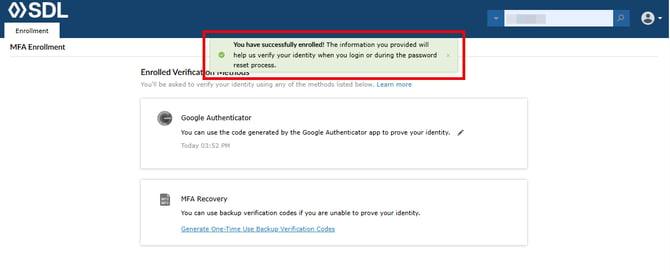
Resetting Your Password
Once you are enrolled, use these steps any time you need to reset your password, including the mandatory 90-day rotation. Haven't enrolled yet? Go back to One-Time Enrollment first.
Step 1: Start your reset
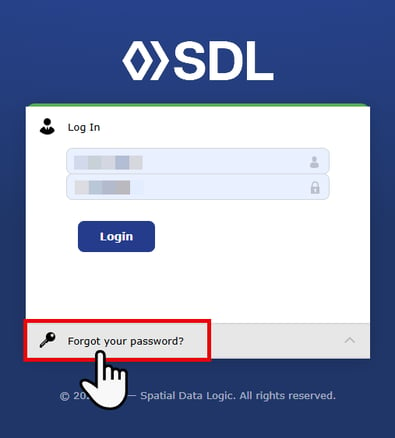
Open the Parallels client and select Reset Your Password, the same way you did during enrollment. This opens the same Log In screen. Select Forgot your password? at the bottom instead of logging in.
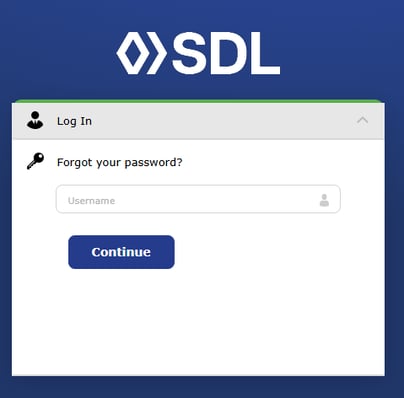
Enter your Parallels username and click the Continue button.
Step 2: Verify your identity
If you have more than one verification method enrolled, you will first see a screen asking you to choose which one to use. Select a method to continue.
Select the verification method you set up during enrollment and enter the new one-time code sent to you. The same guidance from enrollment applies here: check spam or junk folders if the email does not arrive, and copy only the digits of the code.
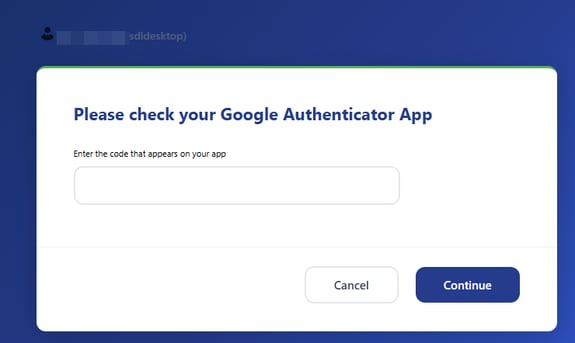
Heads up: if you use Google Authenticator for both your regular login and password resets, make sure you enter the code from the entry labeled ADSelfService Plus, not the one labeled SDL. They refresh independently and entering the wrong one will fail.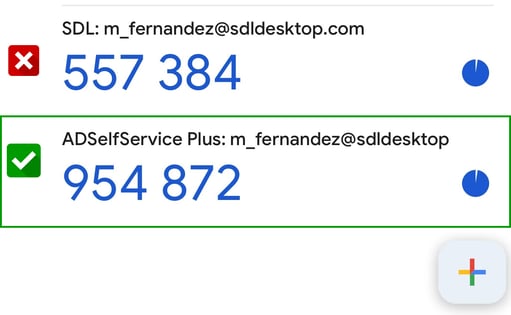
If you enrolled with email verification, the same guidance from enrollment applies here: check spam or junk folders if the email does not arrive, and copy only the digits of the code.
Step 3: Create your new password
Enter a new password in the New Password field, then enter it again in Confirm New Password.
Your new password must meet these requirements:
- At least 13 characters long
- One upper case letter
- One lower case letter
- One number
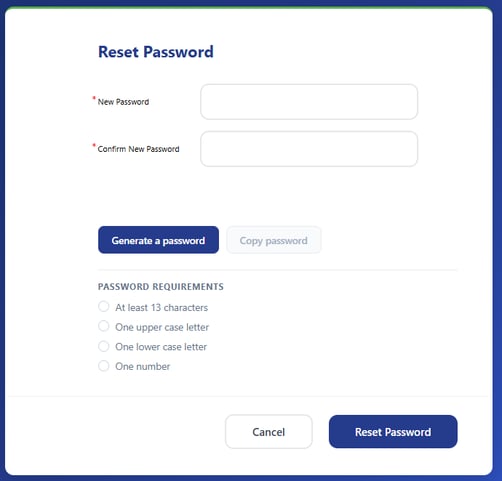
Prefer not to come up with your own password? Select Generate a password and the portal will create one for you that already meets all four requirements. It will already be filled into both the New Password and Confirm New Password fields.
Important: Once a password is generated, select Copy password to copy it. Save this password somewhere secure, such as your password manager, before you continue. You will need it to sign in to your machine and to Parallels. IT cannot retrieve it for you.
Click the Reset Password button to finish.
Step 4: Update your saved password in Parallels
Your Parallels connection still has your old password saved, so you need to update it manually. In the Parallels client, right-click your connection under Connections (it will be named for your server, for example ps-1.sdldesktop.com).
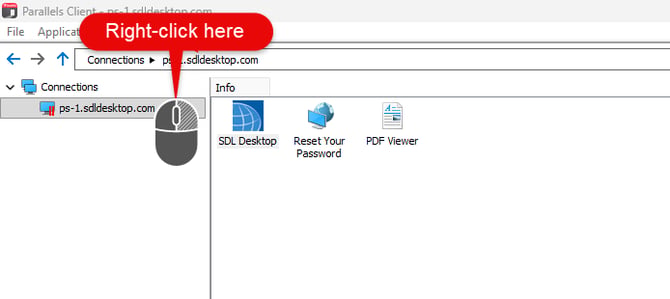
Select Connection Properties.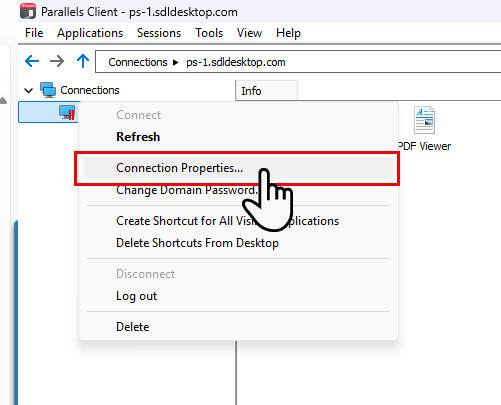
Enter your new password in the password field and click OK to save.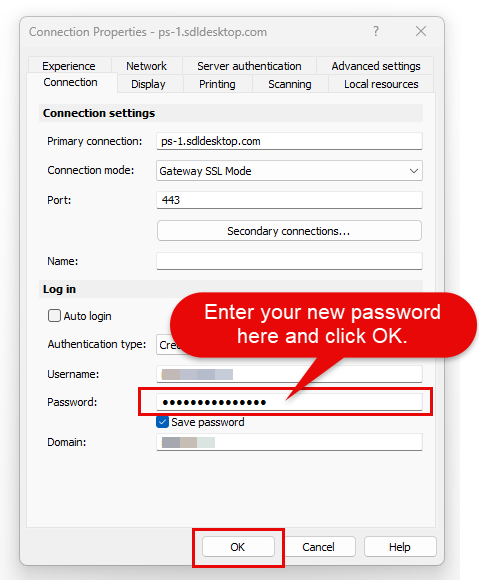
Open SDL Desktop to confirm it loads correctly with your new password.
That's it, your password is reset successfully.
Troubleshooting
The verification code I entered isn't working. This is often caused by an extra space copied along with the code from the email. Copy only the digits and try again, or select the option to resend a new code if the first one has expired.
I never received the verification email. Check your spam or junk folder first. If it is not there, ask your IT team to check for a quarantined message and, if found, add SDL's sending domain to your organization's allowed senders so future emails come through automatically.
I'm completely locked out and don't see a Reset Your Password option anywhere. You can still reach the reset portal without signing in: right-click your connection in the Parallels client (or use the File menu) and select Change Domain Password, or go directly to reset.sdldesktop.com. If you don't have access to the Parallels client and don't know your username, email support@getsdl.com and we will issue you a temporary password so you can get back in.
I reset my password but SDL Desktop won't let me log in. Your Parallels connection still has your old password saved until you update it manually. Right-click your connection under Connections (named for your server), select Connection Properties, and enter your new password there.
I am still having trouble. Email support@getsdl.com and we will walk through it with you.
Related Resources
- Parallels install: How to Install the Parallels Client for SDL Desktop — for new users, or anyone who needs to install the Parallels/SDL Hosting Client from scratch.
- Parallels updates: How to Update the Parallels Client for SDL Desktop Users