![SDL - 2025 New Logo.png]](https://help.getsdl.com/hs-fs/hubfs/SDL%20-%202025%20New%20Logo.png?height=40&name=SDL%20-%202025%20New%20Logo.png)
New to the SDL Client Admin Tool? Start with How to Access and Use the SDL Client Admin Tool for how to log in and find your way around.
Use this when a staff member leaves, goes on extended leave, or needs their access temporarily suspended, and again when they return. Disabling an account blocks login without deleting any of the user's data or settings.
Before You Begin
You will need:
- Town Admin access in the SDL Client Admin Tool.
- The user's name or username.
- About one minute.
Heads up: Disabling an account blocks the user from logging in immediately. Double-check you have the correct person selected before you confirm.
Step 1: Disable an account
Find the user in the list and click their name to select them. Click Disable Account. A confirmation prompt appears.
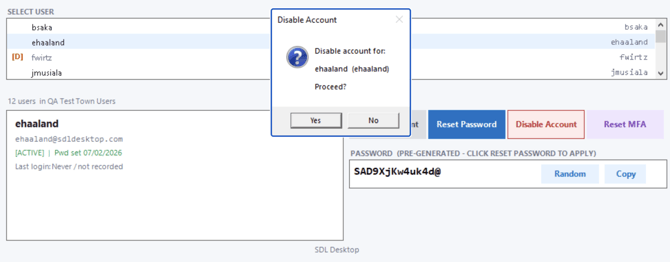
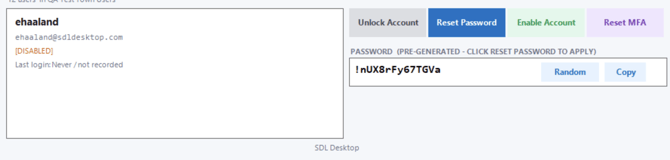
Click Yes to confirm. The user's status in the detail panel updates to Disabled, and an orange [D] indicator appears next to their name in the list. The action button also switches from Disable Account to Enable Account.
Step 2: Enable an account
Find the disabled user in the list, they show a [D] indicator, and click their name to select them. Click Enable Account. This is the same button that showed Disable Account a moment ago; it toggles based on the user's current status. A confirmation prompt appears.
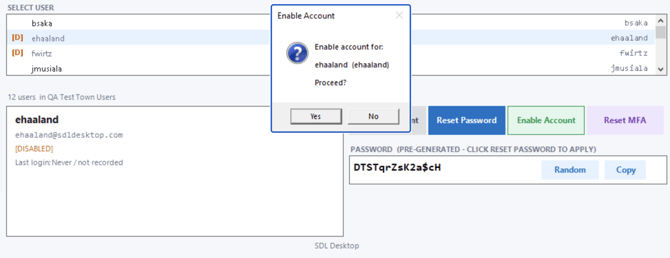
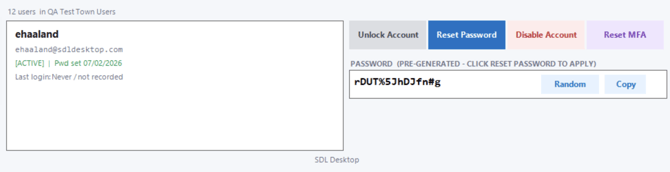
Click Yes to confirm. The user's status updates to Active and they can log in again. The action button switches back to Disable Account.
Troubleshooting
I do not see a Disable or Enable button. Make sure you have a user selected in the list. The button label switches automatically between Disable Account and Enable Account based on whether the selected user is currently active or disabled.
I enabled the account, but the user still cannot log in. Check whether the account also shows a red [L] indicator. If it is locked, see Unlock Account. If they also forgot their password, see Reset Password.
I am still having trouble. Email support@getsdl.com and we will walk through it with you.