![SDL - 2025 New Logo.png]](https://help.getsdl.com/hs-fs/hubfs/SDL%20-%202025%20New%20Logo.png?height=40&name=SDL%20-%202025%20New%20Logo.png)
- Go to the ‘General License Application’ data grid within the ‘Health Pro Module’.
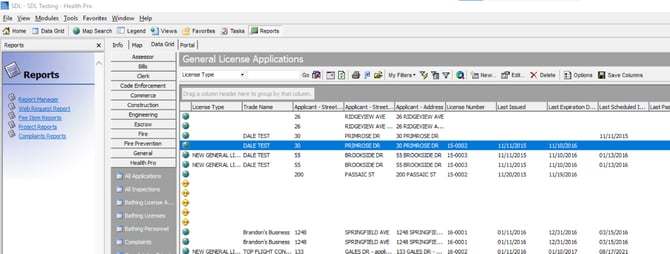
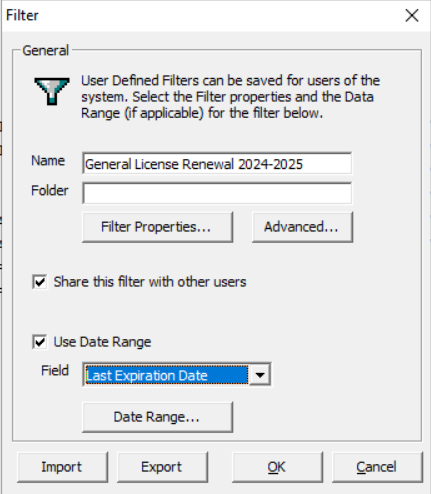
- Filter for expiring ‘General License Applications’. Select My Filters > Add New Filter. Create the filter with these settings:
- Name the filter with a quick description of what it does. This can be helpful when updating this for next year’s invoices.
- Check the box for ‘Use Date Range’ and select ‘Last Invoice’ in the date drop-down selection.
- Click on the ‘Date Range’ button and on the ‘Grid Date Range’ window, use the ‘Specific Date Range’ option and set it to the expiration date of the latest invoice.
- For this example set both date range fields to 12/31/2024 for only invoices expired in 2024.
- If you want to include the previous year’s invoices, then the date range would be 12/31/2023 to 12/31/2024.
- Make sure the option to ‘Include Blank Dates’ in this range is UNCHECKED.
- Click ‘OK’ when done.
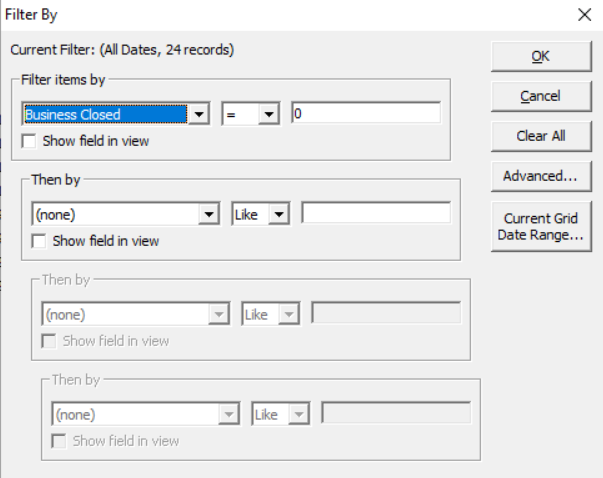
- Within ‘Filter Properties’, set your ‘Business Closed’ = 0, Then click ‘OK’.
- When your records appear, right-click on any record in the data grid and a menu will appear. Click on ‘Select All’.
- All records currently showing on the data grid will be selected (highlighted dark blue).
If you want to deselect records, you can hold on the ‘CTRL’ key on the keyboard and at the same time left-click on the records you do not want selected. - After the records are selected, click on the ‘Edit’ button.
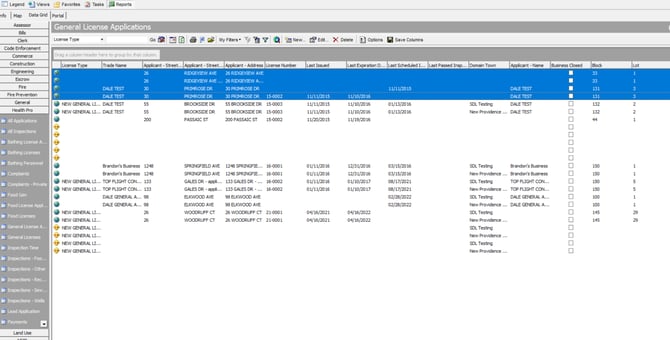
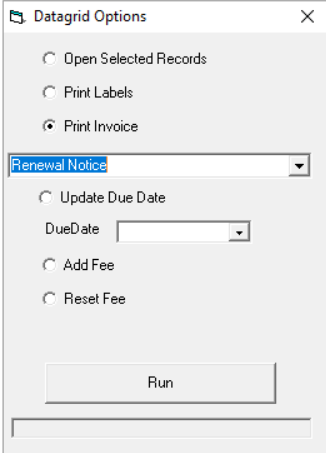
- Once the ‘Data Grid Options’ appear, Select ‘Create Invoice’ then select a ‘Due Date’.
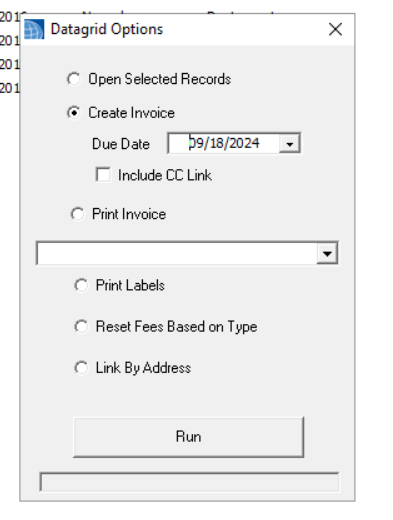
- Then click ‘Run’ and ‘Yes’ to the “Update Selected Records?” button.
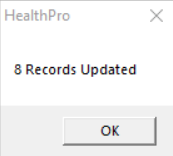
- You should see this:
- When payment is received, to pay for the license, open the general license application, then go to the ‘Licenses’ tab and select the latest license.
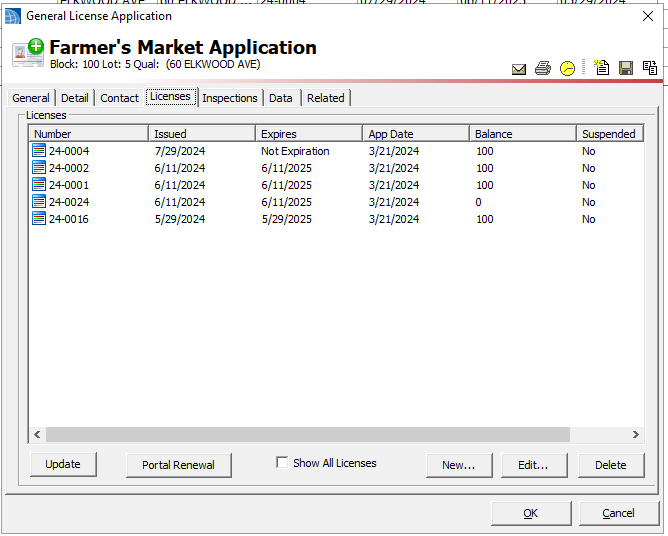
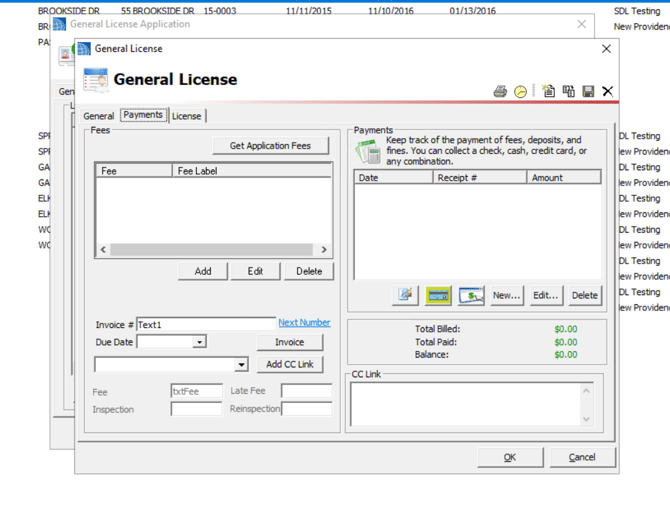
- Then open up the license you need and select ‘Payments’. Then click the “New” button to pay for the license in the manner that you would need.
- Once again, you will select all results and then select ‘Edit’. Then you can print the invoices by selecting ‘Print Invoice’ and ‘Run’. You will be prompted with an option to preview the invoices or just send them right to the printer. You can also email the invoices, print mailing labels, and add fees to the invoices from here.