![SDL - 2025 New Logo.png]](https://help.getsdl.com/hs-fs/hubfs/SDL%20-%202025%20New%20Logo.png?height=40&name=SDL%20-%202025%20New%20Logo.png)
This guide covers how to create a new user account by cloning permissions from an existing user, giving them access to SDL Desktop, SDL Portal, and/or SDL Mobile in one step.
A Few Things to Know First
- SDL Portal and SDL Mobile share the same account. Once an SDL Portal account is created for a user, they can also sign into SDL Mobile with those same credentials.
- Inspectors need an additional profile. If you're creating an account for someone who will use SDL Mobile as an inspector, you'll also need to add an inspector profile for them via Manage Inspectors in the Tasks section of SDL Desktop.
- Hosted towns can't create their own SDL Desktop accounts. If your town is hosted (you can check this by seeing if the SDL Hosting Client is installed on the machine), a new SDL Hosted account has to be created by SDL. Submit a support ticket to request this.
What You'll Need
Required:
- The new user's full name (first and last)
- A unique email address (required for Portal/Mobile accounts — leaving this blank will prevent those accounts from being created)
- An existing SDL Desktop/GeoClient user whose permissions you want to copy
Optional (can be added during setup, but not required):
- Department
- Title
- Telephone number
- Start date
Instructions
- Log into SDL Desktop using an account with administrator privileges.
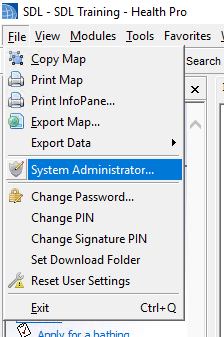
- Click File (top left), then System Administrator.
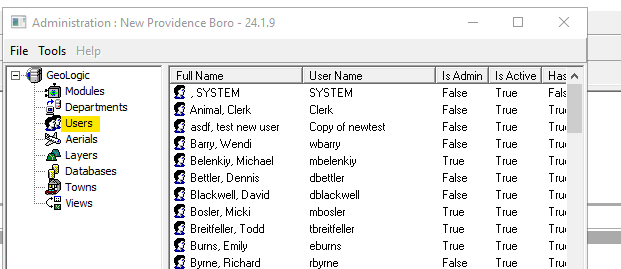
- Click Users.
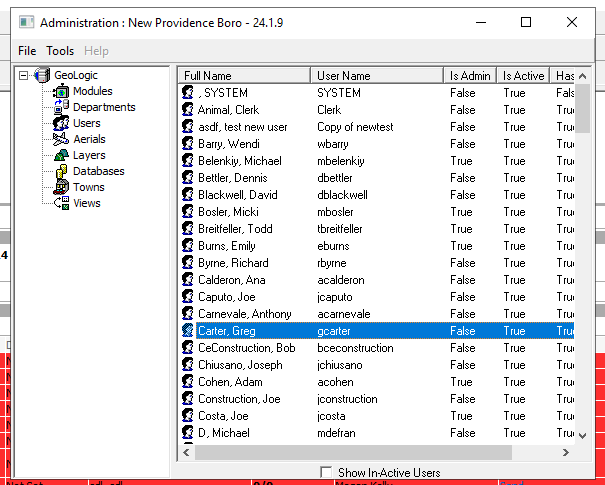
- If the user already has an SDL Desktop account and you just need to add Portal/Mobile access, skip ahead to Step 7. Otherwise, select the existing SDL Desktop/GeoClient account whose permissions you want to copy.
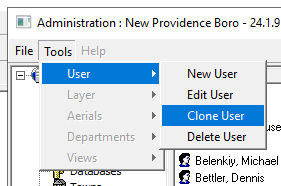
- Click File > Users > Clone User.
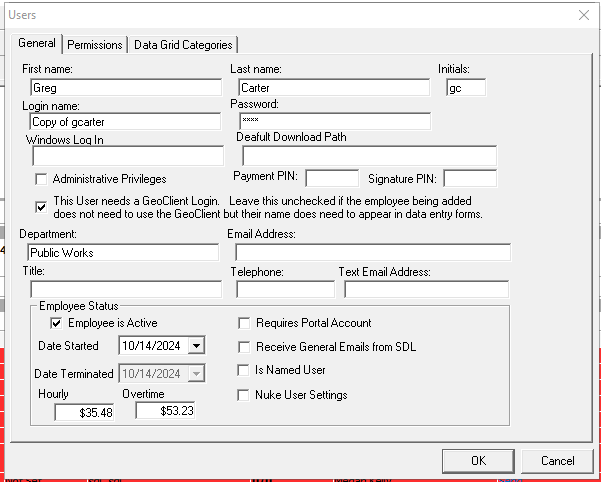
- Confirm you're in the right place — the Login Name field should show "Copy of [original username]." If it doesn't, go back to Step 4 and try again.
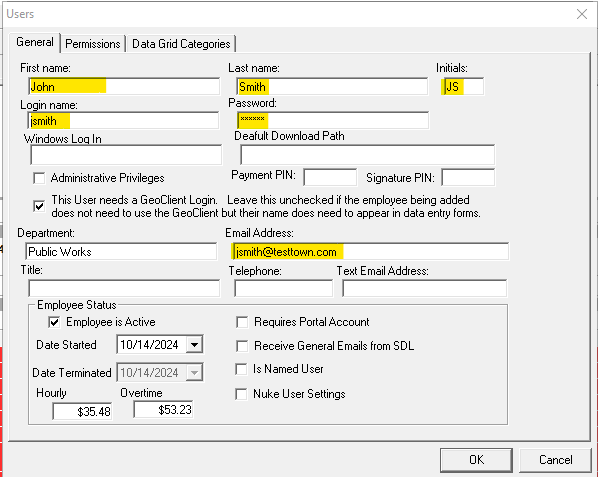
- Enter the new user's details: First Name, Last Name, Initials, Email Address, Login Name, and Password. Tip: We recommend using first initial + last name as the format for both username and initial password. For example, John Smith's username and starting password would both be "jsmith."
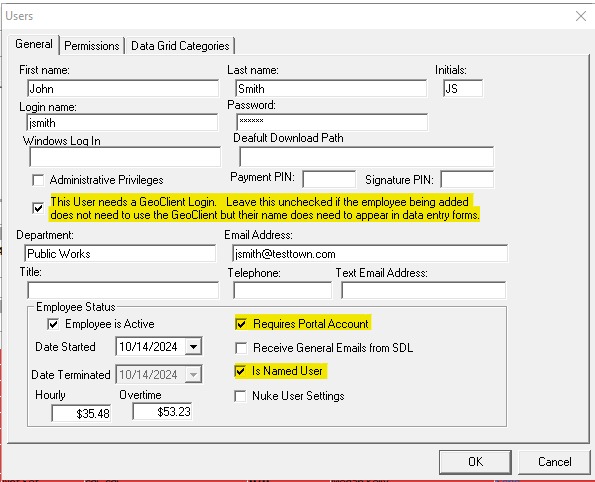
- The User Needs a GeoClient Login — allows the user to log into SDL Desktop/GeoClient.
- Requires Portal Account — automatically creates a Portal account using the email address entered above. (If the email field is blank, or an account already exists under that email, no new account will be created.)
- Is Named User — check this if the account will be using an SDL license.Check off the following boxes as needed:
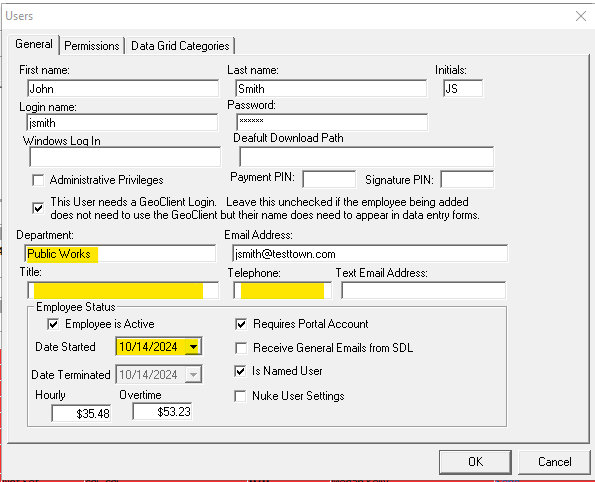
- (Optional) Fill in any additional details, such as Department, Title, Phone Number, or Start Date.
- Click OK to finish.
-png.png?width=595&height=482&name=31045801493901%20(1)-png.png)
The account has been created and the user can now log in. If you are creating a portal account it may take up to an hour for the account to be created (automatically) in SDL Portal.