![SDL - 2025 New Logo.png]](https://help.getsdl.com/hs-fs/hubfs/SDL%20-%202025%20New%20Logo.png?height=40&name=SDL%20-%202025%20New%20Logo.png)
Violation invoicing can only be used if you turn on the Multi Fee Option. This will no longer let you add payments to the violation form. All Fine payments have to be added to the Violation Invoices.
This option is to send an invoice to businesses for violation fines on top of the Notice of Violations and Order to Pay. Using the Multi-Fee on the Unit invoice you can now do this. Creating and Updating the Violation Invoices is done through the Inspection Editor Invoices Tab. Please note this tab will show all invoices from the Unit not just violations.
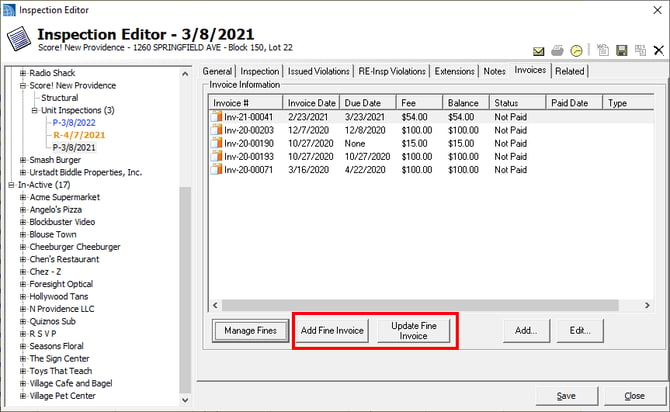
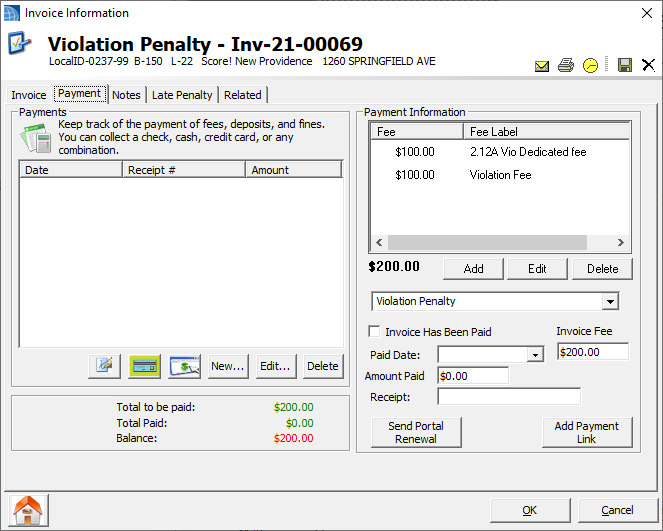
Add will create a new Invoice and add any fines that you have added to violations on this inspection. Update will take any changes (edited fine amounts, removal of fines) and update the Invoice. When creating an invoice you will notice the Multi Fee section on the top right of the payment tab will have a violation Fee and a dedicated fee item if you added a dedicated fee to a violation.
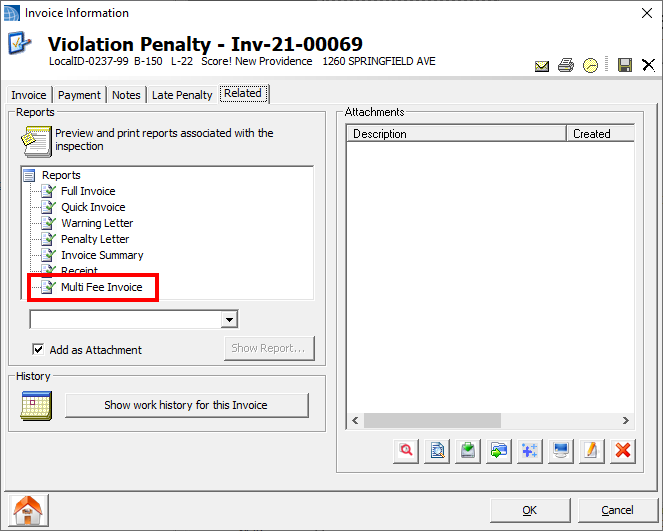
When you turn on the multi fee option you must use the Multi fee Invoice report on the related tab.
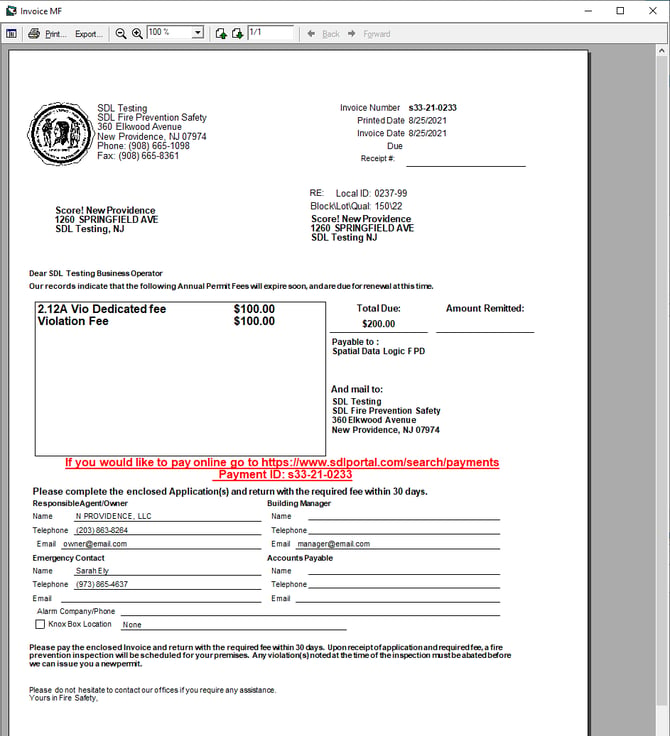
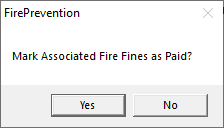
Processing the invoice will be like any other invoice. When a check comes in add the payment. If you have Credit Card processing turned on you can send a payment request or add the link tot he invoice. Processing for a Credit card payment is done from teh home page and will add the payment and open the invoice from there. When a payment is processed you will be prompted to mark fines as paid, and provided the whole payment you should hit yes.
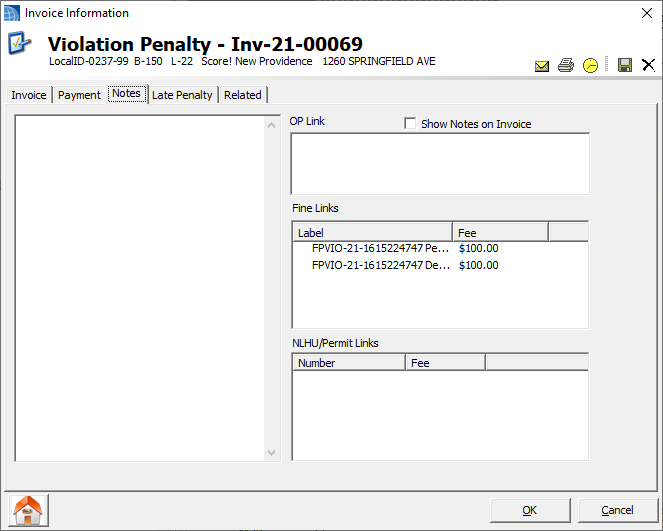
On the notes tab you will see a list of the violations used on this invoice for reference
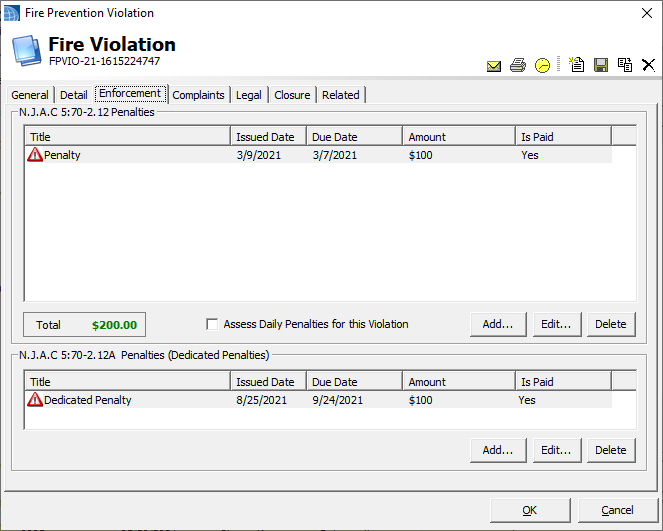
On the violation form you will now see the fines as paid on the enforcement tab and fine form.
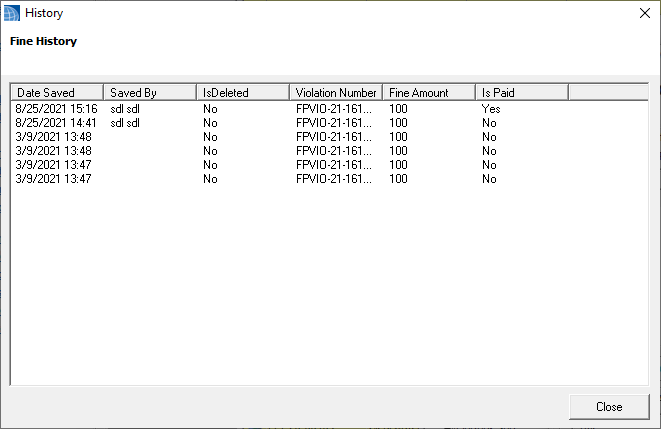
Please note on the Edit Fine Form we added a full history tracker, this will track all the fields on the fine and when it was saved and by whom. For this reason we have removed the Override option. You can change the fines as you see fit and the history will tell you who did it. We also have a new Violation Fine History datagrid, call support if you would like it turned on. History is tracked weather you use multi-fees or not.
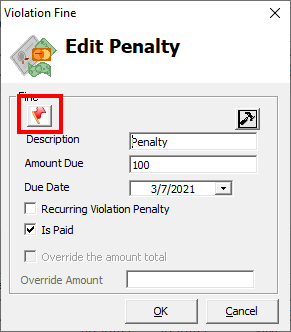
Please remember with this turned on you will not be allowed to add payments to the violation. we left it on the form for historical look up.
Late Fee
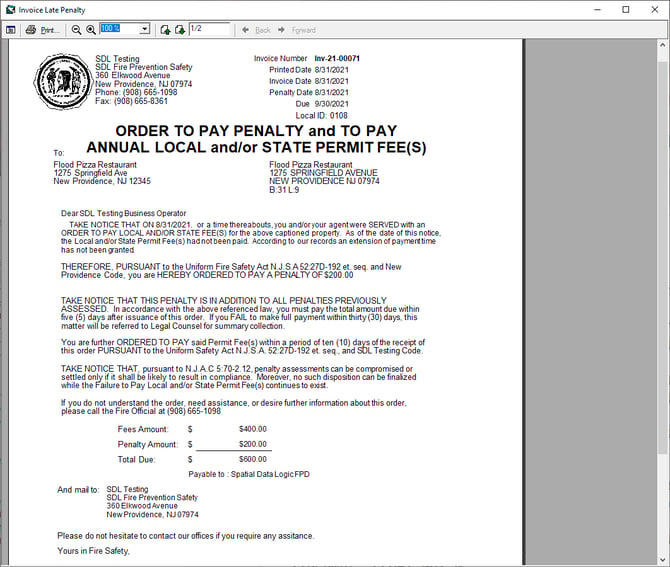
if you would like to charge a late fee add the amount to the Late Penalty Tab. This will prompt you to update the Penalty Fee. If you don't have an Fee Item for Invoice Late Fee, it will add it, if you do it will update to your new value.
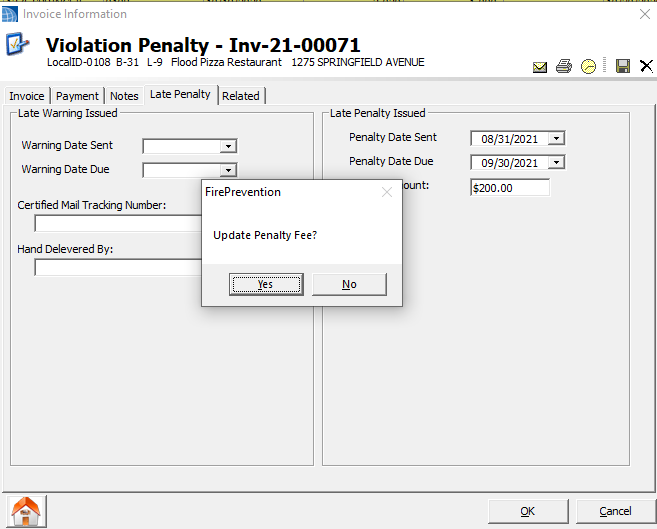
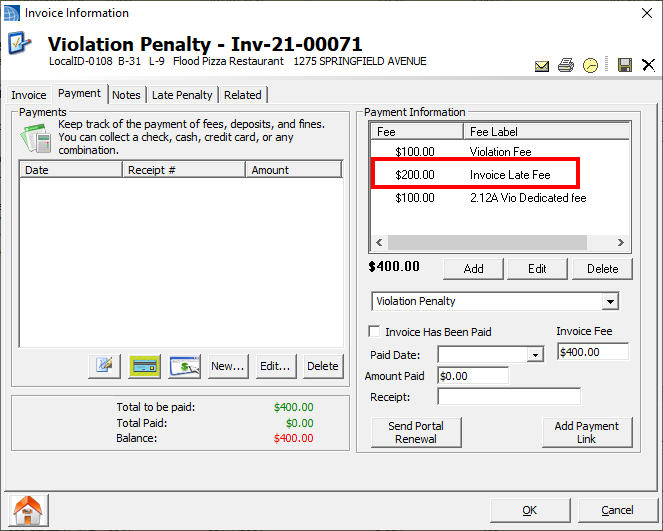
Please note the Invoice Late Fee item is used on Fee Item Reports. The value you enter on the Late Penalty Tab is used on Fire Prevention State Penalty letter Report.