![SDL - 2025 New Logo.png]](https://help.getsdl.com/hs-fs/hubfs/SDL%20-%202025%20New%20Logo.png?height=40&name=SDL%20-%202025%20New%20Logo.png)
1. To show Unpaid Invoices, the Invoices data grid first needs to be sorted.
.png?width=670&height=504&name=1_800x600_z-undefined_mz-0.5_mi-1_ti-0_ar-1_cr-0_si-0_fr-0_tb-1_t-_ftc-_ftb-_mc-_mfc-_complete%20(8).png)
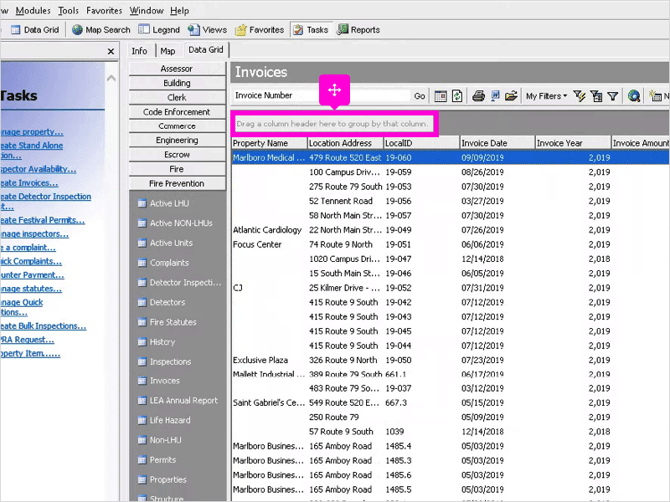
2. If the Group By Box is not visible, right-click the blank area next to Options.
.png?width=670&height=503&name=2_800x600_z-undefined_mz-0.5_mi-1_ti-0_ar-1_cr-0_si-0_fr-0_tb-1_t-_ftc-_ftb-_mc-_mfc-_complete%20(8).png)
3. Then click Group By Box.
.png?width=670&height=503&name=3_800x600_z-undefined_mz-0.5_mi-1_ti-0_ar-1_cr-0_si-0_fr-0_tb-1_t-_ftc-_ftb-_mc-_mfc-_complete%20(8).png)
4. The Group By Box will now appear.
.png?width=670&height=503&name=4_800x600_z-undefined_mz-0.5_mi-1_ti-0_ar-1_cr-0_si-0_fr-0_tb-1_t-_ftc-_ftb-_mc-_mfc-_complete%20(8).png)
5. Scroll to the right of the Invoices data grid until the Is Paid column is visible, then click and drag the column header to the Group By Box, then release.
.png?width=670&height=503&name=5_800x600_z-undefined_mz-0.5_mi-1_ti-0_ar-1_cr-0_si-0_fr-0_tb-1_t-_ftc-_ftb-_mc-_mfc-_complete%20(6).png)
6. The data grid is now sorted by Paid and Unpaid Invoices. Note: You may need to scroll the data grid back to the left for this to be visible.
.png?width=670&height=503&name=6_800x600_z-undefined_mz-0.5_mi-1_ti-0_ar-1_cr-0_si-0_fr-0_tb-1_t-_ftc-_ftb-_mc-_mfc-_complete%20(4).png)
7. Expand the Is Paid: False section. This will show all Invoices which are not paid.
.png?width=670&height=503&name=7_800x600_z-undefined_mz-0.5_mi-1_ti-0_ar-1_cr-0_si-0_fr-0_tb-1_t-_ftc-_ftb-_mc-_mfc-_complete%20(4).png)
8. Click the column header for Due Date to sort.
.png?width=670&height=503&name=8_800x600_z-undefined_mz-0.5_mi-1_ti-0_ar-1_cr-0_si-0_fr-0_tb-1_t-_ftc-_ftb-_mc-_mfc-_complete%20(4).png)
9. Manually select whichever records are past their Due Date using shift-click.
.png?width=670&height=503&name=9_800x600_z-undefined_mz-0.5_mi-1_ti-0_ar-1_cr-0_si-0_fr-0_tb-1_t-_ftc-_ftb-_mc-_mfc-_complete%20(3).png)
10. Click Edit.
.png?width=670&height=503&name=10_800x600_z-undefined_mz-0.5_mi-1_ti-0_ar-1_cr-0_si-0_fr-0_tb-1_t-_ftc-_ftb-_mc-_mfc-_complete%20(3).png)
11. The Invoice Options window will now appear.
.png?width=670&height=503&name=11_800x600_z-undefined_mz-0.5_mi-1_ti-0_ar-1_cr-0_si-0_fr-0_tb-1_t-_ftc-_ftb-_mc-_mfc-_complete%20(3).png)
12. Click Print Penalty Letter, and also fill in the Warning and Due Dates. A Penalty Fee can also be added, with an additional option to make the Penalty Equal to the Total Fee.
.png?width=670&height=503&name=12_800x600_z-undefined_mz-0.5_mi-1_ti-0_ar-1_cr-0_si-0_fr-0_tb-1_t-_ftc-_ftb-_mc-_mfc-_complete%20(3).png)
13. Click Run.
.png?width=670&height=503&name=13_800x600_z-undefined_mz-0.5_mi-1_ti-0_ar-1_cr-0_si-0_fr-0_tb-1_t-_ftc-_ftb-_mc-_mfc-_complete%20(3).png)
14. You will be prompted to view a Print Preview of the selected Penalty Letters.
.png?width=670&height=503&name=14_800x600_z-undefined_mz-0.5_mi-1_ti-0_ar-1_cr-0_si-0_fr-0_tb-1_t-_ftc-_ftb-_mc-_mfc-_complete%20(3).png)
15. If Yes was clicked previously, the Print Preview will appear. Otherwise the Penalty Letters will print to the default printer.
.png?width=670&height=503&name=15_800x600_z-undefined_mz-0.5_mi-1_ti-0_ar-1_cr-0_si-0_fr-0_tb-1_t-_ftc-_ftb-_mc-_mfc-_complete%20(3).png)
16. An option is then presented to add the Penalty Letter as a .PDF attachment to each Invoice.
.png?width=670&height=503&name=16_800x600_z-undefined_mz-0.5_mi-1_ti-0_ar-1_cr-0_si-0_fr-0_tb-1_t-_ftc-_ftb-_mc-_mfc-_complete%20(2).png)
17. Click X to exit.
.png?width=670&height=503&name=17_800x600_z-undefined_mz-0.5_mi-1_ti-0_ar-1_cr-0_si-0_fr-0_tb-1_t-_ftc-_ftb-_mc-_mfc-_complete%20(2).png)