![SDL - 2025 New Logo.png]](https://help.getsdl.com/hs-fs/hubfs/SDL%20-%202025%20New%20Logo.png?height=40&name=SDL%20-%202025%20New%20Logo.png)
-
This guide will demonstrate how to create invoices from the Fire Prevention Active Units data grid. First, click on the Active Units data grid under the Fire Prevention category.
.png?width=456&height=405&name=1_450x400_z-undefined_mz-undefined_mi-1_ti-0_ar-0_cr-0_si-0_fr-0_tb-1_t-_ftc-_ftb-_mc-_mfc-_complete%20(4).png)
-
Filter the data grid as needed.
.png?width=525&height=467&name=2_450x400_z-undefined_mz-undefined_mi-1_ti-0_ar-0_cr-0_si-0_fr-0_tb-1_t-_ftc-_ftb-_mc-_mfc-_complete%20(4).png)
-
Once you have the desired data set, right click anywhere in the data grid to open the data grid settings menu.
.png?width=478&height=425&name=3_450x400_z-undefined_mz-undefined_mi-1_ti-0_ar-0_cr-0_si-0_fr-0_tb-1_t-_ftc-_ftb-_mc-_mfc-_complete%20(4).png)
-
Click Select All from the menu. This will highlight all the records in the data grid.
.png?width=450&height=400&name=4_450x400_z-undefined_mz-undefined_mi-1_ti-0_ar-0_cr-0_si-0_fr-0_tb-1_t-_ftc-_ftb-_mc-_mfc-_complete%20(4).png)
-
Once the records are highlighted, click the Edit button.
.png?width=444&height=395&name=5_450x400_z-undefined_mz-undefined_mi-1_ti-0_ar-0_cr-0_si-0_fr-0_tb-1_t-_ftc-_ftb-_mc-_mfc-_complete%20(4).png)
-
We are now in the Data grid Options. Click Create Invoices.
.png?width=417&height=371&name=6_450x400_z-undefined_mz-undefined_mi-1_ti-0_ar-0_cr-0_si-0_fr-0_tb-1_t-_ftc-_ftb-_mc-_mfc-_complete%20(3).png)
-
Set the Invoice Date.
.png?width=421&height=374&name=7_450x400_z-undefined_mz-undefined_mi-1_ti-0_ar-0_cr-0_si-0_fr-0_tb-1_t-_ftc-_ftb-_mc-_mfc-_complete%20(3).png)
-
Then set the Due Date.
.png?width=444&height=395&name=8_450x400_z-undefined_mz-undefined_mi-1_ti-0_ar-0_cr-0_si-0_fr-0_tb-1_t-_ftc-_ftb-_mc-_mfc-_complete%20(3).png)
-
Click Run.
.png?width=444&height=395&name=9_450x400_z-undefined_mz-undefined_mi-1_ti-0_ar-0_cr-0_si-0_fr-0_tb-1_t-_ftc-_ftb-_mc-_mfc-_complete%20(3).png)
-
The program will prompt you prior to starting the process. Click Yes to continue.
.png?width=444&height=395&name=10_450x400_z-undefined_mz-undefined_mi-1_ti-0_ar-0_cr-0_si-0_fr-0_tb-1_t-_ftc-_ftb-_mc-_mfc-_complete%20(3).png)
-
The Status bar will indicate the creation progress.
.png?width=444&height=395&name=11_450x400_z-undefined_mz-undefined_mi-1_ti-0_ar-0_cr-0_si-0_fr-0_tb-1_t-_ftc-_ftb-_mc-_mfc-_complete%20(3).png)
-
Once complete, the system will tell you how many invoices were created. If one or more of the selected units did not have an active NLHU or Permit record, no invoice will be created.
.png?width=444&height=395&name=12_450x400_z-undefined_mz-undefined_mi-1_ti-0_ar-0_cr-0_si-0_fr-0_tb-1_t-_ftc-_ftb-_mc-_mfc-_complete%20(2).png)
-
Click OK to close the notification window.
.png?width=444&height=395&name=13_450x400_z-undefined_mz-undefined_mi-1_ti-0_ar-0_cr-0_si-0_fr-0_tb-1_t-_ftc-_ftb-_mc-_mfc-_complete%20(1).png)
-
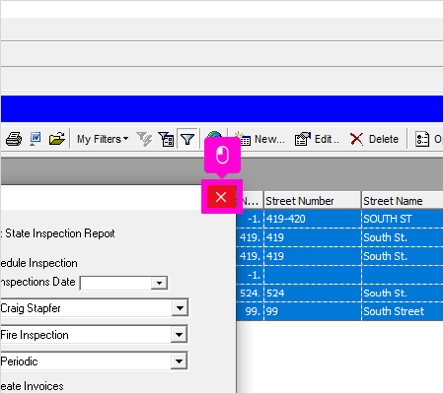
The process is now complete. Click the X to close the Invoice Options window.