![SDL - 2025 New Logo.png]](https://help.getsdl.com/hs-fs/hubfs/SDL%20-%202025%20New%20Logo.png?height=40&name=SDL%20-%202025%20New%20Logo.png)
-
This guide will demonstrate how to create a Violation in the Construction module. The first step is to click on the Permits or Permits All data grid under the Building category.
-png.png?width=450&height=400&name=1_450x400_z-undefined_mz-undefined_mi-1_ti-0_ar-0_cr-0_si-0_fr-0_tb-1_t-_ftc-_ftb-_mc-_mfc-_complete%20(34)-png.png)
-
If your violation is not associated with a permit, go to the Violations data grid and click the New button.
-png.png?width=450&height=400&name=2_450x400_z-undefined_mz-undefined_mi-1_ti-0_ar-0_cr-0_si-0_fr-0_tb-1_t-_ftc-_ftb-_mc-_mfc-_complete%20(34)-png.png)
-
Use the search features at the top of the data grid to find the permit you want to add the violation to.
-png.png?width=450&height=400&name=3_450x400_z-undefined_mz-undefined_mi-1_ti-0_ar-0_cr-0_si-0_fr-0_tb-1_t-_ftc-_ftb-_mc-_mfc-_complete%20(34)-png.png)
-
Double click the permit application to open it.
-png.png?width=670&height=596&name=4_450x400_z-undefined_mz-undefined_mi-1_ti-0_ar-0_cr-0_si-0_fr-0_tb-1_t-_ftc-_ftb-_mc-_mfc-_complete%20(33)-png.png)
-
Click the Violations tab.
-png.png?width=450&height=400&name=5_450x400_z-undefined_mz-undefined_mi-1_ti-0_ar-0_cr-0_si-0_fr-0_tb-1_t-_ftc-_ftb-_mc-_mfc-_complete%20(32)-png.png)
-
Click the New button. This will create the violation record.
-png.png?width=450&height=400&name=6_450x400_z-undefined_mz-undefined_mi-1_ti-0_ar-0_cr-0_si-0_fr-0_tb-1_t-_ftc-_ftb-_mc-_mfc-_complete%20(30)-png.png)
-
The location information is automatically brought over from the permit, so we don't need to do anything on the General tab. Click the Violation tab to continue.
-png.png?width=450&height=400&name=7_450x400_z-undefined_mz-undefined_mi-1_ti-0_ar-0_cr-0_si-0_fr-0_tb-1_t-_ftc-_ftb-_mc-_mfc-_complete%20(29)-png.png)
-
Click the Next# hyperlink button to generate a Violation Number.
-png.png?width=450&height=400&name=8_450x400_z-undefined_mz-undefined_mi-1_ti-0_ar-0_cr-0_si-0_fr-0_tb-1_t-_ftc-_ftb-_mc-_mfc-_complete%20(28)-png.png)
-
Select an Issuing Officer.
-png.png?width=450&height=400&name=9_450x400_z-undefined_mz-undefined_mi-1_ti-0_ar-0_cr-0_si-0_fr-0_tb-1_t-_ftc-_ftb-_mc-_mfc-_complete%20(22)-png.png)
-
Enter the Issue Date.
-png.png?width=450&height=400&name=10_450x400_z-undefined_mz-undefined_mi-1_ti-0_ar-0_cr-0_si-0_fr-0_tb-1_t-_ftc-_ftb-_mc-_mfc-_complete%20(18)-png.png)
-
Select an Infraction type.
-png.png?width=450&height=400&name=11_450x400_z-undefined_mz-undefined_mi-1_ti-0_ar-0_cr-0_si-0_fr-0_tb-1_t-_ftc-_ftb-_mc-_mfc-_complete%20(14)-png.png)
-
Select a Statute Source.
-png.png?width=450&height=400&name=12_450x400_z-undefined_mz-undefined_mi-1_ti-0_ar-0_cr-0_si-0_fr-0_tb-1_t-_ftc-_ftb-_mc-_mfc-_complete%20(7)-png.png)
-
Select a Statute Rule.
-png.png?width=450&height=400&name=13_450x400_z-undefined_mz-undefined_mi-1_ti-0_ar-0_cr-0_si-0_fr-0_tb-1_t-_ftc-_ftb-_mc-_mfc-_complete%20(6)-png.png)
-
Enter the Summary of Infraction. This is the main detail of the violation and will be shown on the Violation Notice.
-png.png?width=450&height=400&name=14_450x400_z-undefined_mz-undefined_mi-1_ti-0_ar-0_cr-0_si-0_fr-0_tb-1_t-_ftc-_ftb-_mc-_mfc-_complete%20(4)-png.png)
-
Enter the Inspection Date.
-png.png?width=450&height=400&name=15_450x400_z-undefined_mz-undefined_mi-1_ti-0_ar-0_cr-0_si-0_fr-0_tb-1_t-_ftc-_ftb-_mc-_mfc-_complete%20(2)-png.png)
-
Enter the Notice Date. This will default to the current date.
-png.png?width=450&height=400&name=16_450x400_z-undefined_mz-undefined_mi-1_ti-0_ar-0_cr-0_si-0_fr-0_tb-1_t-_ftc-_ftb-_mc-_mfc-_complete%20(2)-png.png)
-
Enter the Compliance Date.
-png.png?width=450&height=400&name=17_450x400_z-undefined_mz-undefined_mi-1_ti-0_ar-0_cr-0_si-0_fr-0_tb-1_t-_ftc-_ftb-_mc-_mfc-_complete%20(1)-png.png)
-
Enter the Compliance information. This is what needs to be done for the violation to be abated.
-png.png?width=450&height=400&name=18_450x400_z-undefined_mz-undefined_mi-1_ti-0_ar-0_cr-0_si-0_fr-0_tb-1_t-_ftc-_ftb-_mc-_mfc-_complete%20(1)-png.png)
-
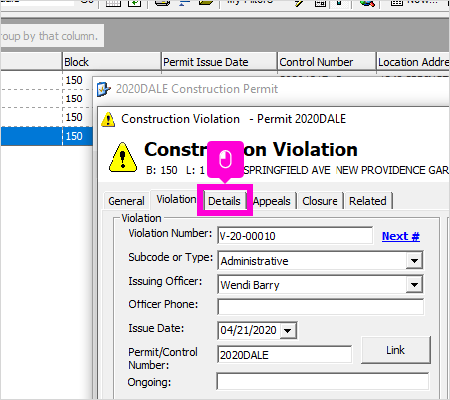
Click the Details tab.
-
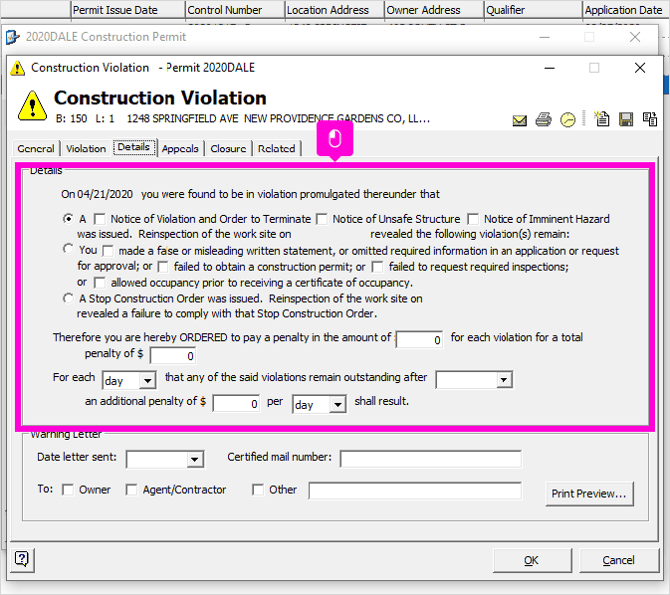
Fill in the violation details. If you need assistance with this step please contact the SDL Support team directly.
-
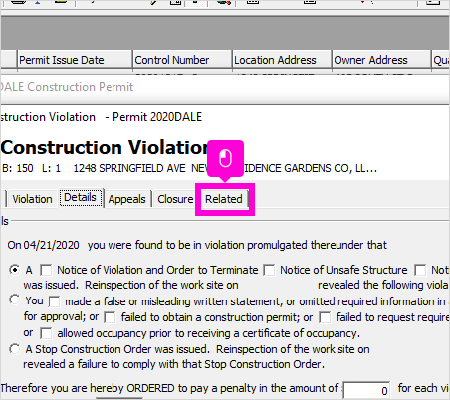
Click the Related tab.
-
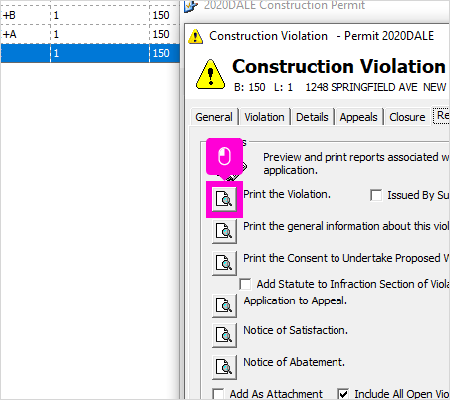
Click the Print the Violation button.
-
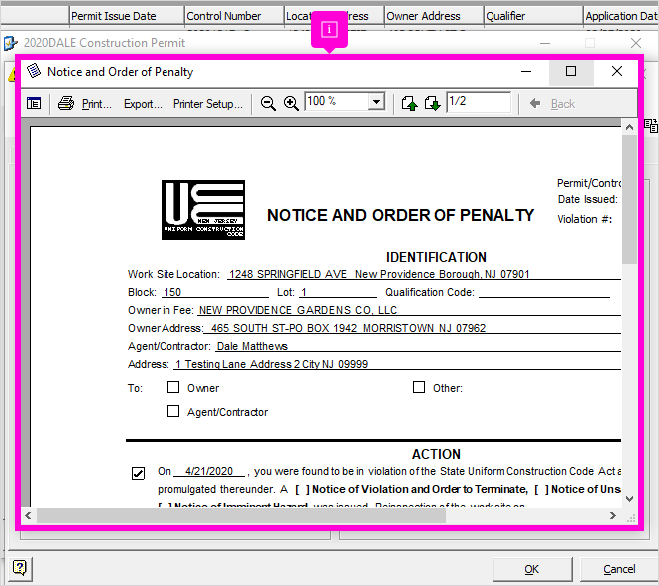
The Notice of Violation has been created. You can print or save the notice of violation from this screen. Click the X when you are finished.
-
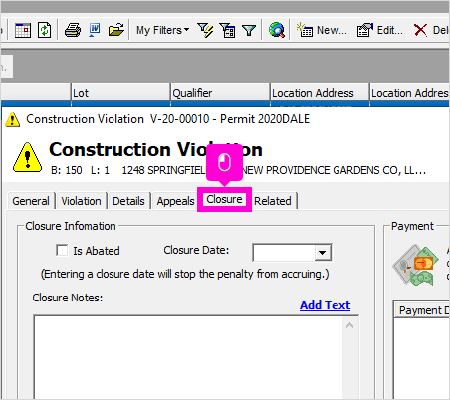
If the violation is already abated, click the Closure tab, otherwise skip this step.
-
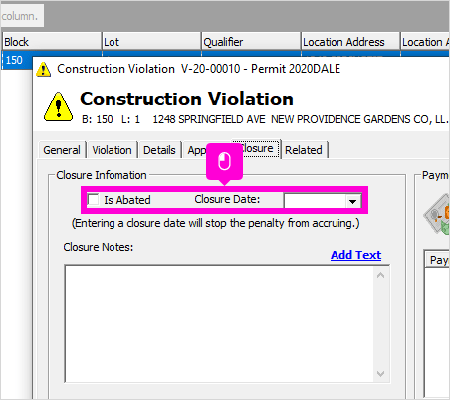
Check the Is Abated check box. This will automatically populate the Closure Date with the current date.
-
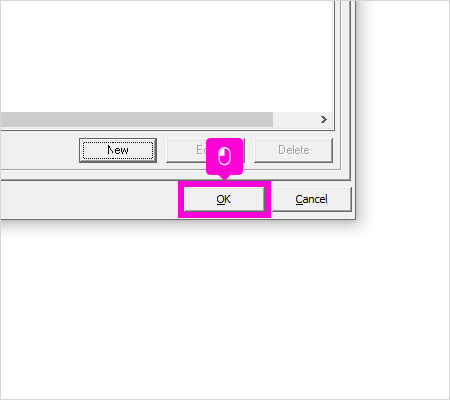
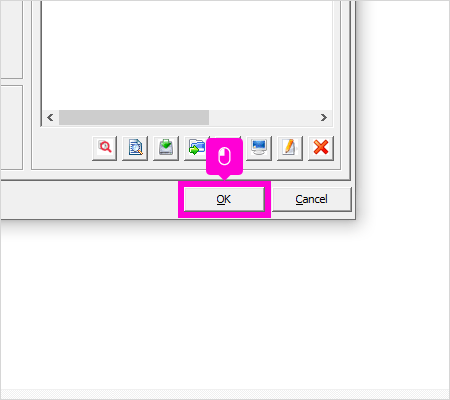
Click OK to save and close the Violation.
-
The process is now complete. Click OK to save and close the permit record.