![SDL - 2025 New Logo.png]](https://help.getsdl.com/hs-fs/hubfs/SDL%20-%202025%20New%20Logo.png?height=40&name=SDL%20-%202025%20New%20Logo.png)
This guide reviews the steps for applying electronic signatures to specific UCC Documents. Please note we have added an Option in Tools Construction Options to enable much of this functionality.
-png.png?width=563&height=531&name=mceclip4%20(1)-png.png)
Applying Subcode Signatures to UCC Permits
Step 1: To sign a UCC Permit, open the associated Plan Review Form in SDL Desktop.
Step 2: On the Sign Tech Card tab, click the Sign button based on which part of the review you are completing. Each signature will require a PIN to be entered. Note you can see a general status of the other subcode to the right and see the dates on the button of other subcodes. In the plan review form you can ONLY sign that subcodes tech card. When the permit is ready to be issued for this subcode click the Issuance button. If you would like to do multiple subcodes please use the Inspection/Signature Status Form
-png.png?width=663&height=531&name=mceclip0%20(6)-png.png)
Step 3: Enter your PIN when prompted
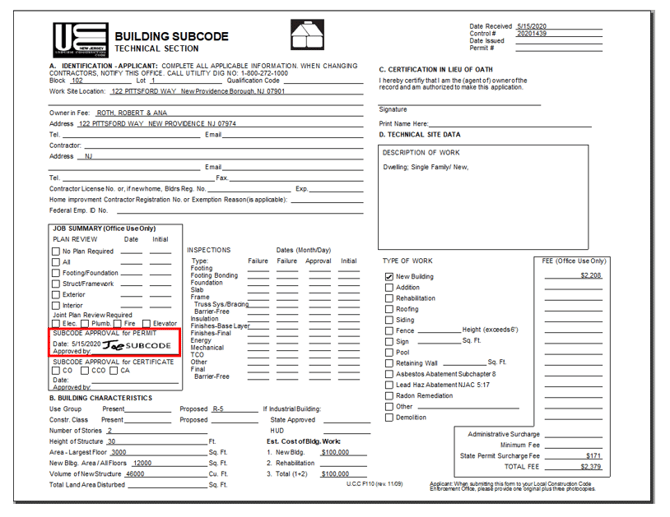
Step 4: Once done, you will see a record of the user information and date/time of signature.
Step 5: The signature and date will be appended to the Tech card.
Issuing & Applying Signatures to UCC Permits (Construction Official Process)
Permit signatures are done in the Signature/Inspection Status Form for the permit. If you would like the option to sign the permit in advance of payment and issuance, we have accounted for this option into our process to allow the TA to issue the permit as soon as payment is received. It is recommended that we add the construction official signature to the TAs account and the TA sets up their own PIN. The TA should only have permission to sign Permits. This will allow better tracking of who signs a document
Step 1: In SDL Desktop, the Construction Official will open the Inspection Status Form for the permit.
Step 2: Click the SubCode Sign Off button.
-png.png?width=162&height=219&name=mceclip1%20(3)-png.png)
Step 3: In the Permit Inspection Status window, select the Sign Permit button to apply your signature digitally.
-png.png?width=573&height=666&name=mceclip2%20(3)-png.png)
Step 4: Enter your PIN when prompted
Step 5: Once done, the button will change to say SIGNED and you will see a record of the user information and date/time of signature.
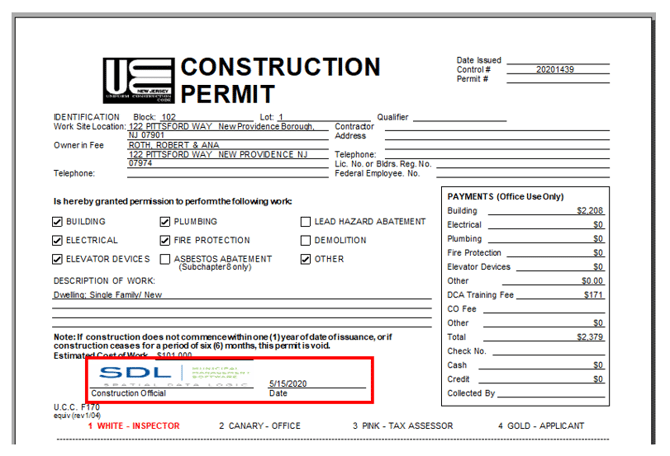
Step 6: The Construction Official's signature will appear on the Construction Permit.
Inspection Initials
Individual Inspector initials can now be added to the tech cards as inspection types are completed. Once an inspector has his initials added and you have the use signatures option you will start to get prompted to update tech cards. Inspector do not need any new permissions the system simply looks at the inspection type and the inspector to fill in the tech card. This will process all the inspections on the permit and update the tech card as needed. Please note Tech cards do not cover all the inspection types you may do for a project, below is a list of inspection types that we use to update the tech cards. The values must be exact for that line item on the tech card to fill in, any others will not show up on the tech card for now. We will review how best to handle other inspection in a future update and after further discussion. The update of the tech card will also create a specially named pdf that the Portal and mobile will have access to in the future
-png.png?width=670&height=542&name=mceclip7%20(1)-png.png)
You should be prompted after updating a status of an inspection but you can also manually update the tech cards here:
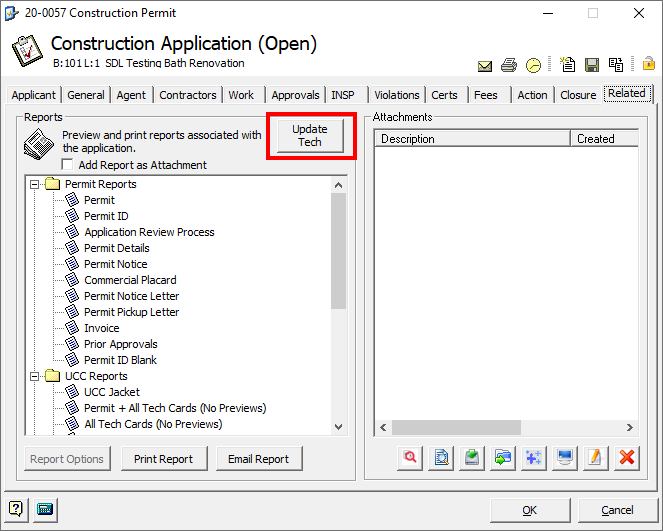
You may also want to get in the habit of doing mass updates at the end of the day. As Mobile Updates have no way of know previous inspections on a permit they will not update the tech cards. The below task will update all the permits that inspections occurred on in the chosen time frame. It is smart enough to only do a permit once if multiple inspections occurred but still could take a long time, depending on the number permits touched that day. You can also run the same process from the inspection datagrid. Note this process also can update the permit status for towns that the Final status is not being set correctly.
-png.png?width=670&height=454&name=mceclip6%20(1)-png.png)
As stated above, this is a hard coded list that matches up to each subcode tech card. Inspection types much match exactly, please note the under scores. You can edit your inspection types in the construction options as needed
Building
- FOOTING
- FOOTING_BONDING
- FOUNDATION
- SLAB
- FRAMING
- FRAME_TRUSS
- FRAME_BARRIER
- INSULATION
- FINISHES_BASE
- FINISHES_F
- ENERGY
- MECHANICAL
- TCO
- OTHER
- SERVICE
- FINAL
- F_BARRIER_FREE
Electrical
- ROUGH
- BARRIER_FREE
- TRENCH
- SERVICE_TEMP
- SERVICE_CONSTR
- TCO
- OTHER
- SERVICE
- FINAL
- F_BARRIER_FREE
Plumbing
- SLAB
- ROUGH
- WATER
- SEWER
- FIXTURES
- GAS_EQUIPMENT
- GAS_PIPING
- LPGAS_TANK
- FUEL_OIL_PIPING
- SOLAR
- TCO
- FINAL
- OTHER
Fire
- ALARM
- SUPPRESSION
- STANDPIPE
- FIRE_PUMP
- PREENG_SYS
- MECHANICAL
- SMOKE_CONT
- TCO
- TANK
- VENTING
- FINAL
- OTHER
Mechanical
- WATER_HEATER
- APPLIANCE
- VENT
- PIPING
- TANK
- AC
- GENERATOR
- FIREPLACE
- CHIMNEY_CERT
- OTHER
- FINAL
Elevator
- Temporary
- Final
Subcode Certificate Approvals
Step 1: In SDL Desktop, the Subcode Official will open the Signature/Inspection Status Form for the permit.
Step 2: The Inspection and Updates tabs will show you the status of the permit. The Certificate signoff tab will allow you to sign off on the certificate issuance for that subcode Note you can only sign a subcode on the permit and you can only sign a subcode if you have the permission
-png.png?width=573&height=666&name=mceclip8%20(1)-png.png)
Step 3: Enter your PIN when prompted
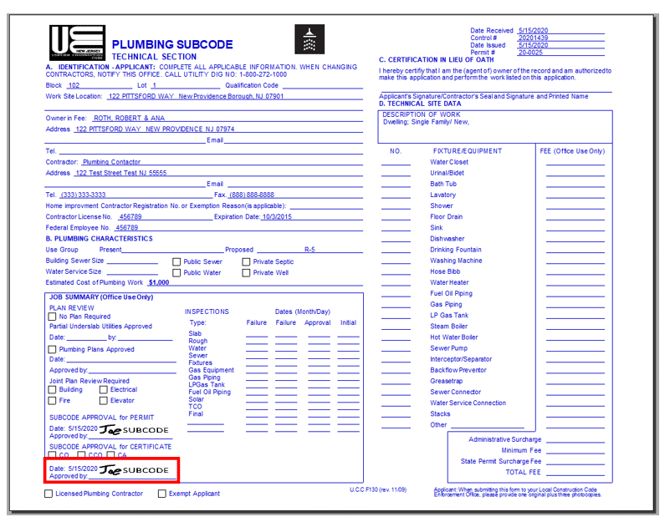
Step 4: Once done, you will see a record of the user information and date/time of signature.
Step: 5: The subcode signature will now appear along with the date.
Certificate Signing
Step 1: To sign a Certificate, located the new Sign button at the bottom of the certificate form. Note: This will work for each TCO issued as well.
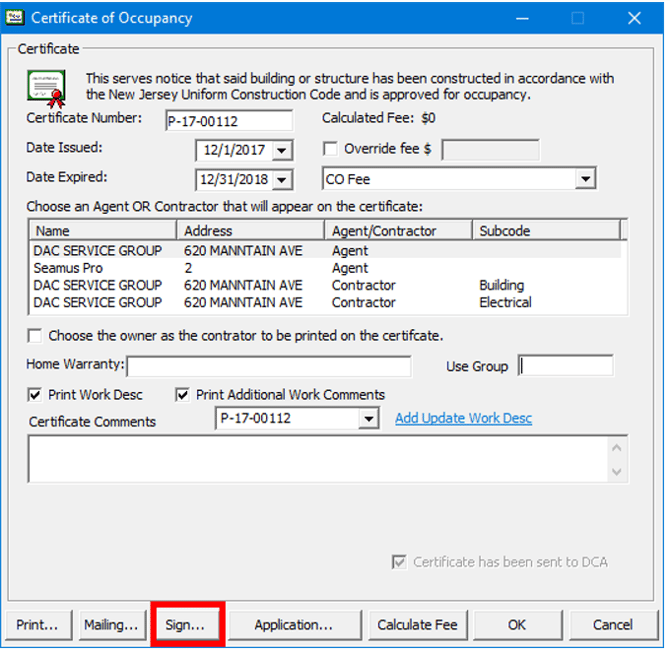
Step 2: Enter your PIN when prompted
Step 3: Once done, you will see a record of the user information and date/time of signature.
Step 4: The Construction Official's signature will appear on the Certificate. Any other user can now print the certificate with the signature on it. It will also create an attachment specially named for use in the portal
-png.png?width=627&height=752&name=mceclip0%20(8)-png.png)