-
From the Info tab in the Code Enforcement module in SDL Desktop, scroll down to the Portal Requests section.
-png.png?width=670&height=596&name=1_450x400_z-undefined_mz-undefined_mi-1_ti-0_ar-0_cr-0_si-0_fr-0_tb-1_t-_ftc-_ftb-_mc-_mfc-_complete%20(2)-png.png)
-
Find a CERTIFICATE type, then click Process.
-png.png?width=450&height=400&name=2_450x400_z-undefined_mz-undefined_mi-1_ti-0_ar-0_cr-0_si-0_fr-0_tb-1_t-_ftc-_ftb-_mc-_mfc-_complete%20(2)-png.png)
-
The Search for Unit window will be displayed, click Find in either the Locate by BLQ or Locate by Address sections.
-png.png?width=450&height=400&name=3_450x400_z-undefined_mz-undefined_mi-1_ti-0_ar-0_cr-0_si-0_fr-0_tb-1_t-_ftc-_ftb-_mc-_mfc-_complete%20(2)-png.png)
-
Units at that location will now be displayed.
-png.png?width=450&height=400&name=4_450x400_z-undefined_mz-undefined_mi-1_ti-0_ar-0_cr-0_si-0_fr-0_tb-1_t-_ftc-_ftb-_mc-_mfc-_complete%20(2)-png.png)
-
Click Ok. Note: If no Units are displayed click Create New Property and Unit. If the indicated Unit does not exist, click Add Unit to Selected Property.
-png.png?width=450&height=400&name=5_450x400_z-undefined_mz-undefined_mi-1_ti-0_ar-0_cr-0_si-0_fr-0_tb-1_t-_ftc-_ftb-_mc-_mfc-_complete%20(2)-png.png)
-
If dates were selected, you will be prompted to schedule an Inspection. For this example, click Yes.
-png.png?width=450&height=400&name=6_450x400_z-undefined_mz-undefined_mi-1_ti-0_ar-0_cr-0_si-0_fr-0_tb-1_t-_ftc-_ftb-_mc-_mfc-_complete%20(2)-png.png)
-
The dates selected by the citizen on the SDL Portal will be listed, Click Schedule.
-png.png?width=450&height=400&name=7_450x400_z-undefined_mz-undefined_mi-1_ti-0_ar-0_cr-0_si-0_fr-0_tb-1_t-_ftc-_ftb-_mc-_mfc-_complete%20(2)-png.png)
-
Create a Blank Inspection or select a Template, then click OK.
-png.png?width=450&height=400&name=8_450x400_z-undefined_mz-undefined_mi-1_ti-0_ar-0_cr-0_si-0_fr-0_tb-1_t-_ftc-_ftb-_mc-_mfc-_complete%20(2)-png.png)
-
The Code Inspection will open. Enter any additional information in the General tab as required.
-png.png?width=450&height=400&name=9_450x400_z-undefined_mz-undefined_mi-1_ti-0_ar-0_cr-0_si-0_fr-0_tb-1_t-_ftc-_ftb-_mc-_mfc-_complete%20(2)-png.png)
-
Information for the Inspection is displayed in the Inspection tab. Any necessary changes can be made here. Note: The remaining tabs are not necessary for scheduling the Inspection at this point.
-png.png?width=450&height=400&name=10_450x400_z-undefined_mz-undefined_mi-1_ti-0_ar-0_cr-0_si-0_fr-0_tb-1_t-_ftc-_ftb-_mc-_mfc-_complete%20(2)-png.png)
-
Click OK to exit.
-png.png?width=450&height=400&name=11_450x400_z-undefined_mz-undefined_mi-1_ti-0_ar-0_cr-0_si-0_fr-0_tb-1_t-_ftc-_ftb-_mc-_mfc-_complete%20(2)-png.png)
-
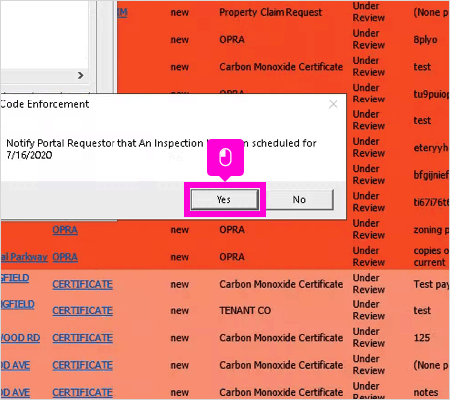
Click Yes to notify the Portal Requestor that the Inspection has been scheduled.
-
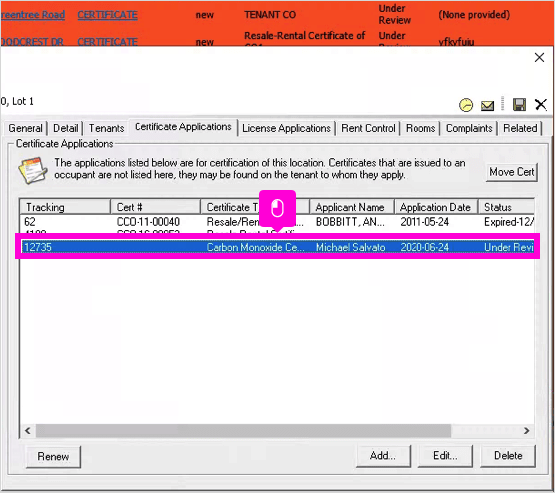
The Unit Editor will now open in the Certificate Applications tab. Doubleclick the highlighted Certificate Application.
-
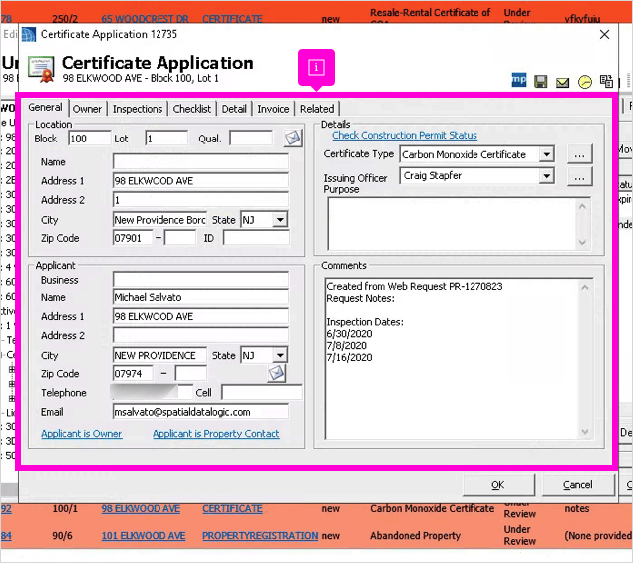
The Certificate Application will open. Enter any additional information in the tabs as required.
-
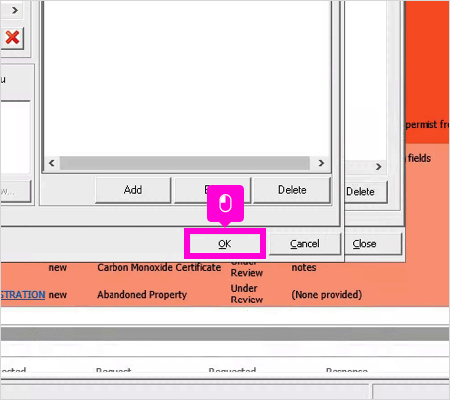
Click OK to exit.
-
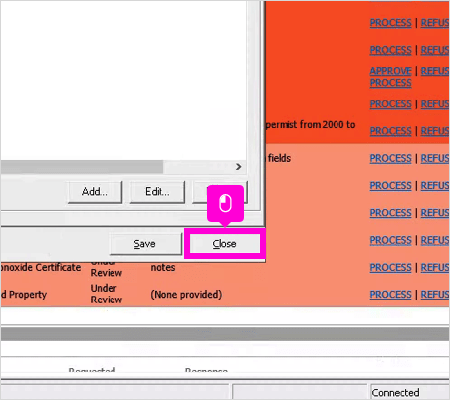
Click Close to exit.
English
![SDL - 2025 New Logo.png]](https://help.getsdl.com/hs-fs/hubfs/SDL%20-%202025%20New%20Logo.png?height=40&name=SDL%20-%202025%20New%20Logo.png)