![SDL - 2025 New Logo.png]](https://help.getsdl.com/hs-fs/hubfs/SDL%20-%202025%20New%20Logo.png?height=40&name=SDL%20-%202025%20New%20Logo.png)
OPRA Assignments can be sent to outside professionals or departments (e.g., a township attorney, tax assessor, or engineer) rather than just internal SDL users. This guide covers how to assign a request to multiple professionals at once and how to manage your list of professional contacts.
Note: Because professionals are external contacts, their email replies will go to your township email address rather than back into SDL Desktop — you'll need to manually attach any documents they send you to the OPRA request.
Creating an Assignment with Multiple Professionals
- On the Assignments tab of the OPRA Request, click the Multiple Pros button.
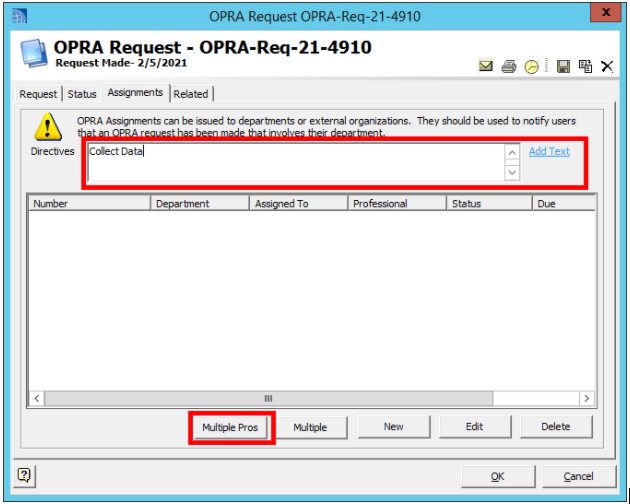
- Set the due date and enter your directions for the assignment.
- Add up to three professionals by typing into the text box and selecting a match from the list that appears. (For example, you might add both a clerk and a tax assessor.)
-png.png?width=614&height=338&name=mceclip0%20(5)-png.png)
- Click Create Assignments.
- An email screen will open for each professional/department you selected. The Sent To field will auto-fill with the email address(es) on file for that professional. You can edit the body text and add attachments as needed.
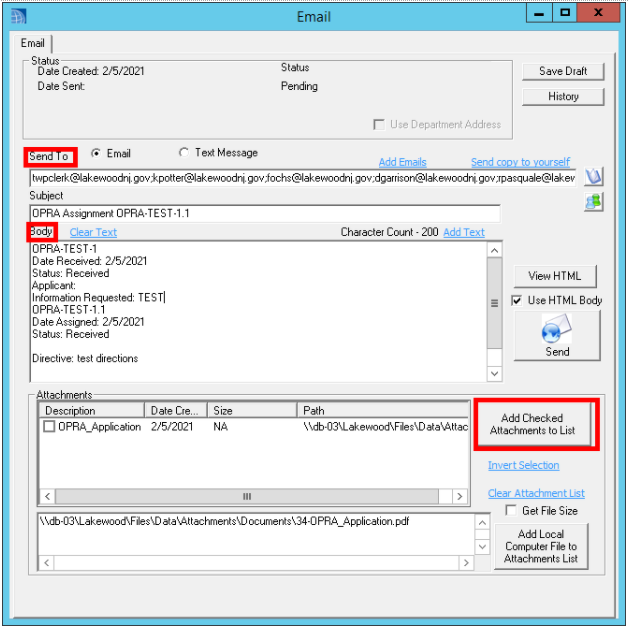
- Click Send to notify each professional of their assignment.
Managing Professionals
You can add, edit, or organize your list of professional contacts either from the Manage Professionals link on the Multiple Professional Assignment form, or from the Professionals datagrid under the General section.
- To update an existing professional, start typing their name and select them from the list.
- To create a new professional or department, type a name that does not match an existing entry in the list — you can name it anything you'd like.
- If a department has multiple people who should receive assignment emails, enter each email address in the email field separated by a semicolon (;).
- Tip: It can help to also paste the individual emails into the general comments section, so they're easier to read at a glance.
- Click OK to save. The professional will now be available to select in future assignments.