![SDL - 2025 New Logo.png]](https://help.getsdl.com/hs-fs/hubfs/SDL%20-%202025%20New%20Logo.png?height=40&name=SDL%20-%202025%20New%20Logo.png)
- Select the ‘Clerk’ module.
- Select the data grid ‘Mercantile Applications’.
- Click on ‘My Filters’ in the data grid toolbar and click on the ‘New’ button. We need to create a filter to show the mercantile applications that will need to be renewed.
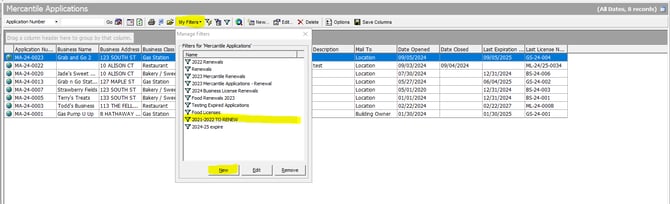
- After clicking the ‘New’ button, we will create the data grid filter.
- First give it a name, preferably something that describes what the filter does and is helpful to use for next year's renewals.
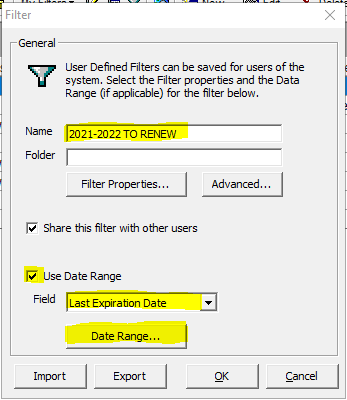
- Check the box for ‘Use Date Range’ and be sure to select ‘Last Expiration Date’ because this will show the last expiration date of the last most recently issued license. We want this date because it will tell which mercantile applications are expired. Please note, DO NOT go by ‘Last Issued Date’ because this goes by the date the license was issued!
- Click on the ‘Date Range’ button below. Select the 3rd radio button option for ‘Specific Date Range’, this will be the expiration date of the licenses you want to show on the data grid. If you only want to see 2022 mercantile applications not renewed, then set the range to 12/31/2022 TO 12/31/2022 because we are looking at one expiration date. The first date can be backdated to previous years if you want to go further back, like this example below, this will show 2019, 2020, 2021, and 2022 mercantile applications not renewed.
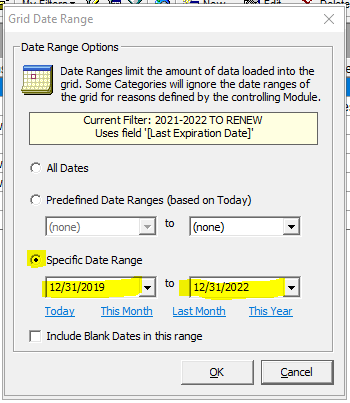
Please be sure NOT to check the box at the very bottom for ‘Include Blank Dates in this range’, because this will include licenses with blank expiration dates. Usually, the blank licenses have blank dates. Click ‘OK’ when done to save the date range for this filter. - Back on the main filter window, click on the ‘Filter Properties’ button and it will bring up this ‘Filter By’ window. Use the top drop-down and select the field/column you want the filter to show. For example, Is Active = True means that only active mercantile applications will show on the data grid. If you put additional filter properties in the drop-down it will make the filter more refined, thus less results. For example, if I add Business Class to show only records with ‘restaurant’, the data grid will show only 2 results.
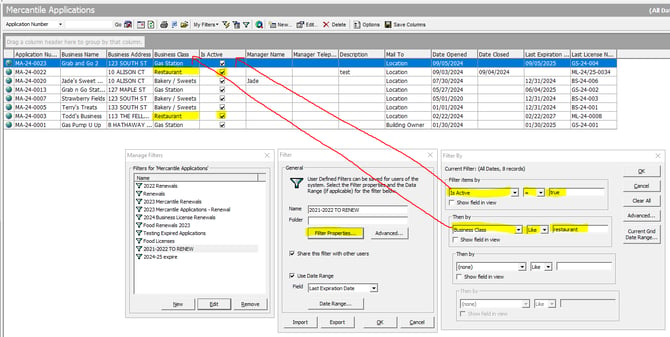
Please remember that it is important to check the spelling when entering keywords in the filter properties. When done click the ‘OK’ button at the top right.
TIP: If your filter is not returning any results or less than expected, try to remove one of the filter properties (like Business Class in the example above) until you get a larger number of results. Then try re-adding the filter property drop-down or use a different value/keyword.
- When the filter is done, click ‘OK’ at the bottom to save it.
- Click on ‘My Filters’ and select the filter you just created to apply it.
For the example filter above, searching on the expiration date and active only shows 5 records on the data grid. Look at the top right to see the results.
We are now done with creating the data grid filter and applying it.
- First give it a name, preferably something that describes what the filter does and is helpful to use for next year's renewals.
- After the filter is applied to the ‘Mercantile Applications’ data grid, right-click on any record in the data grid and a menu will appear. Then click on ‘Select All’. All records currently showing on the data grid will be selected (highlighted in dark blue).
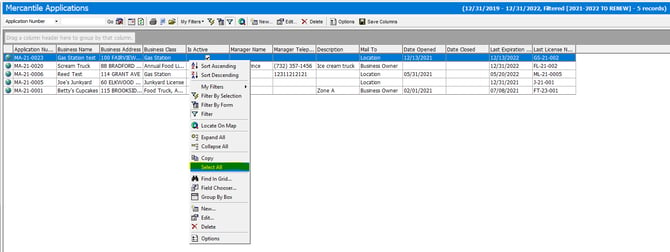
If you want to de-select records, you can hold on to the ‘CTRL’ key on the keyboard and at the same time left-click on the records that you do not want to be selected. - After the records are selected, click on the ‘Edit’ button.

- Select the option ‘Renew License’ and set a ‘Due Date’, then click the ‘Run’ button.
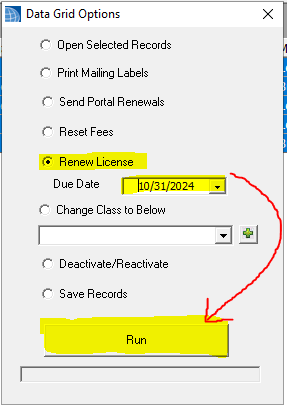
- When the progress bar under ‘Run’ completes, a popup will show how many mercantile licenses were created.
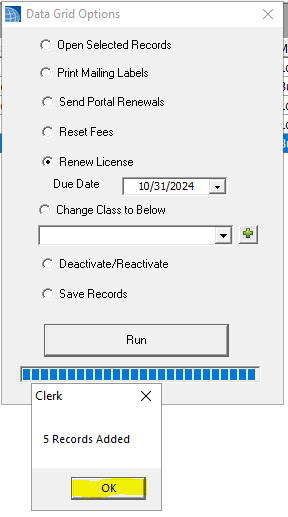
We are now done with the mercantile license creation part. Next, we will print them.
- Go to the ‘Mercantile Licenses’ data grid and create a filter.
- Name the filter and select ‘Due Date’ for the date range.
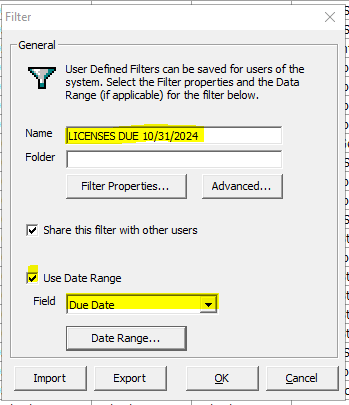
- Click on the ‘Date Range’ button at the bottom and set the ‘Specific Date Range’ fields to 10/31/2024 and 10/31/2024 because we have one expiration date for the mercantile licenses we created. Click ‘OK’ when done.
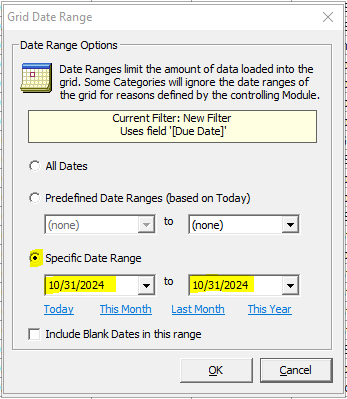
- There is no need to use the filter properties for this case because the new mercantile invoices created can be picked up with the due date of 10/31/2024. You can use the filter properties if you want to filter out licenses created with the same due date. When done with the filter, click ‘OK’ to save it.
- Name the filter and select ‘Due Date’ for the date range.
- Apply the data grid filter you just created in the ‘Mercantile Licenses’ data grid. There was an extra license highlighted here because the ‘License Application Date’ is in 2023, which means that it was created a year ago. We will use this for the next example of how to select print licenses.

- After applying the filter, we need to select the licenses to print. You can right-click any record in the data grid and click on ‘Select All’, or you can hold the ‘SHIFT’ or ‘CTRL’ key on the keyboard and simultaneously left-click the records that you want to select or deselect. In this example, I selected all of the records and I held down ‘CTRL’ key and left-clicked to deselect the license created in 2023.

- After the records are selected, click on the ‘Edit’ button and a menu will appear.
Select ‘Print Invoice’ and click the ‘Run’ button at the bottom and the blue progress bar will show when it is done.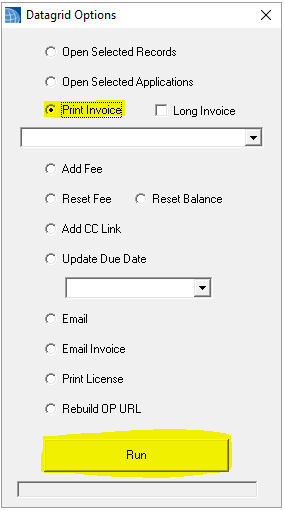
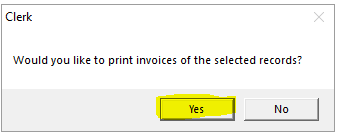
- Click ‘Yes’ on this popup.
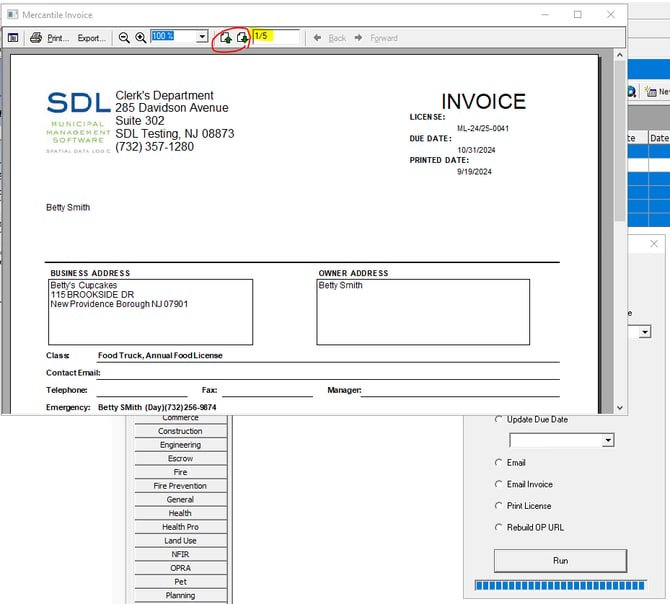
The ‘Print Preview’ window will show the mercantile invoices. Use the up and down arrows to view the other pages. Click on ‘Print’ to print a hard copy of the license. The ‘Export’ button will export the invoices as a PDF file, which requires you to select a folder to save it. After closing the ‘Print Preview’ window, a small popup will appear indicating how many invoices were printed.
Recap Summary:
- Go to the ‘Mercantile Applications’ Data grid and create a filter.
- Apply the filter and select the records that you want to create a license for. Click the ‘Edit’ button and select ‘Renew License’ and remember to set a ‘Due Date’!
- After the licenses are created, go to the ‘Mercantile Licenses’ data grid and create the filter.
- Apply the filter and select the records that you want to print and click the ‘Edit’ button.
- In the popup menu, click on ‘Print Invoices’ and click ‘Run’ and click 'Yes' to the popup to print.