![SDL - 2025 New Logo.png]](https://help.getsdl.com/hs-fs/hubfs/SDL%20-%202025%20New%20Logo.png?height=40&name=SDL%20-%202025%20New%20Logo.png)
This article walks you through canceling an inspection request you submitted for a permit. The steps are different depending on whether your municipality has already scheduled the inspection, so start with Step 1 to confirm where you stand.
In this article:
- Before You Begin
- Step 1: Check whether your inspection has been scheduled
- Cancel a Request That Hasn't Been Scheduled Yet
- Cancel a Scheduled Inspection
- Troubleshooting
- Key Takeaways
Before You Begin
You will need:
- The confirmation email you received when you submitted the inspection request, if the inspection has not been scheduled yet
- Your permit number or work site address, if the inspection has already been scheduled
- A brief reason for the cancellation
Step 1: Check whether your inspection has been scheduled
How you cancel depends on where your request stands.
If your municipality has not yet processed or scheduled the inspection, see "Cancel a Request That Hasn't Been Scheduled Yet" below.
If the inspection is already on the calendar, see "Cancel a Scheduled Inspection" below.
Cancel a Request That Hasn't Been Scheduled Yet
Open the confirmation email for your request and click the link to visit the request you submitted.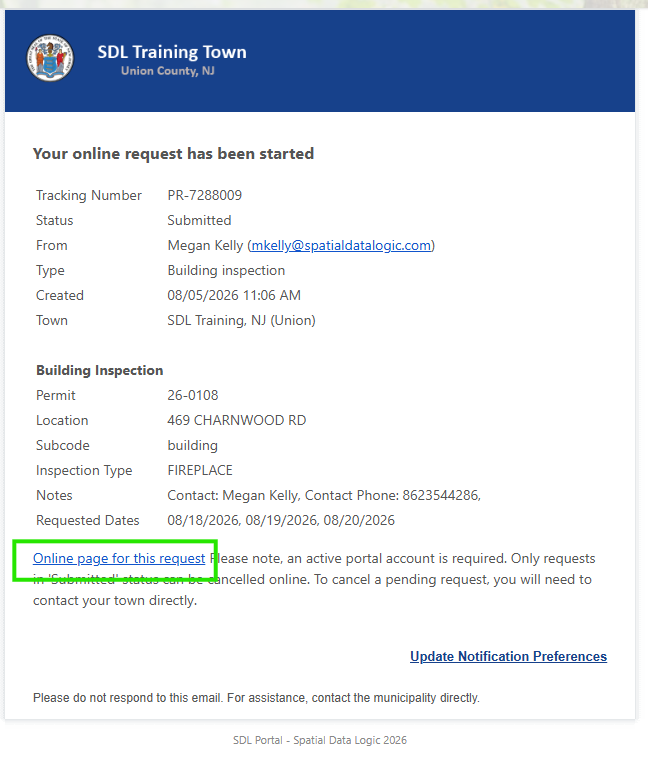
Once you are on the request page, select the option to cancel the request.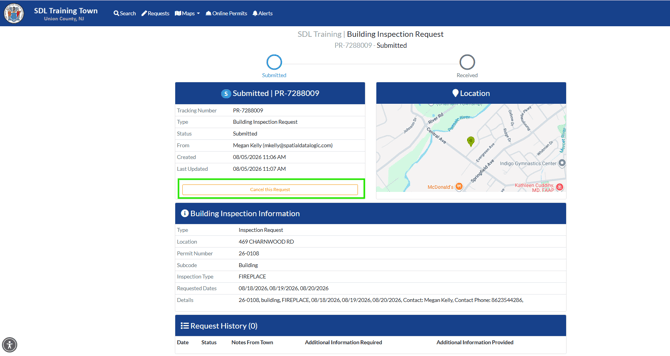
Cancel a Scheduled Inspection
Go to your municipality's SDL Portal search page and look up your permit using your permit number.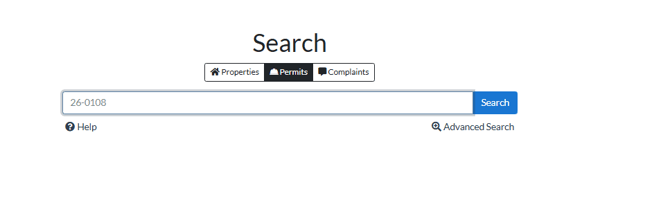
Scroll down to the inspections listed on the permit and select View next to the inspection you want to cancel.
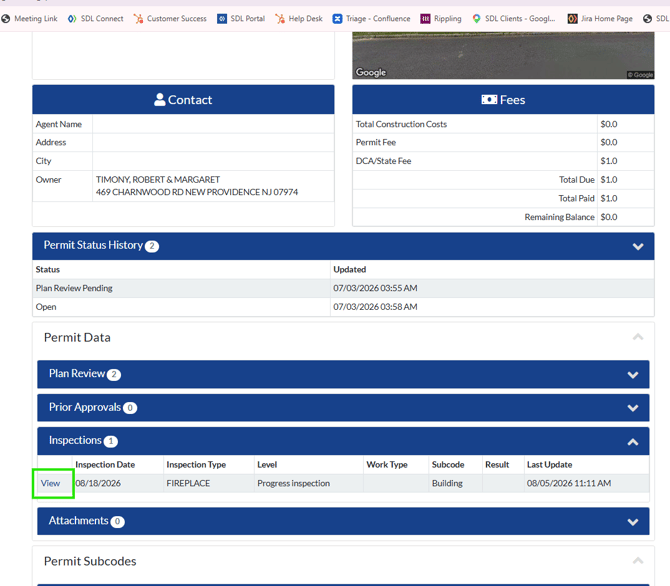
Select Cancel Inspection.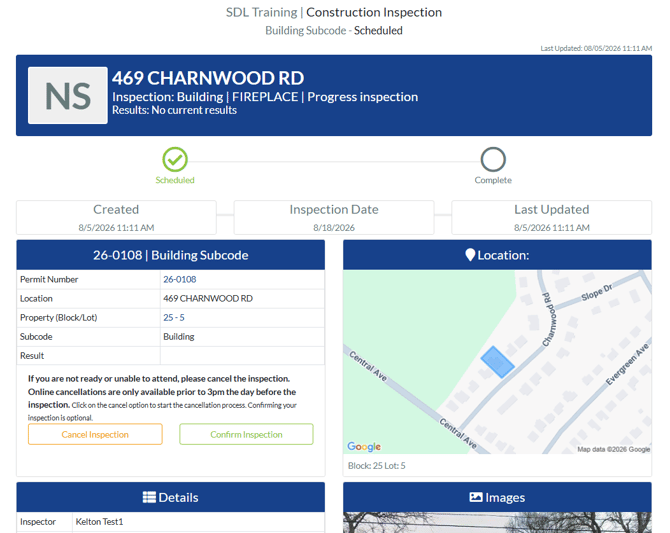
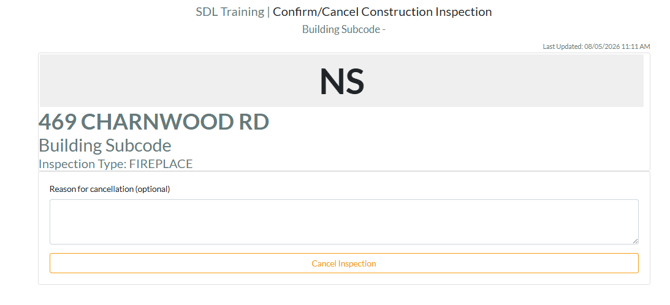
Enter your reason for the cancellation and select Cancel Inspection to confirm.
Troubleshooting
I don't see a cancel option on my request. Your municipality may have already scheduled the inspection. Use the search page steps in "Cancel a Scheduled Inspection" instead of the email link.
I can't find my permit on the search page. Double-check the permit number for typos. If it still does not appear, your municipality may need to confirm the permit is active in their system.
The Cancel Inspection option is not showing. Some municipalities restrict cancellation once an inspection is within a certain number of days of its scheduled date. Contact your municipality directly to cancel or reschedule.
I am still having trouble. Email support@getsdl.com and we will walk through it with you.
Key Takeaways
- How you cancel depends on whether the inspection has been scheduled: use the email link if it has not, or the SDL Portal search page if it has.
- Requests that have not been scheduled can be canceled directly from the link in your confirmation email.
- Scheduled inspections are canceled from the permit page on your municipality's SDL Portal, and you will need to enter a reason.
- Some municipalities limit cancellations close to the inspection date. If the option is missing, contact your municipality.
- If something is not working, email support@getsdl.com.