![SDL - 2025 New Logo.png]](https://help.getsdl.com/hs-fs/hubfs/SDL%20-%202025%20New%20Logo.png?height=40&name=SDL%20-%202025%20New%20Logo.png)
Redaction Workflow
SDL Desktop includes access to the SDL Portal redaction tool, which allows you to redact sensitive information from attached documents before sharing them. The tool is available to all Desktop users — no special permissions required — and is identified by the eraser icon on the Attachments control: 
Accessing the Tool
From the Attachments Control (recommended)
Most application forms have a Related tab with an Attachments control. Click the redaction icon there to open the tool. This is the primary way most users will access it, as it connects directly to the file on the Portal.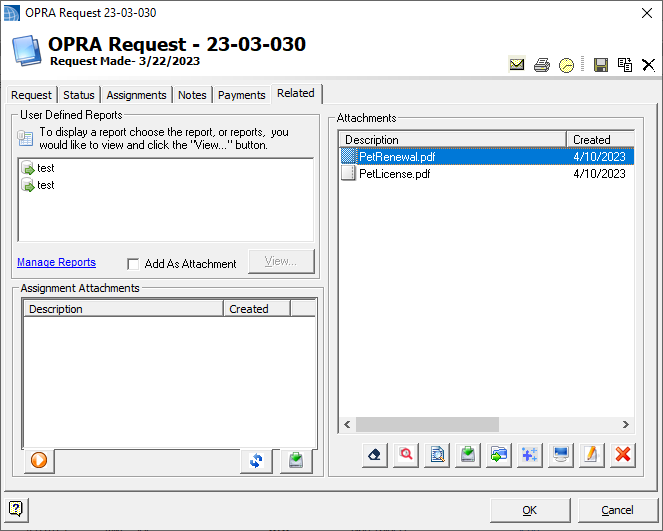
From the Tools Menu (standalone)
You can also access the redaction tool directly from the Tools menu on the Portal. Note that this method has no connection to SDL Desktop — you'll need to manually upload and download your files using the Open and Download buttons in the app.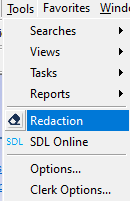
Please note the Open (upload) and download button when you open the app: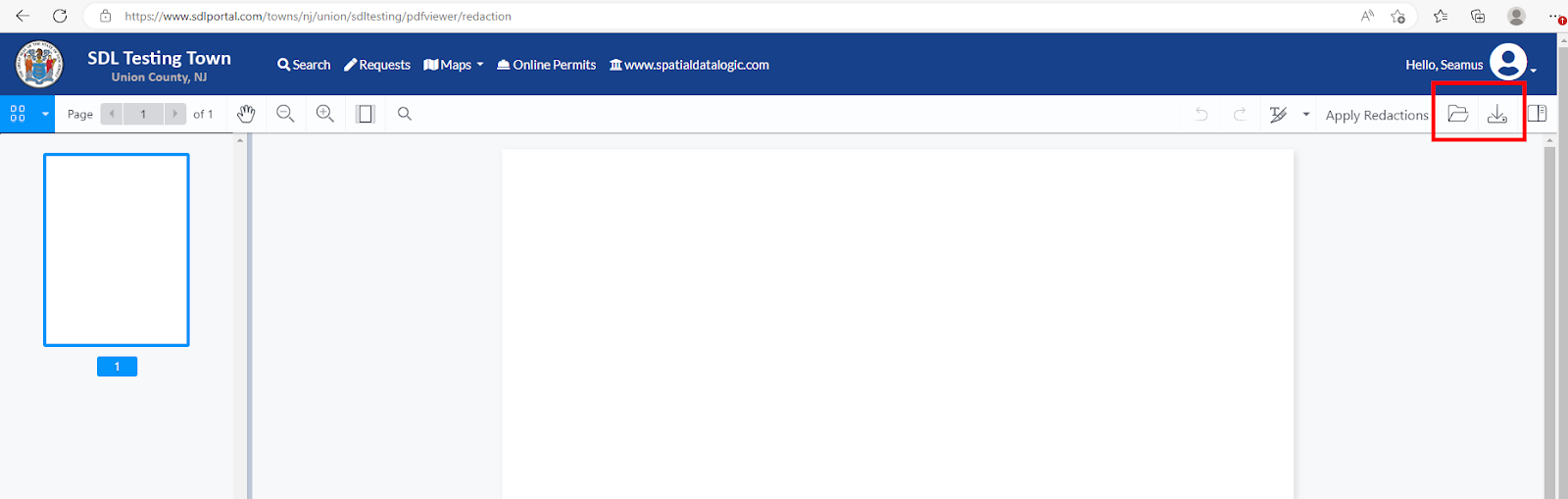
How the Attachments Control Works
The behavior of the redaction icon depends on whether you have a file selected and whether that file has synced to the Portal.
File selected and synced to the Portal
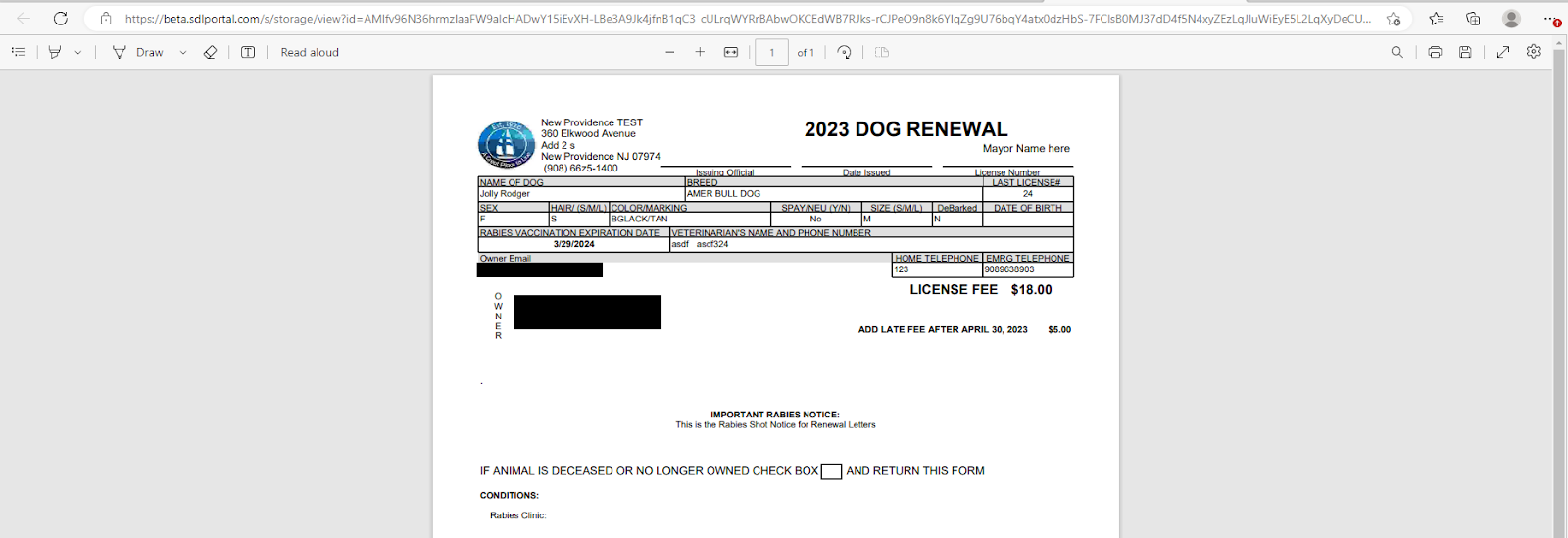
If the file exists in the Portal, the redaction tool opens with it already loaded. Make your redactions and click the save icon to save.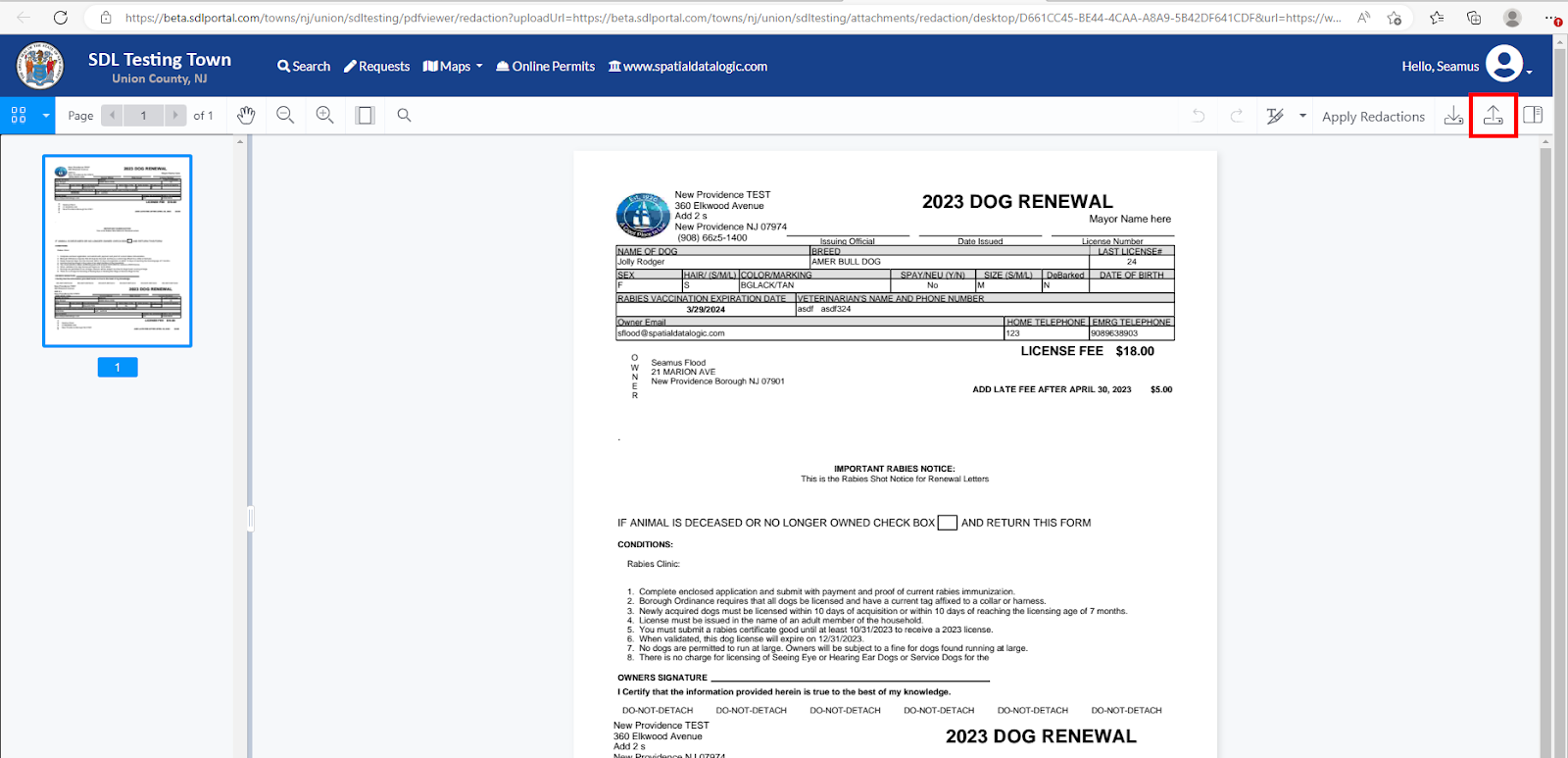
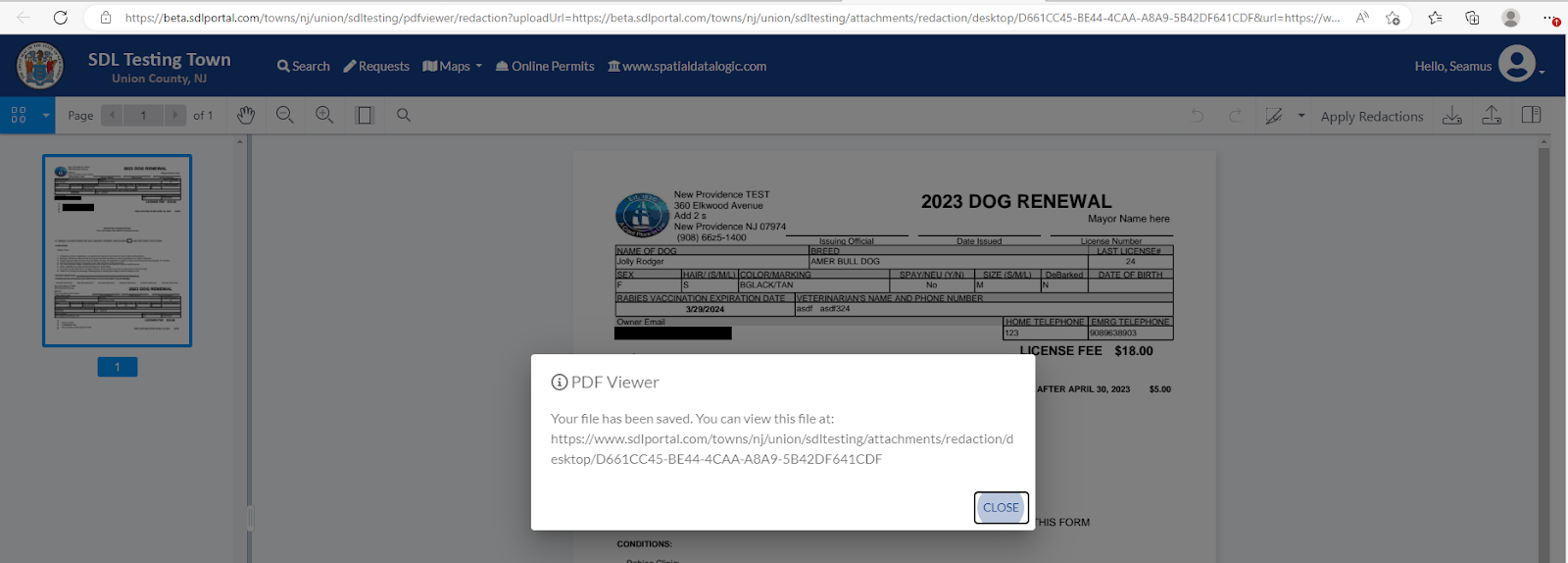
Back in SDL Desktop, a new attachment record will appear with "_redacted" appended to the filename. This represents the save location used by the Portal app.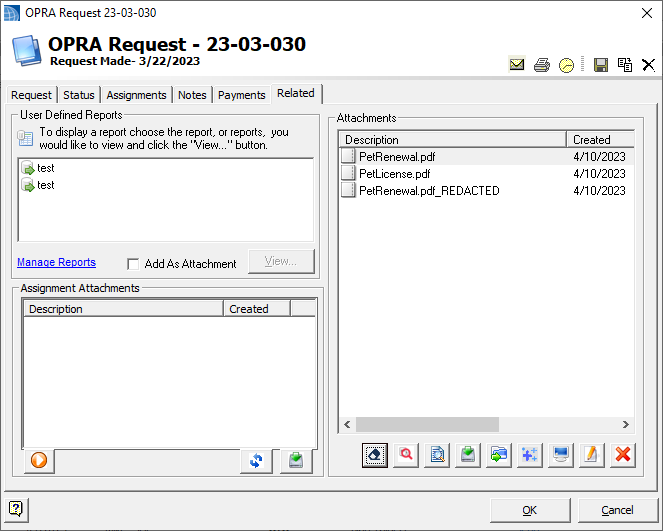
- If you open the redacted attachment, it will go directly to that Portal save location.
-
If you close the Portal app without saving, Desktop will be linked to a blank file. Delete that record in Desktop if that happens.
File exists but hasn't synced yet
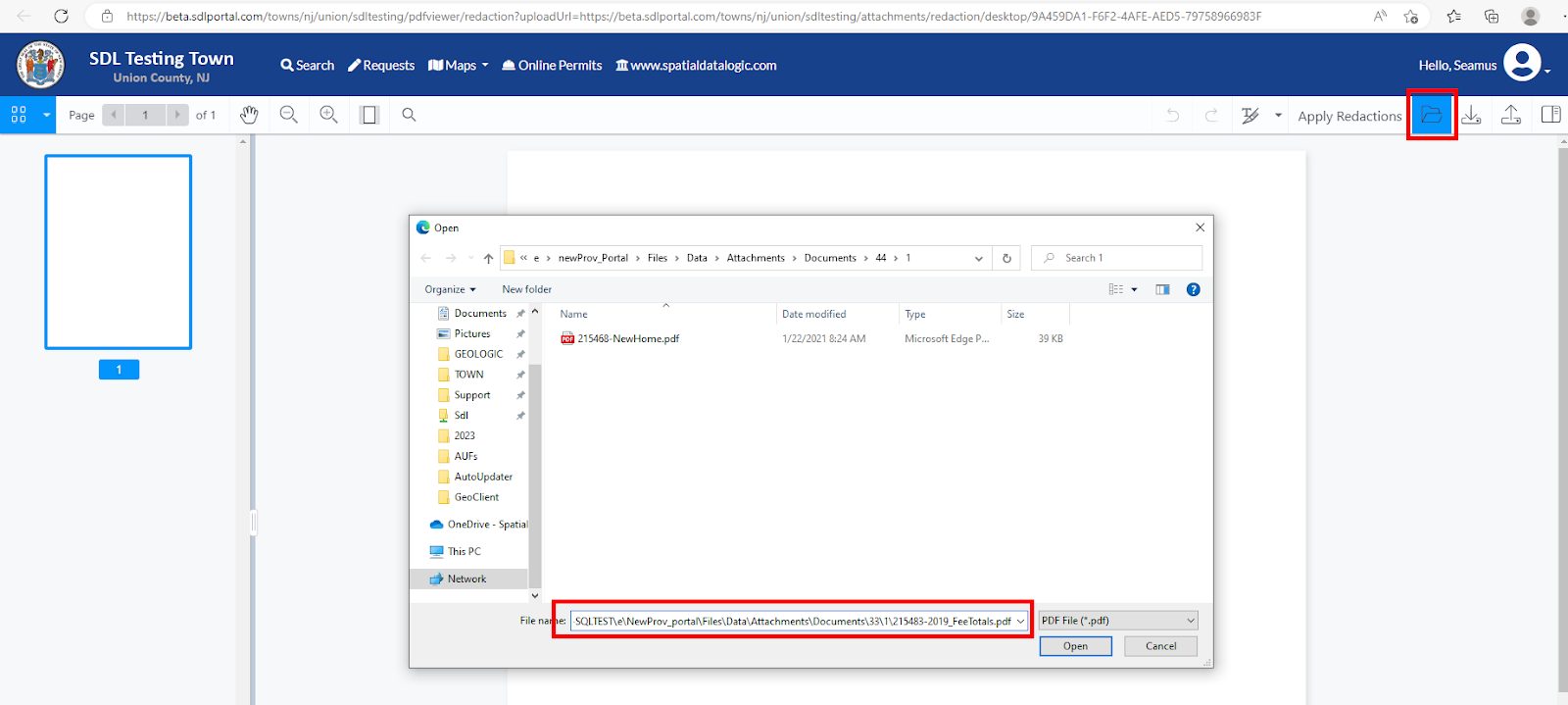
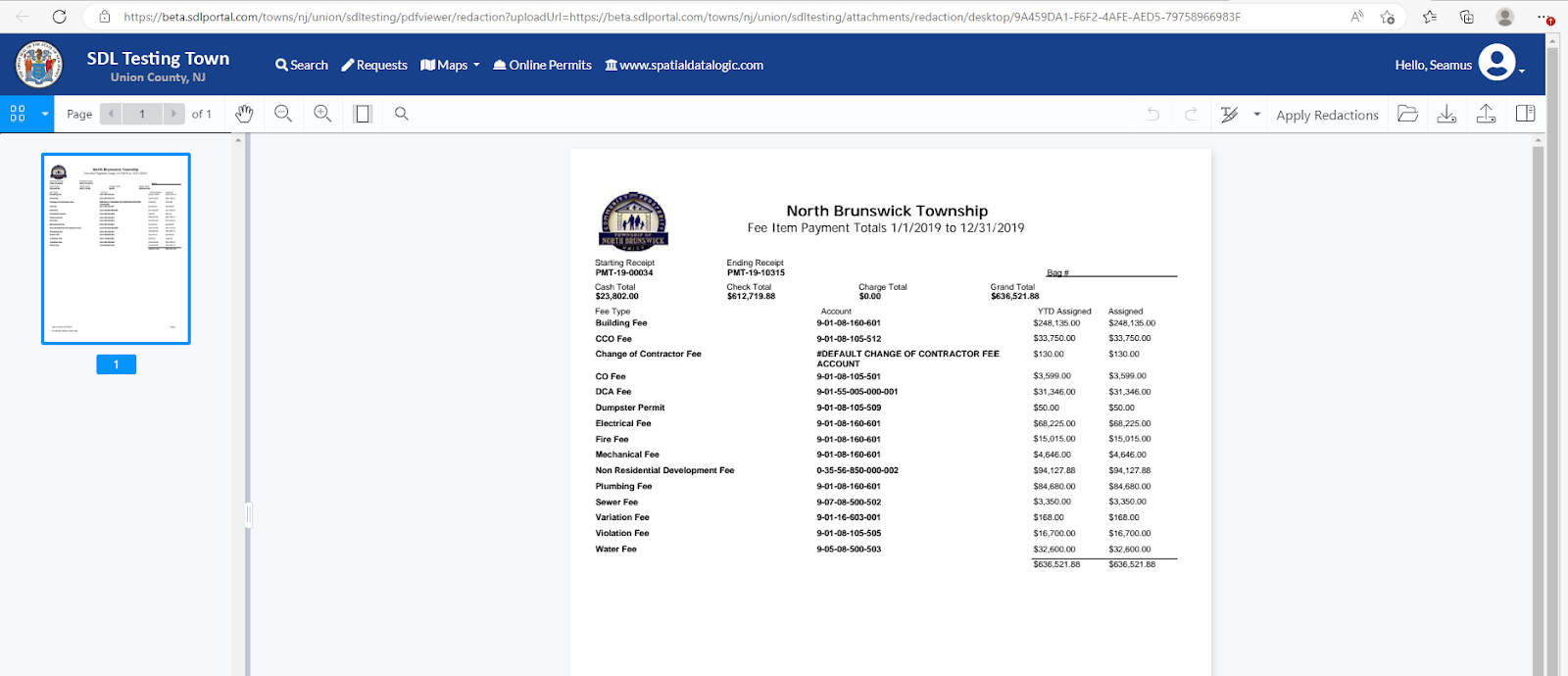
SDL Desktop and the Portal app can't communicate directly. If a file hasn't synced to the Portal yet, the tool can't open it automatically. Instead, a pop-up will display the file's location — copy that path and paste it into the Open field in the Portal app to load the file manually. The save location will still be set automatically.
Most newly attached files sync within a few minutes, but there's no precise way to know exactly when.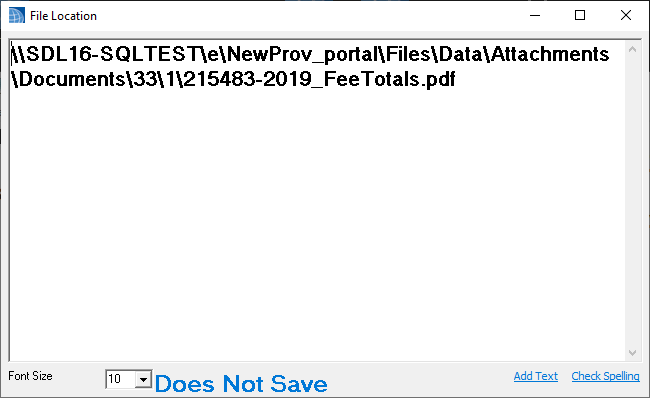
Checking Sync Status
To check whether a file has synced to the Portal:
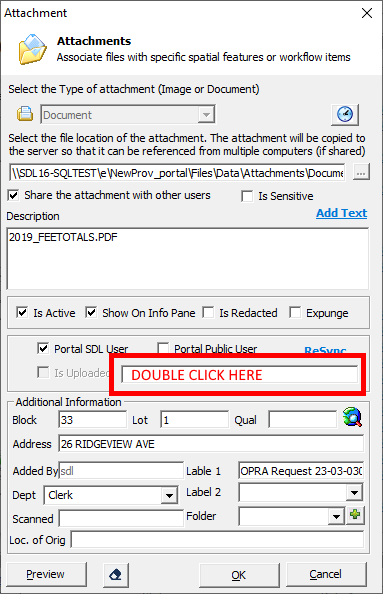
- Open the attachment form.
- Look for the Portal URL text box.
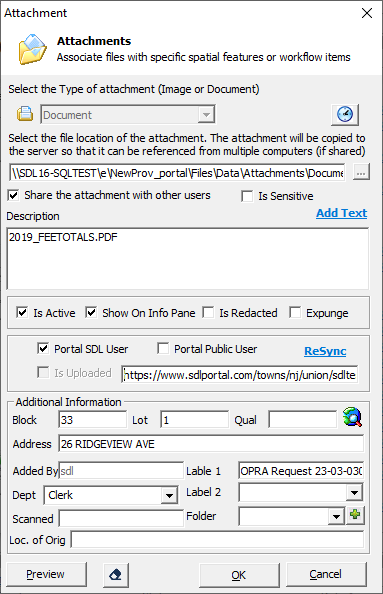
- Double-click inside the box — this checks the database and loads the URL if the file has synced.
- If needed, use the Resync option to reset the database and force a re-sync of that file.
The attachment form also includes an Is Redacted tag and a direct link to the redaction tool at the bottom of the form.