![SDL - 2025 New Logo.png]](https://help.getsdl.com/hs-fs/hubfs/SDL%20-%202025%20New%20Logo.png?height=40&name=SDL%20-%202025%20New%20Logo.png)
SDL Desktop - 23.4.1
- Updated - Property notification categories will no longer use module ID
- Added - Description to Projects log report
- Added - Reset Debug log to menu
- Fixed - Counter payment address not saving
- Added - Quick keys to complaint and quick complaint form
- Added - New options when using the portal to view attachments
- Added - Calculated fee to user and consultant deductions
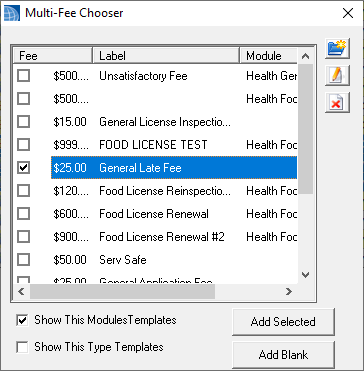
- Updated - Multi Fees will load alphabetically
- Updated - Complaint reports will now note Anonymous on complainant field
- Fixed - escrow accounts opening from manger after search
- Fixed - Project checklists not showing header settings
- Updated - Public Complaint reports will no longer show owner info
- Updated - New projects created from applications with an unlinked parcel will not search for a parcel now
- project add notes to email
- Added - OPRA Option to use portal request submitted date as OPRA application date
- Added - Option to not prompt for OPRA email report
- Updated - Property Items DGC will no longer show Daniels law items, a new Clerk Property Item DGC will, DGCs will need to be updated
- Added - Address to OPRA request report
- Fixed - issue with OPRA notes not saving on New OPRA records
- Updated - Hosted Users will need to set a Download folder to Use the Datagrid Mail Merge
- Added - Option to Direct Download to speed up Datagrid, Attachment, Report exports for hosted towns
- Added - Project Number filter field to Complaints Report options
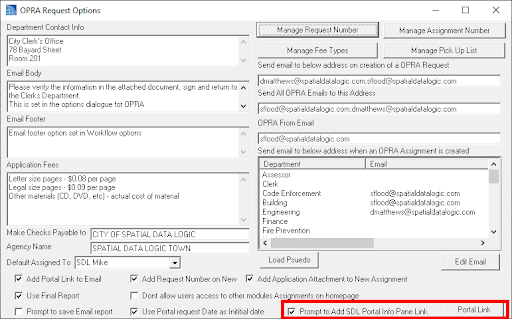
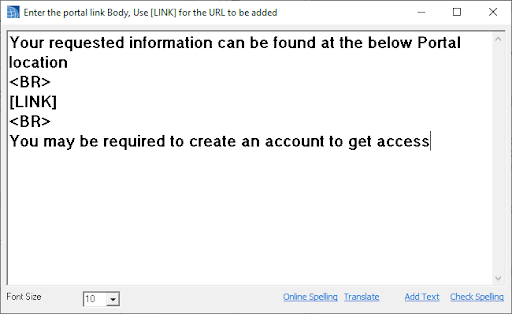
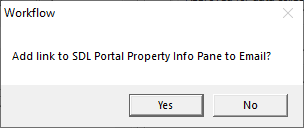
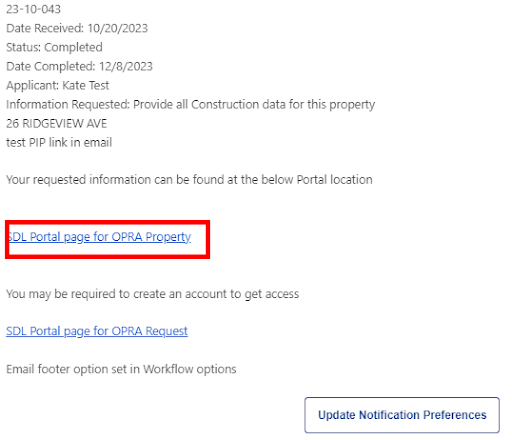
- Added - OPRA option to prompt to include SDL Portal Info Pane link to OPRA response emails
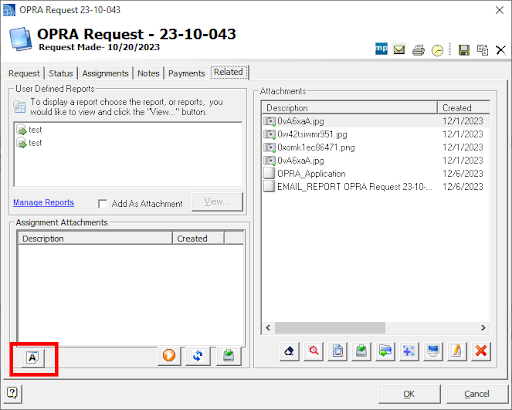
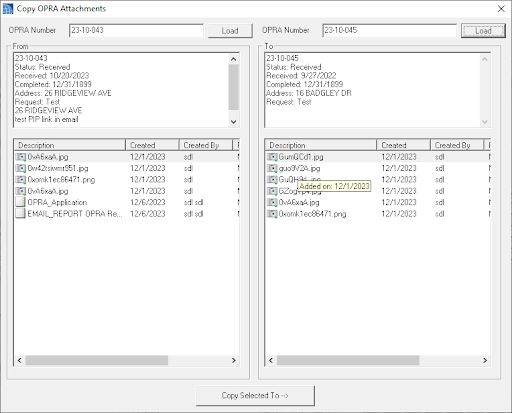
- Added - Option to Copy Attachments from one OPRA to another
OPRA Copy Attachment
In some cases, multiple OPRA Requests come in for the same data. We have added a way to allow you to copy attachments from one request to another.
Enter request number in the top for From and To and click Load. Select which attachments on the From record and click Copy Selected to.
OPRA SDL Portal Address Link
During OPRA sessions at League this year, we were made aware that if information is available on a public website. You are now allowed to simply provide the link and any login directions to the requestor to fulfill a request. In SDL’s case a lot of requested information resides on our Portal Property Info Pane pages. When a request is linked to property we have added an option to prompt the user if they want to add an HTML link to their response emails. An option was also added so you can add additional verbiage around this link. You should review with your attorney that this is allowed before turning on.
Assessor - 23.4.1
- Updated - Property Item Importer
Clerk - 23.4.1
- Added - Option to deactivate/reactivate (Resign) board members
- Added - Web Request Parking Application - search will notify user if no application is found
Code Enforcement - 23.4.1
- Added - Option to mark properties Active/non-Active to DGC Options
- Added - Credit Card option to registry fee
- Added - Option to add a registry license directly from the property editor
- Added - Option open a Property Registry from the payments DGC
- Added - Lead Fields to Single Family Property Editor
- Added - Option to remove licensee from homepage for upcoming expiring Registries
- Added - Option to add Photos report as attachment
- Added - Prompt user if a balance is still due while deactivating a property registry
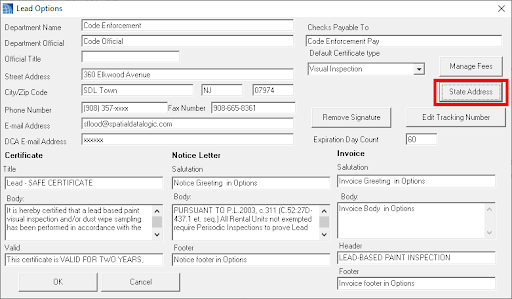
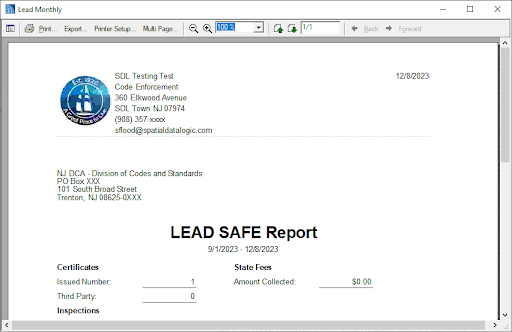
- Added - LEAD option for State Address, this will fill in on monthly report and fit in a windowed envelope
Lead Safe Certification
- Added - Permit + all Tech cards option will now allow you to email directly from related tab
- Updated - Bolded Address/BLQ on tech cards for legibility
- Fixed - sending emails from new PRs not linking
- Fixed - number of stops not saving
- Fixed - Ongoing location update owners unlinking applications
- added both Description fields to Activity log
- Added - Option to use Agent instead of owner on Activity log
- Updated - Permit property Search labeling
- Updated - Permit Property search to use Street Name and an number instead of address
- Added - User prompt if user changes the Use Group to warn them they may need to recalculate fees
- Added - Homepage section to show upcoming Inspector license expirations
- Fixed - Certificate "30/60 day" hyperlinks for expiration dates
- Added - My Text and spellchecker to Work Description Comments
- Added - Certificate In Lieu of Oath report
- Fixed - Ongoing Application reports not saving as attachments
- Added - Oil Buffer fields to Ongoing Location datagrid
- Added - Default Change of Contractor fee
- Added - Default SDL Portal Application Fee - IN PROGRESS
- Added - Change of Contractor fee user prompt on application if fee exists
- Added - Invoice items fields to Ongoing location datagrid
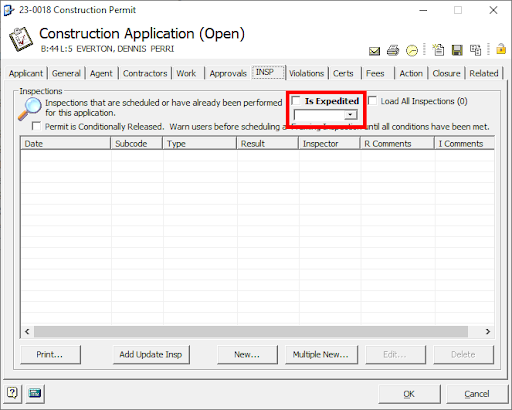
- Added - "Is Expedited" and date field to permit
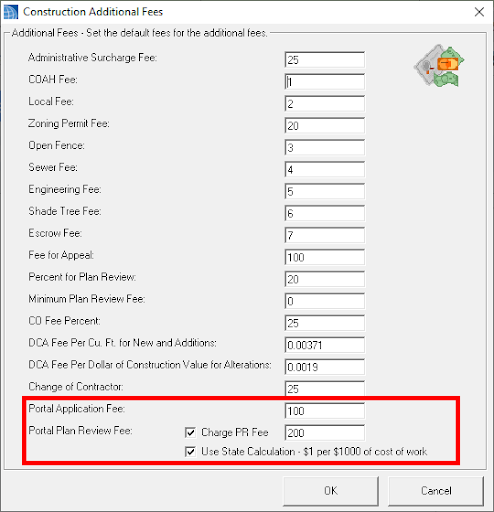
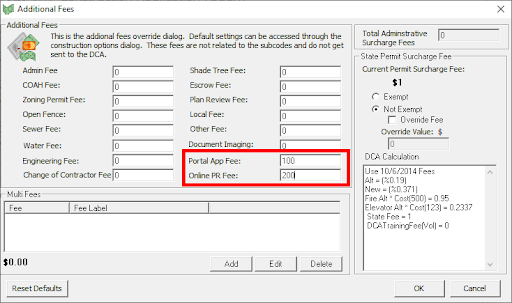
- Added - Online permit Application fee option and as other fee to application
- Added - Online Plan review fee option and as other fee to application, also included option to use state calculation
Online Permit Fees
New fee defaults and permit additional fees have been added. You can now add an online application fee and online Plan review fee to new permits. The Plan review fee can also be set to use the state fee calculation of $1 per $1000 of work.
Expedited Permits
A new state law allows for contractors to hire third party inspectors to finish a project if the department is unable to do so in a timely manner. We have added an Is Expedited tag and date to the inspections tab to mark permits as needed. Currently this tag is just a label, future updates will change this to not require FINAL inspections for this permit. Note existing refund permissions will be needed to modify payments when refunds are given for expedited permits.
Fire Prevention - 23.4.1
- Added - Option to change Smoke Cert Title
- Fixed - Festival Permits icon not showing linked
- Added - Option to change Invoice Email Subject
- Fixed - Violation count label issue on Unit Inspection tab
- Fixed - Recurring dat not calculating when changing day count
- Fixed - Multiple payments on an invoice not marking it paid
- added ability to link units to Detector request applications
- Fixed - Penalty warning letters report
- Fixed - Violation count and completed date on Units Inspection list
- Fixed - SDL Mobile recurring inspections not creating
- Fixed - SDL Mobile recurring inspections having incorrect Recurring Created value
- Fixed - Time Extension datagrid
Health Pro - 23.4.1
- Updated - Mailing labels report
- Fixed - 2 part license not always showing at first on report tab
- Added - Ground/City water option to Food License Applications (notes tab)
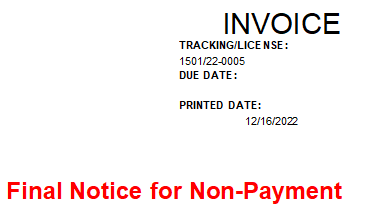
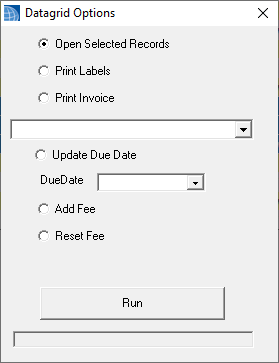
Health Pro Renewals
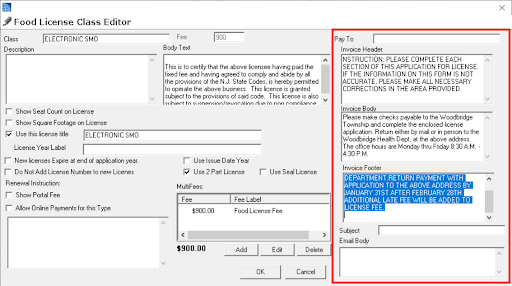
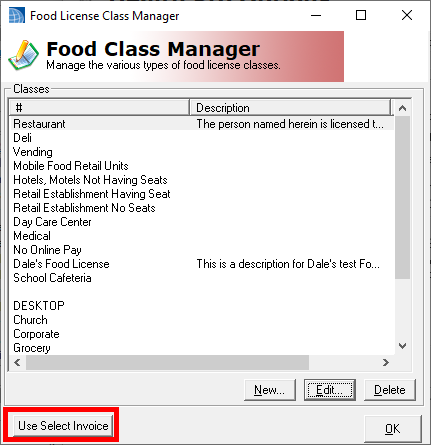
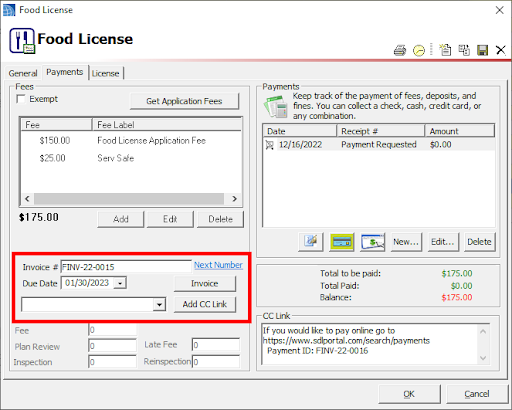
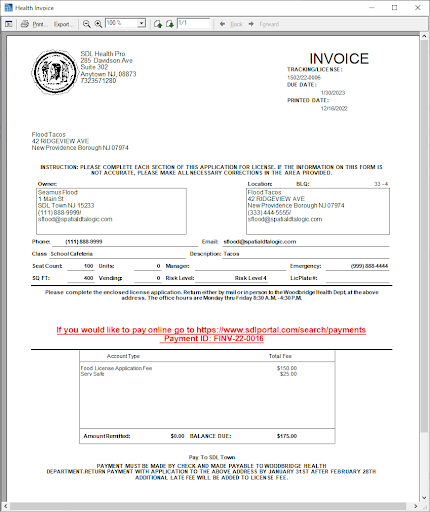
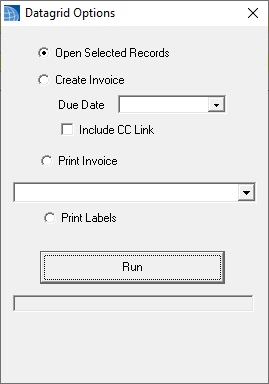
- Added - New Conditions datagrids
- Fixed - Inspection reports not adding to attachments
- Updated - New zoning requests applicants will set to NJ if not set by applicant
- Updated - New Zoning inspections will use zoning app zone
- Updated - Zoning Type default editor
- Added - Zoning, Planning, Historic boards will prompt users if a property notification exists
- Added - Email function to Zoning Violations
Pet Licensing - 23.4.1
- Added - Bulk Renewal form
- Removed - Checkboxes from Pet Look Up form, the highlighted record will be returned
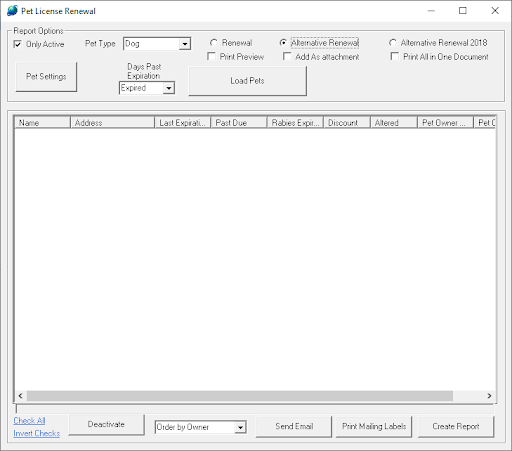
Pet Renewals
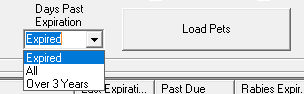
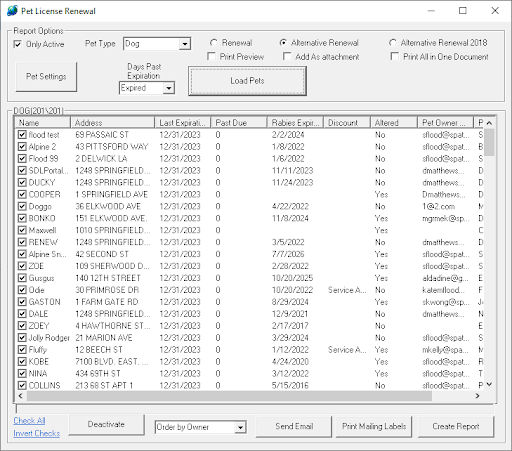
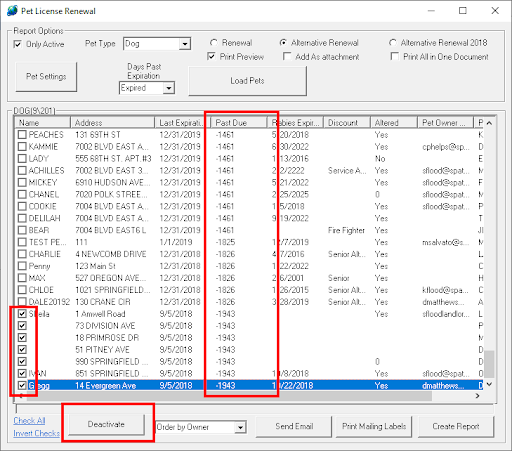
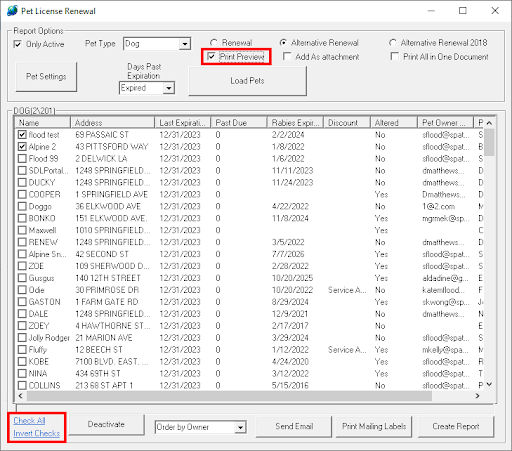
We have updated how users can manage and print their renewals. Under Tasks is a Pet Renewals Option. This new form should give you quick access to settings, report options, and doing a preview before your bulk printing or emails are sent.

- Fixed - Creating SR from a parcel and it not loading the district
- Added - Option to clone Service requests into new records