![SDL - 2025 New Logo.png]](https://help.getsdl.com/hs-fs/hubfs/SDL%20-%202025%20New%20Logo.png?height=40&name=SDL%20-%202025%20New%20Logo.png)
Use this guide to efficiently create a filter for your pet license renewal lists. Follow the steps below to quickly identify, sort, and process pets due for renewal, enabling easy printing or emailing of notices.
Create the Filter
1. Select the “Active Pets” data grid.

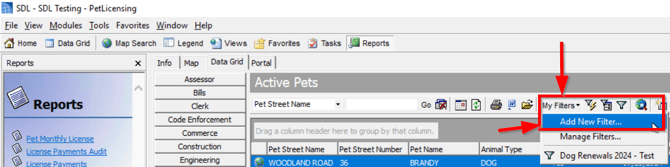
2. On the toolbar, click “My Filters” and select “Add New Filter”.
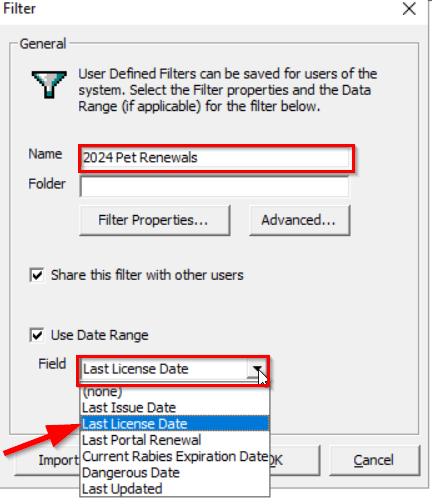
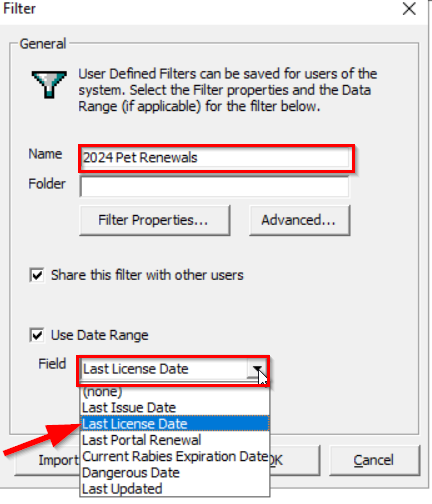
3. Name the filter, then check off “Use Date Range” and select “Last License Date” from the dropdown.
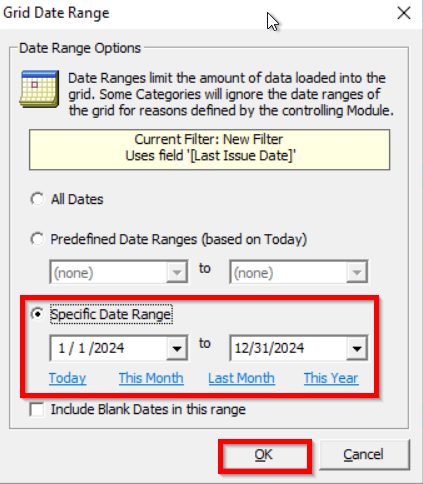
4. Click “Date Range” and select “Specific Date Range”, then click “OK”.
5. Select “Filter Properties”, then filter by the Animal Type = Dog (Cat etc) and click “OK”, and “OK”.
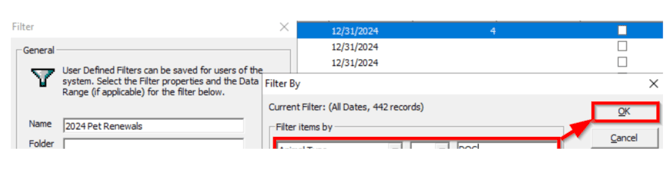
6. The filter for the 1-year license renewals for emailing and printing has now been created.
Note: Create a separate filter if they also have 3-year renewals.
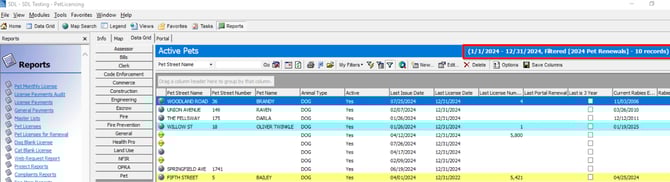
7. To email or print in a specific order, sort by “Pet Address” to keep the same addresses together and sort by “Email Address” to get the entries with no email address at the top of the data grid.

Print or Email the Renewals
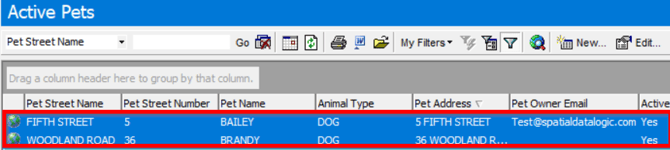
1. Select two records to test before printing all of the renewals.
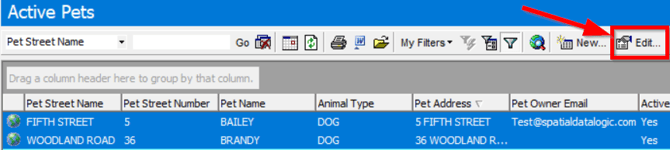
2. Click “Edit”.
3. Select “Print Renewal” and click “OK”.
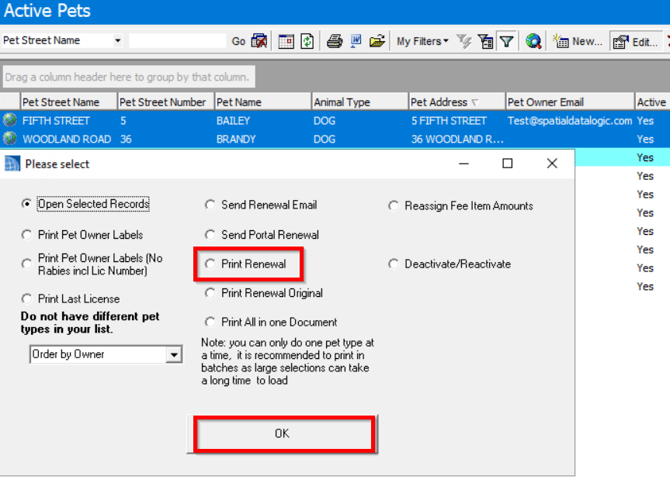
4. Confirm with the requestor that the printed renewals look correct.
Note: If changes need to be made, make the necessary corrections and return to this step.
5. Select the remaining records on the data grid, then click “Edit”, Select “Print Renewal” and click “OK”.