![SDL - 2025 New Logo.png]](https://help.getsdl.com/hs-fs/hubfs/SDL%20-%202025%20New%20Logo.png?height=40&name=SDL%20-%202025%20New%20Logo.png)
Improvements
All Modules - Enhanced List Sorting and Filtering
Added flexible sorting options and improved filter visibility for inspection lists, giving
inspectors better control over how they view and organize their inspections.
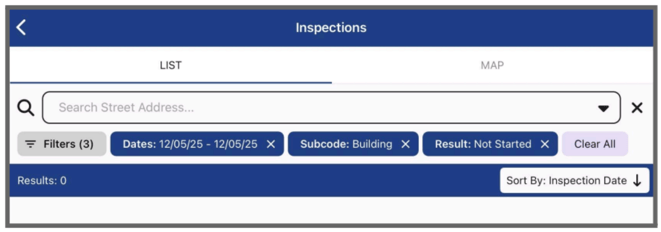
What's new:
- Sort By Button: Easily toggle between ascending and descending order for the chosen Sort By type
- Enhanced Filter Display: All applied filters now visible on the list page with clear labels (e.g., "street name: 123")
- Quick Filters Access: New "Filters" button under search bar for easier access to advanced filtering options
- Sort Field Visibility: Current sort field displays on both the list view and individual inspection items
How it works:
- Select your preferred sort field in advanced filters
- Use the Sort By button to switch between ascending (earliest first) and descending (most recent first) order
- View all active filters at a glance on the list page
Benefits: Inspectors can now view inspections starting from the earliest date of the month and progress chronologically, or reverse the order based on their workflow needs. Improved filter visibility eliminates confusion about which filters are currently applied.
All Modules - Enhanced Best Route Capacity
Enhanced the Best Route feature with several updates.
What's new:
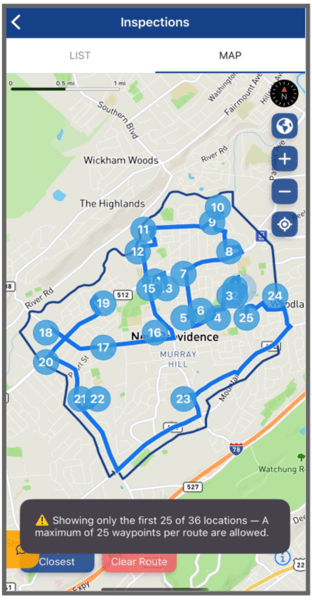
- Increased Capacity: Route up to 25 inspections in a single optimized trip (limit increased from 10)
- Smart Grouping: Inspections at the same address/coordinates are grouped. together, counting as a single waypoint
- Round Trip Routing: Routes start and end at your current location, with optimized waypoints in between
- Enhanced Dark Mode: Improved route line visibility for dark mode
- Warning System: Alerts when attempting to route more than 25 locations
How it works: The Best Route feature calculates the most efficient route for visiting all selected inspections. Your location serves as the start and end point, with all inspections optimized as waypoints along the way.
Benefits: Inspectors with 11+ daily inspections can now route their entire day's workload efficiently, saving time and fuel costs. The improved routing better handles typical inspection
loads while providing clear navigation guidance.
Fire Prevention - Offline Inspection Access
Inspectors can now open and edit inspections from the Fire Prevention module without an internet connection, allowing uninterrupted work in the field, even in areas with no service.
The app automatically detects internet availability and displays a warning when no connection is detected. Regardless of connection status, the user’s full list of inspections will always load. However, viewing or editing an inspection requires either an active internet connection or that the inspection was previously downloaded while the device was online.

Downloading Inspections (requires internet access)
A Download button on the Inspection List screen allows users to save multiple inspections at once:
- If the user has fewer than 50 inspections, the button displays Download All.
- If the user has more than 50 inspections, it shows Download Top 50.

Individual inspections can also be downloaded by opening the inspection while the device is connected to the internet
Once downloaded, the inspection will have a blue checkmark, indicating that the inspection is fully stored on the device and can be opened without internet access.

Any changes made to inspections while offline are automatically added to a sync queue and will sync to the server as soon as a connection is restored. Additional details about syncing are listed below.
Fire Prevention - Sync Button and Last Sync Indicator
A Sync button showing pending sync count and a timestamp for the last successful sync is now available in the Fire Prevention module.
Sync Behavior:
- When the device is online:
- The Sync button will be disabled, as changes to inspections are automatically synced in real time. Each successful sync updates the Last Sync Time.
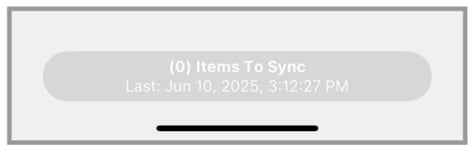
- The Sync button will be disabled, as changes to inspections are automatically synced in real time. Each successful sync updates the Last Sync Time.
- When the device is offline and changes are pending sync:
- The Sync button will turn red and display the number of inspections waiting to sync. These changes are stored locally on the device until connectivity is restored.
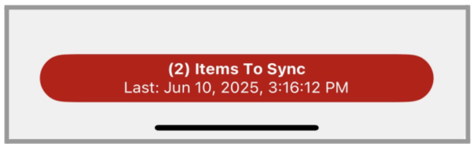
- Tap on the Sync button to view the Inspections that are awaiting a sync and make updates if needed.
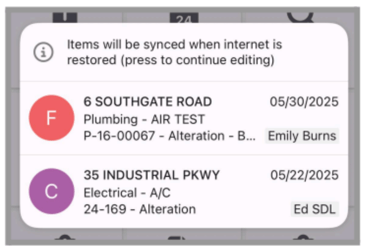
- The Sync button will turn red and display the number of inspections waiting to sync. These changes are stored locally on the device until connectivity is restored.
- When connectivity is restored:
- Inspections awaiting sync will be synced automatically and the Last Sync Time is updated.
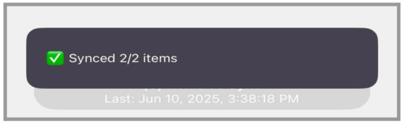
- Inspections awaiting sync will be synced automatically and the Last Sync Time is updated.
Fire Prevention - Enhanced Access to Unit Compliance Items
Added a comprehensive Compliance Items tab to SDL Mobile units, providing inspectors with complete access to inspections, attachments, and violations while in the field.
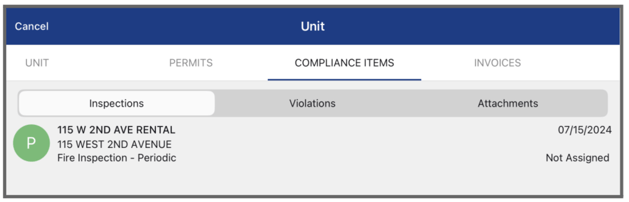
What's new:
Compliance Items Tab: New dedicated tab consolidating all unit compliance
information in one location
- Inspections: Access complete inspection history for any unit, showing all associated inspections and their details
- Attachments: View all unit-associated attachments including past inspection reports, documents, and files added from both SDL Mobile and SDL Desktop
- Violations: View violation history directly from the unit viewer for quick reference during field inspections
Benefits: Inspectors now have complete unit context while in the field, with all compliance information organized in a single tab. This eliminates the need to return to the office or switch to Desktop to review unit history, inspection records, attachments, or violations, improving efficiency and enabling more informed on-site decisions.
Fixed Issues
Complaints - Photos and Attachments Now Save Correctly
Fixed an issue where photos and attachments uploaded to complaints would not persist after saving and syncing.
Impact: Users can now reliably document complaints with photos and attachments in the field. Previously, images would disappear after saving and syncing, requiring staff to re-upload documentation or return to Desktop to add attachments.
Construction Inspections - Time Field Now Syncs to Desktop
Fixed an issue where inspections created in SDL Mobile 4 would not include the inspection time when syncing to SDL Desktop.
Impact: Inspection times are now accurately recorded and synced across platforms, ensuring Desktop users have complete scheduling information for inspections created in Mobile.
Inspection Calendar Reliability Improvement
Resolved an issue where inspections would fail to display on the calendar for some inspectors.
Impact: Inspectors will no longer experience missing calendar data, ensuring reliable access to their scheduled inspections across all modules.