![SDL - 2025 New Logo.png]](https://help.getsdl.com/hs-fs/hubfs/SDL%20-%202025%20New%20Logo.png?height=40&name=SDL%20-%202025%20New%20Logo.png)
In this article:
If you have ever logged into SDL Desktop and wondered why it asked you for two different passwords, you are not alone. Most hosted users have two accounts working together behind the scenes: one that gets you into the SDL hosting environment, and one that gets you into a specific town. This article explains what each account does, how they fit together, how to manage each one, and how to work through the login issues that come up most often.
Heads up: Multi-Factor Authentication (MFA) is now required as of May 19, 2026. If you have not set up MFA yet, see the MFA setup guide before you go any further.
Before You Begin
You will need:
- A Parallels Client installation and credentials (see How to Install the Parallels Client for SDL Desktop)
- Your SDL Desktop credentials for each town you access
- An MFA method set up for Parallels (authenticator app on your phone, or the browser-based authenticator extension)
Note: If your town is on-premise (not hosted with SDL), you will not have a Parallels account or MFA on your SDL login. You can skip straight to the SDL Desktop section. The two-account model only applies to hosted users.
At a Glance: Parallels vs. SDL Desktop
The quickest way to keep these straight is to remember that Parallels gets you into the SDL hosting environment, and SDL Desktop gets you into a town. Here is how they compare:
| Parallels (or SDL Hosting) | SDL Desktop | |
|---|---|---|
| How many accounts do I have? | One per user, no matter how many towns you work in | One per town you have access to |
| What does it get me into? | The SDL hosting environment | A specific town's SDL Desktop |
| Password requirements | 13 or more characters, with at least one uppercase letter, one lowercase letter, and one number. No special characters required. | Standard password |
| Multi-Factor Authentication (MFA) | Required as of May 19, 2026 | Not required for the Desktop login itself |
| How often do I log in? | Once per session | Each time you open a town (and when you switch towns) |
| Who resets my password? | SDL Support resets it for you | You can change it from inside SDL Desktop, or SDL Support can force a reset |
| Applies to on-premise towns? | No, hosted only | Yes |
Your Parallels (also known as SDL Hosting) Account
Your Parallels account, sometimes called your SDL Hosting account, is the front door to the SDL hosting environment. You have exactly one Parallels account, and it is tied to you as a user, not to any particular town. Every hosted town you have access to, including any shared service towns, sits behind this one account.
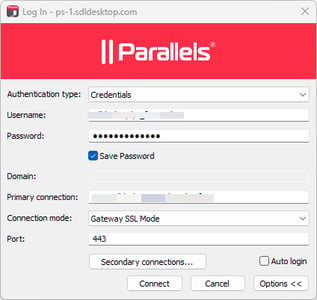
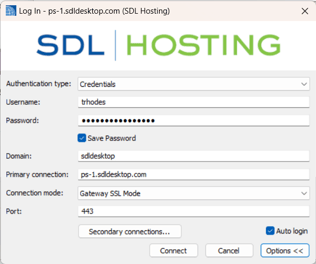
You will recognize the Parallels login by two things. First, it requires a longer password (13 or more characters, with at least one uppercase letter, one lowercase letter, and one number). Second, it requires Multi-Factor Authentication, so you will be prompted for an MFA code when you connect.
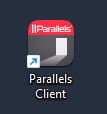
| Parallels Client Shortcut | Parallels Login Screen |
 |
 |
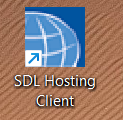
| May appear as SDL Hosting Client | SDL Hosting Login Screen |
 |
 |
Heads up about your Parallels password: Special characters are not required, and in some cases they can prevent your password from being accepted. If your password contains a symbol like !, #, or @ and you are getting rejection errors, try a version of the password without special characters.
Heads up about the Parallels icon: Depending on how your computer is set up, the Parallels application may appear on your desktop as either "Parallels" or "SDL Hosting Client." Both names refer to the same application.
You only need to log into Parallels once per session. After that, you can open any of your hosted towns without logging into Parallels again.
Your SDL Desktop Account
Your SDL Desktop account is the one that actually gets you into a town's data. Unlike Parallels, SDL Desktop accounts are town-specific: if you work in three towns, you have three SDL Desktop accounts, each with its own username and password.
SDL Desktop passwords have standard complexity requirements (no MFA on the Desktop login itself).
| SDL Desktop Shortcut | SDL Desktop Login Screen |
 |
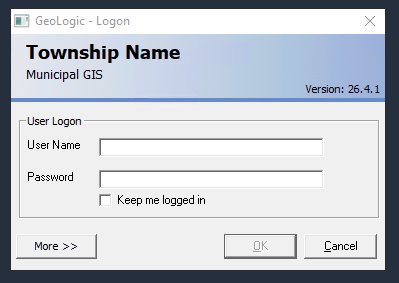 |
This account applies to both hosted and on-premise towns. If your town is on-premise, this is the only SDL login you will use.
Heads up about usernames: Your Parallels username and your SDL Desktop username may look slightly different from each other, even though they belong to the same person. For example, a user might have j_smith for Parallels and jsmith for SDL Desktop. If you are getting "username or password is incorrect" errors, double-check that you are using the right username for the right login screen.
How the Two Accounts Work Together
If you are a hosted user, here is what a normal login looks like:
- You log into Parallels with your hosting username, password, and MFA code. This gets you into the SDL hosting environment.
- From there, you open SDL Desktop for the town you want to work in and sign in with that town's SDL Desktop username and password.
- You can keep working without re-entering your Parallels password. If you switch to another town, you only need to provide that town's SDL Desktop credentials.
For on-premise users, the flow is simpler: you skip the Parallels step entirely and go straight to SDL Desktop with your town-specific credentials.
If you have a mix of hosted and on-premise towns: Your Parallels login covers only your hosted towns. Any on-premise town you access still requires its own separate login outside of Parallels.
Switching Between Towns
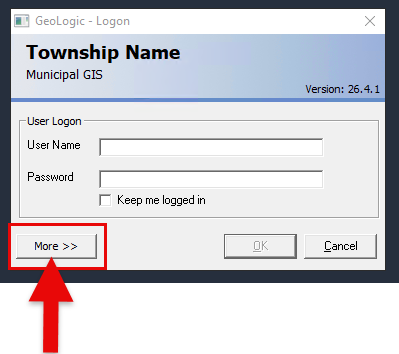
If you have access to more than one town (including shared service arrangements), you can switch between them without closing SDL Desktop. Use the More button on the SDL Desktop login screen to open the dropdown of towns you have access to within Advanced Settings, then select the one you want to log into.
 |
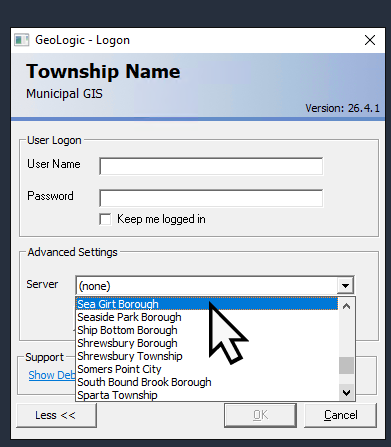 |
Each town in the dropdown still uses its own SDL Desktop username and password, so you will enter the credentials for whichever town you pick.
If a town you expect to see is missing from the dropdown, that usually means your account has not been added to that town's group on our side. Contact SDL Support and we will confirm your access.
Changing or Resetting Your Passwords
Because the two accounts are managed separately, the way you change or reset them is also separate.
SDL Desktop passwords (per town): You can change your own SDL Desktop password from inside SDL Desktop at any time. Each town's password is changed independently, so updating it in one town does not change it in another. If you are locked out or cannot get in to change it yourself, SDL Support can force a password reset for you.
Parallels (SDL Hosting) password: Today, SDL Support handles all Parallels password resets. Email support@getsdl.com and we will help you reset it. Because you only need one Parallels account regardless of how many towns you access, a password reset applies everywhere — once changed, you can use the new password to log into Parallels wherever it's installed.
Best way to reach us right now: Email is the fastest way to get a password or MFA-related issue resolved. Phone hold times can be long during high-volume periods, and email lets us route your request to the right person more quickly.
A Note About Multi-Factor Authentication (MFA)
As of May 19, 2026, every Parallels (SDL Hosting) login requires Multi-Factor Authentication. Each user on your team enrolls individually, so an admin or supervisor cannot complete setup on behalf of someone else.
You have two ways to get your MFA code:
- An authenticator app on your phone (Google Authenticator, Microsoft Authenticator).
- A browser-based authenticator extension, useful for users who prefer not to install an app on a personal phone.
Here is the pop-up that should appear when you try to log in. (OTP means One-Time Password). This is where you enter the code from your authenticator app.
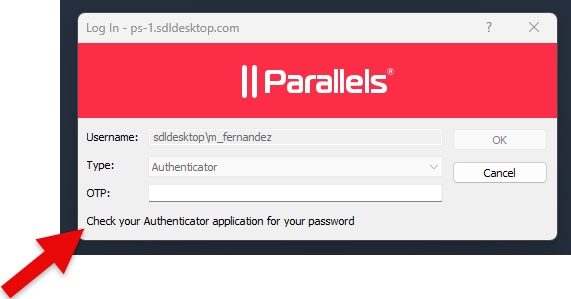
Step-by-step instructions for both options are in the MFA setup guide. To understand why MFA is required, see the MFA education article.
If you were already logged into Parallels when MFA went live, you may not see the MFA enrollment prompt right away. The prompt will appear the next time you start a fresh Parallels session. You do not need to log out just to trigger it.
Troubleshooting
I am being asked for a password and I don't know which one it wants. Look at the login screen. If it mentions Parallels or SDL Hosting and asks for an MFA code, it wants your Parallels password. If it shows a town name and a username field, it wants that town's SDL Desktop password.
My SDL Desktop password works in one town but not another. That is expected. Each town has its own SDL Desktop account with its own password. Use the password that belongs to the town you are trying to open.
I changed my SDL Desktop password and now I can't get into my other towns. Changing your SDL Desktop password in one town only changes it for that town. Your other towns still use their original passwords. If you are not sure what those are, contact SDL Support.
My Parallels password keeps getting rejected even though I know it is correct. Two things to check. First, special characters (like !, #, @) are not required for Parallels and can sometimes cause rejection. Try a version of the password without them. Second, make sure you are entering your Parallels username, which may differ from your SDL Desktop username (for example, j_smith versus jsmith).
I get "Could not sign in using Windows authentication, username or password is incorrect" when I open SDL Desktop. This is most often a username mismatch (entering your Parallels username at the Desktop screen, or vice versa), or a stale session. Confirm the username, then try logging out of all RAS sessions and back in once or twice.
I get "Access is denied" or a code like 0x4000000E when trying to log in. This is usually a stale RAS session. Log out of all RAS sessions, log back in, and try again. If the error persists after a second attempt, contact SDL Support.
I keep double-clicking the SDL Desktop icon but the login window never appears. This is most common on Mac and is usually a stuck RAS session. Log out of all RAS sessions, log back in, and try opening SDL Desktop again. Restarting the RAS session twice in a row clears it in most cases.
I logged in and got "Folder structure not correct" or "Attachment folder not correct." This usually means your Parallels client is out of date. Update Parallels to the newest version, log out fully (see the next item), and log back in.
I closed the Parallels window but it still says I'm logged in. Closing the window does not log you out of Parallels. To fully log out, go to Sessions > Log out inside the Parallels client, or right-click the Parallels icon in your system tray (bottom-right of the Windows taskbar) and choose to quit the application.
I'm logged into Parallels but a town is not showing up. Your Parallels login gets you into the SDL hosting environment, but you also need an SDL Desktop account in that specific town. If a town you expect is missing from the dropdown, contact SDL Support so we can confirm what towns you are provisioned in.
I can't see TsClient under Network when I try to upload an attachment. This is a separate issue from logging in. It is a Parallels file-sharing setting and not related to your password or MFA. Contact SDL Support and we can walk through enabling network drive access in your Parallels client.
I already had Parallels open when MFA rolled out and never got prompted to set it up. That is expected. The MFA enrollment prompt appears at the start of a fresh Parallels session. You will see it the next time you start one. There is no need to force a logout just to trigger the prompt.
I forgot my Parallels password. Email support@getsdl.com and we will reset it for you.
I called support but the hold time is very long. Email support@getsdl.com instead. Email is the fastest way to get a password or MFA-related issue resolved right now, and we can route your request directly to the right person.
I am still having trouble. Email support@getsdl.com and we will walk through it with you.
Key Takeaways
- You have one Parallels (SDL Hosting) account, and it is the same no matter how many hosted towns you access, including shared service towns.
- You have one SDL Desktop account per town, each with its own username and password.
- Your Parallels username and your SDL Desktop username may not match. Look carefully at the login screen so you enter the right one.
- Parallels requires a 13-plus-character password (no special characters required) and Multi-Factor Authentication. SDL Desktop uses standard credentials and no MFA on the Desktop login itself.
- Use the More button on the SDL Desktop login screen to switch between the towns you have access to.
- You can change SDL Desktop passwords yourself from inside Desktop. Parallels password resets currently go through SDL Support.
- Closing the Parallels window does not log you out. Use Sessions > Log out, or quit the Parallels icon from your system tray.
- Email support@getsdl.com for the fastest help with passwords or MFA, especially during high-volume periods.
Related Resources
- Install: How to Install the Parallels Client for SDL Desktop — set up the Parallels client on a new machine.
- MFA setup: How to Set Up and Use Multi-Factor Authentication (MFA) for SDL Desktop — required for the Parallels login.
- MFA education: Multi-Factor Authentication (MFA): What Local Governments Need to Know — background on why MFA is required.