![SDL - 2025 New Logo.png]](https://help.getsdl.com/hs-fs/hubfs/SDL%20-%202025%20New%20Logo.png?height=40&name=SDL%20-%202025%20New%20Logo.png)
In This Guide
What the Resident Needs Before They Start
- A valid email address — used for verification and all portal notifications
- A mobile phone number — required for phone verification (if enabled by your town); must not already be linked to another SDL account
- Their town name — they'll search for and select it during signup
- A unique username — common names like "johndoe" are likely taken; they should have a backup ready
Step-by-Step: Account Creation
Step 1: Go to sdlportal.com and Click "Sign Up"
The resident navigates to www.sdlportal.com in their browser. They click the "Sign Up" button — either in the top-right corner or in the center of the page.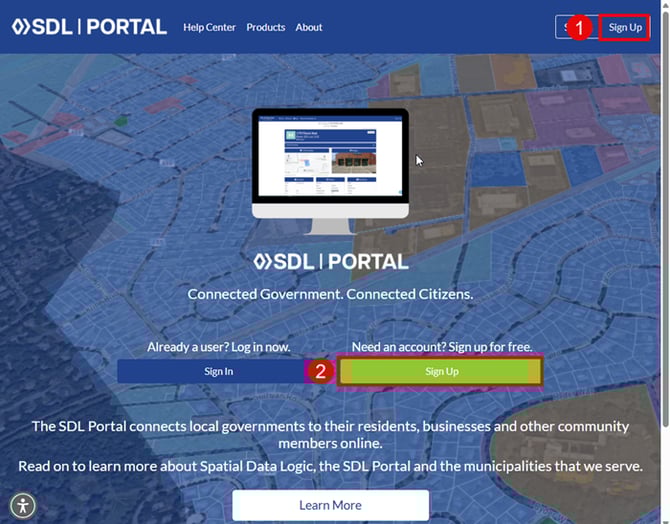
Step 2: Fill In Account Details
The resident fills in the form fields in this order:
Email*
A valid email address is required. This is where verification emails and all portal notifications will be sent.
User Name*
The resident chooses a unique username. The rules are displayed on the signup page:
- Must be between 8 and 50 characters
- Must start with a letter or number
- Can contain ! or @ or : or _
- Must be unique — common words or names are most likely already used
- Cannot be changed after account creation
Password*
The same character rules apply (8–50 characters, must start with a letter or number, can contain ! @ : or _). Passwords can be reset via the login page if forgotten.
First Name* and Last Name*
The resident enters their legal first and last name.
Primary Town/Location/Provider*
The resident types the first few letters of their municipality name and clicks Find. A list appears — they select the correct town. This links their account to the right municipal database and sets their home page.
- Can be changed at any time from their account page
- If the town doesn't appear, try typing only the first 3–4 letters — it may be listed differently (e.g., "Twp" instead of "Township")

Step 3: Complete reCAPTCHA and Click "Create Account"
The resident checks the "I'm not a robot" reCAPTCHA box. then clicks Create Account.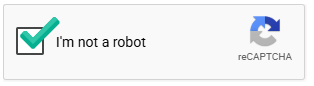
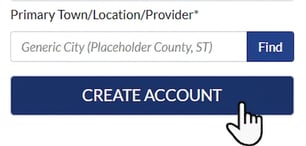
If they receive a format error, they need to correct the highlighted fields and try again.
Step-by-Step: Account Verification
Step 4: Verify Their Email
The resident checks their inbox for a verification email from SDL and clicks the link to confirm their address. They should check spam/junk if it doesn't arrive within a few minutes.
What if they try to sign in before verifying? An error message will appear. They can click the "here" link within the error message to request a new verification email. They'll enter their email address and click Send Verification Email, then check their inbox again.
Step 5: Verify Their Phone Number (if required by your town)
If your town requires phone verification, the resident's account will show as Not Verified after email verification. They need to complete the following steps:
- Click the profile icon in the top-right corner of the portal.
- From the dropdown, select to go to My Account.
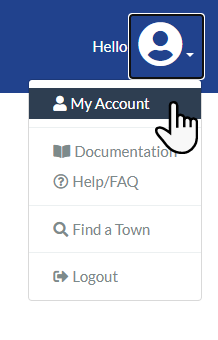
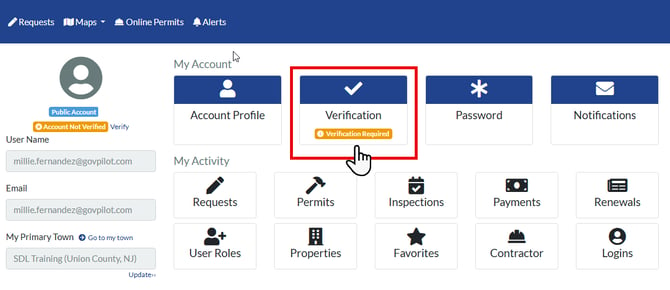
- On the My Account page, click the Verification tile (it will show a Verification Required warning).
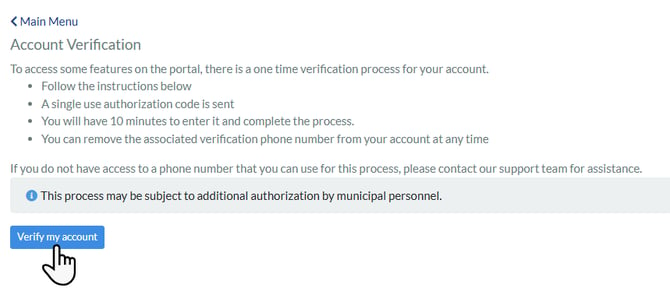
- Review the Account Verification information and click the "Verify my account" button.
- A single-use authorization code will be sent.
- They will have 10 minutes to enter the code and complete the process.
- They can remove the associated verification phone number from their account at any time.
- Choose how to receive the code: "Text code to my mobile phone" or "Call my phone now with code."
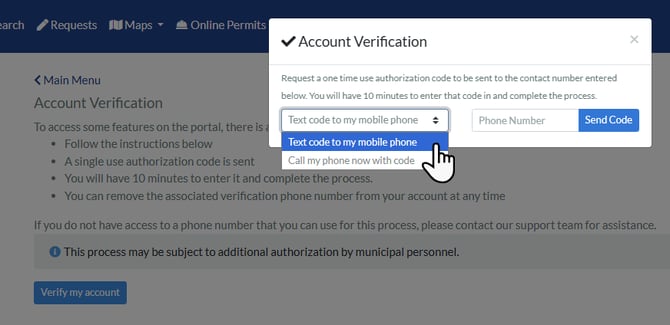
- Enter their phone number and click Send Code.
- Enter the single-use authorization code they received and click Verify Code.
- A confirmation screen appears — click Done.
The Verification tile on the My Account page will now show as Verified.
Important: Each phone number can only be linked to one SDL account. If the resident gets an error saying the number is already in use, they may have a previous account. Do not create a new account — contact support@getsdl.com to resolve it.
Step 6: Log In
Once verification is complete, the resident logs in at www.sdlportal.com with their username or email address and password. They'll land on their town's portal homepage and can begin submitting requests.
Common Issues You May Hear About
| What the Resident Says | What's Happening & How to Help |
|---|---|
| "I never got the verification email" | Have them check spam/junk. If it's not there, tell them to try signing in — the error message has a "here" link to resend it. Make sure the email address was spelled correctly when they signed up. |
| "It says my phone number is already in use" | Each phone number can only be on one account. They likely have an old account. Do not have them create a new one. Contact support@getsdl.com to remove or recover the old account. |
| "It says I already have an account" | Same situation — an old account is linked to their email. Contact SDL support to recover access or remove the duplicate. Do not create a new account. |
| "My username won't work" | Usernames must be 8–50 characters, start with a letter or number, and can only use ! @ : or _ as special characters. Common words are usually taken — suggest adding numbers (e.g., jsmith2026). |
| "I get a format error when I click Create Account" | Have them review the username and password rules below each field. Common issues: no uppercase letter in password, spaces in username, or username already taken. |
| "I can't find my town in the dropdown" | Tell them to type only the first 3–4 letters and wait. The town may be listed under a different name (e.g., "Twp" instead of "Township"). If it still doesn't appear, contact support. |
| "I clicked the verification link but it sent me to login" | They may be logged into a different SDL account. Have them log out first, then click the verification link again. |
| "I need to use the portal for a different town" | They do not need a new account. After logging in, they click their profile icon (top-right) → "Switch Towns" → search for the new town and select it. |
Key Things to Remember
- One account per person. Each email and phone number can only be linked to one account. Never advise a resident to create a second account — use "Switch Towns" for multiple municipalities.
- Usernames can't be changed. Residents should choose carefully at signup.
- Phone verification may be required. This depends on your town's settings. Without it, residents can still log in but may not be able to submit certain requests.
- Escalate duplicate account issues to SDL support. Email support@getsdl.com.
Related Resources
- SDL Support: support@getsdl.com
- Help Center: help.getsdl.com