
In this article:
- Before you begin
- Step 1: Log in to your website
- Step 2: Choose your MFA method
- Step 3: Set up a verification code (authenticator app)
- Step 4: Set up code by email
- Step 5: Log in with MFA going forward
- Backup Codes
- Troubleshooting
- Key takeaways
- Related resources
Multi-Factor Authentication (MFA), also called Two-Factor Authentication (2FA), adds an extra layer of security to your website login. In addition to your username and password, you will confirm your identity using a one-time code from an app on your phone or sent to your email.
GovSites requires MFA for all website editor accounts. This is a critical security measure to protect your municipal website from unauthorized access. MFA ensures that only you can log in to your account and make edits, even if someone else obtains your password.
Before you begin
You will need:
- Your website login credentials (username and password)
- Your municipality's login page URL (typically your website address followed by
/login) - A smartphone with an authenticator app installed, or access to the email address associated with your website account
- About five minutes
Step 1: Log in to your website
Navigate to your municipality's login page. You can reach it by adding /login to the end of your website address (for example, www.yourmunicipality.gov/login).
Enter your username and password, then click Log in.
Step 2: Choose your MFA method
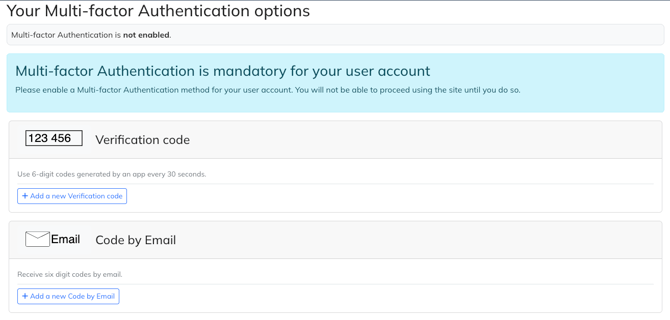
Immediately after logging in, you will see a screen with the following message:
"Multi-Factor Authentication is not enabled. It is mandatory for your user account. Please enable a Multi-Factor Authentication method for your account. You will not be able to proceed using the site until you do so."
You will not be able to access your website editing tools until you complete MFA setup. You have two options:
-
A verification code from an authenticator app (Step 3),
- A code sent to your email (Step 4).
Choose the method that works best for you and follow the corresponding step below.
Step 3: Set up a verification code (authenticator app)
This method uses an authenticator app on your phone to generate a six-digit verification code that refreshes every 30 seconds. Our system is compatible with a wide variety of authenticator apps. If you do not already have one, you can download any authenticator app from the Apple App Store or Google Play Store.
Heads up: If you already use an authenticator app for another account (banking, email, or other services), you can use that same app. There is no need to download a new one.
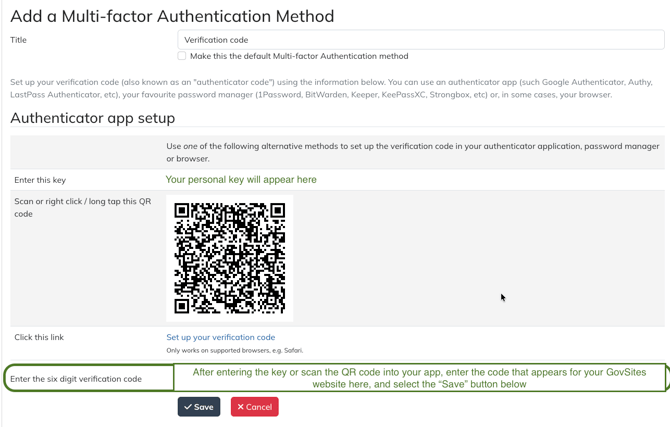
On the MFA options screen, click Add a new Verification Code.
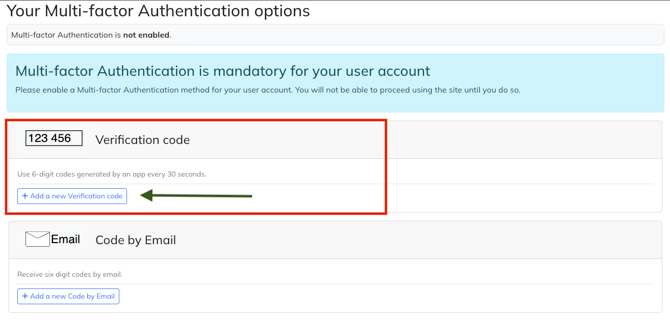
A setup form will appear. You will see a "Title" field, which you can leave as-is. Beneath the title field, there is a checkbox labeled "Make this the default Multi-Factor Authentication method." If this is your preferred method, check that box to set it as your default login method.
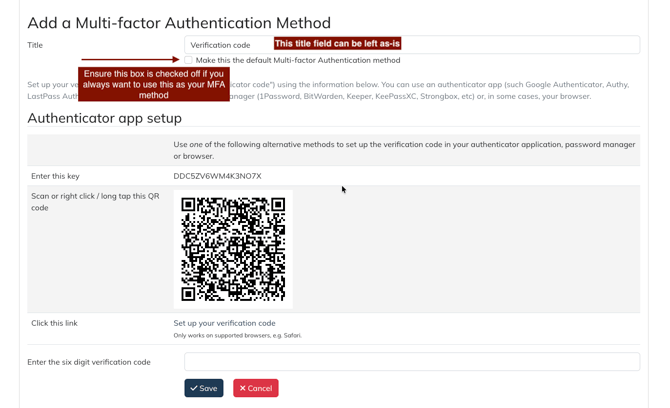
Open your authenticator app on your phone and add a new account. In most apps, this is done by tapping a + icon or selecting an option to add or scan a code.
Link your account using one of the two options shown on screen:
- Scan the QR code: Use the scan option within your authenticator app to scan the QR code displayed on your screen. Do not scan the code with your phone's camera directly — it must be scanned from within the authenticator app. This is the fastest method.
- Enter the key manually: If you cannot scan the code, type the key shown next to "Enter this key" into your authenticator app.
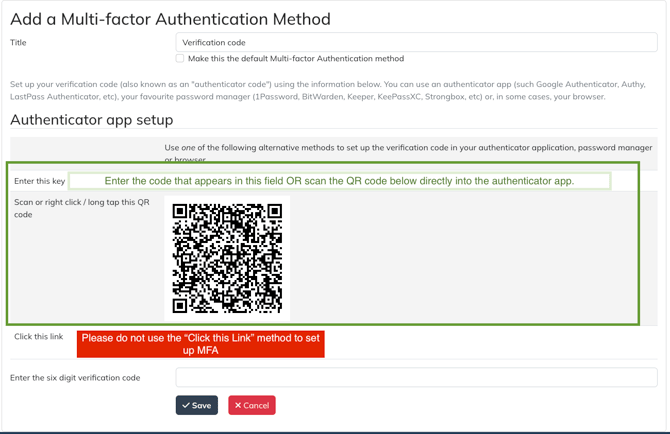
Your authenticator app will immediately begin generating six-digit codes. Enter the current code into the verification field in your browser and click Save.
Heads up: Codes refresh every 30 seconds. If your code is close to refreshing when you start typing, wait for the next one so it does not expire before you finish.
Once saved, your authenticator app setup is complete! You can skip to step 5.
Step 4: Set up code by email
If you prefer not to use an authenticator app, you can receive a verification code by email instead.
Heads up: If you are responsible for making website edits after hours or on weekends, keep in mind that the verification code will be sent to your municipal email account. If you cannot access your municipal email from home, you will not be able to log in to the site to make updates. In that case, use an authenticator app (Step 3) instead.
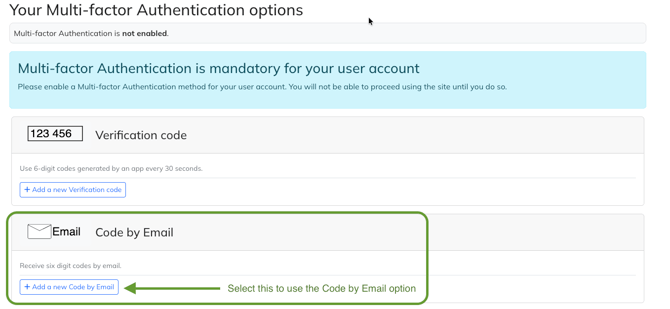
On the MFA options screen, click Code by Email.
A setup form will appear with a "Title" field, which you can leave as-is. Beneath the title field, there is a checkbox labeled "Make this the default Multi-Factor Authentication method." If this is your preferred method, check that box to set it as your default login method.
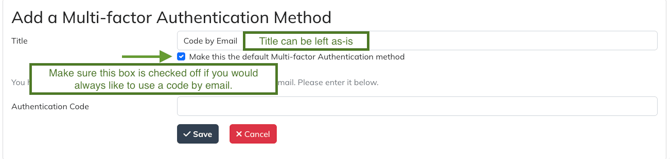
The system will send a six-digit code to the email address associated with your account automatically - you will not have to take any action.
Check your email (including your spam or junk folder if you do not see it right away) and enter the six-digit code into the "Authentication Code" field in your browser. Select the "Save" button after you enter the code.
Heads up: The email code expires after two minutes. If the code expires before you enter it, you will need to request a new one.
Once you've entered your verification code and hit "Save", your email MFA setup is complete.
Step 5: Log in with MFA going forward
Once MFA is configured, your login process will have one additional step. Go to your login page and enter your username and password as usual - the login page will look exactly the same as it used to. After entering your credentials, you will be prompted to enter your verification code.
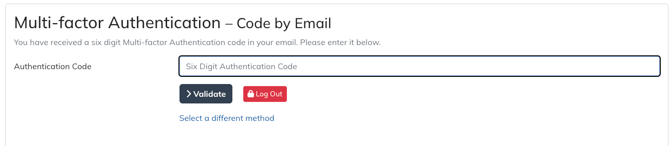
Open your authenticator app and enter the current six-digit code, or check your email for the code, depending on which method you chose. Enter the code and you are in.
Backup Codes
If you are ever without access to your authenticator application or the email account tied to your website editor account, you can use backup codes to login instead.
In order to access backup codes, you must be logged in to the website after successfully setting up MFA.
Once you are logged in, go to the Edit Profile / Password option in the administrator menu at the top of the screen. Depending on your website, this may be nested under the heading "More" or "Help".
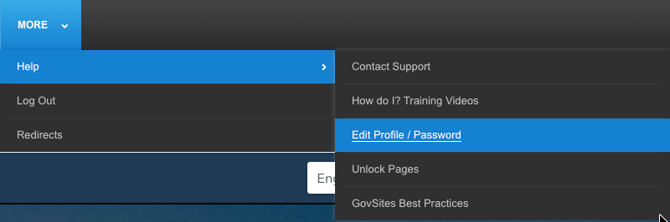
This will take you to an area where you can change profile information and access your backup codes. The backup codes are listed towards the bottom of the page, under the "Multi-factor Authentication" section.
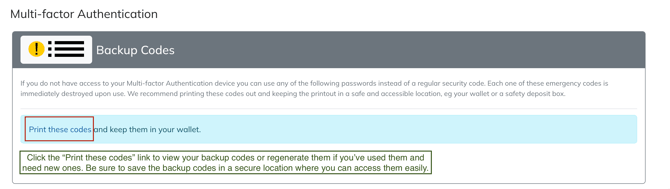
Click the "Print these codes" hyperlink to view your current backup codes. Be sure to screenshot or write them down to use in case you are not able to use your configured MFA method to log in.
Please note that each code is one time use. In the instance that you have used a lot of your backup codes, you can return to the same area to generate new ones, using the red button at the bottom of the page. This will create new codes that you can use. These will completely replace your old codes, so be sure to save the new ones and do not continue to use your old codes, even if you didn't use all of them.
Troubleshooting
The code I entered is not working. Make sure you are entering the most recent code. Authenticator app codes refresh every 30 seconds, and email codes expire after two minutes. If the code has expired, start the login process again to receive or generate a new one.
I did not receive the email code. Check your spam or junk folder. If the code still does not appear, confirm that the email address on your website account is correct and try again. If the problem continues, contact the GovSites support team.
I lost access to my authenticator app. If you changed phones or deleted the app, contact the GovSites support team. We can reset your MFA so you can set it up again on your new device.
I see the MFA setup screen but I do not know which method to choose. Either method works. If you have a smartphone, the authenticator app option is a reliable choice. If you prefer not to install an app, code by email is a supported alternative.
I am still having trouble. Email govsites-inbox@govpilot.com and we will walk through it with you.
Key takeaways
- MFA is required for all GovSites website editor accounts. You will not be able to access your website editing tools until it is configured.
- You can use any authenticator app you already have. There is no need to download a specific one.
- Email codes expire after two minutes. If yours expires, request a new one.
- Authenticator app codes refresh every 30 seconds. If a code is about to refresh, wait for the next one before entering it.
- If something is not working, email govsites-inbox@govpilot.com.
Related resources
- Authenticator app help: Google Authenticator support page — how to download and use Google Authenticator.
- Authenticator app help: Microsoft Authenticator support page — how to download and use Microsoft Authenticator.