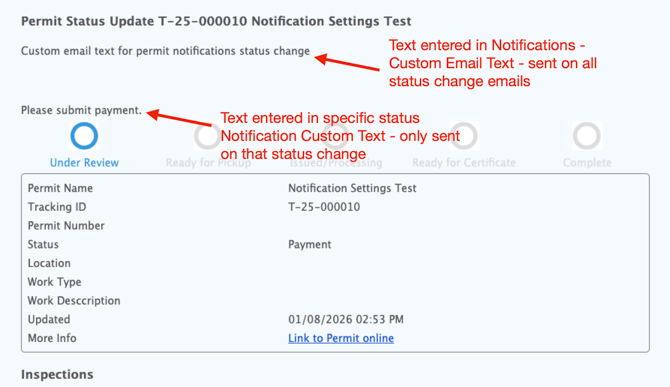
In Connect you can update the text of email notifications that go out when a permit status changes. You can set a general message that appears in every email and/or a specific message that only appears for a particular status change.
How to Update Notification Text
1. Access the Permit Settings
-
From the main menu, navigate to Online Forms and select Form Designer.
-
Open the specific form you wish to update.
-
Click on Settings and then select the Permits tab.
2. Enable Status Notifications
-
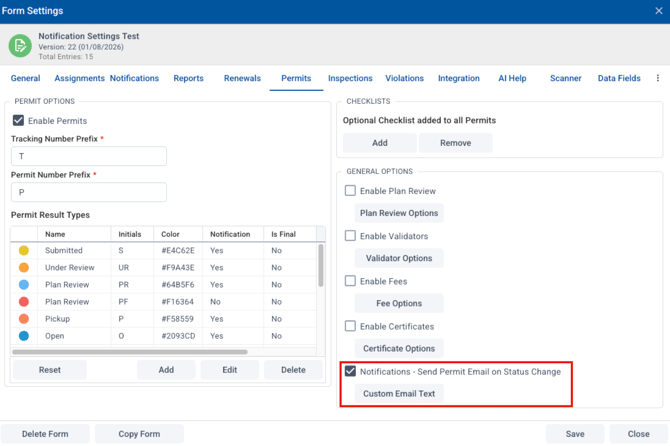
Locate the checkbox labeled Notifications - Send Permit Email on Status Change.
-
Check this checkbox to allow notifications on status change.
3. Set a General Message (Applies to All Status Change Emails)
-
Click on Custom Email text to create a message that will go out with all status change emails.
- It is not required to add anything here.
4. Set a Specific Message (Applies to One Status)
If you want a special message to appear only when a permit moves to a specific status (like "Payment"), follow these steps:
-
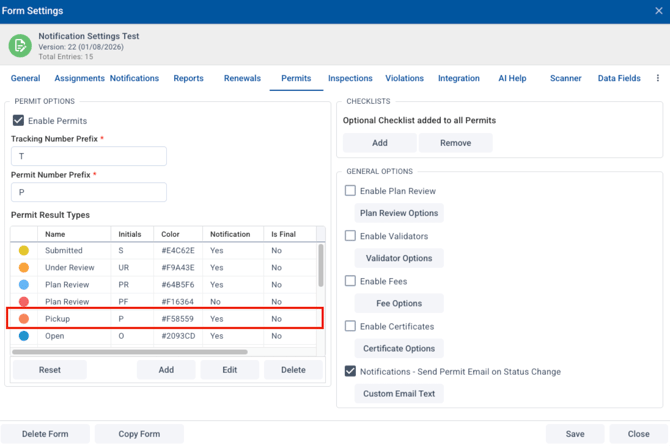
Find the specific status in the list (e.g., Payment) and click to edit it.
-
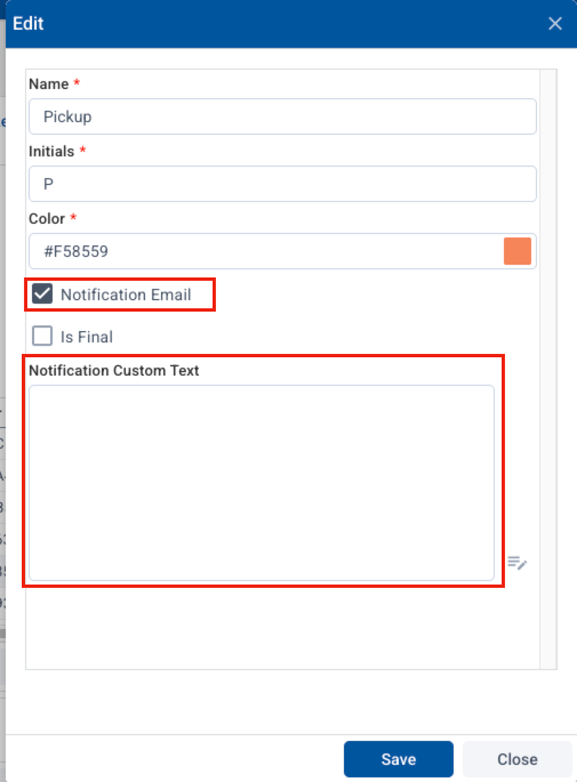
Ensure the Notification Email box is checked for that specific status.
-
Type your message into the Notification Custom Text box.
-
Note: This text will show up in addition to the general text you set in Step 3.
You can choose to send only a a general text message on status change (set up in Step 3) or specific status change messages (set up in Step 4). It is not required to have both.
This image shows an email received by an applicant with the two different custom text options: