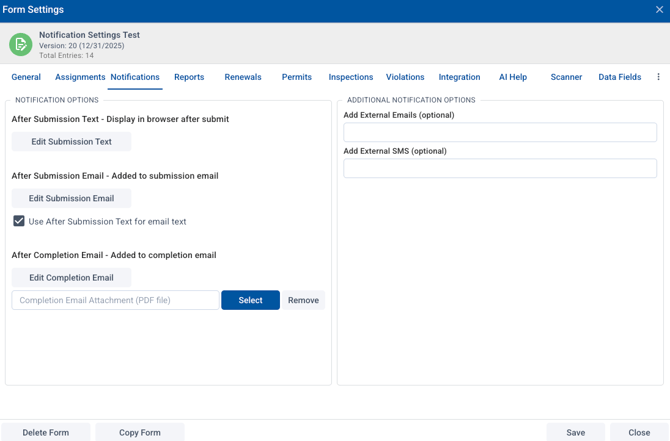
There are a few different options on notifying staff users about a permit.
1. Assigned User
The Assigned User is set up in the Form Designer in Settings / Assignments: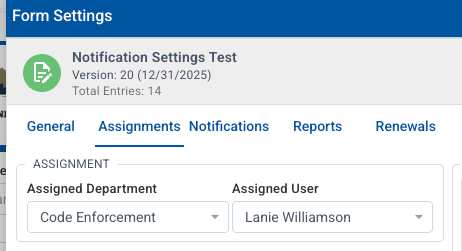
This is optional. The Assigned User will get an email notification when a new submission of this form/permit comes in.
Note that that person will need to enable Portal Request notifications in their account by choosing the avatar in the top right of the screen, then choosing account:
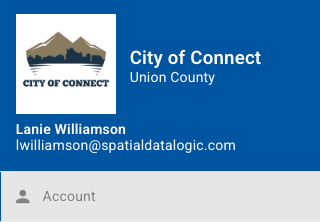
Choose Notifications on the next page, then verify that emails are on for Portal Requests:
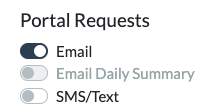
Assigned Users can also see permits/forms assigned to them in the Dashboard by choosing Assignments. They will need to choose Options and select their name:
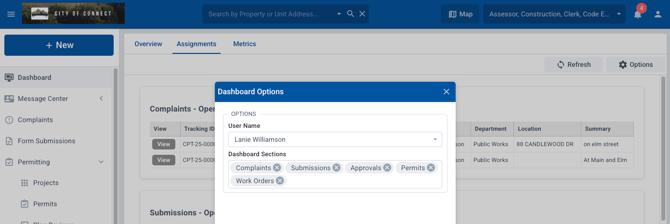
This will show all items assigned to them.
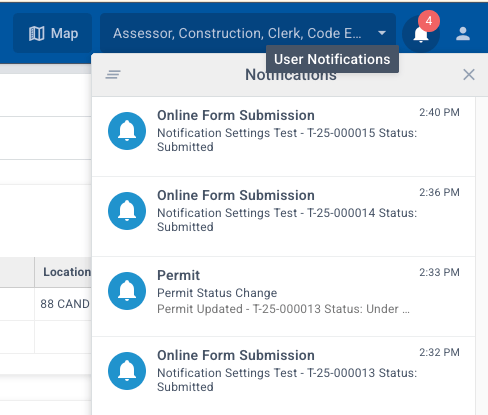
Finally, the bell icon on the top right will notify a user if a new submission has come in and is assigned to them:
Changing the Assigned User
You can change the Assigned User for a specific permit (in the General tab of the permit record), but it does not notify the new user of this change by email or by the bell icon. The new Assigned User will see their assigned permits in the dashboard under assignments.
2. Form Approvals
Anyone listed as a Form Approval will also be notified by email (if email notifications are turned on in their portal - see above) when a new submission is created. This is set up in the Form Designer under the Assignments tab: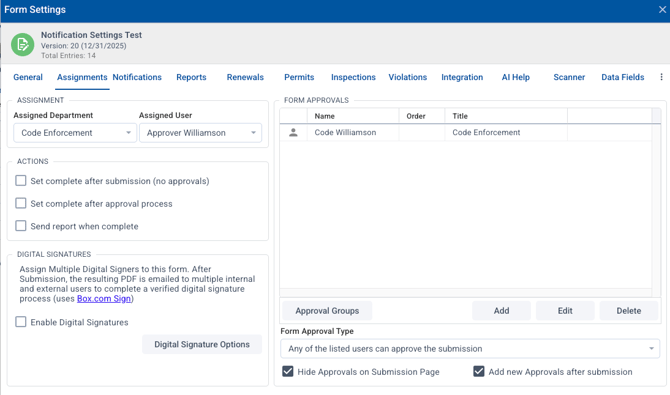
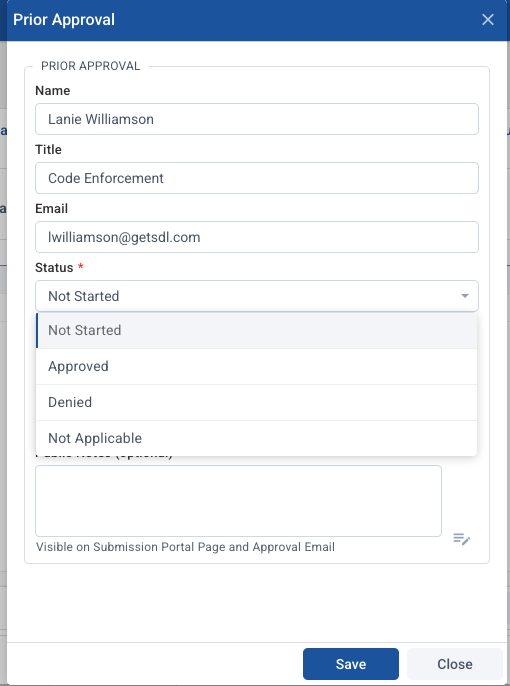
Users with approval responsibilities will need to go to the Approval tab on the permit submission, click their name:
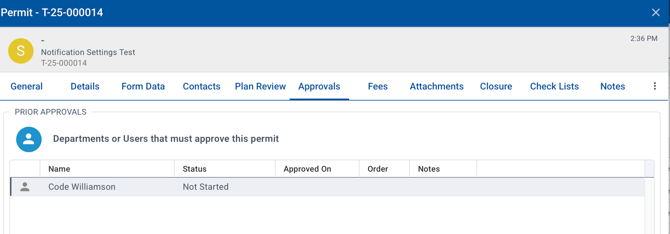
Then change the status as appropriate and save:
3. The last option for notification when a permit/form is submitted is using the external email notification. This is set up in the Form Designer in the Notification tab. Under "Add External Emails" you can add as many as needed. They will receive an email when a new permit/form is submitted.