Depending on your settings, applicants in Connect will see the status of a permit at the top of the portal page in a couple of places:
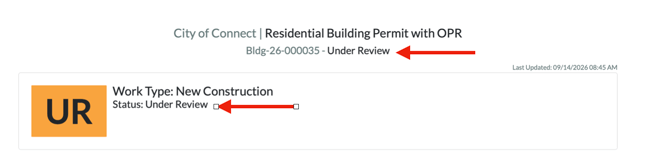
The timeline below shows which step the permit is at in the process.

By default, the Stepper Step defaults to the Automatic (by position) dropdown which will show the step based on the default system matches.
If you have custom statuses such as Pending or Approved, you can set up which timeline step you want them to show up for applicants. This can be done in the Form Designer / Settings / Permits / Permit Result Types. Open the status in question, then select which timeline step it show show as, using the "Stepper Step" dropdown then selecting Save:
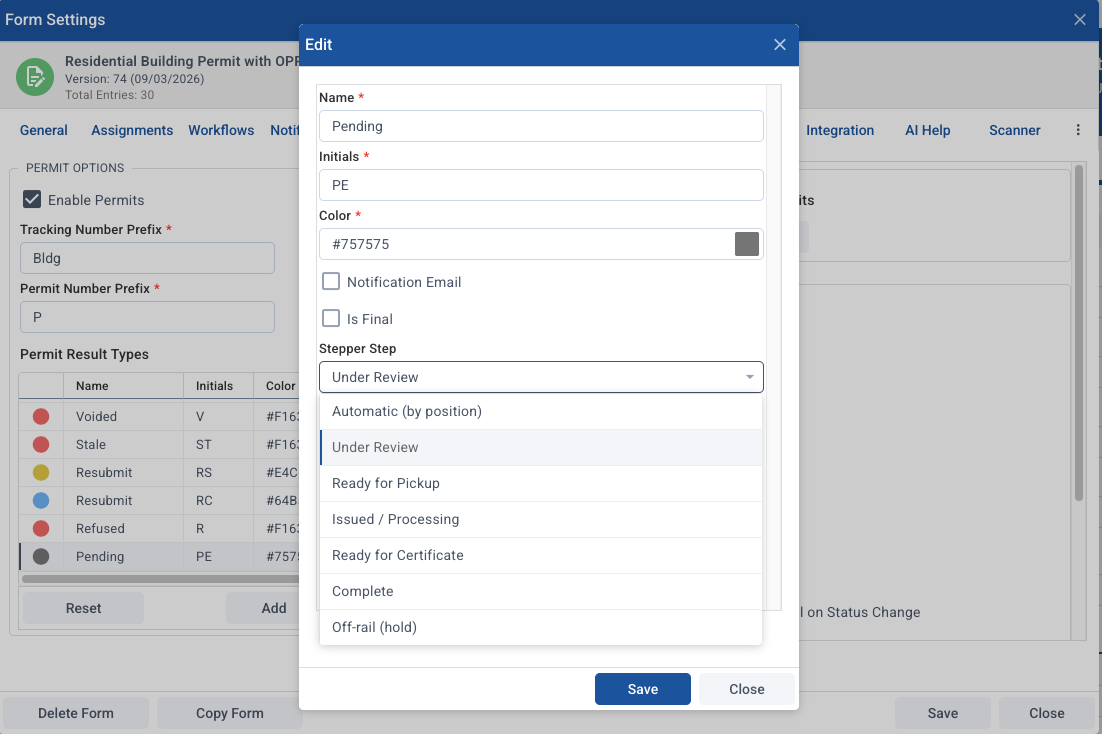
The option for "Off-Rail (hold)" will not have any of the steps selected in the timeline:

Reach out to our support team if you have further questions about this.