How to Approve Permit/Form Applications in SDL Connect
If you've been assigned a permit or form to approve in SDL Connect, this guide will walk you through the process step-by-step.
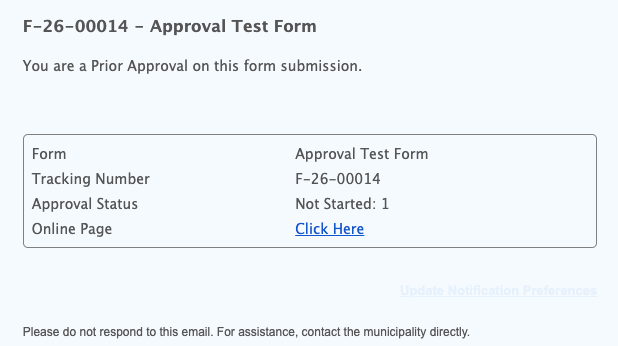
You will receive an email letting you know that an application needs your approval. The link provided by the "click here" option will take you to the online page for this approval (if you are already signed into Connect). Once on this page you can review or download information, but you will need to go the form submission to approve it.
Log In
First, Log in to SDL Connect.
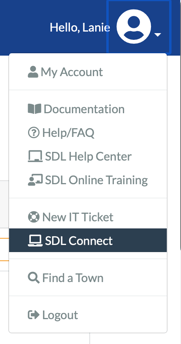
Access the Staff Portal: In the top-right corner, click on your avatar (user icon) and select SDL Connect from the dropdown menu.
Locate Application
Option 1: Using the "Assignments" Dashboard
-
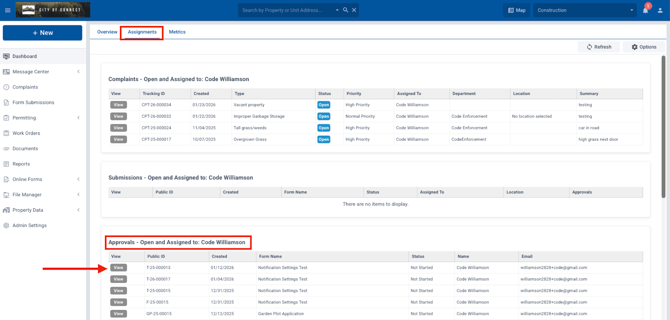
Go to Assignments: Click the Assignments tab located in the top-middle of the dashboard.
-
Find Your Approvals: Scroll down to the Approvals - Open and Assigned to [Your Name] section.
-
Tip: If you don't see your name, click Options at the top right of that section, select your name from the User Name dropdown, and click Save.
-
-
View the Permit: Click the View button next to the application you want to review.
Option 2: Searching for a Specific Permit
Use this method if you have a specific tracking number or address you need to look up quickly. You can copy the tracking/permit number from the email to do this.
-
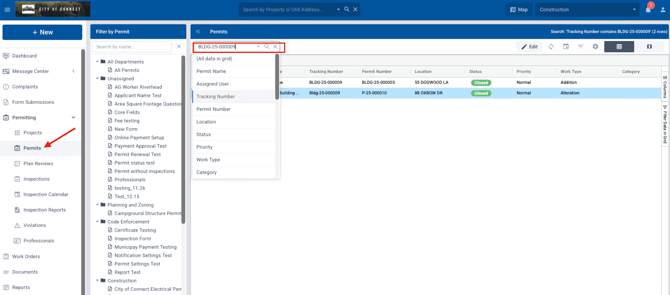
Go to the Permits Tab: On the left-hand sidebar, click Permits.
-
Search: Use the search bar at the top to enter the Permit Number or Tracking Number.
-
Tip: You can change your search criteria (e.g., search by Address or Name) by clicking the small dropdown arrow next to the search icon.
-
-
Open the Application: Once found, double-click the permit in the list.
Review and Enter Your Decision
Once you have the application open, review the information for it and enter your decision.
-
Review the Details:
-
General/Details Tabs: Review basic information and work descriptions.
-
Form Data Tab: See the actual form as it was submitted by the applicant.
-
Attachments Tab: Double-click any listed files to open and review them.
-
-
Enter Your Decision:
-
Click the Approvals tab.
-
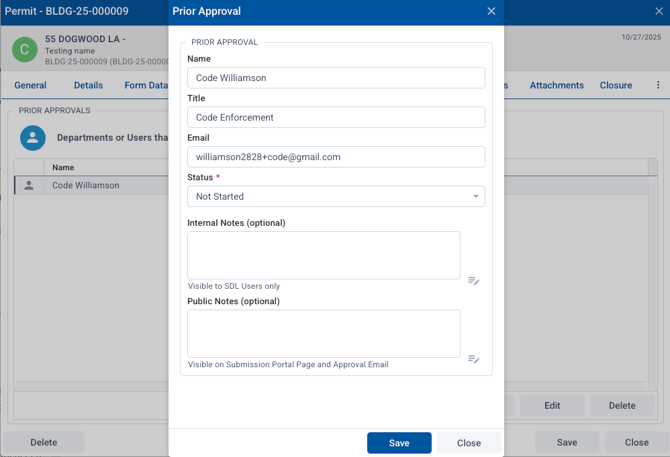
Double-click your name to open the decision box.
-
Optional: Add Internal Notes (visible only to staff) or Public Notes (visible to the applicant on the portal).
-
Select the appropriate Status: Approved, Denied, or Not Applicable.
-
-
Save Your Work: Click Save inside the decision box, then click Save again on the main permit window to finalize.
Watch these steps in the video below: