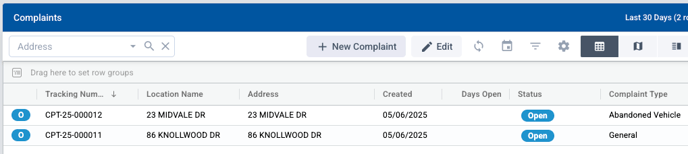
Once a complaint has been entered into SDL, these are the possible next steps. To work with a complaint, find the row in the Complaints data grid then double click on the line to open it.
Assign User
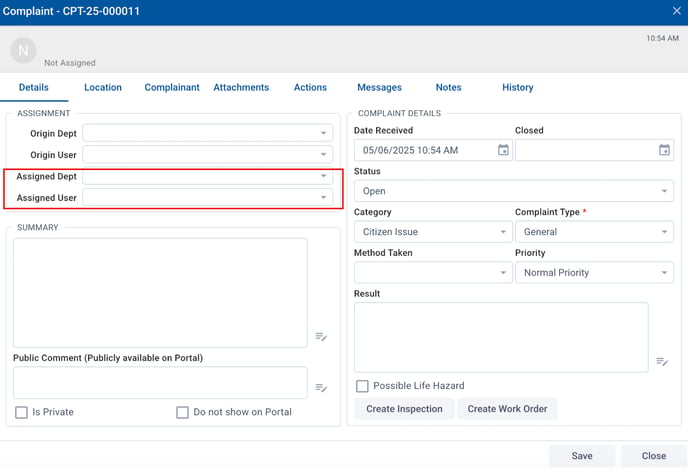
If the complaint has not already been assigned to someone, that needs to be done on the Details tab.
Add Notes
There are different places notes can be added within the complaint.
Public Comments
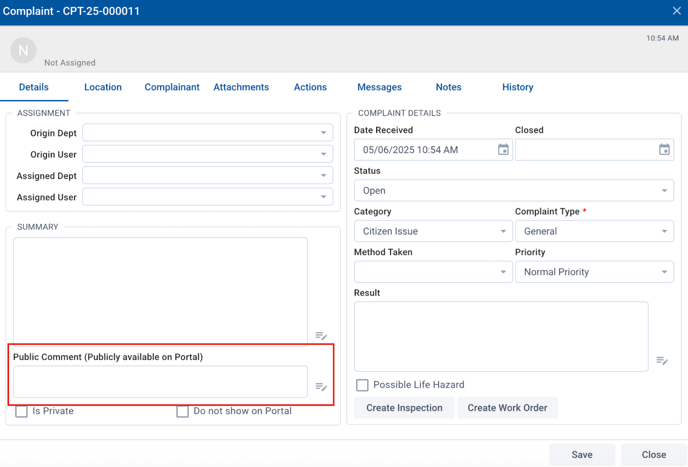
Anything added in the Public Comment section in the Details tab will be visible to the public.
Notes to Complainant
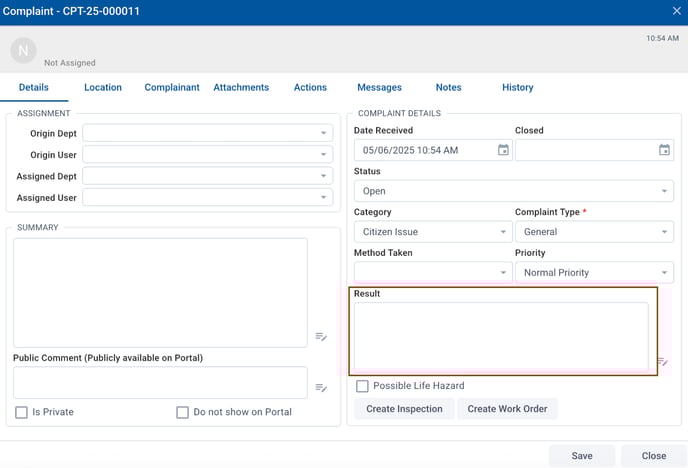
When the process is complete, to add a note to the complainant, enter that in the Result section on the Details tab.
Internal Notes
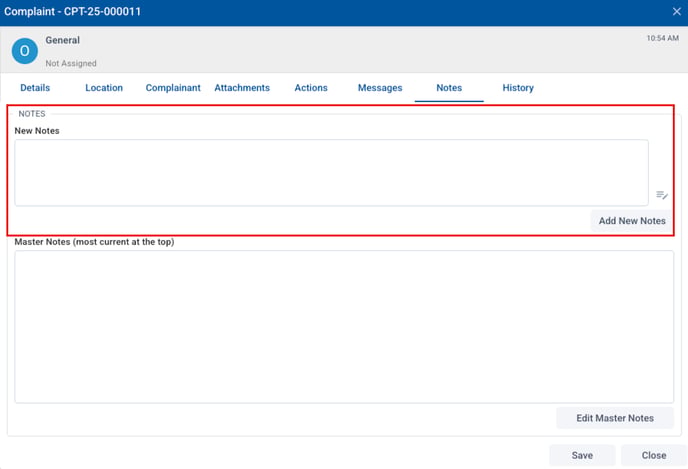
To track notes internally, open the Notes tab. To add new notes, type in the New Notes section, then click Add New Notes. The note will then be added to the top of the Master Notes list.
Create an Inspection
If the complaint results in an inspection (license required), there are two places you can begin that process.
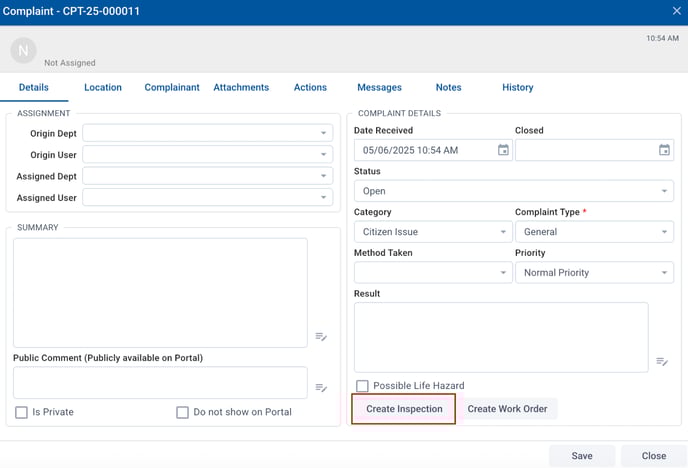
The first option is in the Details Tab. Choose Create Inspection at the bottom.
The second option is in the Actions Tab. Under the Inspections section, choose Add. 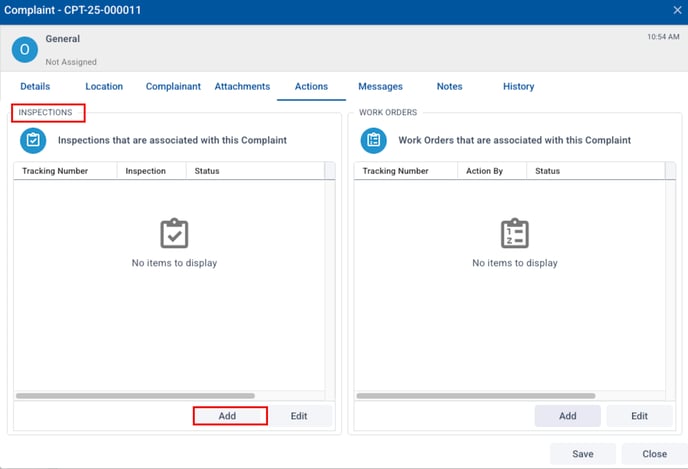
After clicking either of these options, the New Inspection pop up window will appear.
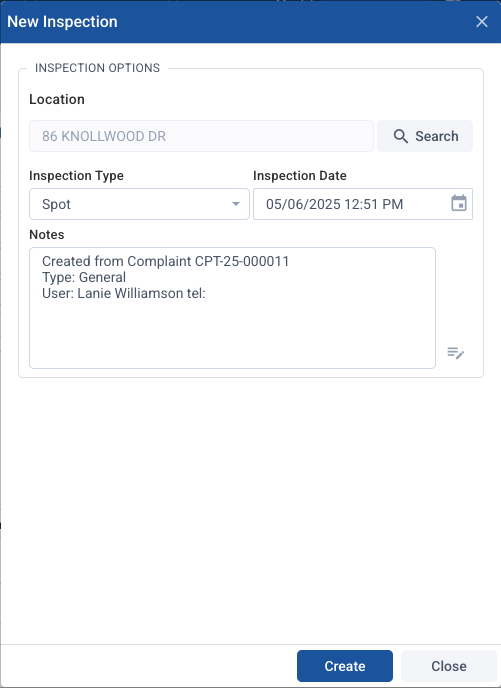
Choose the type of inspection, the date of the inspection and add any notes needed. Then click Create, which will open the Inspection window.
Inspection Tab
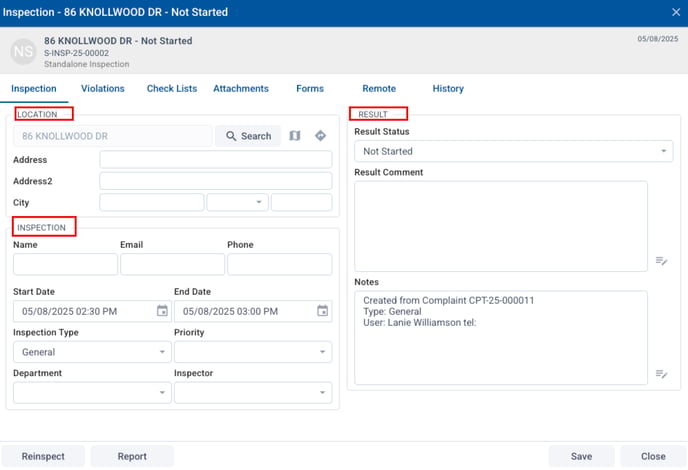
Location
This section should prepopulate with the proper location if you are linked to the property data. If not, you can complete this manually if needed.
Inspection
Name - The name associated with the property
Start Date - This will be the time the complaint was submitted unless it you want to change it manually
End date - This will be 30 minutes after the start date automatically
Inspection type - Choose the appropriate type
Priority - Choose the appropriate priority
Department and Inspector - Choose the department and inspector this inspection will be assigned to
Result
This will typically be completed by an inspector in the field on the SDL Mobile app. If not, it can be done here.
Result Status - Choose appropriate option such as Pass, Fail, etc.
Result Comment - Add any needed comments
Notes - Add any relevant internal notes
Violations Tab
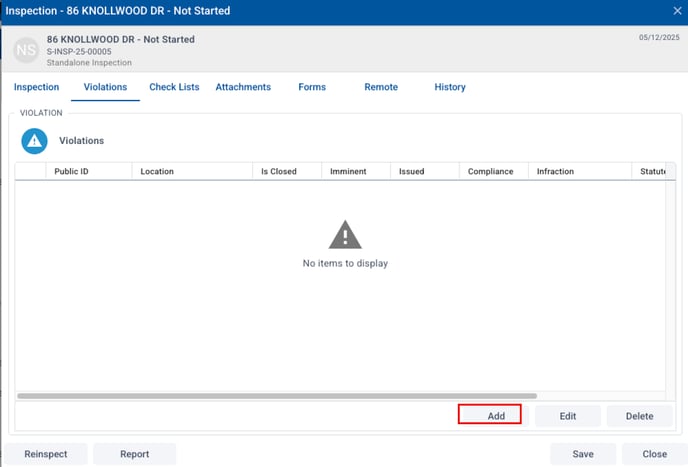
If there are violations associated with this inspection, this can be added here. This can also be done by the inspector during the inspection process.
Checklists Tab
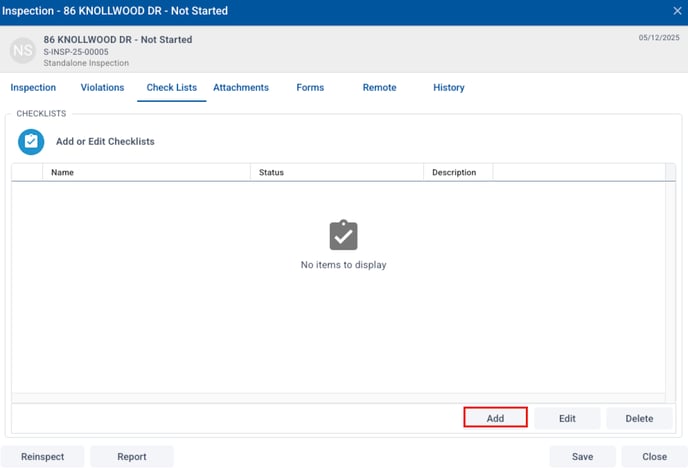
This tab allows you to add appropriate checklists (created in Admin Settings / Checklists with permission) to this inspection by clicking Add at the bottom.
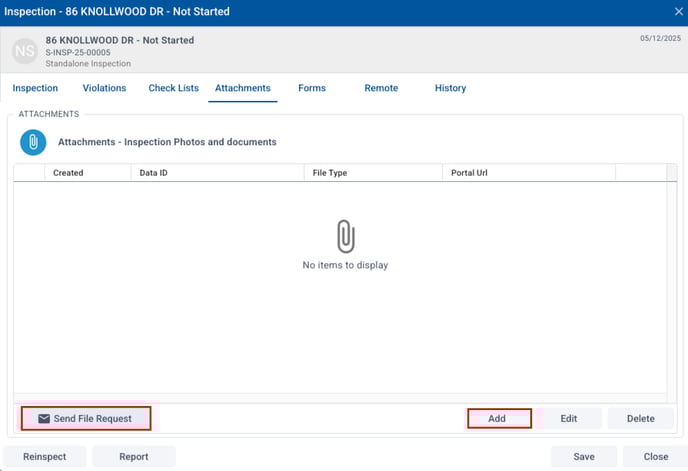
Attachments Tab
In this tab, you or the inspector can add any documents or photos relevant to this inspection by clicking Add at the bottom. Information can also be requested from the owner by clicking Send File Request.
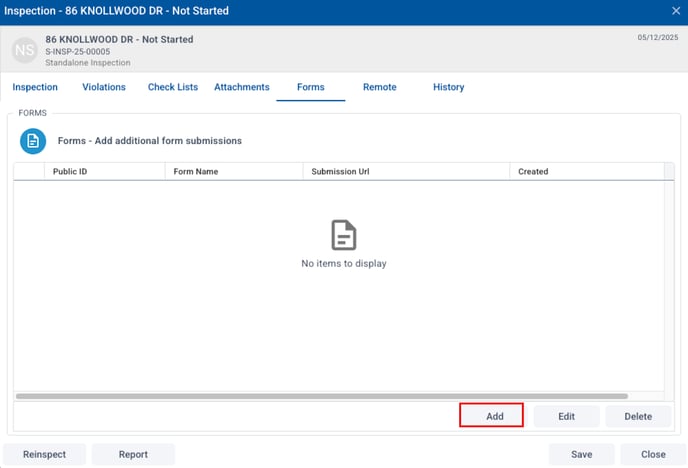
Forms Tab
If you or the inspector needs to request that the owner or agent completes an additional form, that can happen by choosing Add here and selecting from the available options.
Remote Inspections Tab
The Remote Inspections tab gives the inspector the option of working with the owner or agent to complete an inspection remotely, either in a supervised or unsupervised manner.
History Tab
The history tab lists all changes that have been made and by whom for this inspection.
Create a Work Order
If the complaint results in a work order, there are two places you can begin that process.
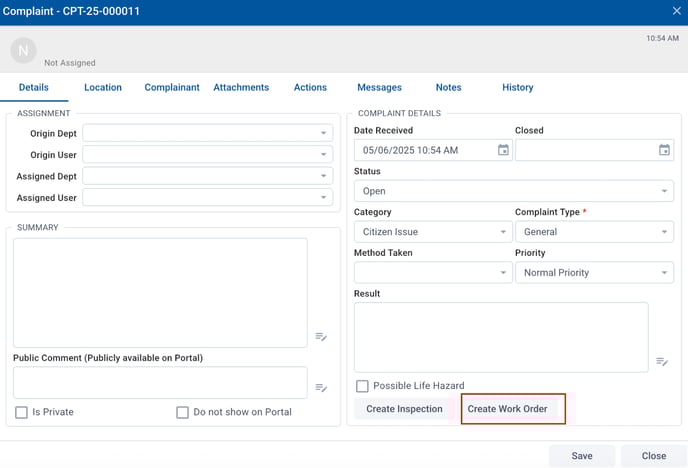
The first option is in the Details Tab. Choose Create Work Order at the bottom.
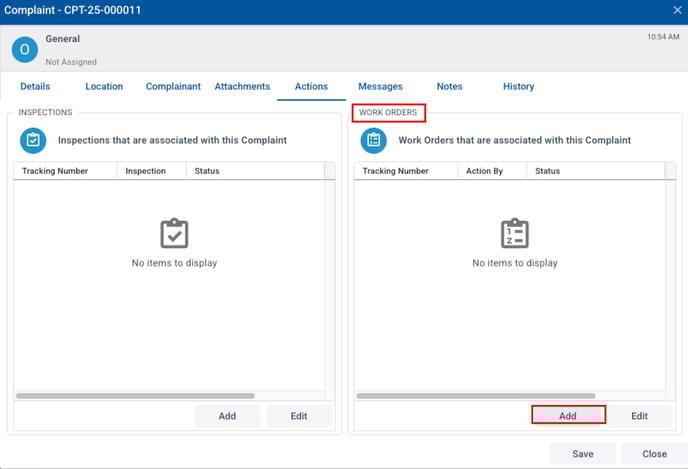
The second option is in the Actions Tab. Under the Work Orders section, choose Add.
The Work Order window then opens.
General Tab
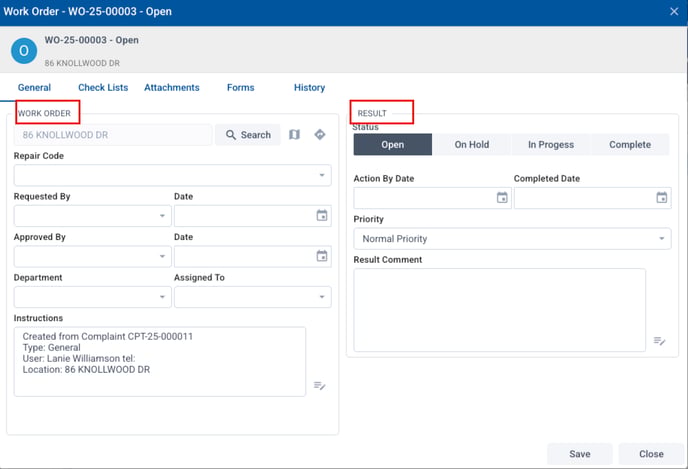
Work Order
The property location should carry over from the complaint record.
Repair Code - Choose the most appropriate code from the dropdown
Requested by - Choose the requestor’s name from the dropdown
Date - Enter the date of the request
Approved by - Leave this for the approver to complete
Date - Enter the date of the approval
Department - Choose the department from the dropdown
Assigned to - Choose the assignee from the dropdown, or leave this for the approver to complete
Instructions - Add to these notes if needed
Result
This will be completed by the assignee usually in the SDL Mobile app, but it can also be completed here.
Status - Choose the appropriate status
- When a Word Order is started from a complaint, setting the Work Order status to Complete will give the user the option to mark the complaint as resolved. This should be done when the work order resolves the complaint to expedite the resolution process and communication.
Action By Date - Choose the date this needs to be completed
Completed Date - Choose the date this is completed
Priority - Choose the appropriate priority
Result Comment - Add any notes regarding the status after work is completed
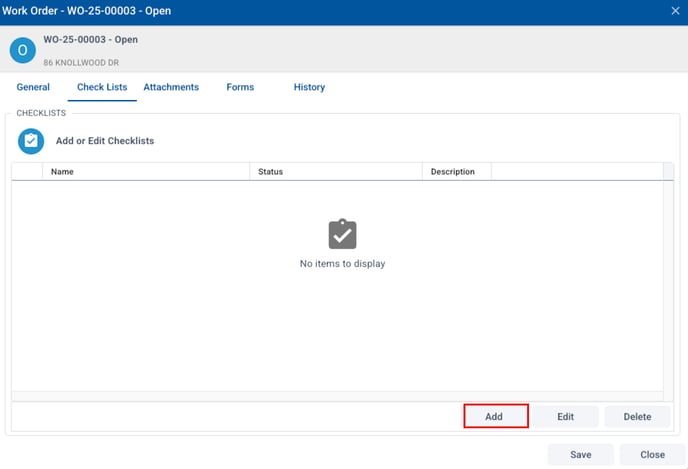
Checklists Tab
This tab allows you to add appropriate checklists (created in Admin Settings / Checklists with permission) to this work order by clicking Add at the bottom.
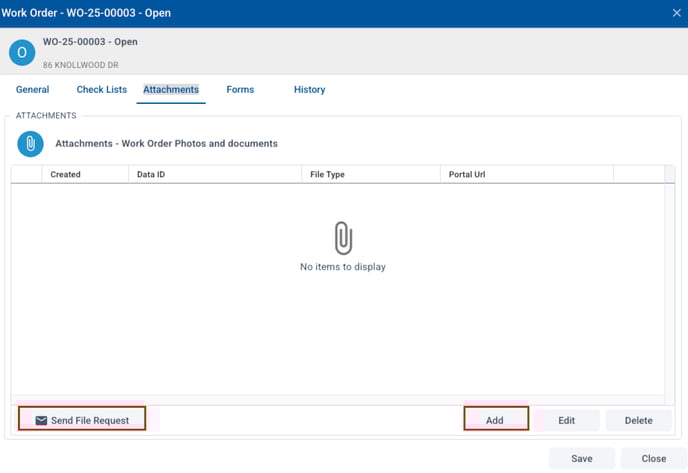
Attachments Tab
In this tab, you or the assignee can add any documents or photos relevant to this work order by clicking Add at the bottom. Information can also be requested from the owner by clicking Send File Request.
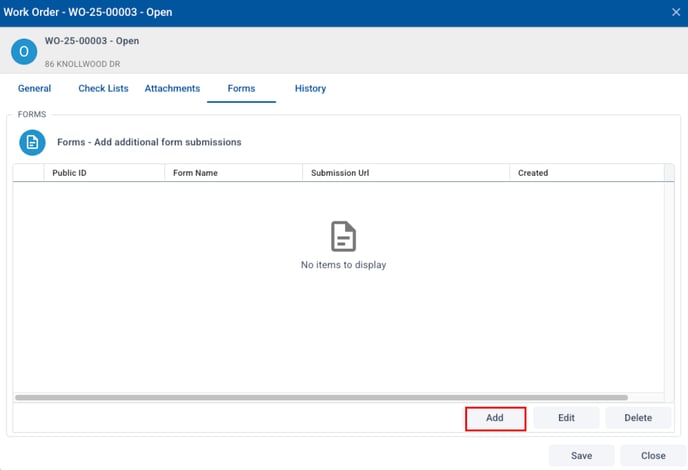
Forms Tab
If you or the assignee needs to request that the owner or agent completes an additional form, that can happen by choosing Add here and selecting from the available options.
History Tab
The history tab lists all changes that have been made and by whom for this work order.
Closing the Complaint
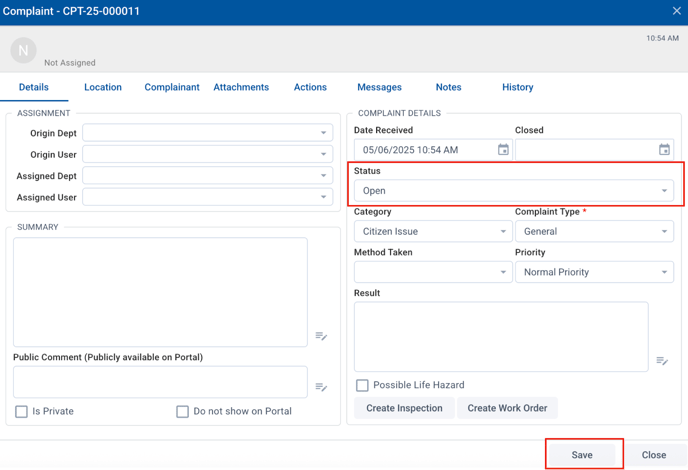
Once all associated work - inspections or work orders - have been completed, the complaint can be closed. In the Details tab, choose the status option and change it to Completed. Then choose Save at the bottom. This will resolve the complaint.