Fee Library
The Fee Library simplifies the fee selection and management process by providing a list of predefined fees that can be quickly applied to any permit form. You can add, edit, or delete fees within the library and customize them based on specific permit requirements. This feature streamlines the fee configuration process, making it more efficient and less error-prone.
Fees in the Fee Library are managed in the Administration section.
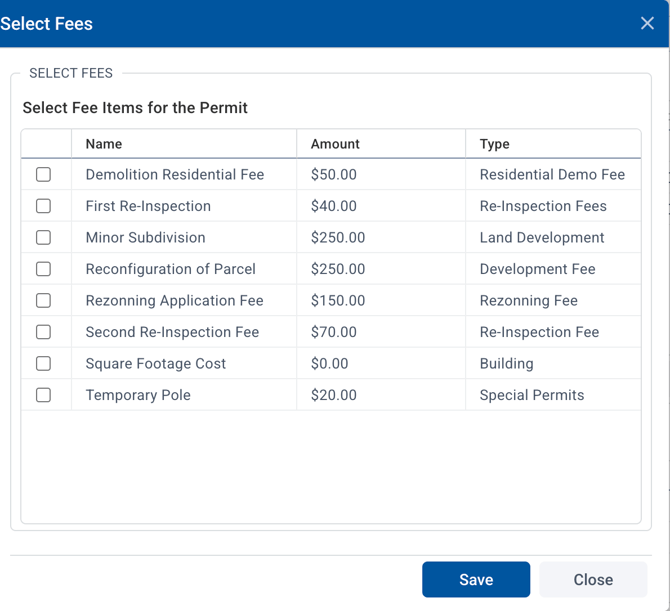
The image above shows a list of available fees from the Fee Library that can be applied to a particular permit.
1. Selecting Fees from the Fee Library
When configuring a form, you can use the Fee Library to select the fees you want to apply to the permit.
- Step 1: Click on the Fee Library button in the Fee settings or form configuration.
- Step 2: The Select Fee Items for the Permit window will open, displaying a list of available fees.
- Step 3: From this list, you can choose fees by checking the checkboxes next to each fee item you wish to apply to the permit.
Example:
- Demolition Residential Fee: $50.00
- Minor Subdivision: $250.00
- First Re-Inspection: $40.00
- Zoning Hearing: $50.00
- Demolition Residential Fee: $50.00
- The amount for each fee is listed next to the name of the fee, and each fee is categorized based on its type (e.g., Re-Inspection Fees, Land Development, Special Permits).
2. How the Fees Are Applied
Once the fees are selected, they are automatically applied to the permit. Here's how they work:
- Simple Fees: These are the fixed fees associated with specific actions (e.g., Re-Inspection Fees, Development Fees). They will be added directly to the permit total.
- Optional or Custom Fees: Some fees may be optional or based on specific criteria (e.g., Square Footage Cost may be $0.00 but could be used to trigger a dynamic fee based on square footage).
3. Customizing Fees Using the Fee Library
The Fee Library allows you to modify or create custom fees if needed:
- Step 1: To add a new fee, click the Add button in the Fee Library.
- Step 2: Enter the Fee Name, Amount, and select the Fee Type. Fill out the required fields needed for the specific fee type.
- Step 3: Save the new fee and it will appear in the Select Fee Items list for you to use in future permits.
- Edit Existing Fees: You can edit an existing fee by clicking on the Edit button next to the fee in the Fee Library.
- Delete Fees: To remove a fee from the list, click the Delete button. This will prevent the fee from being used in future permit submissions.
Example Fee Library Item:
A Zoning Hearing may be applicable to five different permit types based on an application submission. When a hearing is required, there is a $50 fee. This may be an internal field that is updated during the permit review process.
Rather than adding the same Zoning Hearing fee individually to all five permits, a fee is added to the Fee Library. This allows the fee to apply to all five applications, as well as others that may require it in the future.
This reduces the number of times the same fee is created for individual permits. If the fee amount changes from $50 to $75 it only has to be updated in one location, the Fee Library, rather than in five different permits.
Fee Name: Zoning Hearing, which uses the zoneHearingNeeded DataID to activate the fee.
The fee is only activated when the value of the Zoning Hearing Needed internal field = Yes.
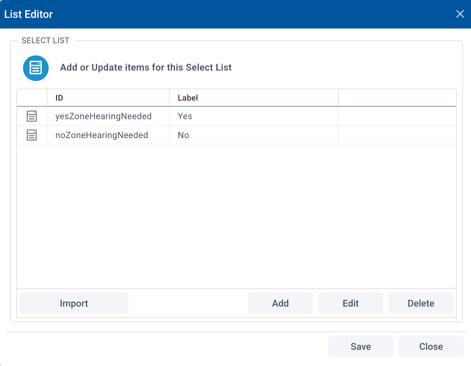
DataID zoneHearingNeeded must Equal yesZoneHearingNeeded
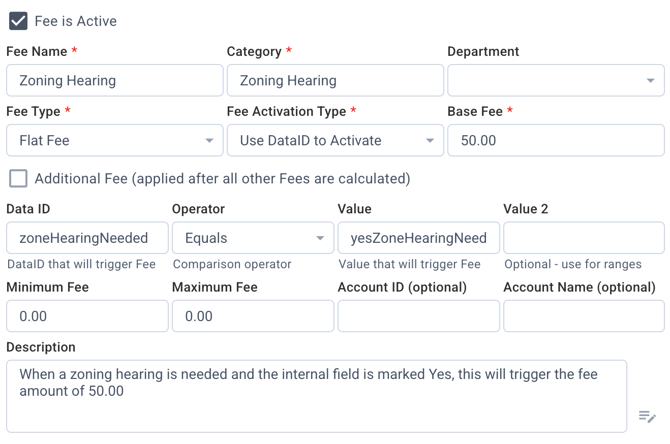
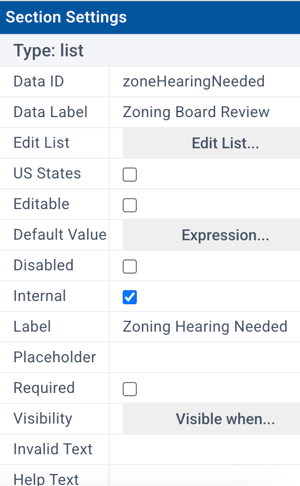
- This means the Zoning Hearing Needed field must be present on all five forms and have the same DataId that is used in the Fee Library.
- Each of the list item options in the drop down for Zoning Hearing Needed field must have the same DataIDs.
- When the Zoning Hearing Needed field is set to “Yes” the fee will be activated and added the Fees tab on the permit.

|
|

|
|
|
|