These are the steps to follow for town staff to record a complaint that might be initiated by phone, email, in person, or at the request of another department and/or administration.
Initiate a Complaint
Choose new complaint from either of the “New” options:

That will open up a complaint record in a pop-up to be completed.
Complete the Complaint Form
Details Tab
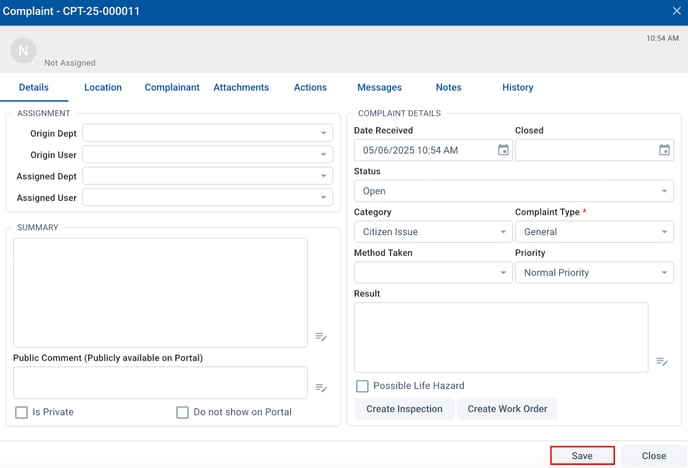
The first tab that comes up is the Details tab:
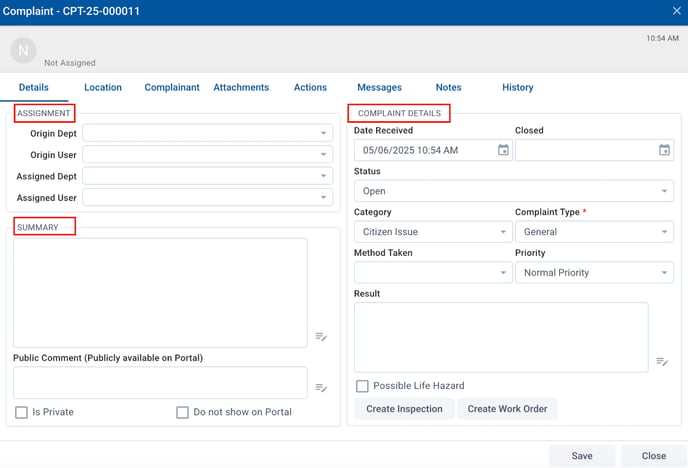
Enter the fields on this page as needed:
Assignment
- Origin Dept / User: enter the department and user (select from a dropdown) that received the complaint.
- Assigned Dept / User: choose the department and user (select from a dropdown) that will be assigned the complaint.
Summary
- Summary: Add internal notes about the complaint, if needed
- Public Comment: Add a response that would be publicly visible, if needed
- Is Private: Checking this would prevent this complaint from showing publicly on the portal, if your settings allow that
- Do Not Show on Portal: Checking this would prevent this complaint from showing to logged in portal users, if your settings allow that
Complaint Details
- Date received: Automatically entered as today’s date but you can manually change if needed
- Closed: This date will be filled in after the status is marked complete
- Status: Automatically marked as Open
- Category: Choose the category that best fits this complaint
- Complaint type: (required) Choose the type of complaint
- Method taken: Select how the complaint came in
- Priority: Defaults to normal priority, change if needed
- Result: Leave blank when creating the complaint
- Possible Life Hazard: Check this if this complaint needs to be flagged as a possible life hazard
- Create Inspection: To create an inspection based on this complaint, click here (license required)
- Create Work Order: To create a work order from this complaint, click here (license required)
Location Tab
The second tab is the Location Tab.
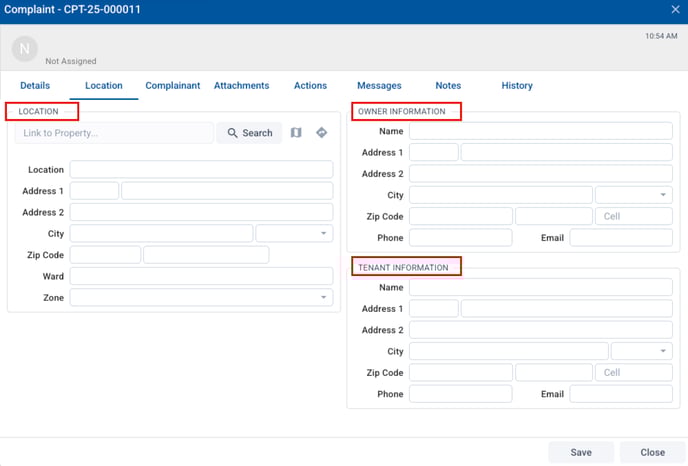
Location
In the location section, you can click search to search by address and select the property from your linked property data. If your map data is not linked or the address cannot be found, it can be manually entered in this section.
Owner Information
If the property is linked, the owner information will be supplied from the map data. If not, it can be manually entered here.
Tenant Information
If relevant, the tenant details can be entered here.
Complainant Tab
The complainant tab documents the person reporting the issue.
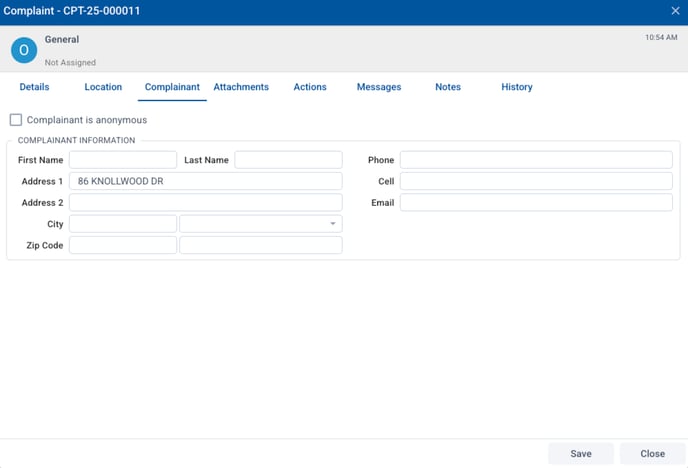
Complainant is anonymous: Check this if the complainant wishes to remain anonymous.
Complainant Information
Complete the name, address, and contact details for the complainant if known.
Actions Tab
The actions tab allows you to start an inspection or work order.
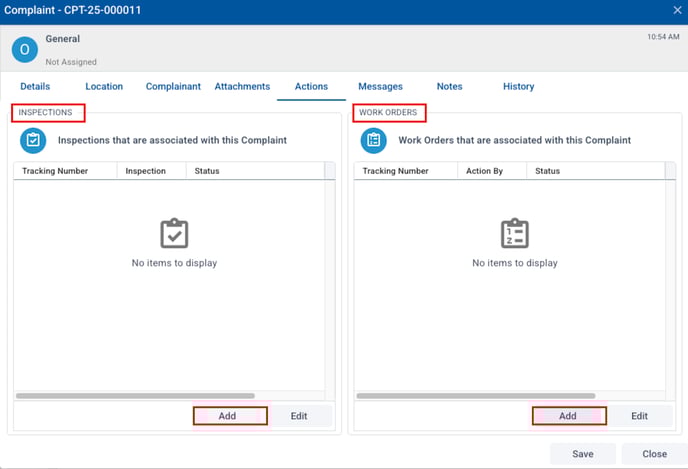
The Actions tab allows you to add and track inspections (license required) and work orders (license required) created from this complaint. In each section, choose Add to create a new one.
Notes Tab
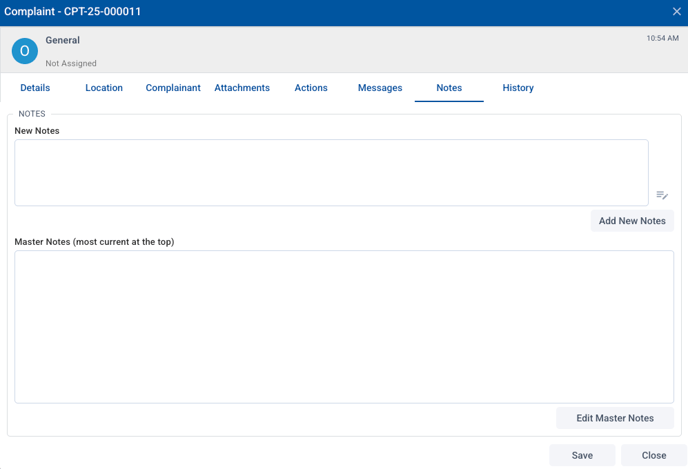
The Notes Tab allows you to track notes about this complaint internally. To add new notes, type in the New Notes section, then click Add New Notes. The note will then be added to the top of the Master Notes list.
Save
Once the data has been entered, click Save at the bottom of any tab to save and create the complaint record.
Attachments Tab
Once the record has been created, you can upload any relevant files on the Attachments tab.
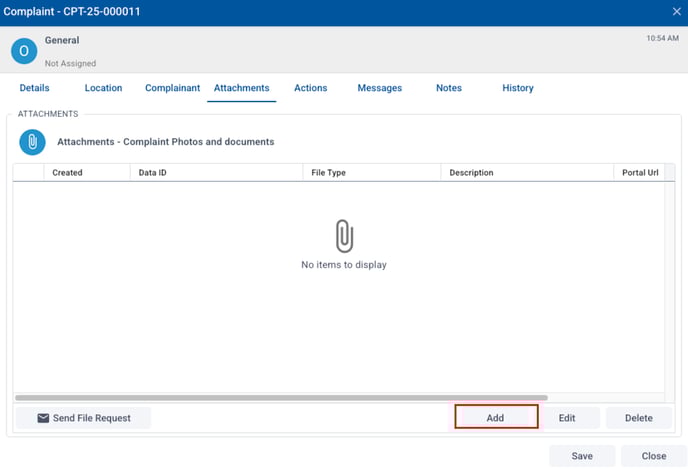
To add files, such as a document or a photo, choose add.