![SDL - 2025 New Logo.png]](https://help.getsdl.com/hs-fs/hubfs/SDL%20-%202025%20New%20Logo.png?height=40&name=SDL%20-%202025%20New%20Logo.png)
Overview
Complaint types categorize the different issues your department handles, such as property maintenance requests, tall grass, or noise complaints. By setting these up, you control exactly what options your staff and citizens can choose from when submitting a new complaint.
This article walks you through managing complaint types in SDL Desktop—where to go and what you can change. You can add new complaint categories, set default inspectors, route automated email notifications, and decide which complaints are visible on your public-facing portal.
Getting Started
-
Make sure you have administrative access.
-
Know which department the complaint belongs to.
-
Have a list of users who should receive email notifications or be assigned as the default user.
Step-by-Step Instructions
-
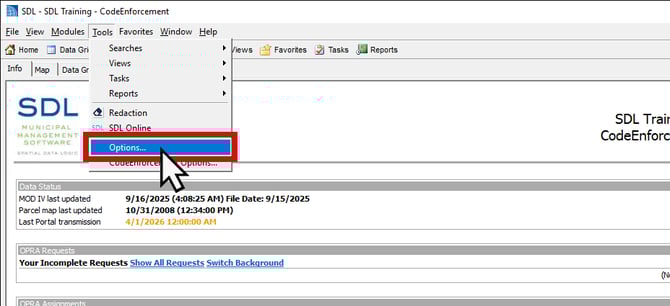
Click the Tools menu and click Options...
-
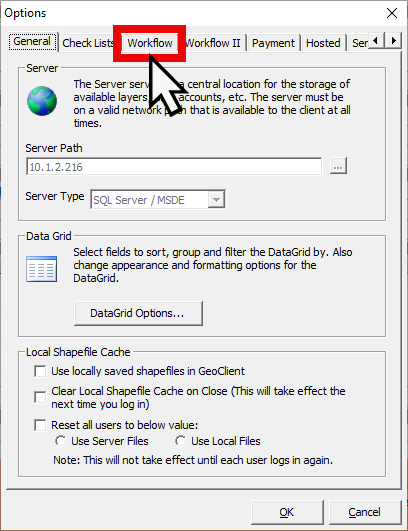
Click the Workflow tab.
-
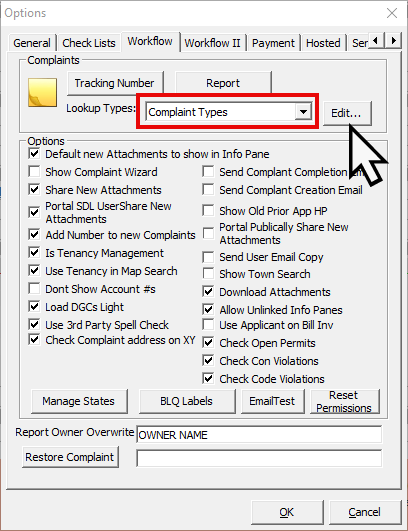
In the Options window, select Complaint Types in the Lookup Types drop-down (this may already be selected by default), and click the Edit… button.
-
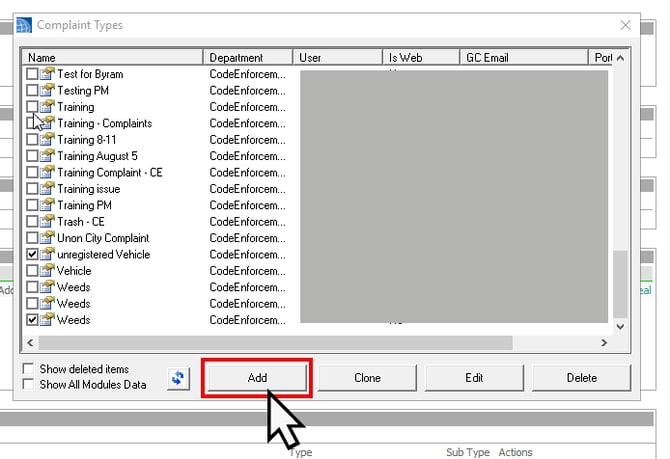
In the Complaint Types window, click the Add button to create a new complaint type.
-
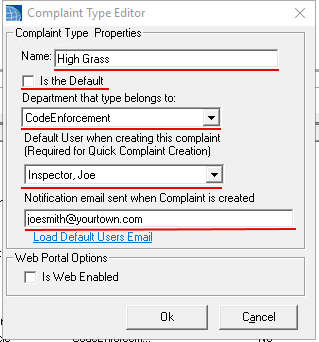
Update the details for your new complaint:
-
Name: Enter the official title (e.g., "High Grass").
-
Is the Default checkbox: Check this box to make this complaint type the pre-selected option when staff create a new complaint in this department.
-
Department: Select the appropriate department from the dropdown.
-
Default Assigned User: Select a specific inspector or clerk if you want these complaints automatically routed to them.
-
Notification Email: Enter an email address if a specific person or shared inbox should receive an alert when this complaint is created. Or, click “Load Default Users Email” to automatically fill in the email of the user you assigned. Tip: You can add multiple emails by separating them with a comma.
-
-
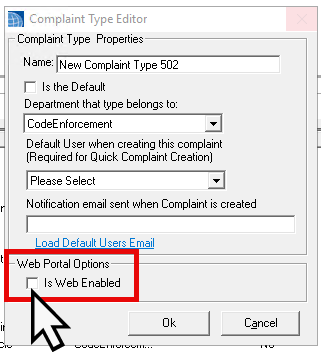
Is Web Enabled: Check this box if you want this complaint type to show up on your public portal for citizens to use. Leave it unchecked if it is strictly for internal staff use.
-
Click OK to save the new Complaint Type to your system.
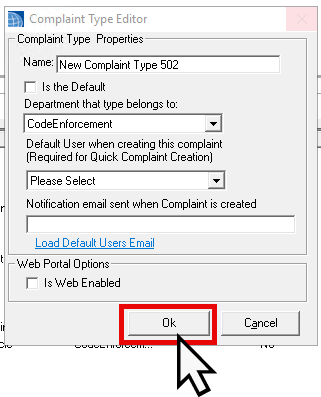
That’s it! The new complaint type is now saved and will immediately appear as an option for staff and citizens to select when logging a new issue.
📝Note on Complaint Type Visibility
When you are looking at the list of complaint types, the view is customized based on the module you are currently using.
-
Adding New Types: You can add a new complaint type for any department at any time. When you click Add, just use the Department dropdown menu to assign it to the correct area.
-
Editing Existing Types: To edit an existing complaint, you must be in that department's specific module (for example, you can only edit Code Enforcement types while in the Code Enforcement module). If you don't see the type you're looking for, try switching modules at the top of your screen.
Save these Quick Steps
-
Open Options — Go to Tools > Options...
-
Navigate — Click the Workflow tab > Select Complaint Types > Edit.
-
Add — Click the Add button.
-
Details — Enter the Name, Department, and Default Assigned User.
-
Settings — Add a Notification Email and check Web Enabled if you want it on the public portal.
-
Save — Click OK.
✅ The complaint type is now saved and available for staff (and citizens, if web-enabled) to select when logging a new issue.